
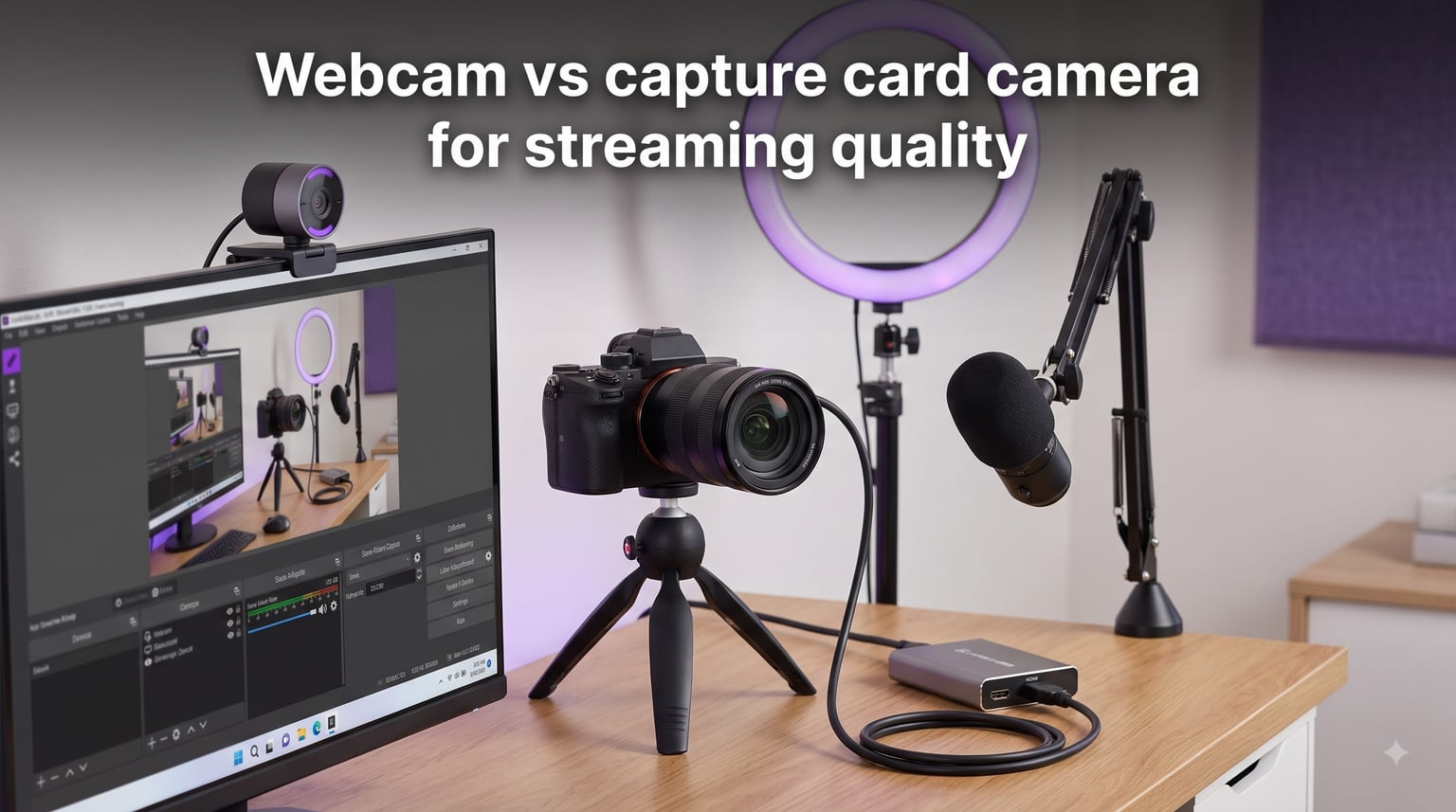
If you are setting up a streaming channel, one of the biggest decisions you will face is whether to use a USB webcam or pair a dedicated camera with a capture card. The webcam vs capture card for streaming debate has been running for years, and the right answer depends on your setup, budget, and quality expectations.
Both approaches get your face on screen, but they work in fundamentally different ways. A webcam is a self-contained device with its own sensor, lens, and compression built in. A capture card, on the other hand, acts as a bridge between a higher-quality camera and your computer.
In this guide, our team breaks down exactly how each option works, compares image quality, latency, and setup complexity, and helps you decide which path fits your streaming goals for 2026.
Table of Contents
- What Is a Webcam and How Does It Work for Streaming?
- What Is a Capture Card and How Does It Work for Streaming
- Webcam vs Capture Card: Image Quality Comparison
- Latency Differences and Real-World Streaming Impact
- Setup Complexity and Requirements
- Cost Considerations Across Setup Types
- Best Use Cases for Webcams vs Capture Cards
- Which Option Should You Choose for Streaming
- Frequently Asked Questions
What Is a Webcam and How Does It Work for Streaming?
A webcam is an all-in-one camera designed to connect directly to your computer via USB. It handles image capture, processing, and compression internally, then sends the finished video signal to your streaming software.
Most webcams are plug-and-play, meaning OBS, Streamlabs, and other streaming software recognize them instantly without extra drivers. You plug it in, select it as your video source, and you are ready to go.
Typical webcam specifications include 1080p resolution at 30 or 60 frames per second, a fixed or minimally adjustable lens, and a small image sensor. The sensor size matters because it directly affects low-light performance, dynamic range, and depth of field.
Popular streaming webcams include the Logitech C922, Logitech Brio, and Razer Kiyo. These devices typically cost between $50 and $200 and require zero additional hardware to start streaming.
The trade-off is that webcam image quality is limited by the small sensor and built-in lens. You get convenience and simplicity, but you sacrifice the cinematic look that larger sensors and interchangeable lenses provide.
How Webcams Process Video Internally
Inside a webcam, light hits a small CMOS sensor, gets processed by an embedded chip, and is compressed into a format like H.264 or MJPEG before being sent over USB. This means the camera makes processing decisions before the signal ever reaches your streaming software.
This built-in processing keeps things simple but limits your control. You cannot change the lens, and adjusting exposure or color settings usually means relying on whatever software the manufacturer provides rather than full manual control.
What Is a Capture Card and How Does It Work for Streaming
A capture card is a hardware device that takes a video signal from an external source and converts it into a format your computer can use for streaming or recording. When paired with a camera, it lets you use a DSLR, mirrorless camera, or camcorder as your streaming camera.
Here is how the workflow looks: your camera outputs a clean HDMI signal, that cable connects to the capture card’s HDMI input, and the capture card sends the digitized video to your computer over USB or a PCIe slot.
There are two main types of capture cards. External capture cards are small USB devices you plug in on your desk. Internal capture cards install directly into a PCIe slot on your motherboard and typically offer lower latency and higher bandwidth.
Both types do the same core job, but internal cards generally handle higher resolutions and frame rates with less compression overhead.
HDMI Passthrough and Why It Matters
Many capture cards include HDMI passthrough, which sends the raw video signal to a monitor with zero latency while simultaneously feeding the captured signal to your computer. This is especially useful for console gamers who need to play without lag while the capture card handles the stream feed.
Passthrough lets you monitor your game or camera feed in real time without any processing delay affecting your gameplay.
Capture Cards Are Not Just for Cameras
Capture cards are essential for console streaming. If you play on PlayStation, Xbox, or Nintendo Switch and want to stream from a PC using OBS, you need a capture card to bring the console’s video output into your computer.
This is one of the most common reasons streamers buy a capture card, and it has nothing to do with camera quality at all.
Webcam vs Capture Card: Image Quality Comparison
When it comes to raw image quality, a capture card paired with a good camera wins decisively. A mirrorless camera or DSLR has a sensor many times larger than a webcam sensor, which means better low-light performance, shallower depth of field, and richer color reproduction.
The difference is immediately visible. A camera feeding through a capture card produces a sharper, more professional-looking image with natural background blur and accurate skin tones. Webcams tend to look flat and grainy by comparison, especially in less-than-ideal lighting.
That said, webcams have improved significantly in recent years. High-end models can produce respectable 1080p 60fps video that looks good in well-lit rooms. The gap narrows when you have excellent lighting, but the capture card setup still pulls ahead in dynamic range and fine detail.
Sensor Size and Why It Changes Everything
A typical webcam sensor is around 1/2.8 inch or smaller. A mirrorless camera sensor might be APS-C or full-frame, which is 10 to 30 times larger by surface area. Larger sensors capture more light, produce less noise, and create that sought-after blurred background effect naturally.
This is the single biggest reason a capture card setup produces better-looking streams. The capture card itself does not improve quality. The camera does. The card just gets the signal to your computer.
Latency Differences and Real-World Streaming Impact
Latency is one of the most misunderstood aspects of the webcam vs capture card conversation. Webcams typically have very low latency because the USB signal travels a short distance and the processing is minimal.
Capture cards introduce a small amount of latency because the HDMI signal must be digitized and compressed before reaching your computer. External USB capture cards usually add 10 to 50 milliseconds of delay, while internal PCIe cards can keep it under 10 milliseconds.
For facecam streaming, this latency is not noticeable to viewers. Your face being a few milliseconds behind the gameplay audio is imperceptible. Where latency matters is when you are capturing gameplay footage, particularly from a console.
When Latency Actually Matters
If you are streaming PC games from the same computer, you do not need a capture card at all. OBS captures the game directly from your GPU with near-zero latency. Adding a capture card to a single-PC streaming setup does nothing to improve quality.
Capture cards are necessary for console streaming, dual-PC setups, and when using an external camera as your facecam. In those cases, the small latency penalty is worth it for the quality and flexibility you gain.
Setup Complexity and Requirements
A webcam is about as simple as streaming hardware gets. You plug it into a USB port, select it in OBS, and start streaming. There are no drivers to install on modern operating systems and no extra cables to manage.
A capture card setup is noticeably more complex. You need the capture card itself, a camera with clean HDMI output, an HDMI cable, and potentially a power source for the camera. You also need to configure the capture card in your streaming software and manage drivers or firmware updates.
What You Need for a Webcam Setup
A webcam, a USB port, and good lighting. That is the complete list. Most streamers add a boom arm or small tripod for positioning, but the core setup is a single cable.
What You Need for a Capture Card Setup
A camera with clean HDMI output, the capture card, an HDMI cable, a USB cable or PCIe slot, a power supply for the camera (or a dummy battery), and potentially a lens. You also need to verify OBS compatibility and configure resolution, frame rate, and color settings.
This is why many streamers start with a webcam and upgrade to a capture card setup later. The jump in complexity is real, and it requires research to get right.
OBS Integration
Both webcams and capture cards work well with OBS. Webcams appear as standard video capture devices, while capture cards show up as Video Capture Device sources in OBS once connected. The configuration process is similar, though capture cards may require you to set resolution and frame rate manually to avoid dropped frames.
Cost Considerations Across Setup Types
A good streaming webcam costs between $50 and $200. That is your total camera investment, and it includes everything you need to start streaming immediately.
A capture card setup is more expensive when you factor in all the components. A decent capture card runs $100 to $250, the camera it connects to can cost anywhere from $400 for an entry-level mirrorless to $2,000 or more for a professional body, and you may need additional cables, a dummy battery, and a lens.
Here is a rough breakdown by setup tier:
Budget webcam streamer: $50 to $100 for a webcam. No capture card needed.
Mid-range webcam streamer: $100 to $200 for a higher-end webcam. Still no capture card.
Entry-level capture card setup: $100 to $150 for the card, plus a used mirrorless camera around $400 to $600. Total: $500 to $750.
Professional capture card setup: $200 to $250 for an internal card, plus a $1,000 to $2,000 camera, lens, dummy battery, and accessories. Total: $1,500 to $3,000 or more.
The cost-to-quality ratio favors webcams heavily for beginners. You get 70 to 80 percent of the visual quality for a fraction of the cost. The capture card setup delivers the remaining 20 to 30 percent, but at a much higher price point.
Best Use Cases for Webcams vs Capture Cards
Different streaming workflows call for different hardware. Here is a practical breakdown of when each option makes sense.
When a Webcam Is the Right Choice
A webcam is ideal for beginner streamers, PC gamers on a single-PC setup, IRL streamers who need portability, and anyone who wants to start streaming quickly without a complex hardware chain.
If you stream PC games directly from your main computer and just need a facecam, a webcam is all you need. Adding a capture card to this setup would not improve your stream quality at all.
Webcams are also the better choice for podcast-style streams, just-chatting content, and video calls where simplicity and reliability matter more than cinematic image quality.
When a Capture Card Is the Right Choice
A capture card is necessary for console streaming, whether you play on PlayStation, Xbox, or Nintendo Switch. Without a capture card, you cannot bring the console’s video output into OBS on your PC.
A capture card is also the right choice for dual-PC streaming setups, where one computer handles gameplay and a second computer handles encoding. The capture card feeds the game footage from the gaming PC to the streaming PC.
If you want professional-grade image quality for your facecam, a capture card paired with a mirrorless camera or DSLR delivers results that no webcam can match.
Hybrid Approaches: Using Both Together
Many streamers use both technologies simultaneously. You might use a capture card for console gameplay capture while running a webcam for your facecam. This is actually one of the most common streaming configurations.
Another hybrid approach is using a capture card for a DSLR facecam on a single-PC console streaming setup. The card handles both the game feed and could even handle the camera feed if you use multiple inputs.
There is no rule saying you must choose one or the other. The best setups often combine both technologies for maximum flexibility.
Which Option Should You Choose for Streaming
Your decision comes down to three factors: what platform you stream from, what quality level you want, and what your budget allows.
Choose a webcam if:
You stream PC games from a single computer
You are just starting out and want to keep things simple
Your budget is under $200 for camera hardware
You prioritize reliability and ease of use over cinematic quality
You stream IRL or on-the-go content
Choose a capture card setup if:
You stream from a console (PlayStation, Xbox, Nintendo Switch)
You run a dual-PC streaming setup
You want professional-grade facecam quality with a DSLR or mirrorless camera
You have the budget for camera hardware plus the capture card
You are comfortable with more complex setup and configuration
A Common Misconception About Capture Cards
One of the most persistent myths in streaming is that adding a capture card to a single-PC setup improves stream quality. It does not. If you are streaming PC gameplay from the same computer running OBS, a capture card adds nothing. Your GPU handles game capture directly with no need for external hardware.
Capture cards improve quality only when paired with a better camera or when capturing video from an external source like a console. The card itself does not enhance your existing webcam or game feed.
Future-Proofing Your Streaming Setup
If you plan to upgrade your streaming quality over time, starting with a good webcam is a smart move. You can always add a capture card and camera later without wasting your initial webcam purchase. Many streamers keep a webcam as a backup even after upgrading.
When choosing a capture card for future-proofing, look for one that supports at least 1080p 60fps with USB 3.0 or a PCIe connection. Cards that handle 4K 60fps capture give you headroom if you upgrade to a higher-resolution camera later.
Frequently Asked Questions
Is a webcam or camera better for streaming?
A dedicated camera paired with a capture card produces noticeably better image quality than a webcam thanks to its larger sensor, better lens, and superior low-light performance. However, a webcam is simpler to set up, costs significantly less, and delivers good enough quality for most beginner and intermediate streamers.
Is it better to stream with a capture card?
It depends on your setup. For console streaming or dual-PC setups, a capture card is mandatory. For single-PC streaming, a capture card does not improve quality since OBS captures gameplay directly. A capture card is worth it when you want to use a DSLR or mirrorless camera as your facecam for professional-grade image quality.
What is the best type of camera for streaming?
For maximum quality, a mirrorless camera like a Sony Alpha or Canon EOS connected through a capture card offers the best streaming image. For simplicity and value, a high-quality USB webcam like the Logitech Brio or Razer Kiyo is the best choice for most streamers starting out.
Do I need a capture card if I already have a webcam?
No, you do not need a capture card if you are streaming from a single PC and are happy with your webcam quality. You only need a capture card if you stream from a console, run a dual-PC setup, or want to upgrade to a DSLR or mirrorless camera for your facecam feed.
Understanding the webcam vs capture card for streaming comparison comes down to matching your hardware to your actual streaming workflow. If you are a single-PC gamer, a good webcam is all you need. If you stream from a console or want professional facecam quality, a capture card paired with a dedicated camera is the way to go. Start simple, learn the ropes, and upgrade only when your quality goals demand it.