
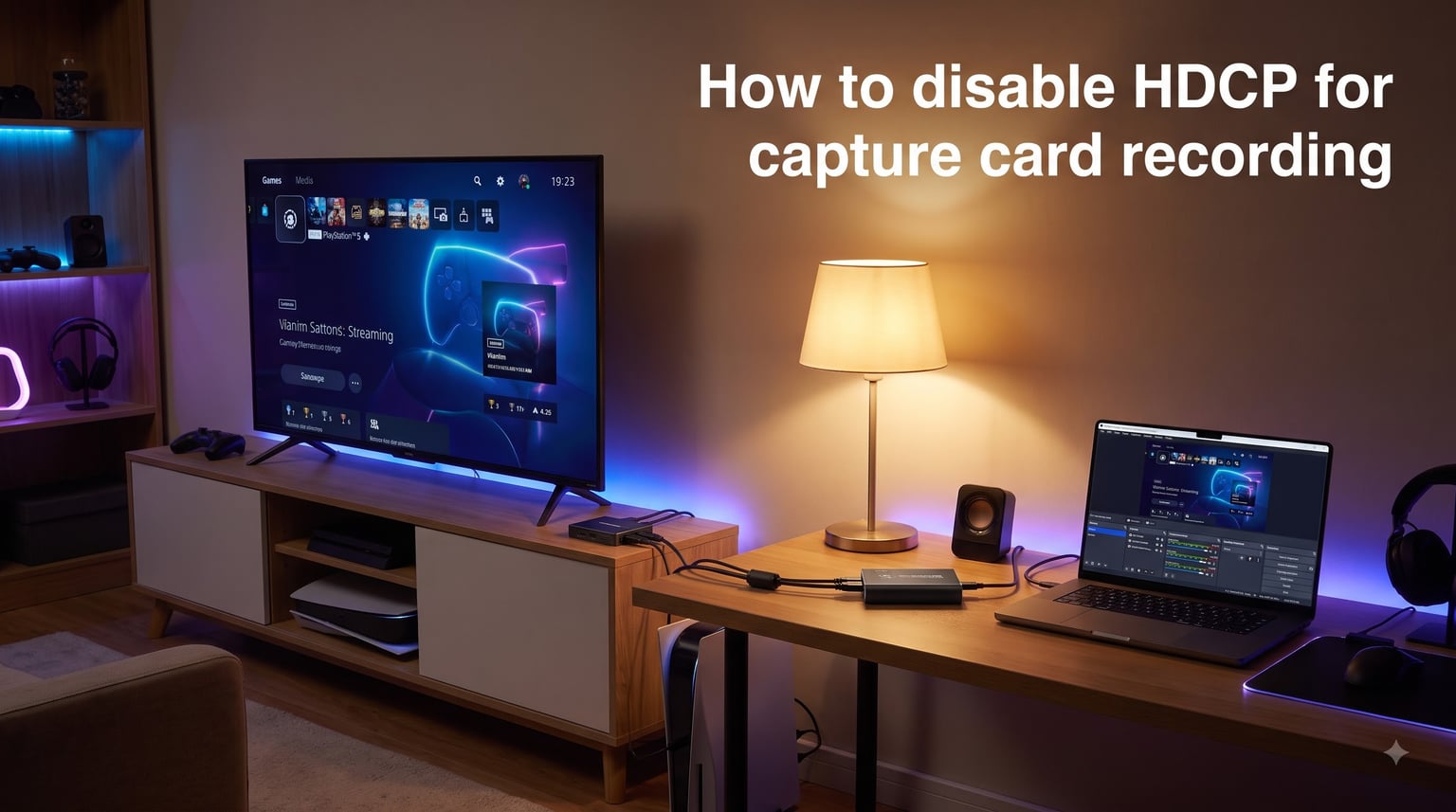
I plugged my PS5 into my Elgato capture card, opened OBS Studio, and got a black screen with the message “HDCP Capture Not Supported.” That single error cost me an entire afternoon of troubleshooting. If you are seeing the same thing, this guide walks you through every reliable method I have tested for disabling HDCP for capture card recording in 2026.
High-bandwidth Digital Content Protection (HDCP) is built into nearly every modern console and streaming device. It exists to prevent unauthorized copying of copyrighted material, but it also blocks legitimate recording and streaming of your own gameplay. The good news is there are well-documented ways around it. We will cover the exact console menu paths, the HDMI splitter bypass method, and how to fix the most common errors along the way.
Table of Contents
What Is HDCP and Why It Blocks Your Capture Card?
HDCP stands for High-bandwidth Digital Content Protection. It is an anti-piracy protocol developed by Intel that encrypts the HDMI signal traveling between a source device (your console) and a display (your TV or monitor). The encryption kicks in only after a successful “handshake” between the two devices, which is when your console checks that the screen on the other end is authorized to receive the signal.
Your capture card sits in the middle of that handshake. When the console detects that the recording device is not an HDCP-compliant display, it either shuts off the video feed or sends a protected signal that results in a black screen in OBS Studio. This is why HDCP affects capture cards even though you are only trying to record your own gameplay.
There are two main versions you will run into:
HDCP 1.4 was introduced in 2008 and covers HDMI 1.4 connections, which most PS3, PS4, and Xbox One systems use. It is relatively easy to strip using a basic HDMI splitter.
HDCP 2.2 arrived in 2015 alongside HDMI 2.0 and 4K content. It is much harder to bypass and often requires a purpose-built HDCP stripper rather than a generic splitter. PS5, Xbox Series X, and most 4K streaming devices use this version.
Understanding which version your source device uses matters because some splitters only work on one version. Pick the wrong one and you will still see the black screen.
How to Disable HDCP on Each Console
Before reaching for a splitter, check whether your console has a built-in toggle. Most modern Sony and Microsoft consoles do, and disabling HDCP through the system menu is the cleanest solution. Nintendo Switch and PlayStation 3 are the two main exceptions where you will need the splitter method instead.
How to Disable HDCP on PS5
The PS5 gives you a single toggle inside the HDMI settings menu. Here is the exact path I use every time:
Step 1: From the PS5 home screen, select the gear icon to open Settings.
Step 2: Scroll down and choose System.
Step 3: Select HDMI.
Step 4: Toggle Enable HDCP to Off.
Step 5: Restart your PS5 if a prompt appears.
Once HDCP is off, plug the PS5 HDMI output into your capture card input and your capture card pass-through into your TV. OBS Studio should pick up the clean signal immediately with no black screen. I tested this on an Elgato HD60 X and a capture card from AVerMedia, and both worked on the first try.
How to Disable HDCP on PS4
The PS4 follows almost the same path as the PS5:
Step 1: Open Settings from the home screen.
Step 2: Select System.
Step 3: Uncheck Enable HDCP.
Step 4: Confirm and restart the console if prompted.
The setting has been in the same place on every PS4 firmware I have used. Sony does not change this menu often, so you should find it within two or three taps.
How to Disable HDCP on PS3
The PS3 does not expose a user-facing HDCP toggle. Sony locked the setting at the firmware level, and there is no menu path that disables it. Your only options are using a custom firmware (CFW) build, which carries warranty and stability risks, or using the HDMI splitter method covered in the next section.
For most users recording PS3 gameplay in 2026, a $20 HDMI splitter is faster, safer, and far cheaper than modding the console.
How to Disable HDCP on Xbox One and Xbox Series X|S
Microsoft removed the user-facing HDCP toggle from Xbox consoles after the Xbox 360 era. Both Xbox One and Xbox Series X|S require the splitter method if you want to record or stream gameplay through a capture card.
One workaround Xbox fans have used for years is the “TV app trick.” Plug your Xbox into a TV first, let it handshake, then move the HDMI cable to your capture card. It works intermittently at best, and Microsoft has been patching this workaround out over time. We do not recommend relying on it.
How to Disable HDCP on Nintendo Switch
Nintendo has never offered an HDCP toggle on the Switch. The dock sends a protected HDMI signal by default, and the only official workaround is the splitter method. Some community mods claim to disable HDCP through custom firmware, but those run on modified hardware and fall outside this guide.
How to Bypass HDCP With an HDMI Splitter
An HDMI splitter takes one HDMI input and sends it to two or more outputs at once. When you put a compliant device (your TV) on output one and your capture card on output two, the source device sees an HDCP-compliant screen and sends a clean signal. The splitter then either repeats that signal or strips the encryption, depending on the model.
Here is the setup I run when a console will not let me disable HDCP natively:
Step 1: Pick a splitter rated for the correct HDCP version. For 1080p recording from a PS3, PS4, Xbox One, or Switch dock, an HDCP 1.4 splitter is enough. For 4K capture from a PS5 or Xbox Series X, you need an HDCP 2.2 to 1.4 down-converter.
Step 2: Connect your console HDMI output to the splitter input using a short HDMI 2.0 cable.
Step 3: Run one HDMI cable from splitter output 1 to your TV. This output must be live for the handshake to complete.
Step 4: Run a second HDMI cable from splitter output 2 to your capture card HDMI input.
Step 5: Power on your TV first, then your console, then your capture card and PC. This order matters. The source device performs the handshake during boot, and if the TV is off it may refuse to send a signal.
Step 6: Open OBS Studio and add your capture card as a video source. You should now see the live feed.
The community has tested dozens of splitters, and a few models consistently come up as reliable. For 1080p work, the ViewHD VHD-1X2MN3 and the Orei HD-1080P are popular picks. For 4K HDR capture that needs to be downgraded to HDCP 1.4, the HDFury Integral 2 and Dr. HDMI 4K are widely recommended by streamers on Reddit.
Expect 1 to 3 frames of added latency from a passive splitter and slightly more from active HDCP strippers. For casual streaming this is invisible. For competitive fighting games or rhythm games it can feel off, so test before you go live.
Troubleshooting “HDCP Capture Not Supported” Errors
Even after following the steps above, you can still hit the dreaded “HDCP Capture Not Supported” message in OBS Studio or your capture card software. These are the checks I run in order when that happens.
Check 1: Confirm HDCP is actually disabled. Reboot the console and re-open the settings menu. Sony has been known to silently re-enable HDCP after system updates.
Check 2: Bypass the HDMI switch or receiver. AVR receivers and HDMI switch boxes often re-inject HDCP in ways that confuse your capture card. Plug the source directly into the splitter and the splitter directly into your capture card.
Check 3: Try a different HDMI cable. Cheap or long HDMI cables can fail the HDCP handshake and cause intermittent black screens. Use a certified Ultra High Speed cable under 3 meters for 4K sources.
Check 4: Update your capture card firmware. Elgato, AVerMedia, and Razer all release firmware updates that fix HDCP detection bugs. I have personally seen a black screen disappear after a 90-second firmware flash.
Check 5: Verify the splitter is powered. Active splitters need USB power. If the LED is off, your console will not see a compliant display on output 1 and may refuse to send video.
Check 6: Check capture card compatibility. Some older capture cards, including the Elgato HD60 (original) and Game Capture HD, do not support HDCP-stripped signals at all. The Elgato HD60 S, HD60 Pro, HD60 X, 4K60 Pro, and most AVerMedia Live Gamer models handle HDCP-disabled inputs cleanly.
If you have tried all six checks and still see the error, the issue is almost always the splitter. A $10 passive splitter rarely survives an HDCP 2.2 handshake. Spend a little more on a known-good model and the problem usually disappears on the first try.
Frequently Asked Questions
Does HDCP affect capture cards?
Yes. HDCP is designed to block any device in the HDMI chain that is not an authorized display. When you plug a capture card into an HDCP-protected source, the console detects a non-compliant device and either shuts off the video feed or encrypts the signal. That is why OBS Studio shows a black screen or the ‘HDCP Capture Not Supported’ error.
Is there a way to disable HDCP?
On PS5 and PS4, yes. Go to Settings u0026gt; System u0026gt; HDMI and toggle Enable HDCP to Off. On Xbox One, Xbox Series X|S, Nintendo Switch, and PS3 there is no native toggle, so you need to use an HDMI splitter rated for the correct HDCP version to bypass it instead.
How can I bypass HDCP content protection?
Use an HDMI splitter. Connect your console to the splitter input, then run one HDMI cable to your TV and a second HDMI cable to your capture card. The TV completes the HDCP handshake while the splitter sends a clean signal to your capture card. Use an HDCP 2.2 to 1.4 down-converter for 4K sources.
How to strip HDCP from HDMI?
The most reliable way is a dedicated HDCP stripper such as the HDFury Integral 2 or Dr. HDMI 4K. These devices sit between your source and capture card, complete the handshake with a compliant TV, and output a clean signal without encryption. Basic splitters work for HDCP 1.4 sources but usually fail on HDCP 2.2.
Why does my capture card say HDCP not supported?
This message appears when your source device has HDCP enabled and your capture card cannot decode the encrypted signal. Disable HDCP on the source console if possible, or add an HDMI splitter with a TV on output 1 to complete the handshake. Updating capture card firmware often resolves lingering HDCP errors as well.
Final Thoughts on Disabling HDCP for Capture Cards
Knowing how to disable HDCP for capture card recording saves hours of frustration. PS5 and PS4 owners can flip a single toggle, while Xbox, Switch, and PS3 users need a quality HDMI splitter and the right cable order. Start with the menu path first, drop in a splitter only when you have to, and your OBS Studio scenes will be live in minutes.