
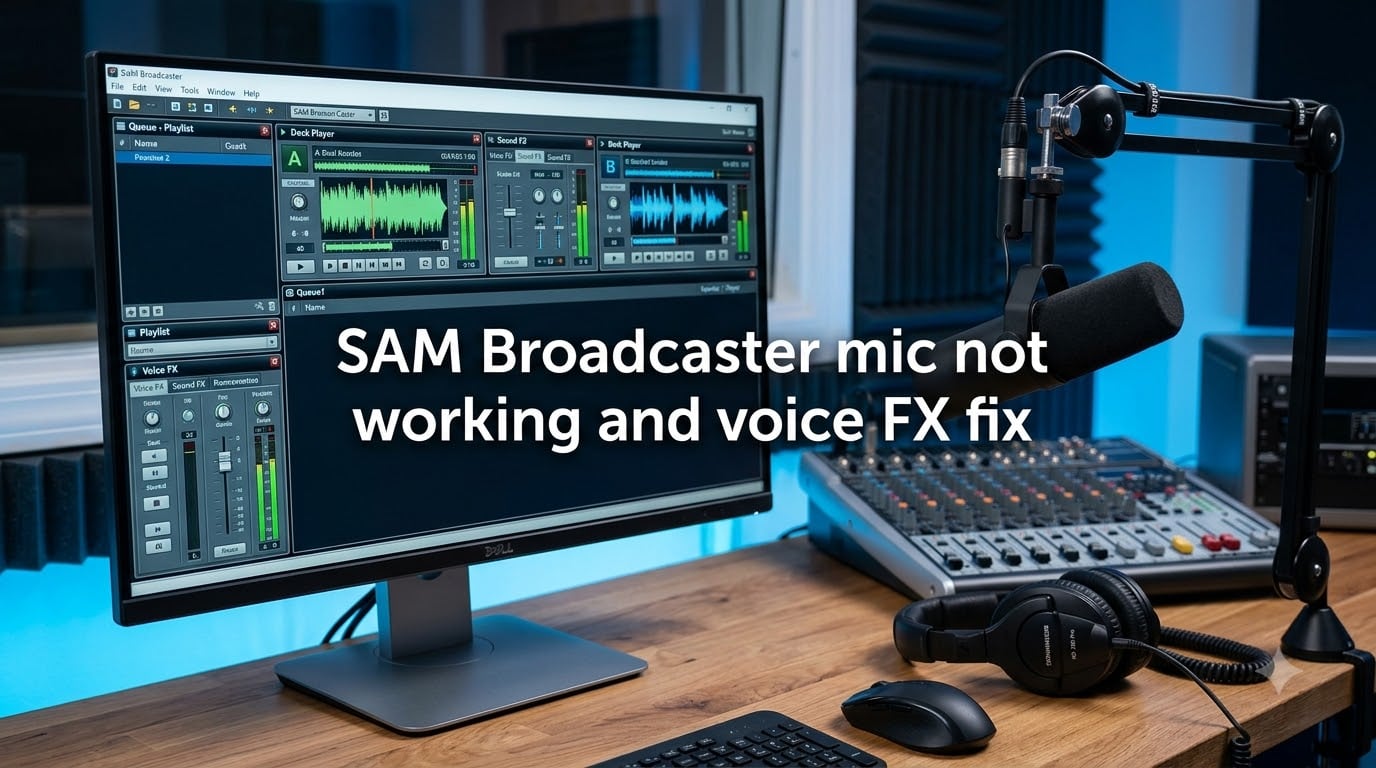
Nothing kills a live radio show faster than pressing your mic button and hearing dead air. If you are dealing with SAM Broadcaster mic not working issues, you are in the right place. I have spent years running internet radio stations and helping broadcasters in community forums troubleshoot these exact problems.
This guide covers every common microphone and Voice FX issue in SAM Broadcaster, from device selection errors to echo problems and that stubborn Air button that refuses to activate. Whether you are setting up a microphone for the first time or fighting with buffer latency mid-broadcast, the fixes below will get your voice on the air.
Table of Contents
How to Fix SAM Broadcaster Mic Not Working?
When your SAM Broadcaster mic is not working, the problem almost always comes down to one of four things: incorrect device selection, Windows audio conflicts, exclusive control issues, or a simple restart need. Work through these steps in order.
Step 1: Verify Your Sound Card Device Selection
Open SAM Broadcaster and go to Config (the wrench icon) and navigate to Audio Mixer Pipeline. Check the Voice FX tab and look at the Microphone dropdown.
Make sure the correct microphone device is selected here. If you use a USB microphone, it should appear by name. If it shows a generic device or the wrong one, change it and click OK. Many broadcasters overlook this step because SAM does not always auto-detect new hardware after you plug it in.
The same applies to the Record Sound Card Device setting under the Soundcard tab. This device must match your actual microphone input.
Step 2: Check Windows Sound Settings
Right-click the speaker icon in your Windows taskbar and select Sound Settings. Under the Input section, confirm your microphone is set as the default device.
On Windows 10 and 11, also click Device Properties and check the volume level. If the input level is at zero or very low, SAM Broadcaster will not pick up any audio even if the device is correctly selected.
For USB microphones specifically, I recommend testing in the Windows Sound Settings panel before opening SAM. If Windows shows input activity but SAM does not, the issue is inside SAM configuration.
Step 3: Disable Exclusive Control
Other applications can take exclusive control of your microphone, which blocks SAM Broadcaster from accessing it. This is one of the most common causes reported in broadcasting forums.
To fix this, open Windows Sound Settings, click Device Properties on your microphone, then click Additional Device Properties. Go to the Advanced tab and uncheck the box that says Allow applications to take exclusive control of this device. Click Apply and restart SAM Broadcaster.
This single change has resolved mic issues for countless broadcasters I have helped in radio forums.
Step 4: Close and Reopen SAM Broadcaster
It sounds simple, but closing SAM Broadcaster completely and reopening it fixes a surprising number of mic problems. SAM’s audio pipeline does not always refresh device changes while running.
If you plugged in a USB microphone after launching SAM, the software may not recognize it until you restart. Make this your go-to step after making any configuration changes.
One more USB tip from the community: always use the same USB port each time. Switching ports can cause Windows to register the microphone as a new device, breaking your SAM Broadcaster configuration.
Voice FX Destinations Explained
Voice FX Destinations control where your microphone audio goes after SAM Broadcaster captures it. This is the single most misunderstood setting in the entire software, and getting it wrong means your voice either does not reach listeners, reaches them with echo, or skips processing entirely.
You will find the Voice FX Destination dropdown under Config > Audio Mixer Pipeline > Voice FX. There are four options, each serving a different purpose.
None (Auto Fade Only)
When set to None, your microphone audio does not route through any processing or output. SAM Broadcaster will only lower the music volume when you press your mic button, but listeners will not hear your voice.
Use this option only if you are using an external hardware mixer to handle your microphone separately. If you are a beginner and your mic produces no sound at all, check whether this is accidentally set to None.
Mixer (Record to Pipeline)
The Mixer destination routes your microphone through the full audio pipeline. This means your voice passes through EQ, AGC, compression, and every other processor before reaching your encoders and speakers.
This is the most common choice for broadcasters who want their voice to sound polished and consistent. Use this if you want your microphone processed by SAM’s built-in audio tools. The trade-off is slightly higher latency because the audio travels through the entire processing chain.
Soundcard (Skip Audio Pipeline)
The Soundcard destination sends your microphone directly to your output soundcard, bypassing the processing pipeline entirely. Your voice reaches your speakers quickly with minimal delay.
Use this option if you need low-latency monitoring of your own voice through your speakers or headphones. However, your microphone audio will not go through EQ or AGC processing, and it will not reach your stream encoders.
This setting is useful for local monitoring but problematic if you expect listeners to hear your voice online.
Encoders (Record to Pipeline, Skip Output)
The Encoders destination routes your microphone through the processing pipeline and directly to your stream encoders, but skips sending it to your local output soundcard.
This is ideal for broadcasters who want full audio processing on their voice and want it to reach listeners, but do not want to hear themselves through their own speakers. Many professional broadcasters prefer this setting because it eliminates the distracting echo of hearing your own voice delayed through local speakers.
If listeners can hear you but you cannot hear yourself, this is likely the active destination. That is normal behavior, not a bug.
SAM Broadcaster Microphone Echo Fix
Microphone echo is one of the most frustrating SAM Broadcaster audio issues. The echo happens because your microphone audio is being processed with a delay, then played back and captured again. The fix involves adjusting buffer settings and choosing the right Voice FX destination.
Understanding Buffer Settings
Buffers are small chunks of audio that SAM Broadcaster processes before sending to output. Larger buffers mean more stable audio but higher latency. Smaller buffers reduce delay but can cause audio crackling or dropouts if your system cannot keep up.
When buffers are too large, the delay between your voice and the processed output creates an echo effect. When buffers are too small, you get pops, clicks, and gaps in the audio.
The goal is finding the sweet spot for your hardware.
Steps to Fix Microphone Echo
Open Config > Audio Mixer Pipeline and adjust these settings:
1. Reduce Packets to 4. This controls how many audio packets SAM processes at once. Start at 4 and increase only if you hear crackling.
2. Set Packet Time to 60 ms. This is the duration of each audio packet. A setting of 60 ms balances latency and stability for most systems.
3. Check your Voice FX Destination. If it is set to Mixer, the full pipeline processing adds delay. Try switching to Encoders to skip local output and eliminate the echo you hear through your speakers.
4. Disable direct monitoring. If your soundcard or audio interface has a direct monitoring feature, turn it off. Direct monitoring combined with SAM’s output creates a double-audio echo.
5. Use headphones. Never monitor your broadcast through speakers while your microphone is live. Your mic will pick up speaker output and create a feedback loop that sounds like echo to listeners.
Press to Talk and Air Button Configuration
The Press to Talk feature and Air button control when your microphone is live. When these stop working, the issue usually traces back to configuration or a Voice FX destination conflict.
Configuring Press to Talk
Go to Config > Audio Mixer Pipeline > Voice FX. Check the Press to Talk checkbox to enable it. You can assign a keyboard shortcut by clicking in the shortcut field and pressing your desired key combination.
Make sure the Mic On button on the main mixer panel is active. If the button is grayed out, SAM Broadcaster does not detect a valid microphone input device. Go back to Step 1 of the troubleshooting guide above.
Fixing the Air Button
If the Voice FX Air button will not activate, the most common cause is a Voice FX Destination set to None. When the destination is None, the Air button has nowhere to send audio, so it does nothing.
Change the destination to Mixer or Encoders and the Air button should respond immediately. If it still does not work, close SAM Broadcaster, reopen it, and try again.
Mic Works But Audience Cannot Hear
If you can hear yourself but listeners cannot, your Voice FX Destination is likely set to Soundcard. That setting sends audio to your local output only, bypassing your stream encoders entirely.
Switch the destination to Encoders or Mixer so your microphone audio reaches your broadcast stream. This is one of the most common issues reported in the Facebook Internet Radio Support group.
Additional SAM Broadcaster Audio Issues
USB Microphone Not Recognized
USB microphones can be finicky with SAM Broadcaster. If your USB mic is not recognized, unplug it, wait ten seconds, and plug it back into the same USB port you originally configured it with.
Go to Config > Audio Mixer Pipeline > Voice FX and reselect the microphone from the dropdown. If it still does not appear, open Windows Device Manager and check for driver issues on the device.
Phantom Power Conflicts
If you use a mixing board with an XLR microphone, phantom power can cause SAM Broadcaster to lose the microphone signal. Users on Broadcasting World forums report that toggling phantom power off and back on after launching SAM resolves this.
Try launching SAM Broadcaster first, then enabling phantom power on your mixer. The order matters for some hardware configurations.
Deck A and Deck B Are Stuck
If your decks freeze and will not load new tracks, this is usually a sound card device conflict rather than a mic issue. Go to Config > Audio Mixer Pipeline and verify your output soundcard device is selected correctly.
If you recently changed audio hardware, SAM may still reference the old device. Select the correct device, click OK, and restart SAM Broadcaster.
Encoder Red Button vs DSP Button
Many broadcasters confuse the encoder red button with the DSP button. The red button on the encoder starts and stops the stream connection to your server. The DSP button toggles audio processing on that encoder.
If your stream connects but audio sounds unprocessed, check that the DSP button is active. If your stream does not connect at all, the red button is your focus.
Recommended Buffer Settings for SAM Broadcaster
Here are buffer settings that work well for most systems. Start with these values and adjust based on your hardware performance.
Packets: 4 is the starting point. Increase to 6 or 8 if you hear audio crackling or dropouts. Higher values add latency but improve stability on slower systems.
Packet Time: 60 ms works for most modern computers. If you have a powerful system, you can try 40 ms for lower latency. Older systems may need 80 to 100 ms for stable audio.
Output Driver: DirectSound is the safest choice for Windows. WASAPI can offer lower latency but is less stable with some hardware configurations.
Pipeline buffer should match your overall system capability. If SAM Broadcaster consistently uses high CPU, increase buffer values rather than lowering them.
The key principle: increase buffers when audio is unstable, decrease when latency is too high. Test each change by pressing your mic button and monitoring both local output and your stream.
Frequently Asked Questions
Why is my mic not working even though it is connected?
Your microphone may be connected but not selected as the input device in SAM Broadcaster. Go to Config, then Audio Mixer Pipeline, then Voice FX, and verify your microphone appears in the Microphone dropdown. Also check Windows Sound Settings to confirm the mic is the default input device and exclusive control is disabled.
How do I fix my mic voice echo in SAM Broadcaster?
Reduce your buffer settings to Packets 4 and Packet Time 60 ms in Config under Audio Mixer Pipeline. Switch your Voice FX Destination to Encoders instead of Mixer to skip local output delay. Always monitor with headphones, never speakers, to prevent feedback loops that cause echo.
Why won’t the voice FX Air button work on my SAM Broadcaster?
The Voice FX Air button will not activate when the Voice FX Destination is set to None. Change the destination to Mixer or Encoders in Config under Audio Mixer Pipeline and the Air button should respond. If it still does not work, close and reopen SAM Broadcaster to refresh the audio pipeline.
What are Voice FX Destinations in SAM Broadcaster?
Voice FX Destinations control where your microphone audio goes after capture. None means no routing, Mixer processes audio through the full pipeline, Soundcard sends it directly to local output skipping processing, and Encoders routes it through processing to your stream while skipping local output.
Conclusion
Most SAM Broadcaster mic not working problems come down to device selection, Voice FX destination settings, or buffer configuration. Work through the troubleshooting steps in order, verify your Voice FX destination matches your broadcast needs, and keep buffer settings balanced for your hardware.
With these fixes, your microphone and Voice FX should be back on the air. For more internet radio guides and streaming resources, visit Free Stream Hosting.