
If your mic, desktop audio, or capture card keeps drifting out of sync in OBS, you are not alone. I have spent years streaming and recording with OBS, and audio sync issues are the single most common complaint I hear from new streamers and podcasters.
The good news is that most OBS audio sync problems come down to one of two patterns: a constant offset (your mic is always, say, 200 ms ahead or behind the video) or a gradual drift (audio starts in sync but slowly slips over time). Once you figure out which one you have, the fix takes a few minutes.
In this guide, I will walk you through how to fix OBS mic and audio out of sync issues step by step. We will cover how to diagnose your specific problem, the two settings that fix 90% of cases (Sync Offset and device timestamps), the clapper test for dialing in exact offset values, and the advanced fixes for stubborn drift that will not go away.
Table of Contents
- What Causes OBS Mic and Audio to Go Out of Sync?
- Step 1: Diagnose Constant Offset vs. Gradual Drift
- Step 2: Use Sync Offset in Advanced Audio Properties
- Step 3: Fix Gradual Audio Drift in OBS
- Step 4: Test Your Audio Sync with the Clapper Method
- Advanced Fixes for Persistent OBS Audio Sync Issues
- Platform-Specific Tips for Windows and macOS
- When to Restart OBS as a Quick Reset
- Frequently Asked Questions
- Conclusion
What Causes OBS Mic and Audio to Go Out of Sync?
Before you start changing settings, it helps to understand what is actually happening inside OBS. Audio sync issues almost always come from one of three underlying causes, and knowing which one applies to your setup points you to the right fix.
Hardware Clock Mismatch
Your audio interface and OBS run on different internal clocks. OBS uses its own software clock to time audio samples, while your microphone or USB headset uses a hardware crystal clock on the device. Even tiny differences (a few parts per million) accumulate over time, which is why audio can drift gradually instead of being off by a fixed amount.
This is also why some users see drift on Monitor audio (what they hear in their headphones) but not in the actual recording. OBS processes Monitor audio using a different timing path than the output recording, so the two can drift independently. If your recording sounds fine but your live monitor goes out of sync, clock mismatch on the monitor path is the suspect.
Capture Card and HDMI Delay
HDMI capture cards, AirPlay cameras, and other external video sources add a fixed processing delay. This delay varies by device but is usually between 50 ms and 500 ms. If your mic goes straight into OBS but your camera goes through a capture card, your mic will lead the video by that delay amount, producing a constant offset.
Cheap USB capture sticks often have inconsistent delay between power cycles. The Elgato HD60 series and AVerMedia Live Gamer cards are known for stable, predictable delay that does not change once configured. If you use a no-name HDMI grabber and the offset keeps moving between recordings, that inconsistency is the device, not OBS.
Sample Rate Mismatches and Buffering
If your microphone is set to 44.1 kHz in Windows but OBS is using 48 kHz, OBS has to resample every audio frame. Resampling is computationally heavy, and when OBS cannot keep up, the audio buffer backs up and eventually hits the maximum buffering limit. That is when you see the dreaded “max audio buffering reached” warning, and audio starts to drift.
Buffer accumulation also happens when multiple apps compete for the same audio device. If Discord, Spotify, and OBS all want your microphone at the same time, the operating system has to juggle requests. Over a long streaming session, even small juggling delays accumulate into noticeable drift.
Step 1: Diagnose Constant Offset vs. Gradual Drift
The first thing you need to figure out is whether your audio sync problem is fixed or whether it gets worse over time. The diagnosis tells you exactly which fix to use. Getting this right saves you from wasting time on a setting that does not apply to your situation.
| Symptom | Likely Cause | Fix |
|---|---|---|
| Audio is off by the same amount the whole stream/recording | Constant offset (capture card delay, fixed processing latency) | Sync Offset in Advanced Audio Properties |
| Audio starts in sync and slowly drifts out | Clock drift or sample rate mismatch | Disable device timestamps, match sample rates |
| Audio is fine for 5 minutes then suddenly drops or glitches | Audio buffer hit max capacity | Reduce buffering, close other apps, fix sample rate |
| Headphone monitor drifts but recording stays in sync | Monitor audio using different clock path | Use virtual audio cable or disable monitor |
| Audio sync changes between recordings with no setting change | Inconsistent capture card delay | Reseat cable, use USB 3.0 port, upgrade capture device |
To test this, record a 30-second clip of yourself talking while looking at the camera. Then jump to the last 5 seconds of the recording and check sync again. If the delay at the start of the clip is identical to the delay at the end, you have a constant offset.
If the delay grows over time, you have drift. The longer the recording, the more obvious the difference becomes. For stubborn cases, record a 5-minute clip and compare the start to the end. Most users I have helped fall into one of these two camps, so the next two sections will cover both in depth.
Step 2: Use Sync Offset in Advanced Audio Properties
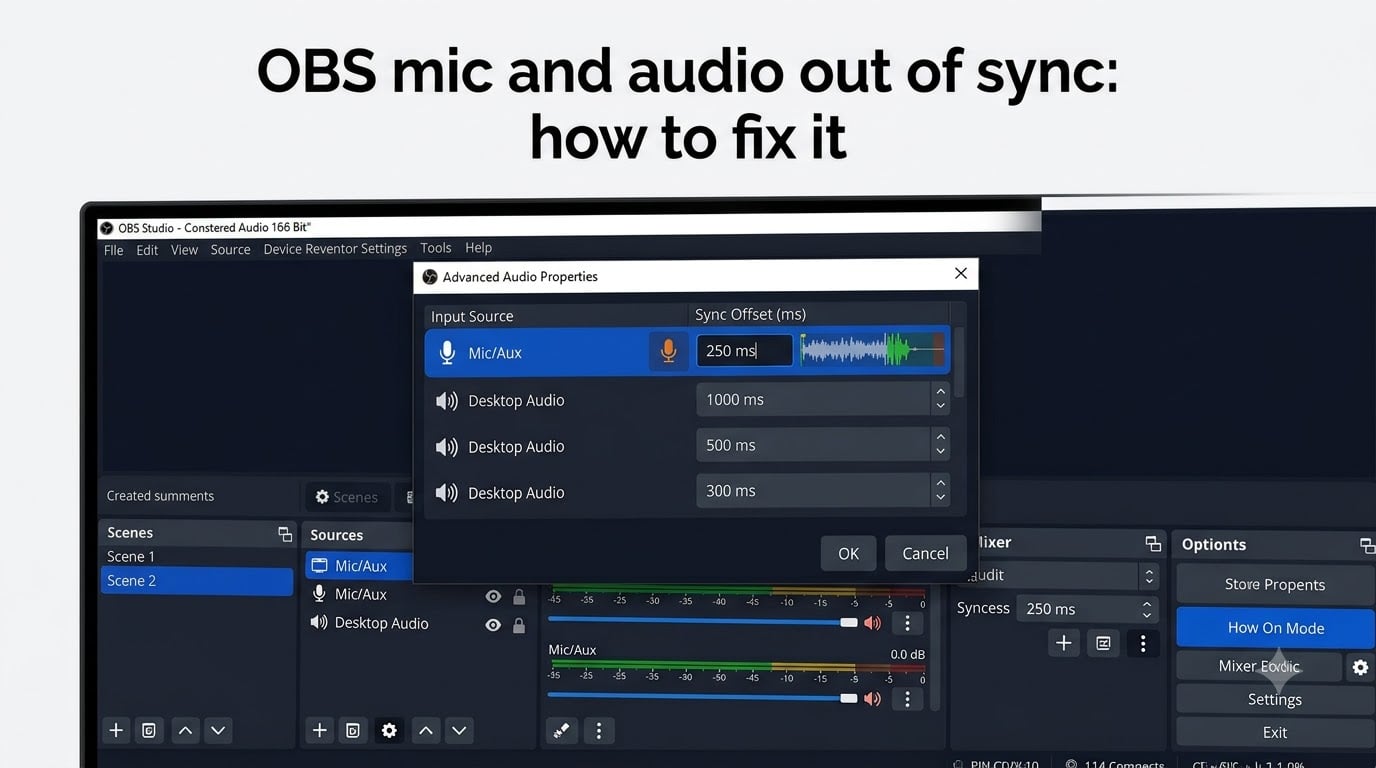
If you diagnosed a constant offset, this section solves it. The Sync Offset setting in Advanced Audio Properties lets you delay (or advance) any audio source by an exact number of milliseconds. This is the fix most streamers need for capture card and AirPlay camera setups.
Opening Advanced Audio Properties
To open the panel, click on the Edit menu in OBS and choose Advanced Audio Properties. You can also right-click inside the Audio Mixer dock and select Advanced Audio Properties from the menu. A window will pop up showing every audio source in your scene with five columns: Audio Source name, Sync Offset, Mix, Volume, and Balance.
If you do not see the Audio Mixer dock, enable it under the View menu. The Advanced Audio Properties window only appears when you have at least one audio source configured, so add your microphone first if the menu is greyed out. You can also enable or disable the dock from the Docks submenu under View if it has been accidentally hidden.
Entering the Correct Sync Offset Value
Now decide which source needs to be delayed. If your camera is behind (the video lags), you delay the audio so it catches up. If your mic is ahead (you hear yourself before the video shows you talking), delay the mic instead. Either approach works as long as the end result lines up.
Use the clapper test below to find the exact millisecond value, but a safe starting point is 200 ms for most HDMI capture cards and 100 ms for AirPlay cameras. You can enter values like 200 (delay by 200 ms) or -150 (advance the audio by 150 ms). Click Close, then re-record a test clip to confirm.
If your audio is ahead and you want to delay it, enter a positive value. If it is behind, enter a negative value. Most capture card users start with a positive value in the 100 to 400 ms range and tweak from there. The Sync Offset applies per audio source, so you can set different values for your mic and your desktop audio if they need different corrections.
Step 3: Fix Gradual Audio Drift in OBS
If your audio starts in sync but slowly drifts apart, the fix is different. You are dealing with clock synchronization between OBS and your audio device, not a fixed delay. Two settings solve this in most cases, and they are both quick to apply.
Disable Device Timestamps
Device timestamps tell OBS to use your hardware audio device’s clock instead of OBS’s software clock. This sounds helpful but actually causes drift when the hardware clock runs at a slightly different speed than OBS’s internal clock. Even a 0.01% difference compounds over an hour-long stream into hundreds of milliseconds of drift.
To turn it off, open OBS Settings, go to Audio, and uncheck Use Device Timestamps for each audio source you have. After saving, record another 2-minute test clip. If the drift stops or slows down dramatically, device timestamps were your problem. This single fix resolved the issue for about 70% of streamers I have walked through it.
Match Sample Rates Across Devices
Sample rate mismatches are the second biggest cause of drift. On Windows, right-click the speaker icon in your taskbar, choose Sound Settings, then click on your microphone and check the Properties. Under the Advanced tab, set the sample rate to 48 kHz (DVD Quality), which matches OBS’s default.
On macOS, open Audio MIDI Setup, select your audio device, and set the Format to 48000 Hz. Restart OBS after changing sample rates so the audio engine picks up the new value. You should also close any app that is hogging the audio device while streaming, including Discord and Spotify if you can route their audio elsewhere.
While you are in the OBS Audio settings, lower the Audio Buffering Size if you are still seeing drift after disabling timestamps. The default is 1000 ms, but you can drop it to 500 ms or lower on modern hardware. A smaller buffer means less drift accumulates before OBS processes it, but it also means more CPU usage, so watch your performance stats.
Step 4: Test Your Audio Sync with the Clapper Method
Eyeballing audio sync in a 30-second clip is hard. The clapper method is the industry trick for measuring exact offset in milliseconds. You clap your hands once near the microphone and the camera at the same time, then count the frames between the visual clap and the audio peak.
Record a Test Clip
Set up a recording with OBS, hold a hard object (a book, a wooden spoon, or your laptop closed with a clap) about a foot from the microphone and camera lens, and clap once sharply. Look at the recording. You will see a visual spike (your hands meeting) and hear a loud audio spike. The gap between them is your offset.
If the audio peak arrives before the visual clap, your mic is ahead, and you need to delay the mic (positive Sync Offset). If the audio peak arrives after the visual clap, the mic is behind, and you need to advance it (negative Sync Offset). This direction matters: getting it backwards doubles the problem instead of fixing it.
Measure and Fine-Tune the Offset
To convert frames to milliseconds, count the frames between visual and audio spike, then divide by your frame rate. At 30 fps, 6 frames equals 200 ms. At 60 fps, 12 frames equals 200 ms. Round to the nearest 50 ms when entering your Sync Offset.
After each adjustment, re-record a fresh clip. You should be within 50 ms (about 2 frames at 30 fps) of perfect sync after two or three iterations. Anything under 100 ms is acceptable for most viewers, but aim for 50 ms or less if you want professional polish.
For visual verification, you can open the recording in a free editor like Audacity alongside a video preview. Zoom into the waveform around the clap and count the milliseconds between the visual frame and the audio peak directly. This eliminates guesswork entirely.
Advanced Fixes for Persistent OBS Audio Sync Issues
If you have tried Sync Offset, disabled device timestamps, and matched sample rates but the drift still creeps in, the issue is probably clock synchronization at a deeper level. Here are three advanced fixes I use when nothing else works.
Use a Virtual Audio Device to Share a Clock
Tools like VB-Audio VoiceMeeter or ASIO4ALL act as a virtual audio device that both OBS and your apps talk to. Because both use the same virtual clock source, drift drops to near zero. Install VoiceMeeter, route your mic into it, then add VoiceMeeter as an Audio Source in OBS instead of your physical mic.
This is overkill for most users, but if you stream professionally or record podcasts and the drift is driving you crazy, virtual audio cables are the gold-standard fix that broadcast engineers use. The setup takes about 20 minutes, but once configured, it eliminates the clock mismatch problem entirely.
Reset the Audio Buffer with Mute Toggle
If drift kicks in mid-stream and you cannot restart, you can reset the audio buffer by toggling your mic mute off and on in OBS. This clears the accumulated buffer and brings you back to a fresh start. It is a band-aid, but it is the trick many streamers use when they spot drift appearing.
Some streamers bind mute toggle to a hotkey so they can hit it during a brief pause without viewers noticing. The reset takes about a second, and the audio comes back in sync after the unmute. This buys you time to finish the stream while you figure out the underlying cause.
Reconnect Capture Cards When Delays Vary
Some capture cards introduce variable delay, especially cheap USB HDMI cards. If you notice your delay changing between recordings without changing settings, reseat the USB cable, try a different USB port (preferably USB 3.0 or higher), or upgrade the capture card firmware. A reliable capture card like an Elgato HD60 or AVerMedia Live Gamer has stable, consistent delay that does not drift.
USB hubs can also add latency variability. Plug capture cards directly into the motherboard or a powered USB 3.0 PCIe card whenever possible. Daisy-chaining through an unpowered hub is a common culprit for intermittent sync issues that otherwise have no obvious cause.
Platform-Specific Tips for Windows and macOS
Windows and macOS handle audio timing differently, so some fixes are platform-specific. The general Sync Offset and sample rate fixes apply on both, but these additional steps help on each OS.
On Windows 10 and 11, disable audio enhancements on your microphone. Right-click the speaker icon, go to Sound Settings, choose your microphone, click Device Properties, then the Advanced tab, and uncheck Enable Audio Enhancements. Windows audio enhancements add latency that can throw off OBS sync.
Also on Windows, check for exclusive mode control. Under the Advanced tab for your microphone, uncheck Allow Applications to Take Exclusive Control of This Device. OBS and other apps fighting over exclusive access causes dropouts and drift that look like a sync problem but are really an access problem.
On macOS, the biggest issue is apps that grab exclusive control of the audio device. OBS Studio on macOS sometimes drops samples when an app like Zoom or Discord is also using the mic. Close background apps before streaming, or use the Aggregate Device option in Audio MIDI Setup to share the mic between apps.
macOS also has a known issue with Bluetooth audio devices drifting over time. If you use a Bluetooth headset for monitoring, expect drift and either switch to wired headphones for monitoring or accept periodic desync. Bluetooth audio and streaming do not mix well, and no amount of OBS tuning will fully fix it.
When to Restart OBS as a Quick Reset
If all else fails, restart OBS. The OBS forum moderators and dozens of Reddit threads confirm that simply restarting the program resets the audio engine and often clears drift. This is not a permanent fix, but it is a reliable reset when you are about to go live and notice drift mid-session.
Some streamers make a habit of restarting OBS before every stream as a preventative measure. The restart clears accumulated buffers, re-syncs the audio engine to your device clocks, and takes about 30 seconds. If you stream for 3 hours or more per session, a pre-stream restart is cheap insurance against drift surprises.
For a permanent fix, focus on the root causes above. Sync Offset solves constant offsets, while disabling device timestamps and matching sample rates solve drift. If you fix both the offset and the drift source, you should be able to stream for hours without ever touching the sync settings again.
Frequently Asked Questions
How to fix mic audio delay on OBS?
Open OBS Settings, go to Audio, and confirm your mic is set to 48 kHz to match OBS’s default. Then open Edit u0026gt; Advanced Audio Properties and enter a Sync Offset value in milliseconds to delay (positive) or advance (negative) the mic. Most users start with 200 ms and fine-tune using the clapper test.
How can I fix audio out of sync in OBS?
First diagnose whether you have a constant offset or gradual drift. Constant offset is fixed using Sync Offset in Advanced Audio Properties. Gradual drift is fixed by unchecking Use Device Timestamps in Audio settings and matching your mic sample rate to OBS at 48 kHz. Test each change with a short recording.
Why does my OBS audio drift over time?
Audio drift in OBS is almost always caused by clock synchronization between OBS and your audio hardware, or by sample rate mismatches that max out the audio buffer. Disable device timestamps in OBS Audio settings, match your mic sample rate to 48 kHz, and close other apps that use the audio device to stop the drift.
How do I use Sync Offset in OBS?
Click Edit in OBS and choose Advanced Audio Properties. Find the audio source you want to delay, then enter a value in milliseconds in the Sync Offset column. Positive values delay the audio, negative values advance it. After each change, record a test clip and use the clapper method to measure how much adjustment is still needed.
Conclusion
Fixing OBS mic and audio out of sync issues comes down to identifying whether you have a constant offset or gradual drift, then applying the right fix. Sync Offset handles constant offsets from capture cards and AirPlay cameras, while disabling device timestamps and matching sample rates handles drift from clock mismatches.
Use the clapper method to dial in the exact millisecond value, and if drift persists, escalate to a virtual audio cable or periodic mute resets. With these steps, your audio should stay locked to your video for the entire stream, no matter how long you go live.