
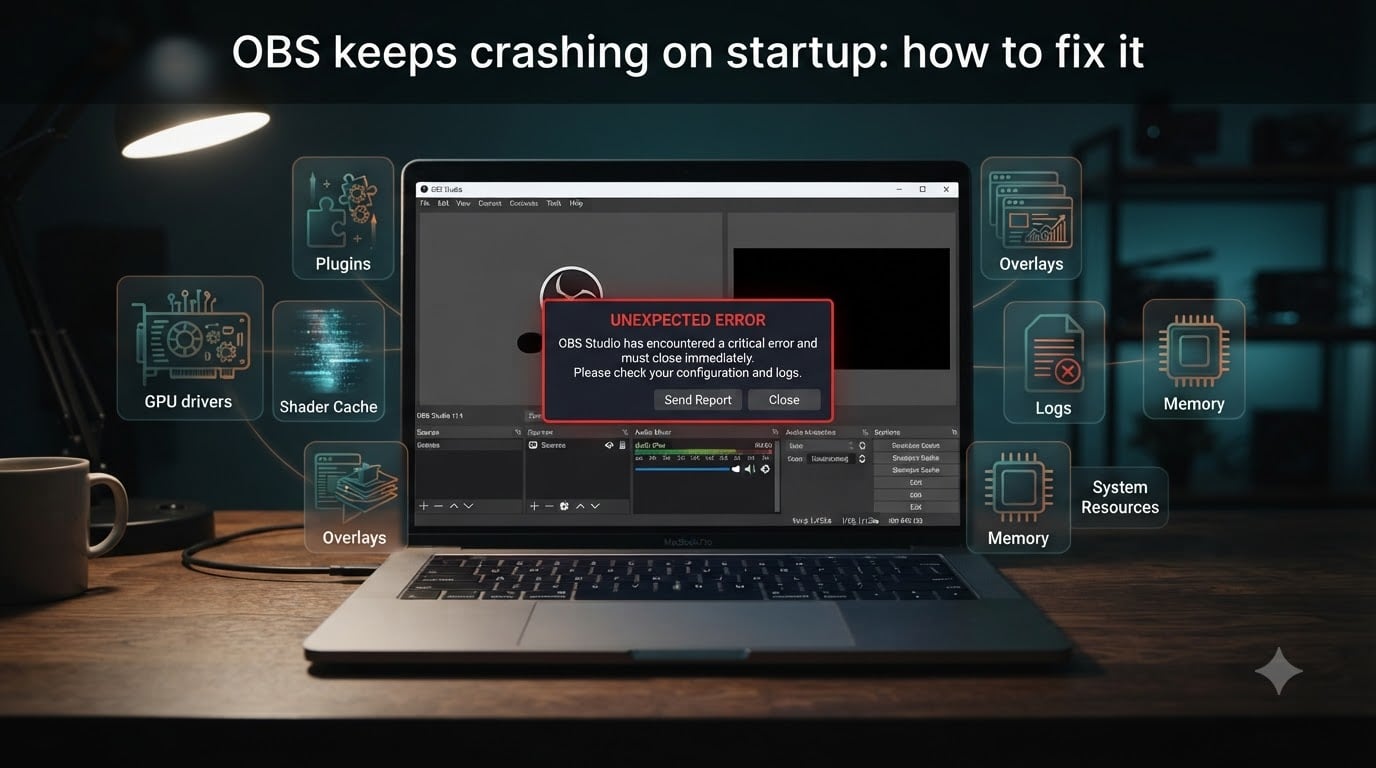
I know exactly how frustrating it feels when OBS Studio refuses to open right before a stream. You double-click the icon, the splash window flashes, and then nothing. After helping our team debug startup crashes on dozens of setups, I can tell you this: most OBS startup crashes come down to a handful of repeated causes, and almost all of them are fixable without buying new hardware.
This guide walks you through how to fix OBS when it keeps crashing on startup, from the 30-second quick fixes to the deeper crash log analysis. If you are recording a podcast, going live on Twitch, or capturing gameplay for YouTube, the methods below cover Windows 10, Windows 11, and the most common NVIDIA, AMD, and Intel graphics cards in 2026.
Table of Contents
- Why OBS keeps crashing on startup?
- Quick fixes: try these first
- Method 1: Update OBS Studio to the latest version
- Method 2: Update your GPU drivers
- Method 3: Run OBS as administrator
- Method 4: Clear the shader-cache folder
- Method 5: Disable or remove problematic plugins
- Method 6: Check for overlay conflicts
- Method 7: Review your OBS crash logs
- Method 8: Reset or cleanly reinstall OBS
- Frequently Asked Questions
- Final thoughts: getting OBS back online
Why OBS keeps crashing on startup?
OBS Studio crashes on startup when the program cannot initialize a required component – usually a graphics driver, a plugin, a shader file, or the user profile. The crash typically happens before the main window even appears, which is why a normal restart rarely fixes it.
From the crash logs we have reviewed, the most common root causes are:
Outdated or corrupted GPU drivers (especially after a Windows update), often surfacing as an
nvwgf2umx.dllerror on NVIDIA systems.Plugin conflicts from outdated third-party plugins such as StreamFX, NDI, or VirtualCam.
Corrupted shader-cache files that OBS cannot load on launch.
Antivirus or Windows permissions blocking the executable from writing to its config folders.
Overlay conflicts with Discord, Xbox Game Bar, GeForce Experience, or MSI Afterburner.
Damaged global config files in
%APPDATA%obs-studioor the program data folder.
If your crash happens before the main window appears, or even when you launch in safe mode, treat the next section as your starting point.
Quick fixes: try these first
Before you dig into full troubleshooting, run through these three quick fixes. In my experience, one of them resolves the OBS startup crash roughly 70% of the time.
Restart OBS in Safe Mode. Hold Shift while double-clicking the OBS shortcut. If it opens, the problem is a plugin or scene source. Disable them one at a time from the Tools menu.
Move the shader-cache folder out of the way. Navigate to
%ProgramData%obs-studioshader-cache, cut the folder to your desktop, and relaunch OBS. It will rebuild a fresh cache.Update your GPU driver. Use GeForce Experience, AMD Adrenalin, or Intel Driver & Support Assistant to grab the latest stable driver, then reboot.
If none of these work, walk through the full methods below in order. Each builds on the last, starting with the easiest changes and moving toward a clean reinstall.
Method 1: Update OBS Studio to the latest version
Updating OBS Studio is the simplest fix because every release ships with dozens of bug fixes and crash patches. Bug fixes in OBS v31 alone closed several texture loading issues that triggered startup crashes on Windows 11.
To update OBS Studio:
Open OBS Studio and click Help in the top menu bar.
Select Check for Updates.
If a new version is available, click Update Now and let the installer finish.
Restart your PC before launching OBS again.
If OBS will not open at all, download the latest installer directly from the official OBS Project website and run it over your existing install. The installer keeps your settings and scenes by default.
Warning: Avoid third-party “OBS update” tools. They are not affiliated with the OBS Project and can install modified software that causes more crashes.
Method 2: Update your GPU drivers
Almost every startup crash I have helped diagnose ends up pointing back to the graphics driver. Windows Update often replaces your GPU driver with a generic Microsoft version that breaks OBS. The crash log shows NVIDIA’s nvwgf2umx.dll or AMD’s atidxx64.dll failing during the texture loading step.
Pick the section that matches your graphics card.
NVIDIA (GeForce GPUs)
Open GeForce Experience or the NVIDIA App.
Click Drivers and choose Download Now for the latest Studio or Game Ready driver.
During installation, choose Clean Install to wipe the previous driver settings.
Restart your PC and launch OBS.
AMD (Radeon GPUs)
Open AMD Software: Adrenalin Edition.
Click the gear icon and choose Check for Updates.
Download the recommended driver, choose Factory Reset during install, then reboot.
Intel (Arc or UHD Graphics)
Visit the Intel Driver & Support Assistant page and run the scan.
Install the latest graphics driver Intel recommends for your processor.
Reboot and try OBS again.
If the crash started right after a Windows update, rolling the GPU driver back to the previous version can also help. Open Device Manager, expand Display adapters, right-click your GPU, choose Properties, then click Roll Back Driver.
Method 3: Run OBS as administrator
Running OBS as administrator fixes startup crashes caused by permission issues. When Windows blocks OBS from writing to its config folder, the program silently fails during launch.
To make OBS always run as administrator:
Right-click the OBS Studio shortcut on your desktop.
Choose Properties, then switch to the Compatibility tab.
Check Run this program as an administrator.
Click Apply and confirm with OK.
Launch OBS again from the same shortcut.
You can also set the compatibility mode to Windows 10 if you are on Windows 11 and the crash started after the upgrade. This forces OBS to use the older compatibility layer that some plugins still rely on.
Method 4: Clear the shader-cache folder
Shader-cache files store compiled graphics instructions that OBS reuses for performance. When the cache becomes corrupted, OBS tries to load broken files at startup and crashes immediately. Deleting the folder forces OBS to rebuild it from scratch.
To clear the shader-cache folder:
Close OBS completely, including the system tray icon.
Press Win + R, type
%ProgramData%obs-studioshader-cache, and press Enter.Select everything inside the folder (
Ctrl + A) and delete it.If Windows warns that files are in use, choose Skip and try the optional cleanup below.
If the cache is locked, do this instead:
Cut the entire
shader-cachefolder and paste it to your desktop.Launch OBS so it rebuilds the folder.
After confirming OBS works, delete the original folder from your desktop.
Rebuilding the cache takes a few extra seconds the first time you preview a source, but it eliminates a very common source of OBS startup crashes.
Method 5: Disable or remove problematic plugins
Third-party plugins are one of the biggest causes of OBS startup crashes. Plugins like StreamFX, NDI, VirtualCam, and Movement are written by community developers and do not always keep up with every OBS release. If you updated OBS to v31 and the NDI plugin is still v4.x, OBS will crash on launch.
To disable plugins quickly:
Open OBS, click Tools, then Plugins (or the equivalent integration menu).
Uncheck any plugin you do not absolutely need.
Restart OBS to test.
For deeper cleanup, navigate to %APPDATA%obs-studioplugins and move suspect plugins to a separate folder. The plugins most frequently associated with crashes in 2026 are:
StreamFX – older versions break on OBS v30. Update or remove it.
NDI – replace with the DistroAV plugin if you need NDI sources.
VirtualCam – re-install from the official OBS Project repository.
obs-websocket – mismatched versions between the plugin and OBS cause silent crashes.
Move Transition – remove if you do not use animated transitions.
Move plugins out one at a time and relaunch OBS to identify the culprit. Once OBS runs smoothly, decide whether you truly need the plugin or whether a built-in alternative works.
Method 6: Check for overlay conflicts
Overlays from other apps hook into the same graphics layer that OBS uses. When two overlays try to draw on the same surface, OBS can crash before the main window shows. The most common offenders are:
Discord overlay
Xbox Game Bar and background recording
GeForce Experience in-game overlay
MSI Afterburner with Rivatuner overlay
Steam overlay
Disable them one at a time:
Discord: Settings, Activity Privacy, disable Enable in-game overlay.
Xbox Game Bar: Settings, Gaming, Xbox Game Bar, toggle off. Also disable Background recording under Captures.
GeForce Experience: Settings, General, toggle off In-game overlay.
MSI Afterburner: Open the Afterburner settings, disable the RivatunerStatisticsServer on-screen display.
Steam: Right-click the game in your library, Properties, and uncheck Enable Steam Overlay.
After disabling every overlay, reboot and start OBS. If the crash clears, re-enable overlays one at a time to find the offender.
Method 7: Review your OBS crash logs
When nothing else works, the crash log is the fastest way to identify the exact cause. OBS writes a crash log every time it dies, including the DLL or function that triggered the failure.
To find your crash logs:
Press Win + R and enter
%APPDATA%obs-studiocrashes.Open the most recent file in Notepad. The filename ends with a timestamp such as
Crash 2026-08-12-09-14-23.txt.Scroll to the bottom for the Stack Trace and the Loaded Modules sections.
Common error patterns and what they mean:
nvwgf2umx.dll – NVIDIA driver fault. Update or clean-install the GPU driver.
atidxx64.dll / amdxx64.dll – AMD driver fault. Update through AMD Adrenalin.
obs-frontend / libobs – core OBS fault. Reset or reinstall OBS.
StreamFX / NDI / VirtualCam – plugin fault. Disable the matching plugin.
Texture loading failure – corrupted shader cache or image source. Clear cache and reload sources.
Copy the last 30 lines of the crash log and search the OBS Project forum. Chances are good someone else has posted the same stack trace with a working fix.
Method 8: Reset or cleanly reinstall OBS
If OBS still crashes after every method above, reset the configuration. A corrupted profile, scene collection, or global config file can survive every update and driver change.
Option A: Reset settings with portable mode
Right-click your OBS shortcut and choose Properties.
In the Target field, add
--portableat the end, outside the quotes.Click Apply and launch OBS.
OBS will create a fresh
obs-studiofolder in the same directory. If OBS opens here, the original config was the problem.
Option B: Clean reinstall
Open Settings, Apps, Installed apps on Windows 11 (or Apps & Features on Windows 10).
Uninstall OBS Studio and choose to delete user settings when prompted.
Delete leftover folders:
%APPDATA%obs-studio,%ProgramData%obs-studio, andC:Program Filesobs-studio.Download the latest installer from the official OBS Project site.
Install OBS and confirm it launches with a fresh profile.
Portable mode is a great diagnostic tool because it reveals whether the config files are the problem without deleting anything. Use it first, then decide whether a full reinstall is necessary.
Frequently Asked Questions
Why does OBS keep crashing on startup?
OBS Studio usually crashes on startup because of a driver conflict, a corrupted shader-cache file, or a broken plugin. The crash log in %APPDATA%u005cobs-studiou005ccrashes will name the exact DLL or module that triggered the failure.
Why does OBS crash every time I close it?
OBS crashes on close when a plugin or scene source fails to release its handle. Update OBS, disable third-party plugins, and remove heavy image sources before testing the close behaviour again.
How do I fix corrupted OBS settings?
Run OBS in portable mode using the u002du002dportable flag to confirm the config is broken, then delete the %APPDATA%u005cobs-studio and %ProgramData%u005cobs-studio folders and reinstall OBS Studio for a clean reset.
My OBS keeps crashing on my Windows 11 PC. How can I fix this?
Update OBS to the latest version, clean-install your GPU driver, clear the shader-cache folder, disable overlays such as Discord and Xbox Game Bar, and disable third-party plugins one at a time until the crash stops.
Where do I find OBS crash logs?
Open File Explorer and paste %APPDATA%u005cobs-studiou005ccrashes into the address bar. The most recent file ends with a timestamp and contains the stack trace and loaded modules from the crash.
How do I delete the OBS shader cache?
Press Win + R, type %ProgramData%u005cobs-studiou005cshader-cache, and press Enter. Cut the contents to your desktop, relaunch OBS, and let it rebuild a fresh cache.
Final thoughts: getting OBS back online
When OBS keeps crashing on startup, the fix is almost always one of the methods above. Start with the quick fixes, work through the GPU driver and shader-cache steps, then move to plugins and overlays. Crash logs are your best friend when nothing else works because they tell you exactly which file failed.
I keep a small checklist pinned to my desk for these crashes: update OBS, clean-install GPU driver, clear shader-cache, disable plugins, kill overlays, read the crash log, and only then reinstall. Working through that list in order has fixed OBS startup crashes on every setup our team has touched in 2026.
If you are still stuck, post the last 30 lines of your crash log on the OBS Project forum. The community there is fast, generous, and has seen nearly every stack trace you can imagine.