
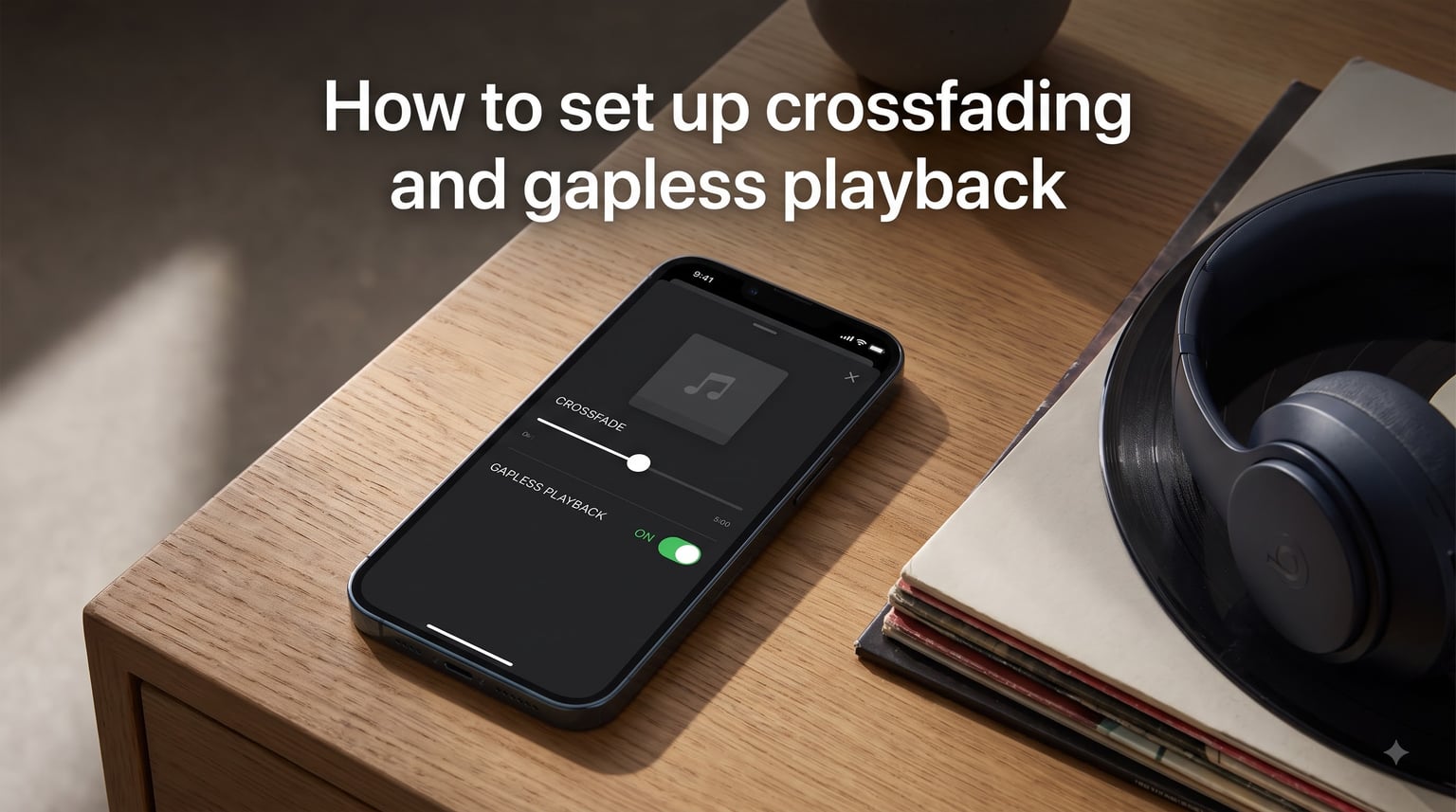
Nothing kills the vibe of a great album faster than a two-second silence between tracks that are supposed to flow together. If you have ever listened to The Beatles’ Abbey Road medley or a live concert recording and noticed awkward gaps, you already understand why these settings matter. Learning how to set up crossfading and gapless playback transforms your listening experience from choppy to seamless.
Crossfading blends the end of one song into the beginning of the next, while gapless playback eliminates silence entirely by preloading the next track. Both solve the same basic problem, but they work differently and suit different situations.
In this guide, I will walk you through what each feature does, how they differ, and the exact steps to enable them on Spotify, Apple Music, VLC, and other popular players. Whether you are an audiophile with a classical music collection or someone who wants their party playlist to never stop, you will find the settings you need below.
Table of Contents
- What Is Crossfading?
- What Is Gapless Playback?
- How to Set Up Crossfading and Gapless Playback: Crossfade vs Gapless
- How to Enable Crossfade in Spotify
- How to Enable Gapless Playback in Spotify
- Crossfade and Gapless Settings in Apple Music
- Gapless and Crossfade Settings in Other Players
- Best Crossfade Duration Settings
- Troubleshooting Common Issues
- FAQs
- Conclusion
What Is Crossfading?
Crossfading is a fadeout-to-fadein effect where the outgoing track gradually decreases in volume while the incoming track simultaneously increases. The two songs overlap for a set duration, creating a smooth blend instead of an abrupt cut.
Think of it like a DJ smoothly sliding the volume fader from one turntable to the next. The first song does not end at full volume, and the second song does not start at full volume. Instead, they cross paths in the middle.
Most music apps let you control the crossfade duration, typically from 1 to 12 seconds. Longer crossfades create a more noticeable blend, while shorter ones feel closer to natural song transitions. Crossfading works best for playlists, parties, and casual listening where you want continuous audio without dead air.
What Is Gapless Playback?
Gapless playback is the uninterrupted playback of consecutive audio tracks with zero silence between them. It works by preloading the beginning of the next audio file into a buffer in RAM before the current track finishes, so the transition happens at the exact track boundary with no pause.
Unlike crossfade, gapless does not overlap songs or change their volume. Each track plays at full volume from start to finish. The only difference is that the split-second of silence that normally occurs as one file closes and the next opens is eliminated entirely.
This matters enormously for albums designed as continuous experiences. Pink Floyd’s The Dark Side of the Moon, classical symphonies with multiple movements, live concert albums, and DJ mix compilations all rely on seamless transitions. Without gapless playback, you hear a brief but jarring silence between every track that breaks the artistic flow.
How to Set Up Crossfading and Gapless Playback: Crossfade vs Gapless
The difference between crossfade and gapless comes down to whether the songs overlap. Crossfade creates an overlapping blend where one song fades out while another fades in simultaneously. Gapless simply removes the silence gap without changing how either track sounds.
Here is a quick breakdown of when to use each:
Use crossfade for playlists, parties, gym sessions, and casual background listening where you want continuous flow between unrelated songs.
Use gapless for albums with intentional track-to-track transitions, live recordings, classical music, and DJ mixes where you want to hear exactly what the artist intended.
Use both together if your player supports it. Gapless handles album transitions while crossfade smooths over playlist jumps.
Turn off both if you prefer hearing each song as a standalone piece with natural silence between tracks.
One common point of confusion from Reddit discussions: gapless playback is specifically designed for albums where tracks flow into each other. It has nothing to do with the mixing or blending features you might use in a playlist. Crossfade is the feature that actively blends songs together.
How to Enable Crossfade in Spotify
Spotify offers built-in crossfade settings on both mobile and desktop apps. The process takes less than a minute once you know where to look.
On mobile (iOS and Android):
Open the Spotify app and tap your profile picture in the top-left or top-right corner.
Tap Settings and Privacy, then tap Playback.
Scroll down to the Crossfade slider.
Toggle it on and drag the slider to your preferred duration, from 1 to 12 seconds.
Exit settings. The change applies immediately to your next playback session.
On desktop (Windows and Mac):
Click the three-dot menu in the top-left corner and select Settings (or click your profile and select Settings).
Scroll down to the Playback section.
Find the Crossfade songs toggle and switch it on.
Use the slider beneath it to set your crossfade duration.
Close the settings window and play any playlist to test the transition.
Many Spotify users on Reddit recommend a 12-second crossfade as a sweet spot for most music. For electronic and house music, longer crossfades of 8 to 12 seconds sound natural. For rock or pop playlists, 3 to 5 seconds often works better.
How to Enable Gapless Playback in Spotify
Spotify enables gapless playback by default, and there is no separate toggle for it in current app versions. The app automatically detects albums with continuous tracks and applies gapless transitions between them.
If you want to verify it is working, play the Abbey Road medley tracks (tracks 7 through 12 on the 2009 remaster) or any live album. You should hear each track flow directly into the next with no silence.
One thing to note from forum discussions: gapless playback may not work properly when Spotify’s Exclusive Mode is enabled on desktop, since exclusive mode can interfere with the preloading buffer. If you notice gaps, try turning off Exclusive Mode in your playback settings.
Spotify also has an Automix feature that works alongside crossfade. Automix attempts to intelligently blend tracks even when crossfade is off, analyzing song endings and beginnings to create smoother transitions. You can toggle Automix in the same Playback settings menu.
Crossfade and Gapless Settings in Apple Music
Apple Music handles these features a bit differently than Spotify, and the settings are located in different places depending on your device.
On Mac: Open the Music app, then go to Music in the menu bar and select Settings (or Preferences on older macOS versions). Click the Playback tab. You will see a Crossfade Songs checkbox. Check it and use the slider to set the duration from 1 to 12 seconds.
On iOS: Apple Music does not currently offer a crossfade slider on iPhone or iPad. Gapless playback, however, is enabled automatically for albums that support it.
Some Reddit users in the Apple Music community report that Apple Music’s gapless playback is less reliable than Spotify’s, with occasional micro-gaps between tracks. This has improved in recent iOS updates, but it is something to listen for if you are testing with a live album.
On Windows and Android: The Apple Music app for Windows has limited playback settings. Crossfade is not available, but gapless playback works automatically for compatible albums.
Gapless and Crossfade Settings in Other Players
Beyond Spotify and Apple Music, several other popular media players offer crossfade and gapless options. Here is how to find them.
VLC Media Player: VLC is a favorite for local audio files and supports gapless playback natively. Open Tools then Preferences, go to the Audio tab, and ensure your output module is set correctly. VLC handles gapless transitions automatically when playing consecutive files from a playlist. For crossfade, VLC does not offer a built-in crossfade feature, but you can find third-party extensions that add this functionality.
Tidal: Tidal supports gapless playback automatically for compatible albums, which is especially valuable given Tidal’s focus on high-resolution audio. Crossfade settings are available in the app under Settings then Playback, where you can toggle crossfade and adjust the duration.
Deezer: Deezer offers both crossfade and gapless playback. Open Settings, go to Audio, and you will find the crossfade toggle with a duration slider. Gapless playback is enabled by default for albums that require it.
foobar2000: This audiophile-favorite player has excellent gapless support. It loads the next track into memory before the current one ends, ensuring zero-gap transitions. You can find output settings under File then Preferences then Output. Foobar2000 handles gapless playback so well that it is often recommended in audiophile forums for classical and live albums.
Best Crossfade Duration Settings
Choosing the right crossfade duration depends on your listening context. Here are the recommendations I have found work best across different scenarios.
1 to 3 seconds: Ideal for rock, pop, and indie playlists where you want minimal blending. The transition feels natural without sounding like a DJ mix.
4 to 7 seconds: A good middle ground for general listening. This range works well for mixed playlists across multiple genres.
8 to 12 seconds: Best for electronic, house, techno, and dance music. Longer crossfades suit the gradual build-ups and breakdowns common in these genres.
0 seconds (off): The right choice for album listening sessions where you want to hear the music exactly as the artist intended. Turn crossfade off and rely on gapless playback instead.
Some users set crossfade to 12 seconds across the board, which Reddit discussions suggest is a popular choice. However, I recommend testing a few different durations with your own playlists to find what sounds right to your ears.
Troubleshooting Common Issues
Even after enabling the right settings, you might run into problems. Here are the most common issues reported in forums and how to fix them.
Crossfade not working in Spotify: Make sure the toggle is actually switched on and that you have set a duration greater than zero. Crossfade only applies between different tracks in a playlist or queue, not when repeating the same song. Also check that you are not using Spotify Connect to stream to another device, as crossfade settings may not carry over.
Songs cutting off abruptly with gapless on: This happens when the player starts the next track before the current one fully ends. It can occur if gapless playback miscalculates the track boundary. Try updating your app to the latest version, as this is usually a bug that gets patched.
Gapless playback not working on desktop: Check if Exclusive Mode is enabled, as it can prevent the preloading buffer from working. Also verify that your audio output device and drivers support continuous playback, as some Bluetooth connections introduce latency gaps.
Settings not persisting: If your crossfade or gapless settings reset every time you restart the app, try logging out and back in, clearing the app cache, or reinstalling the application entirely.
FAQs
How do I turn on gapless playback?
Gapless playback is enabled by default in most modern music apps including Spotify and Apple Music. There is no separate toggle in current Spotify versions, as the app automatically applies gapless transitions for albums with continuous tracks. In players like foobar2000 and VLC, gapless works automatically when playing consecutive files from a playlist.
What is the difference between gapless playback and crossfade playback?
Gapless playback removes the silence between consecutive tracks by preloading the next file, without changing the volume of either song. Crossfade playback overlaps the end of one song with the beginning of the next, fading the outgoing track out while fading the incoming track in. Gapless preserves the original audio exactly, while crossfade actively blends two songs together.
How to set up crossfade?
In Spotify, go to Settings then Playback and toggle on Crossfade, then set your desired duration from 1 to 12 seconds. In Apple Music on Mac, go to Settings then Playback and check the Crossfade Songs box. The exact menu location varies by app, but look for a Playback or Audio settings section in your music player.
What is the best way to experience gapless playback?
The best way to experience gapless playback is to listen to albums specifically designed with continuous track transitions, such as The Beatles’ Abbey Road medley, Pink Floyd’s The Dark Side of the Moon, or any live concert recording. Use a player with reliable gapless support like Spotify, foobar2000, or Tidal, and make sure gapless is not being overridden by crossfade settings.
Should I have crossfade on or off?
Turn crossfade on for playlists, parties, and casual listening where you want continuous flow between unrelated songs. Turn crossfade off when listening to full albums, live recordings, or classical music where you want to hear the natural transitions exactly as the artist intended. Gapless playback should stay on in almost all cases.
Why is gapless playback not working?
Gapless playback may not work if Exclusive Mode is enabled on desktop, if your audio output device introduces latency, or if the app version has a bug. Try updating your app, disabling Exclusive Mode, clearing the cache, or switching to a wired audio connection instead of Bluetooth.
Conclusion
Knowing how to set up crossfading and gapless playback gives you full control over your listening experience. Crossfade blends songs together for smooth playlist transitions, while gapless preserves the artistic intent of albums designed to play without breaks.
The right setting depends on what you are listening to. Use crossfade for parties and playlists, gapless for albums and live recordings, and experiment with duration settings until the transitions sound right to you. Take five minutes to adjust these settings today, and your next listening session will sound noticeably better.