
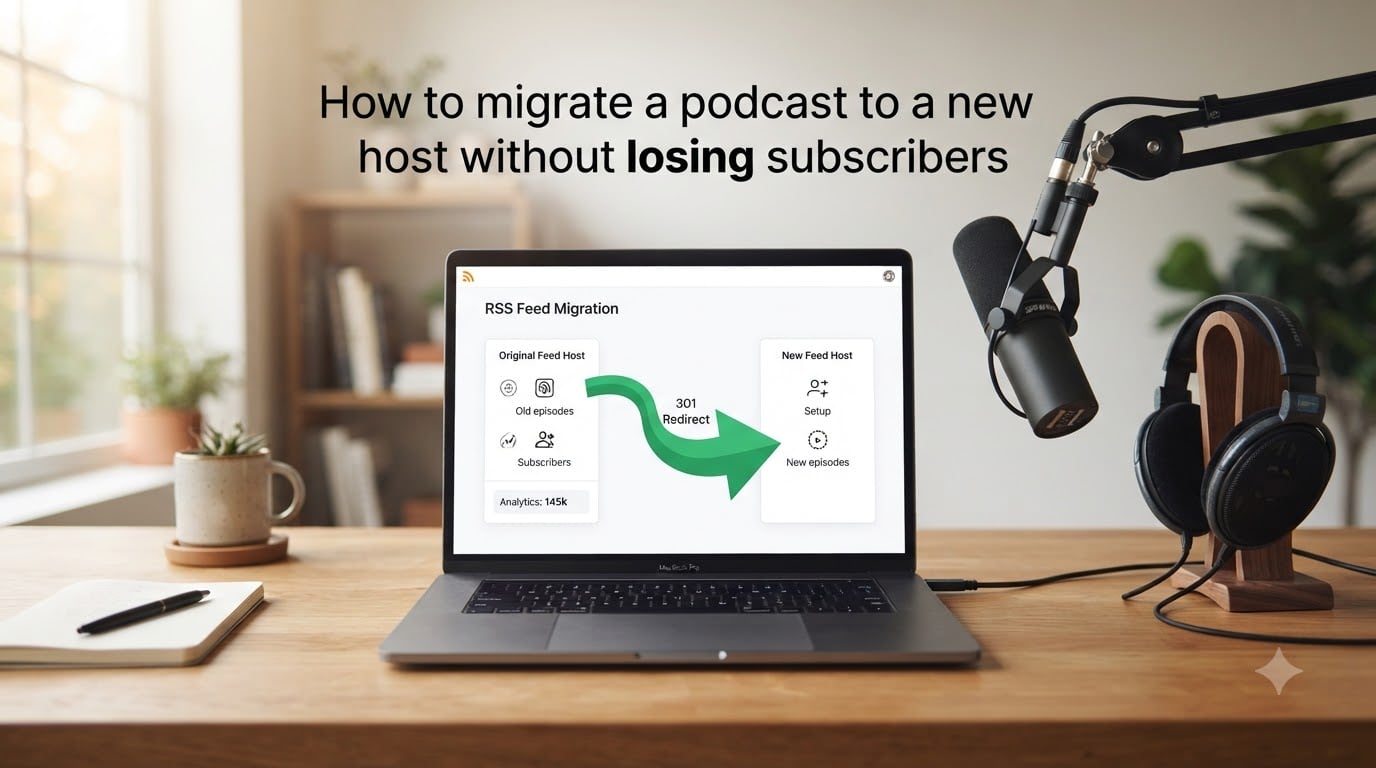
No, you will not lose subscribers if you migrate a podcast to a new host the right way. The secret is a 301 redirect from your old RSS feed to your new one. This permanent redirect tells every podcast app, Apple Podcasts, Spotify, Overcast, Pocket Casts, that your show has moved. The apps follow the redirect automatically, pull new episodes from the new host, and your subscribers never notice a thing.
I have walked dozens of podcasters through this exact process, and I have seen it go smoothly every single time when the redirect is in place. I have also seen what happens when it is not, and that is why I want to lay out the complete steps here. By the end of this guide, you will know how to migrate a podcast to a new host without losing subscribers, how to update the major directories, and how long to wait before closing your old account.
Table of Contents
- Will I Lose Subscribers When I Switch Podcast Hosts?
- What Is a 301 Redirect and Why It Matters
- How to Migrate a Podcast to a New Host: Step-by-Step Process
- Step 1: Confirm the New Host Is the Right Fit
- Step 2: Export Your Episode List and Audio Files
- Step 3: Import Your Podcast Into the New Host
- Step 4: Strip Dynamic Ads Before the Import
- Step 5: Turn On the 301 Redirect on Your Old Host
- Step 6: Update Apple Podcasts and Spotify Manually
- Step 7: Monitor for Four Weeks Before Canceling
- How to Update Apple Podcasts After Migration
- How to Update Your Spotify Podcast Feed
- What Carries Over and What Doesn’t
- How Long to Wait Before Canceling Your Old Account
- Frequently Asked Questions
- Will I lose followers or subscribers in Apple Podcasts if I switch hosting providers?
- Will I lose podcast followers on Spotify if I switch hosting companies?
- How do I move podcast hosts?
- What happens to my analytics when I switch podcast hosts?
- Is there downtime for listeners if I switch podcast hosting?
- Final Thoughts on Podcast Migration
Will I Lose Subscribers When I Switch Podcast Hosts?
No, you will not lose subscribers when you switch podcast hosts if you use a 301 redirect. Your subscriber count lives inside the podcast directories themselves, not on your hosting platform. Apple Podcasts tracks who follows your show, Spotify tracks who follows your show, and your host simply stores the audio files and the RSS feed.
When you flip on a 301 redirect, podcast apps continue checking your old RSS feed URL. Instead of pulling episodes from there, they get a permanent redirect signal and immediately start pulling from your new feed. The subscribers in their libraries stay right where they are.
The only time subscribers drop is when you skip the redirect, change the RSS feed without warning, or cancel your old host before the redirect has propagated. We will cover all three pitfalls later in this guide.
What Is a 301 Redirect and Why It Matters
A 301 redirect is a server-side instruction that says this URL has permanently moved to a new location. When someone visits the old address, their browser, app, or podcast player automatically goes to the new address without any extra action from the user.
In podcast migration, the 301 redirect lives on your old host. You tell your old host that any request to your old RSS feed should be forwarded to your new RSS feed. Most major podcast hosts, including Buzzsprout, Libsyn, Simplecast, and Captivate, offer this as a built-in setting. You do not need to touch DNS or hosting files yourself.
Without a 301 redirect, podcast apps have no way of knowing your show moved. They keep checking the old feed, find nothing new, and your subscribers stop receiving episodes. This is why the redirect is the single most important part of any podcast migration.
Think of it as a change-of-address form at the post office. You move houses, you file the form, and your mail catches up at the new place. Skip the form, and the mail keeps arriving at the old, empty address.
How to Migrate a Podcast to a New Host: Step-by-Step Process
Here is the exact process I follow when moving a podcast between hosts. Work through these steps in order, and you will not lose a single subscriber.
Step 1: Confirm the New Host Is the Right Fit
Before you touch any feeds, make sure the new host actually solves the problem that pushed you to switch. List the features you need, whether that is better analytics, unlimited bandwidth, dynamic ad insertion, or a custom domain feed. Compare two or three hosts side by side and pick one that ticks the boxes. This avoids a second migration in six months.
Step 2: Export Your Episode List and Audio Files
Ask your current host for a full export of your podcast data. Most hosts let you download every MP3 plus your RSS feed XML in a single archive. Save a copy of your analytics reports too, including total downloads, episode-level downloads, and listener locations. Store the archive somewhere safe, like an external drive or cloud backup.
Step 3: Import Your Podcast Into the New Host
Open your new host and use the import wizard. You will typically paste in your old RSS feed URL, and the new host will pull in every episode, title, description, and publish date. Review the imported episodes to make sure nothing is missing. Most import tools finish within an hour, depending on how many episodes your show has.
Step 4: Strip Dynamic Ads Before the Import
If your old host injected dynamic ads into your episodes, ask them to remove the ad markers before you export. Dynamic ads baked into MP3s will travel with your files to the new host and continue serving the old host’s ad inventory. Cleaning them first prevents a billing mess and keeps your monetization clean.
Step 5: Turn On the 301 Redirect on Your Old Host
This is the most important step. In your old host’s settings, find the redirect option and enter your new RSS feed URL. Save the change. The redirect goes live immediately on most platforms, but podcast apps take time to discover it. Give Apple Podcasts and Spotify 24 to 72 hours to register the change, and allow up to two weeks for smaller apps.
Step 6: Update Apple Podcasts and Spotify Manually
Even with the redirect in place, you should submit your new RSS feed directly to Apple Podcasts Connect and the Spotify for Podcasters dashboard. This speeds up propagation and confirms that your new feed is the canonical source. We will cover the exact clicks for each platform in the next sections.
Step 7: Monitor for Four Weeks Before Canceling
Resist the urge to close your old account right away. Run both feeds in parallel for at least four weeks. Check your new host’s analytics daily to confirm downloads are steady and your subscriber count holds. Only when you see consistent traffic on the new feed should you cancel the old account.
How to Update Apple Podcasts After Migration
Apple Podcasts is the largest podcast directory, and it deserves special attention. Even with a 301 redirect, manually updating your feed inside Apple Podcasts Connect speeds up the transition.
Log in to Apple Podcasts Connect and find your show. Paste your new RSS feed URL into the feed field and save. Apple will validate the new feed, which usually takes a few hours. Once validated, Apple begins pulling new episodes from the new feed and any pending subscribers follow the redirect.
Apple Podcasts is also the slowest directory to propagate changes, so patience matters. Expect 48 to 72 hours before the new feed shows up everywhere. If your show does not update after three days, contact Apple support through the Podcasts Connect dashboard.
How to Update Your Spotify Podcast Feed
Spotify updates are usually faster than Apple, often within 24 hours. Log in to Spotify for Podcasters, navigate to your show settings, and replace your RSS feed URL with the new one. Spotify will re-validate and start pulling new episodes from your new host almost immediately.
Spotify follows 301 redirects on its own, but submitting the new feed directly avoids any lag for your subscribers. Your Spotify follower count is stored inside Spotify itself, so the switch does not affect your follower total. The same is true for Apple Podcasts followers, Overcast subscriptions, Pocket Casts subscriptions, and Castro follows.
What Carries Over and What Doesn’t
Setting expectations matters as much as the technical steps. Here is what carries over to your new host and what stays behind on the old one.
What carries over: every episode, every title, every description, every publish date, your subscriber counts in each directory, your reviews and ratings on Apple Podcasts, your follower count on Spotify, and your podcast artwork.
What does not carry over: historical analytics from your old host. The download history, listener geography, and retention graphs live in your old host’s dashboard. That is why the export step in this process matters. You need to download those reports before closing the account.
Embedded players also need attention. Any embed code you copied from your old host will stop working the moment you cancel that account. After migration, swap every old embed for the new host’s player code, or use a third-party embed service that pulls directly from your RSS feed.
How Long to Wait Before Canceling Your Old Account
Wait at least four weeks before canceling your old podcast host account. This is the mistake that costs people subscribers, because closing the account breaks the 301 redirect and leaves podcast apps with nowhere to go.
Use the four-week window to verify your new feed’s analytics. Watch for steady download numbers, consistent subscriber counts across directories, and any error reports in your new host’s dashboard. If you see unusual drops, double-check that the 301 redirect is still active on your old host.
Some podcasters prefer to wait six to eight weeks for extra safety, especially if they have a back catalog of several hundred episodes. The longer your show, the more time apps need to fully register the new feed. Free Stream Hosting and similar providers recommend the longer window for shows over 100 episodes.
Frequently Asked Questions
Will I lose followers or subscribers in Apple Podcasts if I switch hosting providers?
No. Your Apple Podcasts followers live inside Apple’s directory, not on your hosting platform. As long as you set up a 301 redirect from your old RSS feed to your new one, Apple Podcasts follows the redirect and your followers stay subscribed automatically.
Will I lose podcast followers on Spotify if I switch hosting companies?
No. Spotify stores your follower count on its own servers, independent of your podcast host. Submit your new RSS feed inside Spotify for Podcasters and the platform pulls new episodes from the new host while keeping every follower intact.
How do I move podcast hosts?
Export your episodes and analytics from your old host, import them into the new host using its import wizard, turn on a 301 redirect on the old host pointing to the new RSS feed, manually submit the new feed to Apple Podcasts and Spotify, then wait four weeks before canceling the old account.
What happens to my analytics when I switch podcast hosts?
Historical analytics stay on your old host’s dashboard. Download CSV reports of total downloads, episode downloads, listener geography, and retention graphs before canceling. Your new host starts fresh analytics from the migration date onward.
Is there downtime for listeners if I switch podcast hosting?
No, there is no downtime if the 301 redirect is active. Listeners experience no interruption because podcast apps follow the redirect and continue pulling episodes from the new host automatically within 24 to 72 hours for major apps.
Final Thoughts on Podcast Migration
Migrating a podcast to a new host without losing subscribers comes down to one thing: the 301 redirect. Set it up correctly, give the directories time to propagate, and your subscribers will not notice the move at all. Export your analytics before you start, update Apple Podcasts and Spotify manually, and wait at least four weeks before closing the old account. Follow those steps, and the migration will be invisible to your audience.