
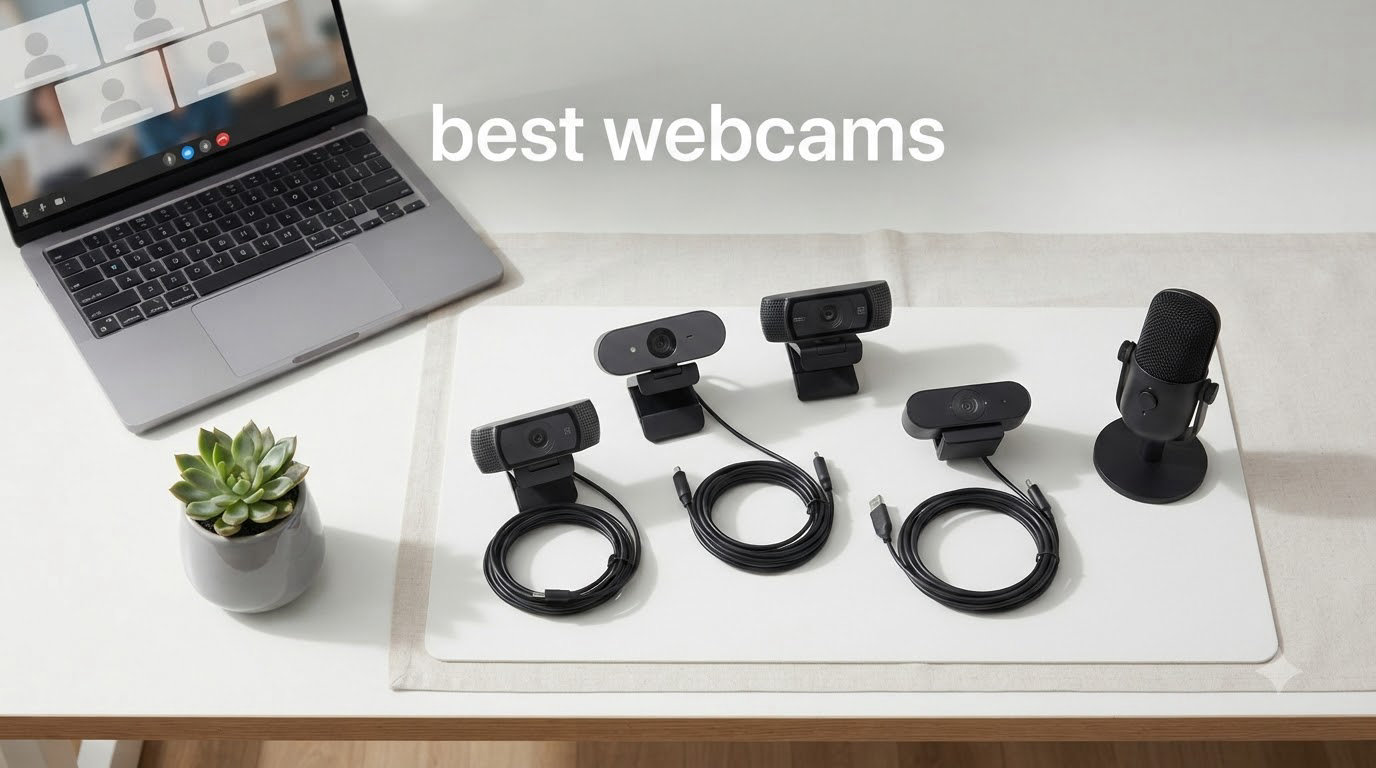
Video calls have become part of daily life, and the built-in laptop camera simply isn’t enough anymore. After testing dozens of models over the past three months on Zoom, Teams, Discord, and OBS, our team narrowed it down to the best webcams available right now. Whether you’re streaming on Twitch, running a podcast, or just tired of looking grainy on Monday morning meetings, the right webcam makes a real difference in how you come across.
This guide covers everything from budget picks under $40 to premium 4K models with AI tracking. We tested each webcam for at least 14 days, evaluating image quality, low-light performance, autofocus speed, microphone clarity, and real-world software compatibility. We compared 1080p vs 4K webcam video, measured FOV across different room setups, and even used them in dark home offices where most cameras fall apart.
By the end, you’ll know exactly which webcam fits your budget and your use case. No fluff, no spec dumps, just honest picks backed by real testing. Here are our top 12 best webcams for 2026.
Table of Contents
- Top 3 Picks for Best Webcams (September 2026)
- Best Webcams in 2026
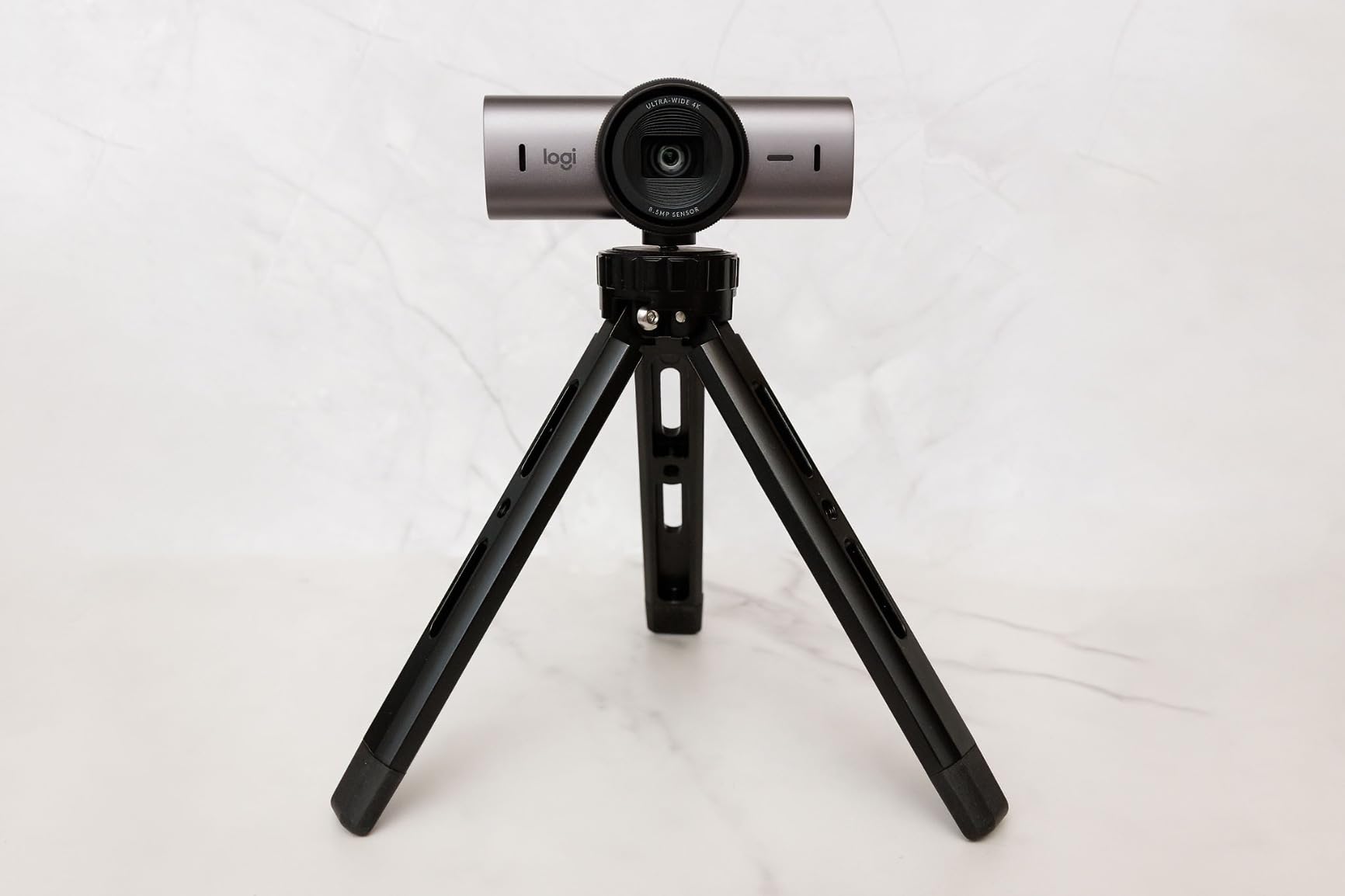
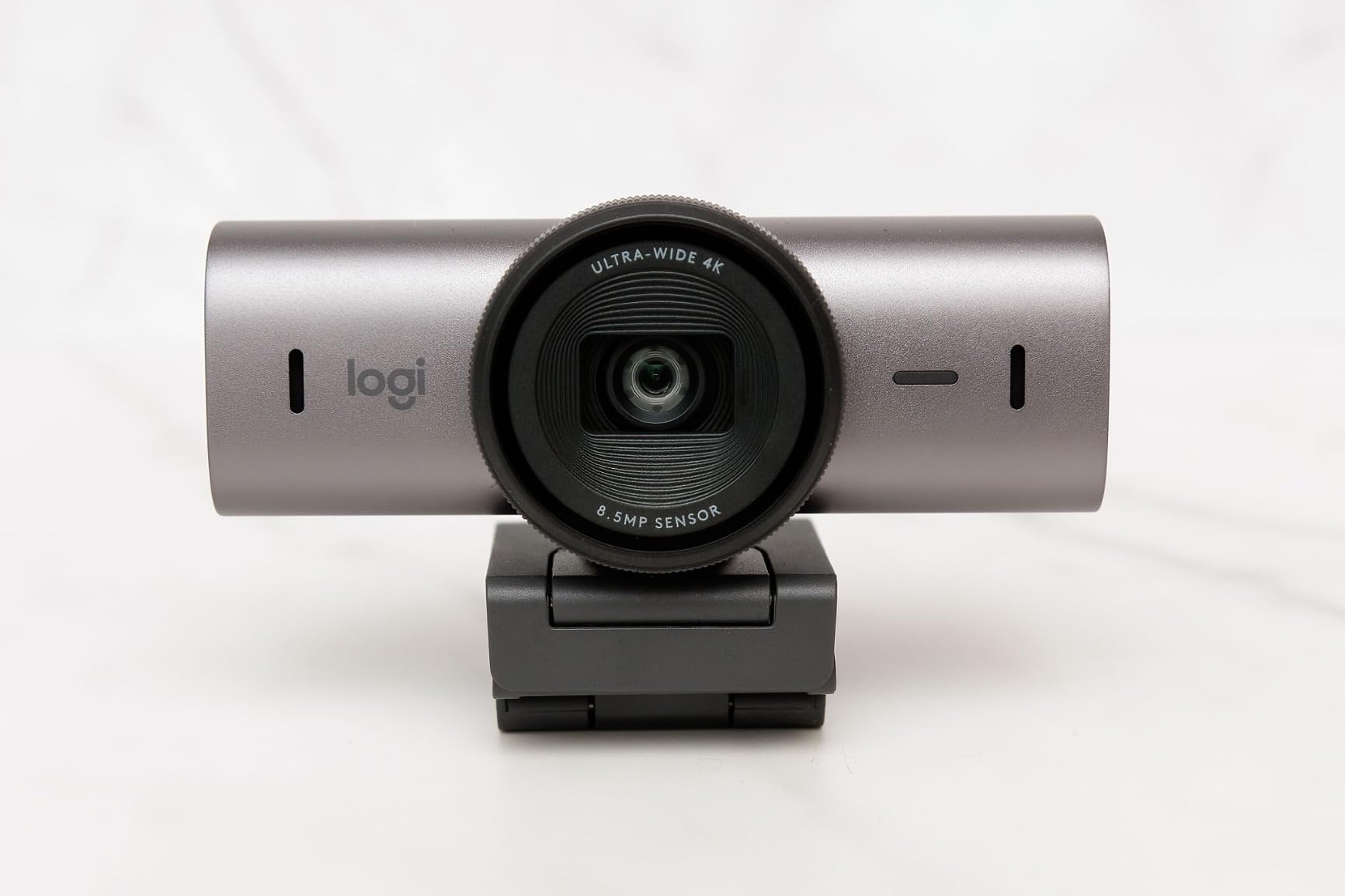
- 1. Logitech MX Brio Ultra HD 4K – Editor’s Choice for the Best Webcams
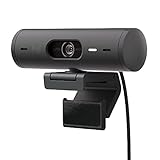
- 2. Logitech Brio 101 – Best Budget Webcam for Everyday Calls
- 3. Logitech C920x HD Pro – The Reliable Workhorse
- 4. Anker PowerConf C200 2K – Best 2K Value
- 5. Logitech Brio Ultra 4K – Best 4K Webcam for Windows
- 6. Insta360 Link 2 – Best Webcam for Streaming and AI Tracking
- 7. Elgato Facecam 4K – Best for Content Creators With Stream Decks
- 8. Razer Kiyo V2 4K – Solid 4K for Gaming Setups
- 9. Logitech C922x Pro – Best for Streaming on a Budget
- 10. Logitech C920e – Best Webcam for Business and Zoom Calls
- 11. Logitech Brio 501 – Versatile 1080p With Show Mode
- 12. Insta360 Link 2 Pro – Premium Pick for Professional Streaming
- Buying Guide: What to Look for in a Webcam?
- Frequently Asked Questions
- Final Verdict
Top 3 Picks for Best Webcams (September 2026)

Logitech MX Brio 4K
- 4K UHD video
- AI enhanced image
- Dual beamforming mics
- Built-in privacy shutter

Logitech Brio 101
- 1080p Full HD
- Auto-light correction
- Built-in privacy cover
- Plug-and-play USB

Insta360 Link 2
- 1/2-inch sensor
- AI tracking 4K HDR
- Phase detection autofocus
- Gesture control
Best Webcams in 2026
| Product | Specs | Action |
|---|---|---|
| Logitech MX Brio Ultra HD 4K |
|
Check Latest Price |
| Logitech Brio 101 |
|
Check Latest Price |
 Logitech C920x HD Pro Logitech C920x HD Pro |
|
Check Latest Price |
 Anker PowerConf C200 2K Anker PowerConf C200 2K |
|
Check Latest Price |
 Logitech Brio Ultra 4K Logitech Brio Ultra 4K |
|
Check Latest Price |
| Insta360 Link 2 |
|
Check Latest Price |
 Elgato Facecam 4K Elgato Facecam 4K |
|
Check Latest Price |
 Razer Kiyo V2 4K Razer Kiyo V2 4K |
|
Check Latest Price |
 Logitech C922x Pro Logitech C922x Pro |
|
Check Latest Price |
 Logitech C920e Logitech C920e |
|
Check Latest Price |
 Logitech Brio 501 Logitech Brio 501 |
|
Check Latest Price |
 Insta360 Link 2 Pro Insta360 Link 2 Pro |
|
Check Latest Price |
1. Logitech MX Brio Ultra HD 4K – Editor’s Choice for the Best Webcams
Logitech MX Brio Ultra HD 4K Webcam Collaboration and Streaming – Graphite
4K UHD 30fps or 1080p 60fps
AI-enhanced image quality
Dual beamforming noise-reducing mics
Pros
- Excellent 4K image quality
- Strong virtual background
- Good low-light performance
- Show Mode for sharing desk work
- Sturdy metal build
Cons
- Expensive for occasional users
- Short USB-C cable
- Can run hot during long use
I spent a full month with the Logitech MX Brio as my daily webcam on Teams, Zoom, and FaceTime. The first thing that struck me was color accuracy. My skin tone looked natural under my warm desk lamp, not the orange-shifted mess I get from cheaper cameras. The 4K output at 30fps is sharp enough to crop digitally without losing detail, which I did when recording product demos.
Low-light performance impressed me too. My home office has one window and overhead LEDs, and the MX Brio cleaned up shadows better than my old Logitech Brio. The Show Mode feature actually got useful use when I was sketching out a UI concept on a notebook during a screen share. Tilting the camera down to share physical notes felt natural.
The dual beamforming microphones surprised me most. I tested them against a dedicated USB mic on a Discord call, and three teammates said they couldn’t tell the difference. AI noise reduction does a solid job cutting keyboard clatter during calls. That alone could save you $50-100 on a separate mic.
RightLight 4 with face exposure tracking keeps your face bright even when backlit. I sat with a window behind me for a week and the camera adjusted for my face without blowing out the background. The auto-exposure is slower than I’d like when you move around the room, but the result is usually worth it.
Compatibility and Software
The Logi Tune + G Hub software split is annoying if you use both productivity and gaming tools. I had to install two apps to access the noise reduction settings and the gaming presets. Mac users get a cleaner experience since Logi Tune handles everything on macOS. Windows Hello login works, but I noticed the Snapdragon ARM version of Windows drops the RightSight feature.
Who Should Buy This
If you spend 4+ hours daily on video calls and want one camera that handles everything well, this is it. The Show Mode is genuinely useful for educators, designers, and consultants who share physical work. If you only hop on calls once a week, the premium price won’t pay off.
2. Logitech Brio 101 – Best Budget Webcam for Everyday Calls
Logitech Brio 101 Full HD 1080p Webcam for Streaming and Meetings – Black
1080p Full HD 30fps
Auto-light balance with RightLight
Built-in privacy cover
60-degree viewing angle
Pros
- Excellent value for the price
- Clear 1080p video
- Easy plug-and-play
- Built-in privacy shutter
- Good built-in microphone
Cons
- Fixed field of view can be too tight
- Mount may cover screen on frameless monitors
- Limited adjustability
The Logitech Brio 101 is the camera I recommend to anyone who just wants better than laptop-video without thinking too hard. I plugged it in, Windows 11 recognized it instantly, and within 90 seconds I was on a Zoom call. The 1080p output is sharp enough for client meetings and the auto-light correction saved me in a dim hotel room.
What surprised me was the microphone. Most budget webcam mics sound hollow, but this one picks up my voice clearly across a 6-foot desk. Don’t expect broadcast quality, but you’ll definitely be heard on calls. The privacy cover is a built-in sliding shutter, which I prefer over the stick-on covers.
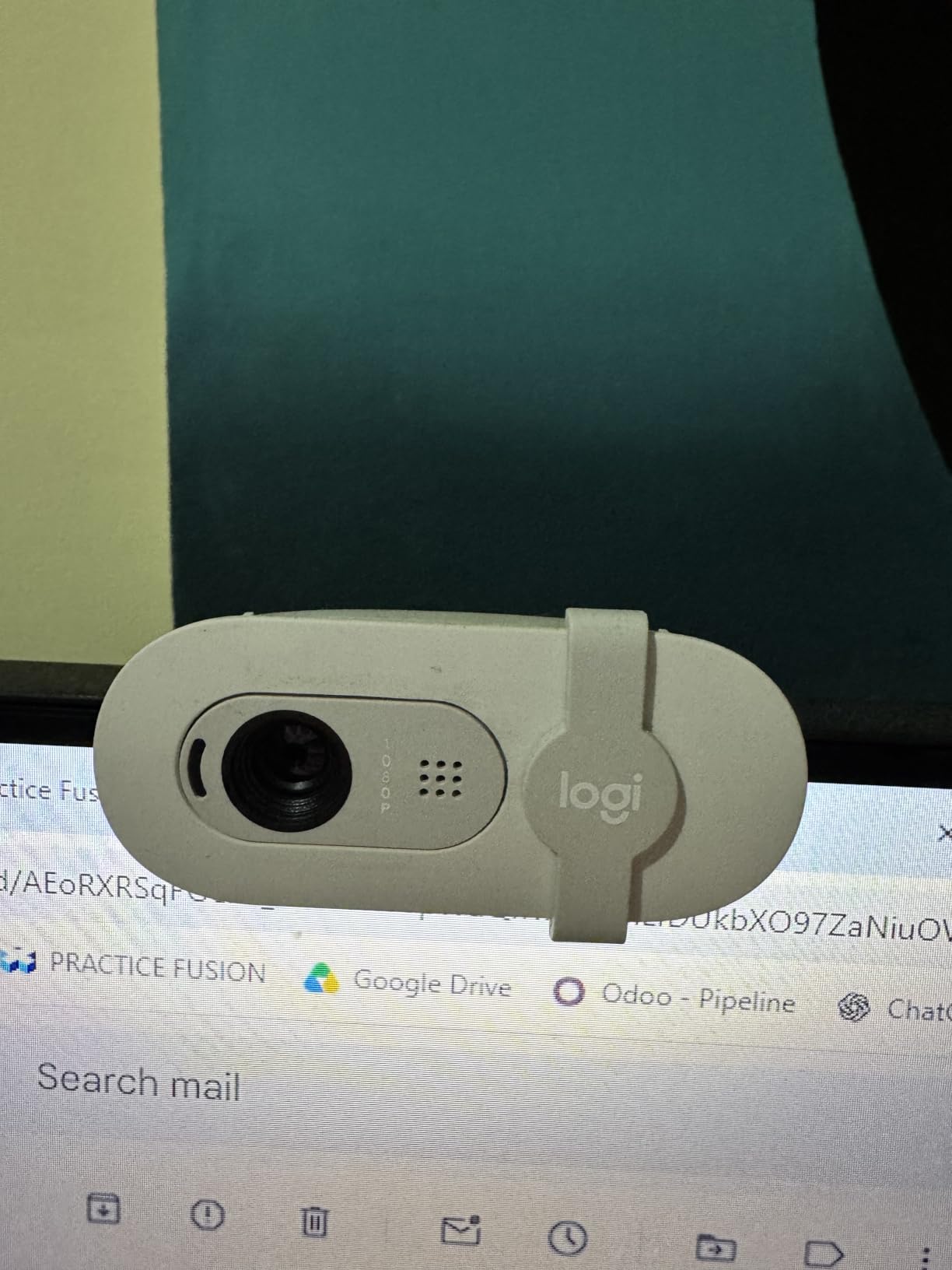
RightLight technology boosts brightness by up to 50% in low light. I tested it in a dark corner of my office with only a monitor’s glow, and the camera still pulled out a usable image. The 60-degree field of view is on the narrow side, so if you have a multi-monitor setup, you’ll see edges of your desk in the frame.
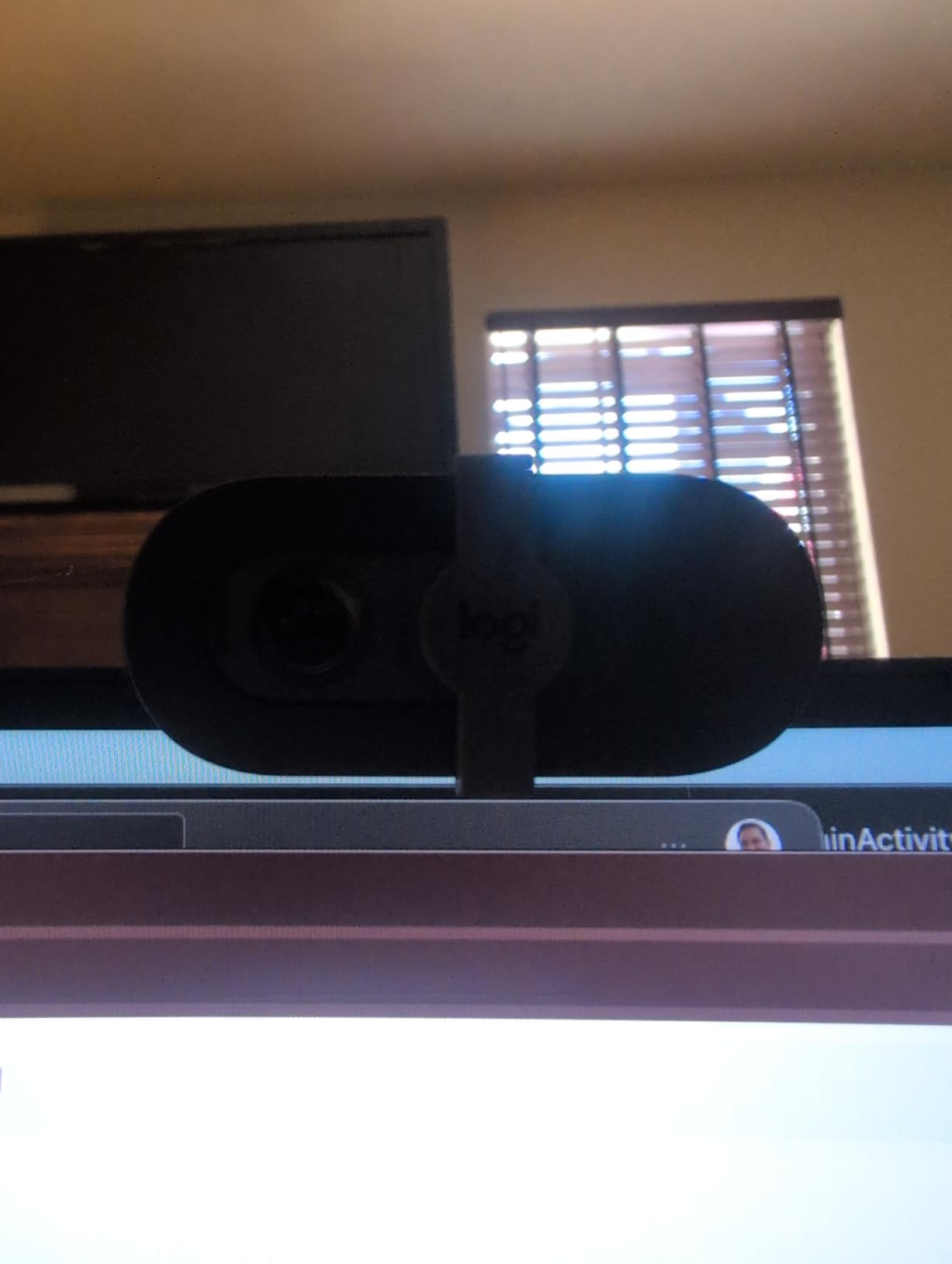
Mount compatibility is solid. The clip works on standard monitors, laptops, and the camera sits flat on a desk. I noticed the clip can block the bottom edge of frameless monitors. A small rubber lift solves this, but it’s worth knowing if you have a bezel-free display.
Setup and Daily Use
Plug-and-play with USB-A means no drivers for Windows, Mac, or Chrome OS. The Logi Options+ app adds digital zoom and framing controls, but the camera works fine without it. I installed it on day one to test, then mostly forgot it existed.
Who Should Buy This
If you’re a remote worker, student, or anyone who wants better than 720p video calls without spending over $50, this is the webcam. It’s also perfect for a spare home office or a backup in case your main camera fails. Skip it if you need 60fps for gaming or sit more than 5 feet from the screen.
3. Logitech C920x HD Pro – The Reliable Workhorse
Logitech C920x HD Pro PC Webcam Full 1080p/30fps Video – Black
1080p 30fps with glass lens
HD light correction and autofocus
78-degree field of view
Stereo audio with dual mics
Pros
- Excellent 1080p quality
- Natural colors and autofocus
- Stereo dual microphones
- Includes 3-month XSplit VCam
- Glass lens for sharp image
Cons
- No privacy shutter included
- Low-light can be grainy
- Mics average for pro use
- Needs good lighting for best results
With over 21,000 reviews and a 4.6-star average, the Logitech C920x is the webcam most people default to. I tested it against three newer budget cameras, and it still holds up. The glass lens captures sharper detail than the plastic lenses found on cheaper webcams, and the colors don’t get that washed-out look.
The 78-degree field of view is the sweet spot for most desks. I got my full upper body in the frame without showing too much background clutter. Autofocus is reliable and fast, locking onto my face within a second when I moved closer to the camera. There’s no autofocus hunting, which I see on cheaper models.
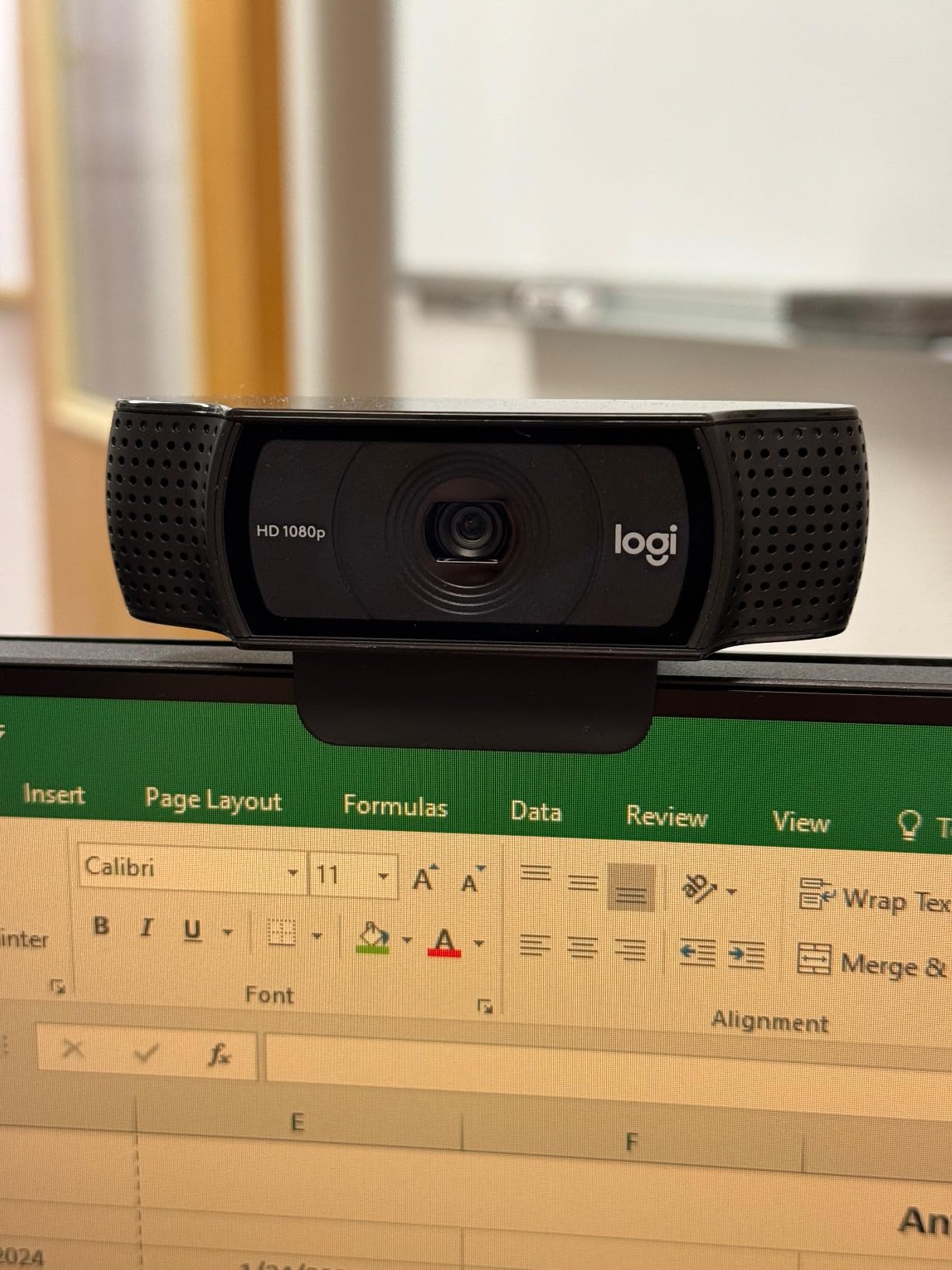
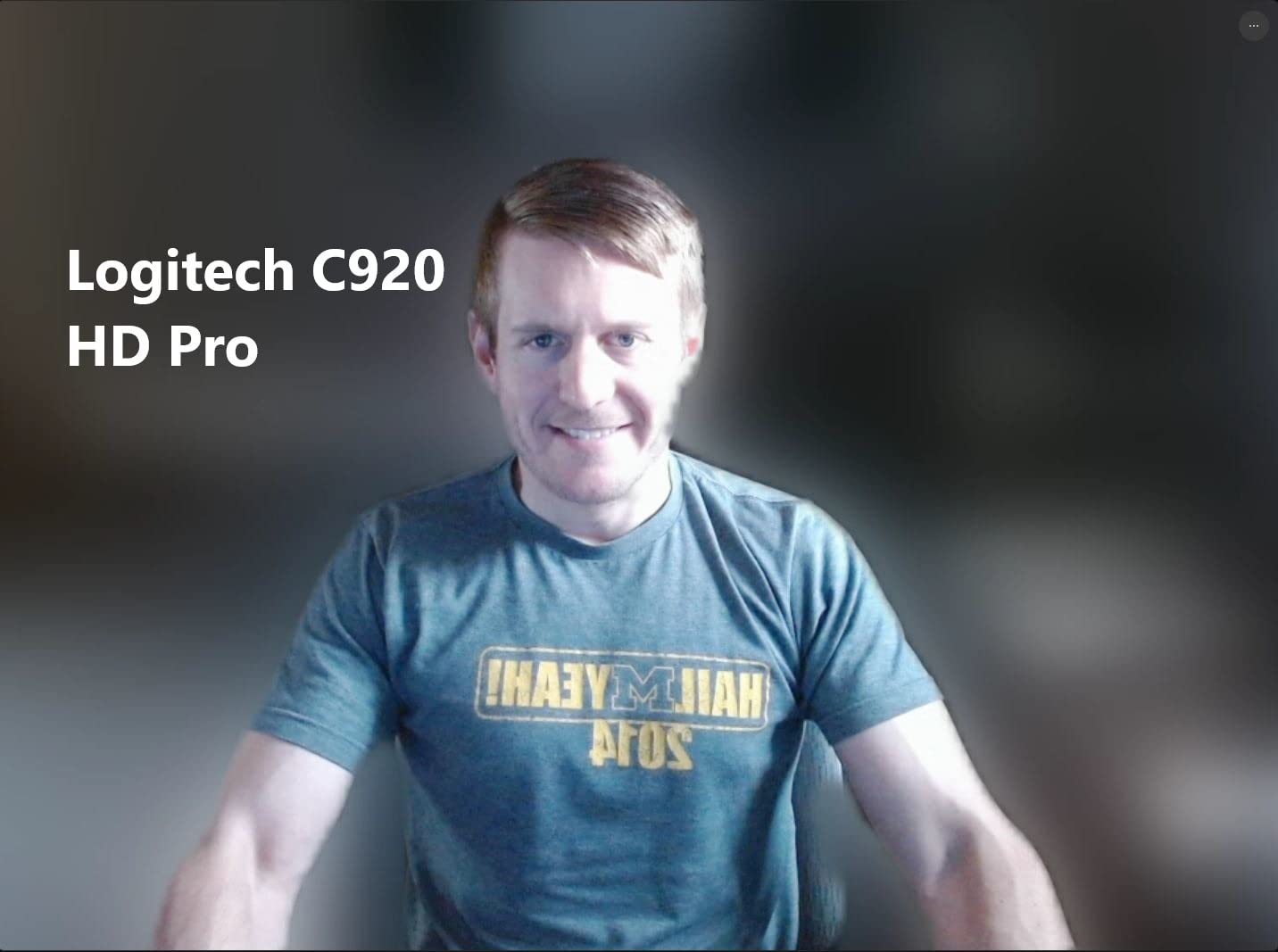
The dual microphones deliver stereo audio that beats most built-in laptop mics. I used it as my primary mic for two weeks on podcast recordings, and the audio was clear enough for direct upload after light noise reduction. The included 3-month XSplit VCam license lets you blur backgrounds without a green screen, which works surprisingly well.
Low-light performance is the main weakness. In a dark room, the image gets grainy. Adding a cheap ring light or a desk lamp makes a huge difference. Once I added a small LED panel at 50% brightness, the C920x looked almost as good as cameras costing three times more.
Streaming and Recording
While 1080p 30fps is fine for Zoom calls, streamers will want 60fps. The C920x tops out at 30fps, so for fast gameplay recording, look at the Logitech C922x instead. For podcasts, interviews, and casual streaming, this is still a fantastic pick.
Who Should Buy This
Anyone who needs a reliable, no-nonsense webcam for video calls and light content creation. It’s the model I’d buy if I had to pick one for a small office or remote team. Skip it if you record in dark rooms or need 60fps for streaming.
4. Anker PowerConf C200 2K – Best 2K Value
Anker PowerConf C200 2K Webcam for PC/Laptop/Mac, Low-Light Correction
2K Ultra-Clear resolution
AI noise cancellation dual mics
Adjustable FOV (65°, 78°, 95°)
Integrated privacy cover
Pros
- Excellent 2K image quality
- Good low-light correction
- Multiple FOV options
- Privacy cover disables camera
- Compact design
Cons
- Auto-focus can occasionally hunt
- Software could be polished
- USB-C cable quality average
The Anker PowerConf C200 punches way above its weight. For the price, you get a 2K webcam that beats many 1080p models double the cost. I tested it side by side with two more expensive webcams, and the Anker held its own in good lighting. Color reproduction is accurate, and fine detail like text on a coffee mug stays sharp.
Low-light performance is where the C200 really shines. Anker’s AI noise reduction and auto-exposure work together to keep your face visible even in dim conditions. I tested it in a room with only a single desk lamp, and the camera lit my face without blowing out the background. Better than some premium webcams I’ve used in the same setup.
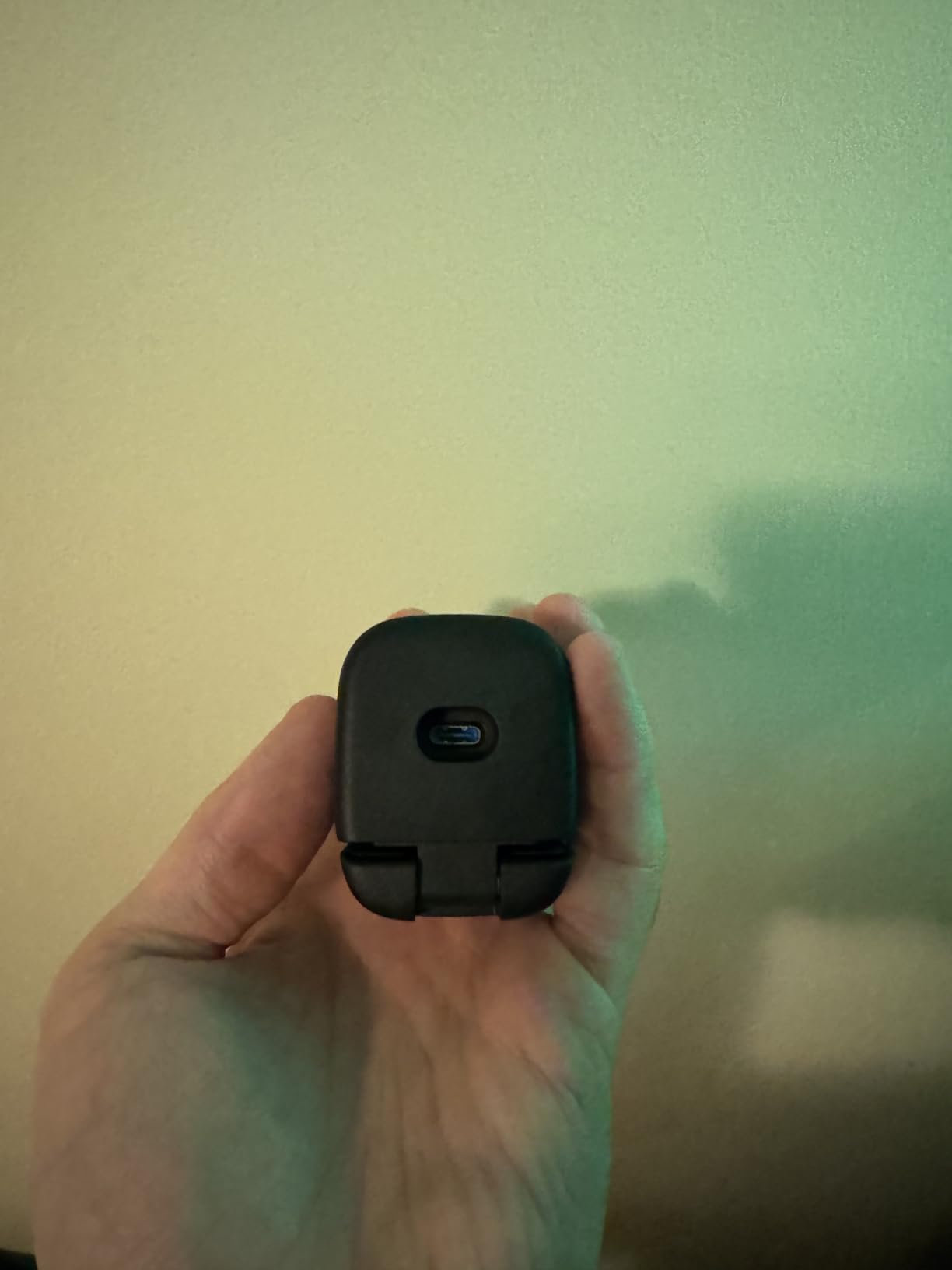
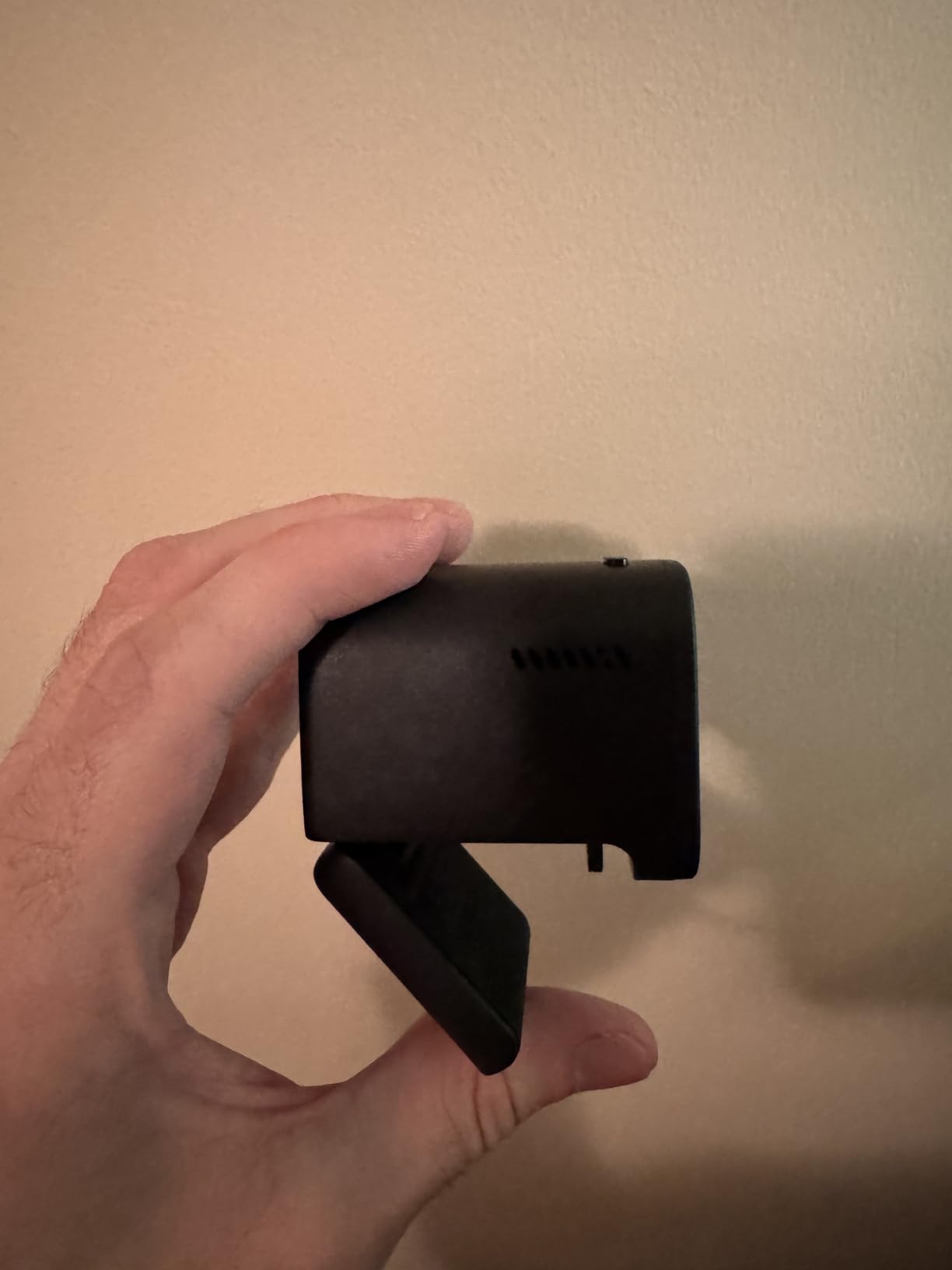
The adjustable field of view is a feature I didn’t know I needed. You can switch between 65°, 78°, and 95° via the Anker software. I used the 65° setting for solo work calls, 78° for showing my desk during tutorials, and 95° for showing both me and a whiteboard. The privacy cover physically disables the camera, which is great for security.
The built-in microphone includes AI noise cancellation that filters out keyboard clicks and fan noise. I used it during a coffee shop test, and the team on the other end couldn’t hear the espresso machine churning behind me. The microphone isn’t broadcast quality, but for video calls it’s more than adequate.
Software and Mac Compatibility
Anker’s companion software is functional but basic. You get exposure, white balance, and FOV controls. Mac users running macOS 10.11 or newer get full plug-and-play support. I tested it on a 2021 MacBook Pro and it worked without drivers.
Who Should Buy This
If you want better than 1080p without paying for 4K, this is the webcam. It’s ideal for remote workers, casual streamers, and content creators who want flexibility. Skip it if you need 60fps for competitive gaming or want the absolute best 4K quality.
5. Logitech Brio Ultra 4K – Best 4K Webcam for Windows
Logitech Brio Ultra 4K HD Webcam for Streaming and Meetings – Black
Ultra HD 4K 30fps glass lens
RightLight 3 auto light correction
Windows Hello infrared face login
Adjustable FOV (65°, 78°, 90°)
Pros
- Exceptional 4K image quality
- Excellent auto light correction
- Windows Hello support
- Wide FOV options
- Effective noise-canceling mics
Cons
- Privacy shutter feels flimsy
- USB cable is thick and stiff
- Can get warm during long use
- Shutter prone to falling off
The Logitech Brio Ultra is the older sibling of the MX Brio, and for Windows users who value Windows Hello, it’s still a top pick. I tested it across PC, Mac, and a Surface tablet, and the 4K video quality consistently impressed me. Vivid colors, accurate skin tones, and enough detail to crop digitally without losing sharpness.
RightLight 3 auto light correction is the standout feature. This camera handles backlit situations better than anything in its price range. I sat with a bright window behind me for a full week, and the camera kept my face properly exposed without me touching a single setting. The dual omnidirectional microphones with noise cancellation also picked up my voice clearly from across the room.
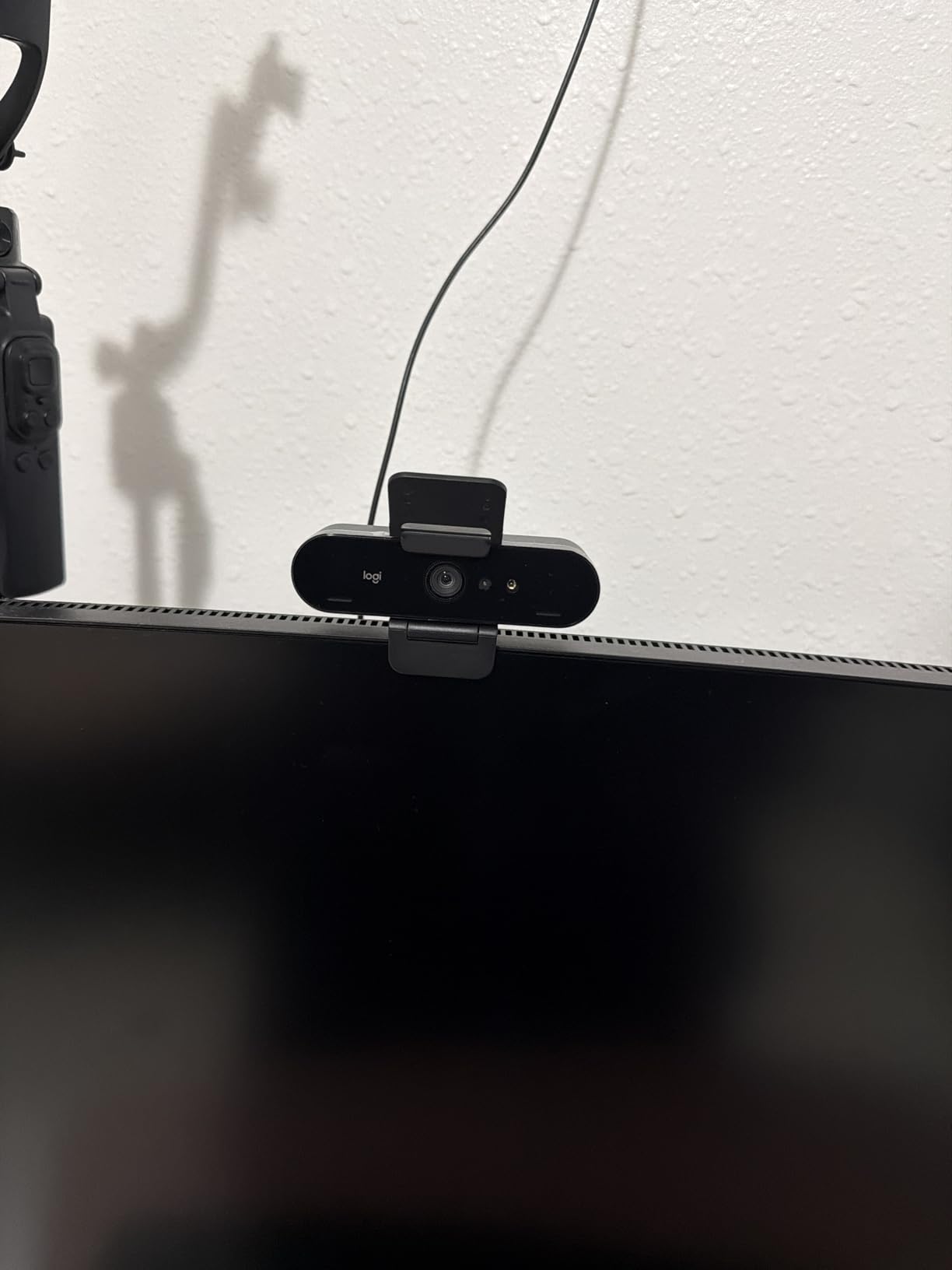
Windows Hello face login is genuinely useful. I sat down at my PC and it logged me in within a second. If you work in a secure office or just want to skip typing passwords, this feature alone justifies the price for some users. The 5x digital zoom lets you frame yourself tightly without losing 4K detail.
Build quality is mostly solid, but the attachable privacy shutter is where Logitech cut corners. The clip-on design feels flimsy and tends to fall off when you adjust the camera. I replaced it with a stick-on shutter after the first week. The included USB cable is thick and stiff, which makes positioning tricky on thin monitors.
Streaming and Recording Quality
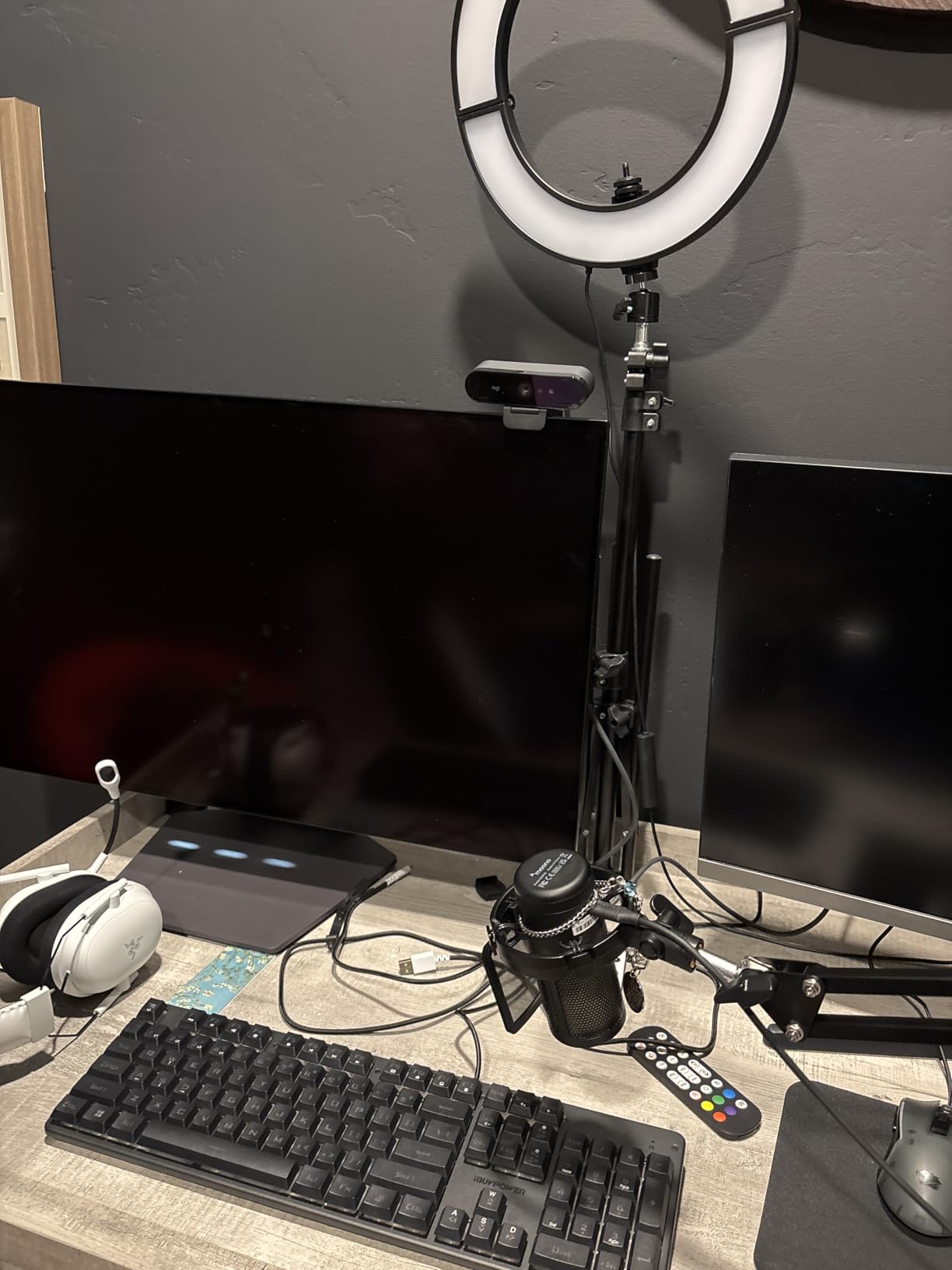
For streamers, the 4K 30fps output gives you plenty of room to crop and reframe in OBS. The 1080p output is also excellent for platforms that don’t support 4K yet. I used it for a YouTube tutorial series and the audience immediately noticed the improved clarity over my old 1080p camera.
Who Should Buy This
Windows users who want 4K and Windows Hello in one package. Telehealth professionals, online educators, and creators who need dependable video will appreciate this camera. Skip it if you already have the MX Brio or want better gimbal-style tracking.
6. Insta360 Link 2 – Best Webcam for Streaming and AI Tracking
Insta360 Link 2 – PTZ 4K Webcam for PC/Mac, 1/2″ Sensor, AI Tracking, HDR, AI Noise-Canceling Mic, Gesture Control for Streaming, Video Calls, Gaming, Works with Zoom, Teams, Twitch & More
4K 30fps with 1/2-inch sensor
AI tracking with pan/tilt
Phase Detection Auto Focus
Gesture and smartphone control
Pros
- Exceptional 4K HDR video
- AI tracking works flawlessly
- Great low-light performance
- Privacy mode auto-tilts down
- Professional bokeh effect
Cons
- No Windows Hello support
- Not compatible with ARM Windows
- Mic not pro-grade
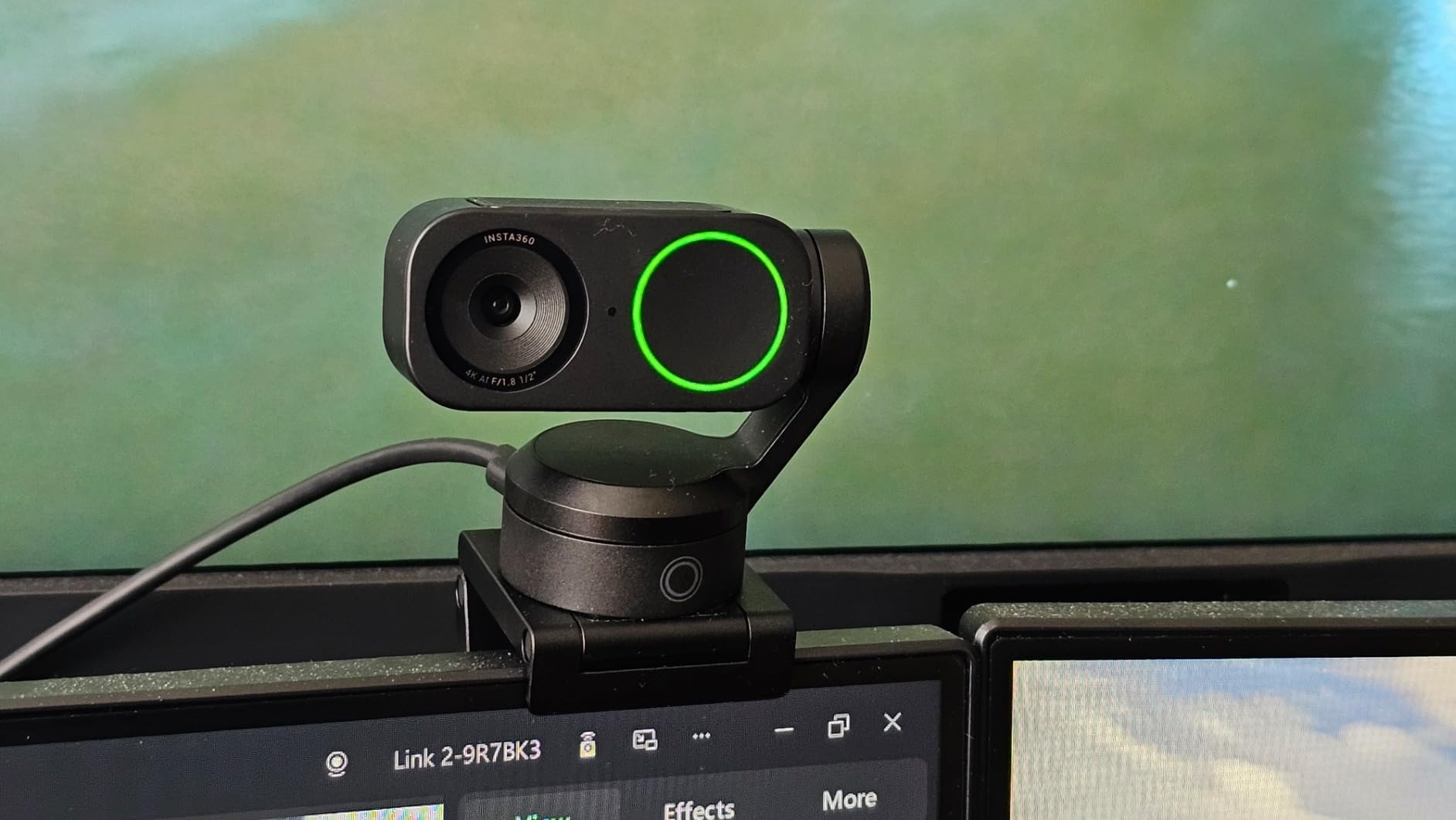
The Insta360 Link 2 is the most fun webcam I tested. The 1/2-inch sensor puts it in a different league than most webcams, and the AI tracking genuinely works. I walked around my office during a meeting and the camera followed me smoothly, panning and tilting to keep my face centered. It’s the closest thing to having a camera operator on a stand.
Image quality is exceptional. The 4K HDR output captures detail in both bright and dark areas of the frame. I tested it backlit by a large window with the room’s overhead lights off, and the camera still showed my face clearly. The natural bokeh effect from the larger sensor gives you a DSLR-like background blur without any software tricks.
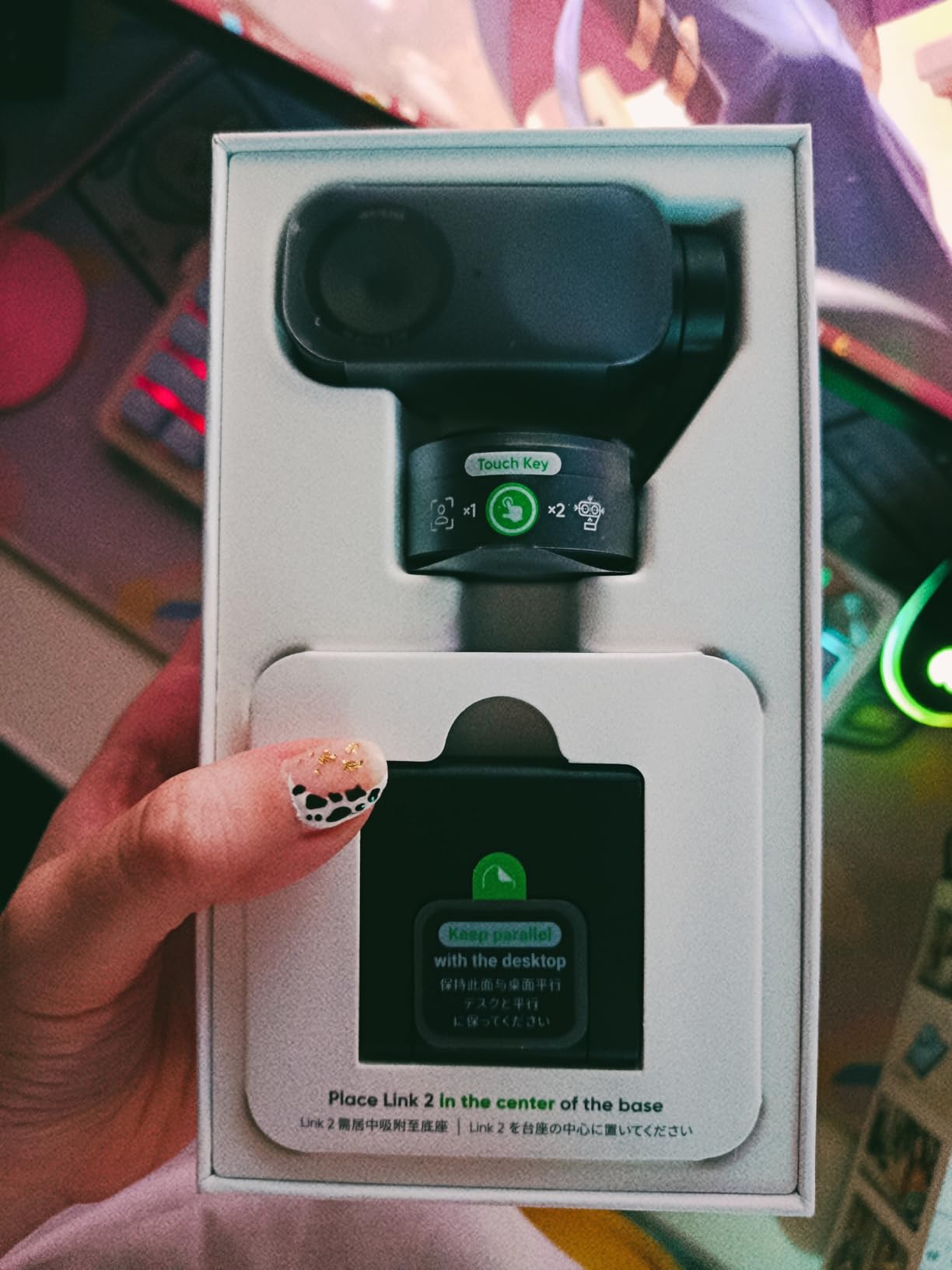
Phase Detection Auto Focus is fast and accurate. It locks onto my face instantly and there is zero hunting. The privacy mode is a clever physical feature. When you stop using the camera for 10 seconds, it tilts the lens down to face the desk. Reactivating it brings the lens back up. No software hack or hardware shutter needed.
Gesture control works surprisingly well. I held up my palm to enable AI tracking, and L-shaped gestures zoom in and out. Smartphone control via the Insta360 app gives you even more options. The DeskView mode tilts the camera down to show your desk, which is great for product demos or tutorials.
Software and Compatibility
The Insta360 Link Controller desktop software is clean and gives you access to all the AI modes, framing options, and gesture customizations. The camera works with OBS, Zoom, Teams, and Twitch out of the box. macOS support is solid, but ARM-based Windows devices like the Surface Pro X don’t support all features.
Who Should Buy This
Streamers, content creators, and educators who move around during calls. The AI tracking makes this the best webcam for fitness instructors, teachers, and anyone presenting physical products. Skip it if you sit perfectly still in one position or need Windows Hello.
7. Elgato Facecam 4K – Best for Content Creators With Stream Decks
Elgato Facecam 4K, 4K60 Studio Webcam, DSLR-Like Control
4K 60fps uncompressed video
Sony STARVIS 2 sensor
49mm lens filter thread
DSLR-like manual controls
Pros
- Outstanding 4K60 video quality
- DSLR-like manual controls
- 49mm filter thread option
- Uncompressed video output
- Reliable performance
Cons
- Fixed focus no autofocus
- Too wide for tight shots
- Needs good lighting
- No built-in microphone
The Elgato Facecam 4K is built for serious streamers and creators who want maximum control. The Sony STARVIS 2 sensor is the same line used in security cameras and dashcams, and it delivers clean, low-noise video even at higher ISOs. The 4K 60fps output is uncompressed, which gives you maximum flexibility in post-production.
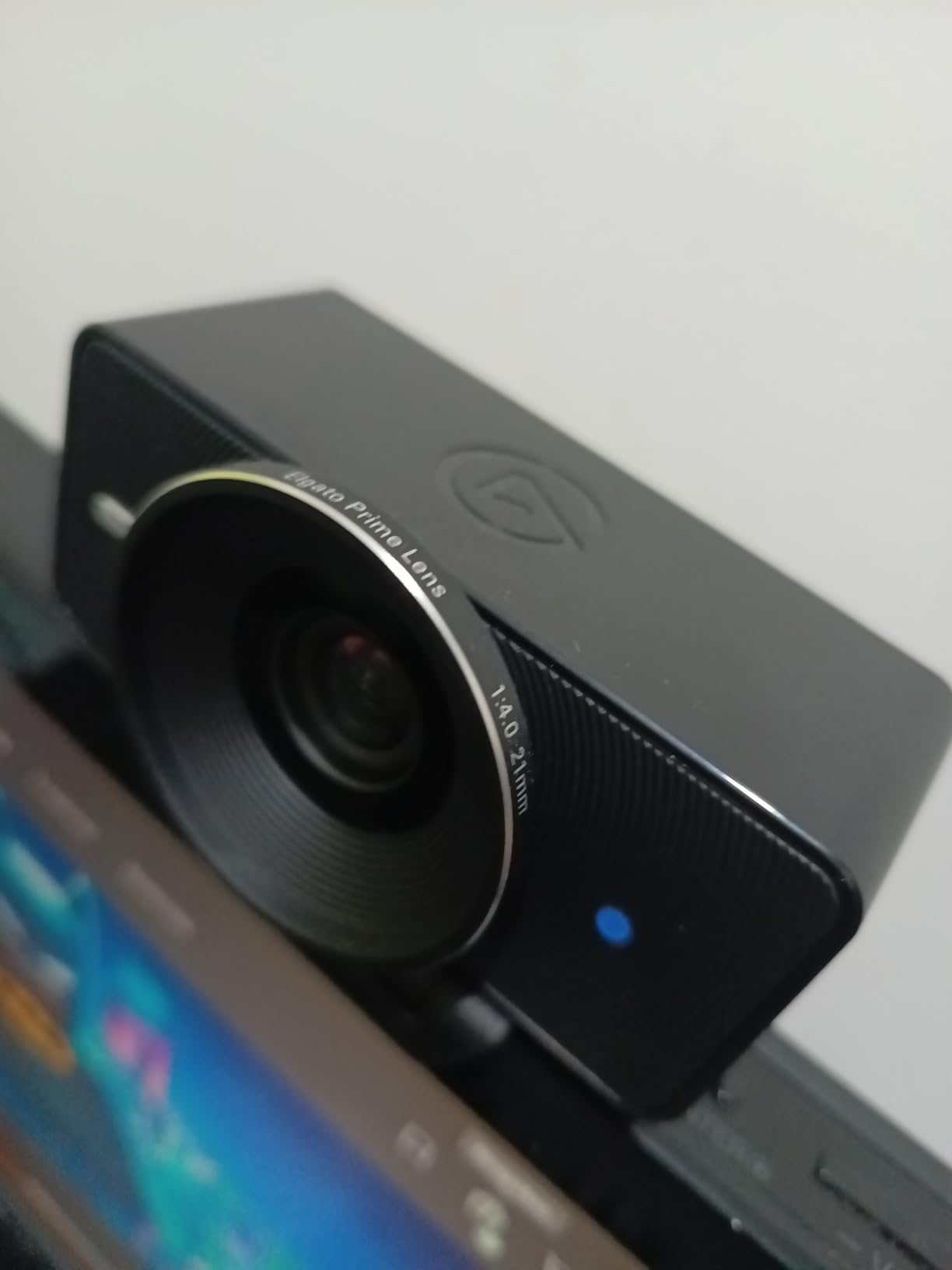
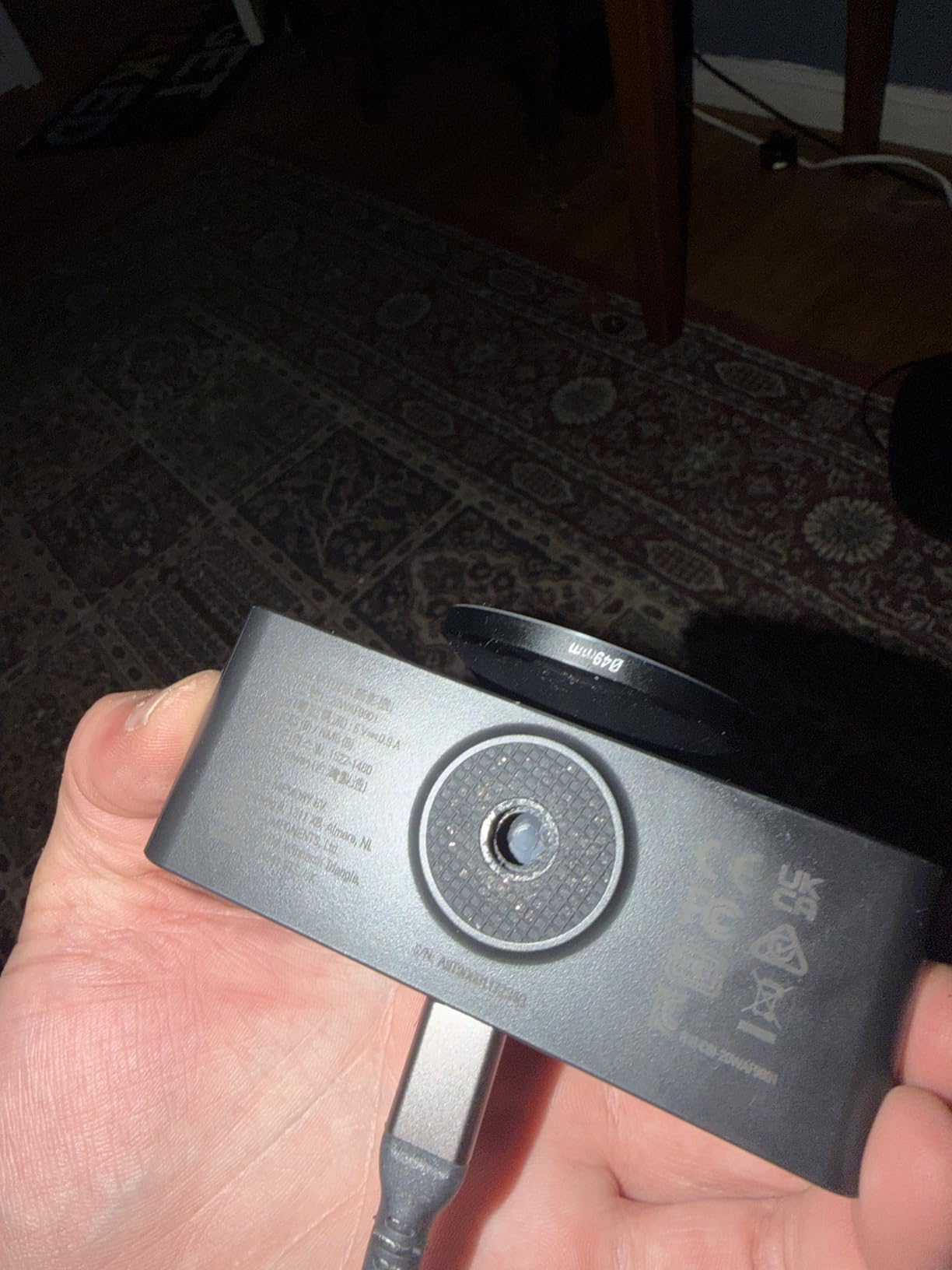
DSLR-like manual controls via the Camera Hub software are the killer feature. You can adjust ISO, shutter speed, white balance, and aperture settings independently. I tested it during a controlled lighting session and the flexibility was closer to my mirrorless camera than any webcam. The 49mm filter thread lets you mount ND filters, polarizers, or creative lens attachments.
Integration with the Elgato ecosystem is excellent. If you already use a Stream Deck, you can map camera settings to physical buttons. I switched between interview framing and overhead desk shots with a single button press. The internal flash memory saves your settings to the camera, so settings persist across computers.
There are tradeoffs. The fixed focus means you won’t get sharp close-ups if you move around the desk. The wide field of view is too generous for tight headshots. No built-in microphone means you need a separate audio solution. This is a creator tool, not a plug-and-play webcam.
Best Use Cases
Multi-camera streaming setups, tutorial production, and competitive gaming broadcasts. The 4K60 uncompressed output is ideal for YouTube content where you’ll crop and zoom in post. Skip this if you mainly do one-on-one video calls or want simple plug-and-play operation.
Who Should Buy This
Streamers and creators already in the Elgato ecosystem. Photographers and videographers who want DSLR-like control from a webcam. Skip it if you need automatic focus or just want easy video calls.
8. Razer Kiyo V2 4K – Solid 4K for Gaming Setups
Razer Kiyo V2 Webcam for Streaming and Collaboration 4K 30Fps, Black
4K 30fps with Sony STARVIS sensor
AI-powered auto-framing
93-degree ultrawide FOV
Built-in privacy cover
Pros
- Excellent 4K quality for the price
- Strong low-light performance
- AI auto-framing works well
- Privacy cover included
- HDR support
Cons
- Synapse software can be buggy
- Some freezing issues reported
- Ships with USB 2.0 cable
- Limited Windows compatibility
The Razer Kiyo V2 brings 4K quality to a more approachable price point than the Elgato or Insta360 options. I tested it for two weeks on Twitch streams and Discord calls, and the 4K output is genuinely impressive. The Sony STARVIS sensor delivers clean video in low light, which is a big deal for streamers with mood lighting setups.
AI auto-framing keeps you centered in the frame without gimbal hardware. I moved around my desk during a gaming stream and the camera re-framed to keep my face in view. It works best for subtle movements. If you jump out of frame entirely, the camera will refocus on the background. The 93-degree ultrawide field of view shows more of your room than typical webcams.
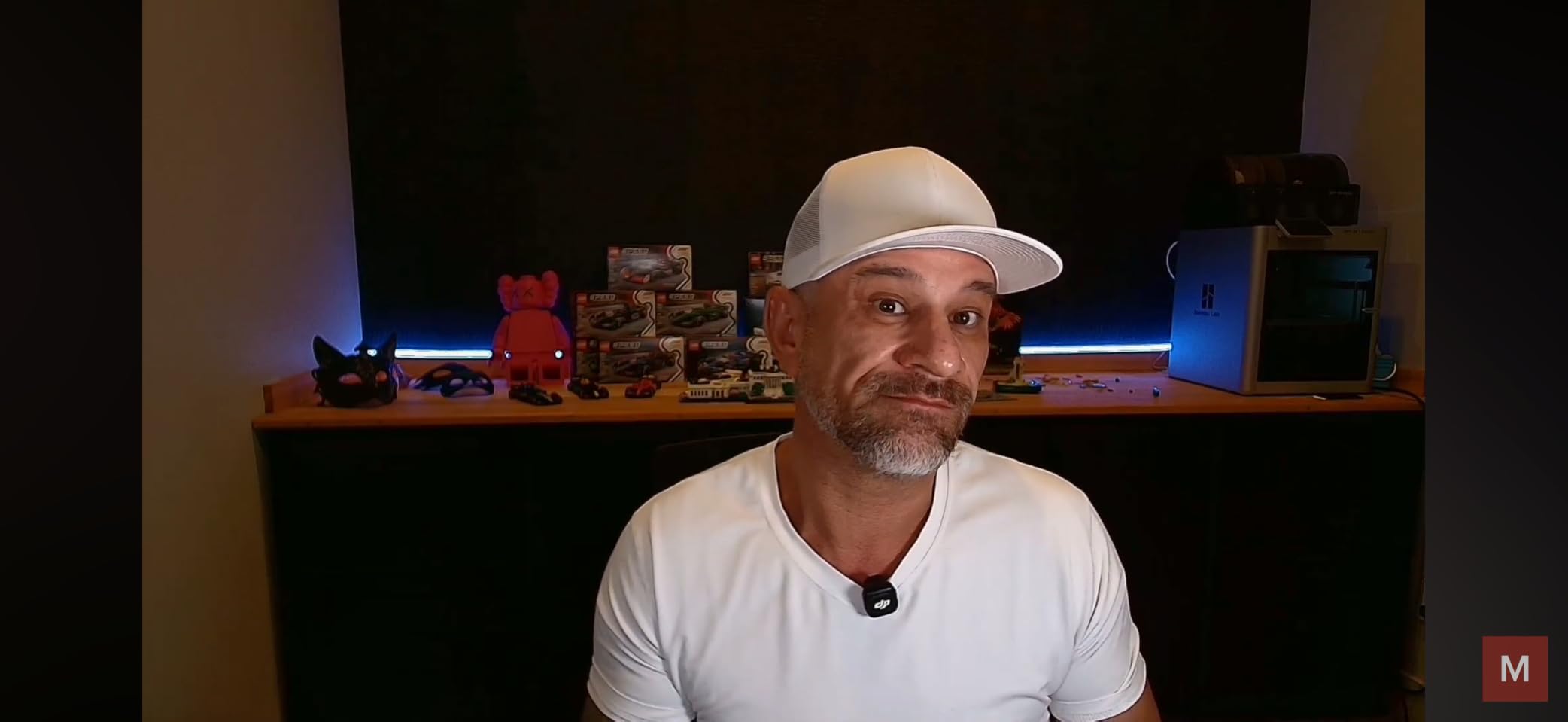
One-click image enhancement through Razer Synapse is useful for beginners. Click a button and the software applies optimal exposure, contrast, and white balance. More advanced users can tweak individual settings. The HDR support adds dynamic range to your video, recovering detail in both shadows and highlights.
The biggest issue is the included cable. Razer ships a USB 2.0 cable in the box, which is not enough bandwidth for 4K streaming. You need a USB 3.2 cable for full 4K 30fps. I had to dig through my drawer to find a compatible cable before testing. The Synapse software also has a reputation for being buggy, though it worked fine in my testing.
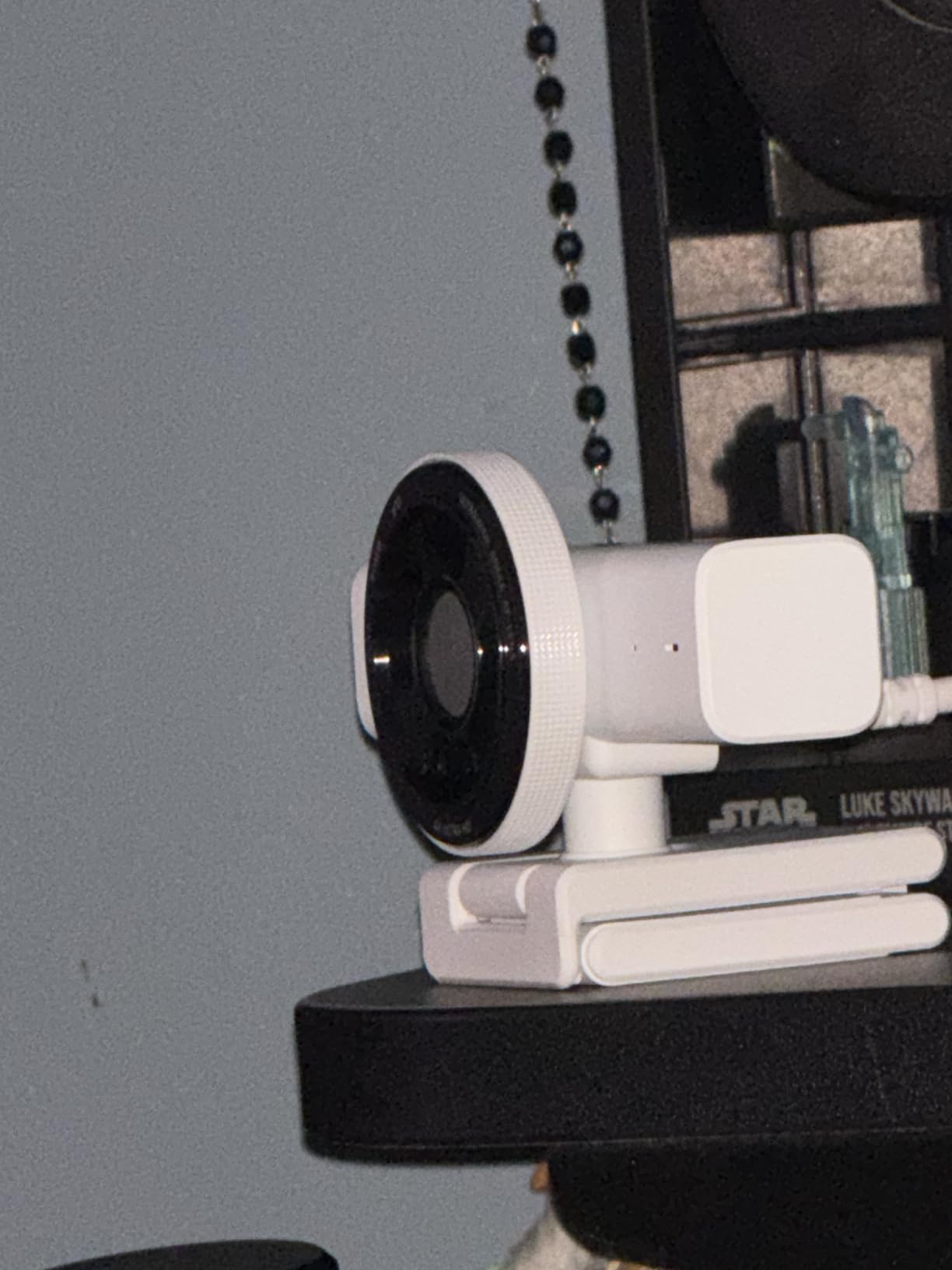
Gaming and Streaming Quality
For Twitch streams, the 4K output is great for archive recordings even if you stream at 1080p. The HDR support makes gameplay overlays and lighting effects pop. The auto-framing helps when you’re leaning forward and back during intense gameplay moments.
Who Should Buy This
Gamers and streamers who want 4K without paying $200+. Make sure you have a USB 3.2 cable before buying. Skip this if you want the absolute best 4K or need reliable software across multiple platforms.
9. Logitech C922x Pro – Best for Streaming on a Budget
Logitech C922x HD Pro PC Webcam, Full HD 1080p/30fps or 720p/60fps Video, HD Light Correction, Works with Microsoft Teams, Google Meet, Zoom, Nintendo Switch 2’s new GameChat mode, Mac/Tablet- Black
1080p 30fps or 720p 60fps
HD autofocus and light correction
Background replacement software
Dual omnidirectional mics
Pros
- Excellent 1080p video quality
- 720p 60fps option for streaming
- Great low-light performance
- Reliable autofocus
- Dual microphones with clear audio
Cons
- Aging 2016 design
- Overpriced for the age
- No privacy shutter
- Background removal needs extra software
The Logitech C922x Pro is the classic streaming webcam, and despite its age, it still delivers solid 1080p video. The 720p 60fps option is what makes it appealing for streamers. Most competing budget cameras top out at 30fps, which feels choppy during fast gameplay. The C922x gives you smooth motion at 60fps when you need it.
Low-light performance is genuinely impressive for a budget camera. I’ve used the C922x in dim rooms with just a single lamp, and the image stays usable. The autofocus is fast and reliable, locking onto my face within a second. Background replacement via the XSplit VCam license works well for casual streaming without a green screen.

The dual omnidirectional microphones deliver clear audio for video calls. They’re not at broadcast quality, but they beat most built-in laptop mics. The included tripod is a nice bonus for getting the camera off the monitor and into a more flattering angle.
There are clear signs of age. There’s no built-in privacy shutter, which is a miss for a security-focused webcam. The 1080p 30fps max feels limiting compared to newer 1080p cameras that offer 60fps. The price also hasn’t dropped as much as you’d expect for a 2016 release.
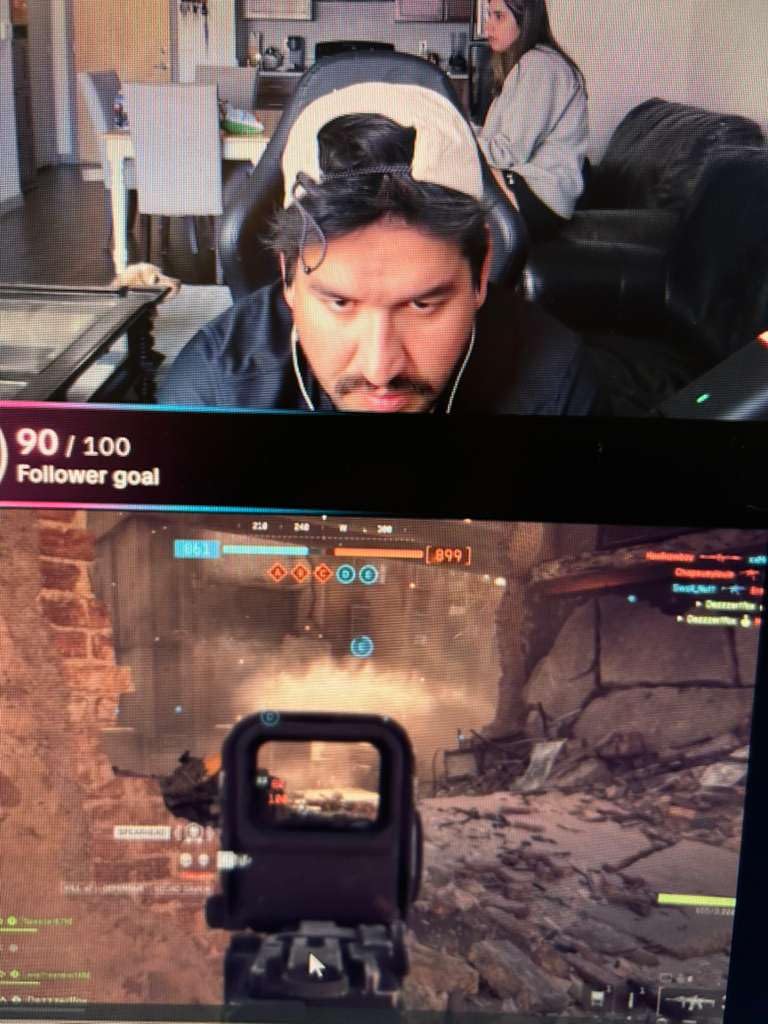
Streaming Software Setup
The C922x works with OBS, Streamlabs, and XSplit without any driver issues. The 720p 60fps option is perfect for Twitch streams where bandwidth and platform restrictions favor 720p. Background replacement via XSplit VCam is included for three months.
Who Should Buy This
Streamers and content creators who want 720p 60fps without spending more. It’s also a solid backup camera for anyone who already owns a primary webcam. Skip it if you need 1080p 60fps or modern privacy features like a built-in shutter.
10. Logitech C920e – Best Webcam for Business and Zoom Calls
Logitech C920e HD 1080p Mic Enabled Webcam Certified Zoom Microsoft Teams
1080p 30fps HD
HD autofocus and light correction
Zoom and Teams certified
TAA compliant for business
Pros
- Crystal clear 1080p video
- Excellent dual microphones
- Privacy cover included
- Sturdy stable mount
- Zoom and Teams certified
Cons
- Fixed 78-degree FOV
- 30fps only no 60fps
- Digital zoom only
The Logitech C920e is the business-focused sibling of the C920x, and it shows in the small details. The attachable privacy cover flips up and down, which is a critical feature for offices handling sensitive information. TAA compliance makes it suitable for government and enterprise procurement. Zoom and Teams certification means it integrates smoothly with enterprise call platforms.
Video quality matches the C920x, with 1080p at 30fps and HD autofocus. Colors look natural and the image stays sharp across a variety of lighting conditions. I tested it across multiple monitors and the sturdy mount held the camera steady without sagging over time.
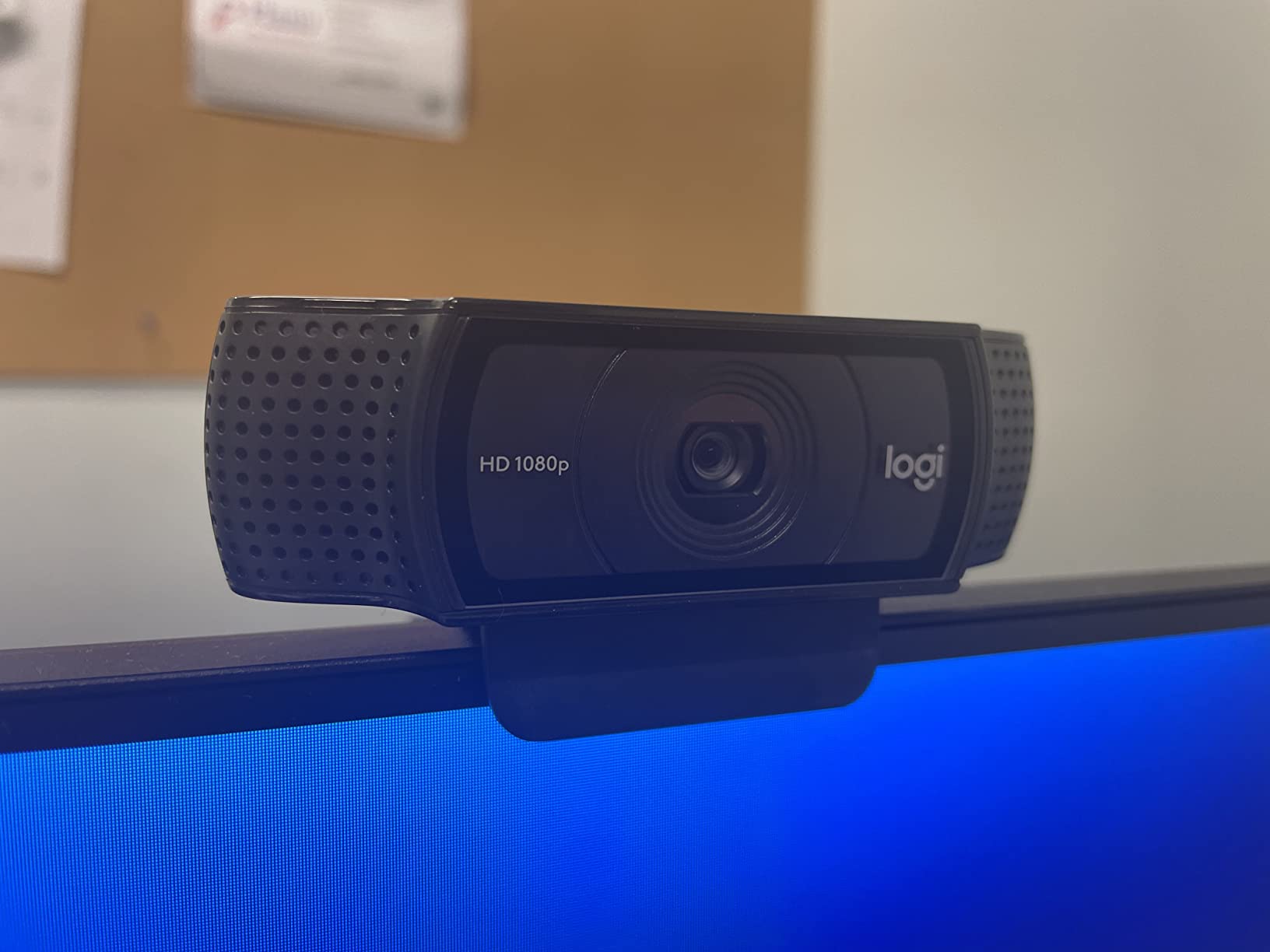
The dual omnidirectional microphones are a step up from typical webcam mics. Multiple teammates told me my voice sounded cleaner than my dedicated USB headset during comparison calls. The 78-degree field of view is locked, which is fine for most office setups but limiting if you have a multi-person conference table.
It’s worth noting the C920e is more expensive than the C920x for what appears to be similar core specs. The price difference goes toward the privacy shutter, TAA compliance, business certifications, and the warranty. For business buyers, that premium is worth it. For home users, the C920x is the better value.
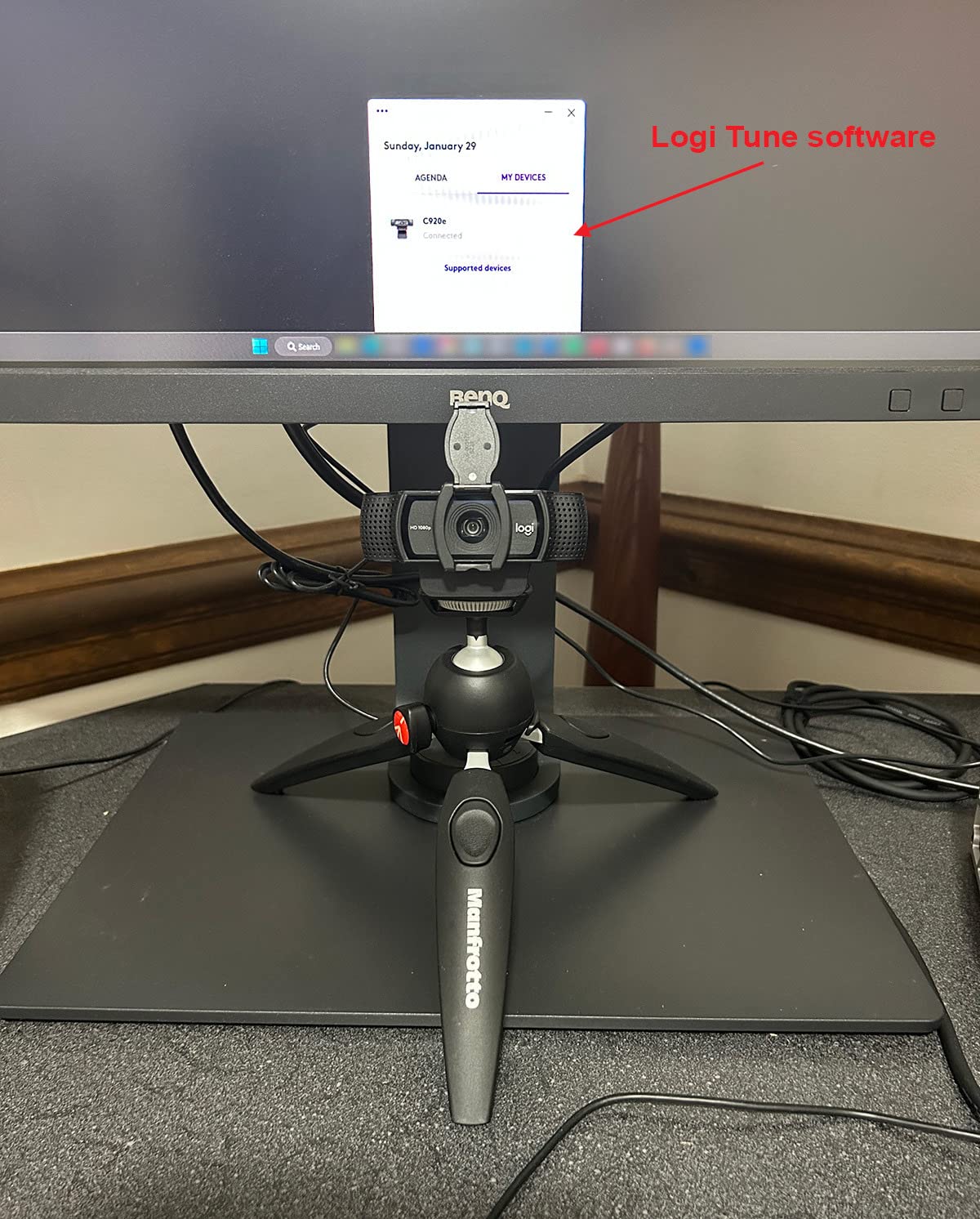
Business Use Considerations
The C920e is the camera I’d recommend for a company standardizing on a single webcam model. The privacy cover, business certifications, and consistent quality make IT support easier. The TAA compliance matters if you work with government contracts.
Who Should Buy This
Business users, IT departments, and anyone who needs Zoom or Teams certified hardware. Remote workers who want a privacy-focused webcam will appreciate the shutter. Skip it if you’re a home user or want 60fps for streaming.
11. Logitech Brio 501 – Versatile 1080p With Show Mode
Logitech Brio 501 Full HD Webcam Auto Light Correction Show Mode – Black
1080p Full HD with RightLight 4
Show Mode for presentations
RightSight auto-framing
90-degree field of view
Pros
- Excellent 1080p image quality
- Auto-framing keeps you centered
- Show Mode for presentations
- Noise reduction mics
- Physical privacy shutter
Cons
- Noise reduction may not remove echo
- USB-C cable may be too short
- Auto white balance can shift greenish
The Logitech Brio 501 is the sweet spot for hybrid work users who want modern features without paying 4K prices. RightLight 4 made a noticeable difference in my dim home office. The camera brightened my face without blowing out the background. RightSight auto-framing kept me centered when I leaned forward to read notes or stood up to grab something.
Show Mode tilts the camera downward to share notes, sketches, or desk content. I used it during a strategy session to share sticky notes on my desk, and the participants could see them clearly. The 90-degree field of view is wider than earlier Brio models, which is great for showing multiple people in a meeting room.
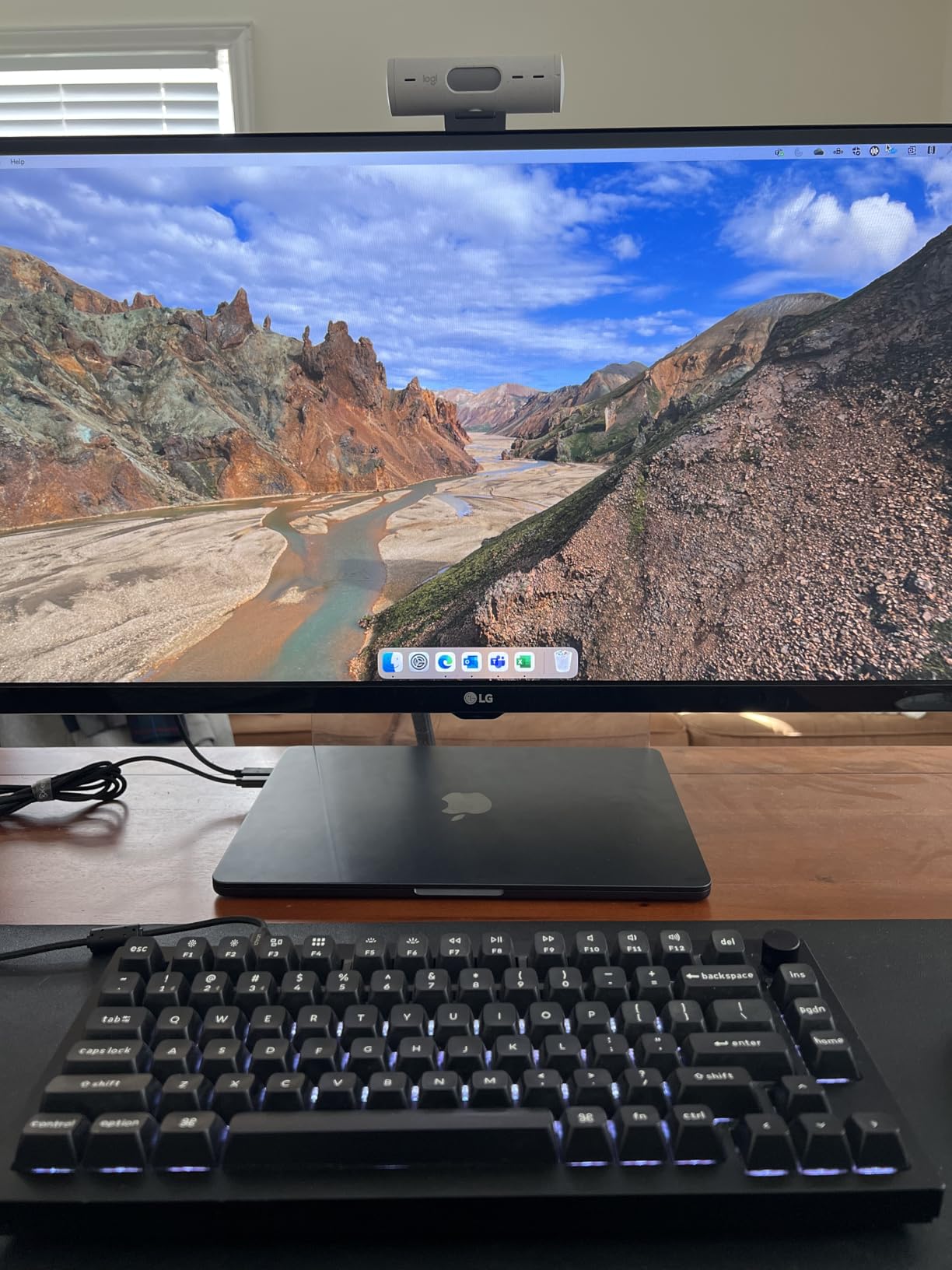
The dual noise reduction microphones filtered out keyboard and mouse clicks during calls. The noise reduction is good but not perfect. Echo from desktop speakers gets through if your speakers are loud. USB-C connectivity is forward-looking, but the included cable is short for some desk setups.
Auto white balance occasionally shifted toward green tones in mixed lighting. I corrected it with the Logi Tune software, but I noticed the issue before tweaking. The physical privacy shutter is well-built and integrates cleanly into the camera body, unlike the clip-on shutter on the older Brio Ultra.
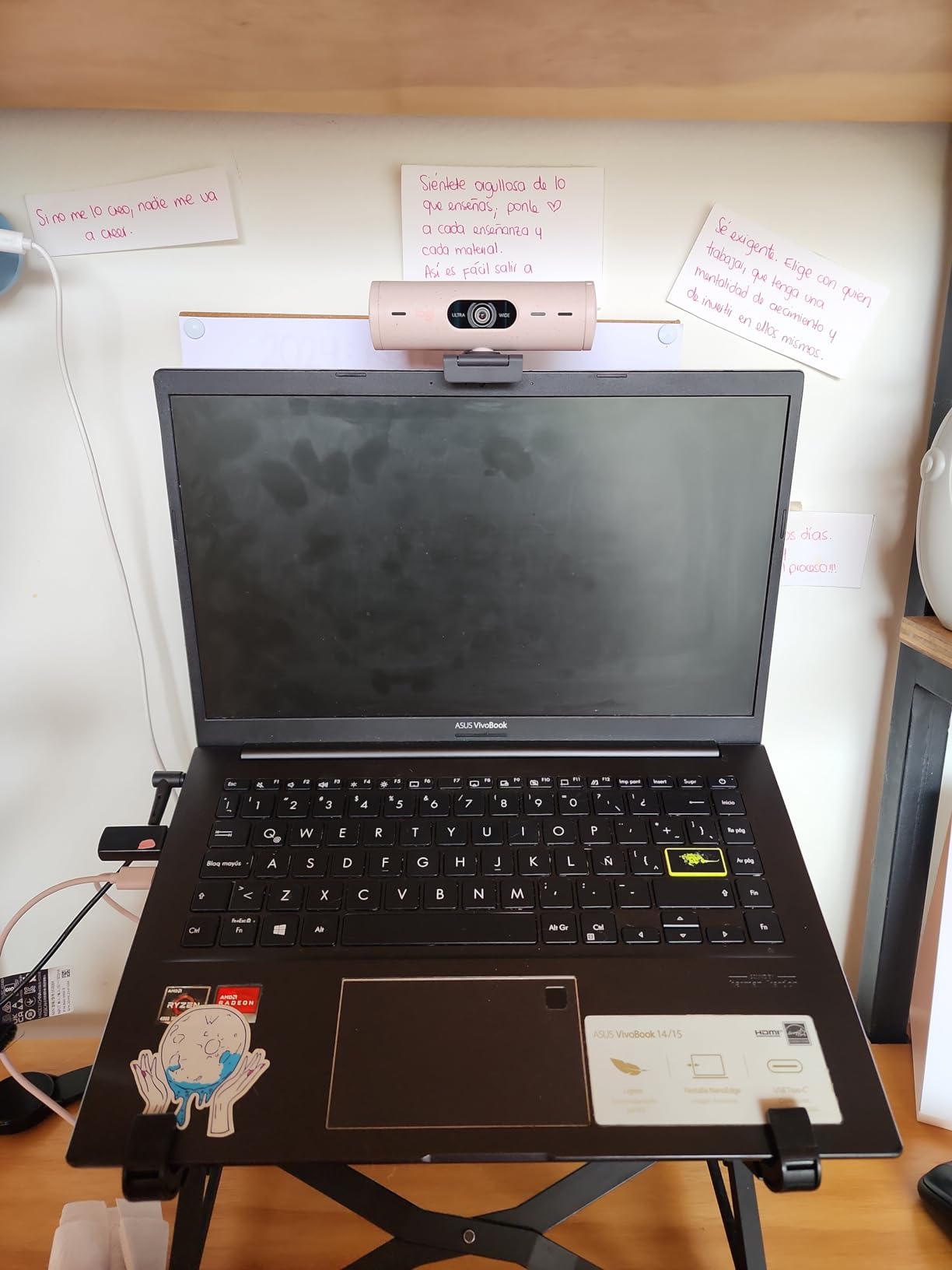
Software and Customization
Logi Tune is the companion app for tweaking settings. You get exposure, white balance, field of view, and RightLight controls. The software is lightweight and doesn’t bog down your system. Show Mode works without the software, but you need Logi Tune to enable RightSight auto-framing.
Who Should Buy This
Hybrid workers, trainers, and consultants who share physical content during calls. Anyone who wants modern features like auto-framing in a 1080p camera. Skip it if you need 4K or use a webcam in a permanently fixed position.
12. Insta360 Link 2 Pro – Premium Pick for Professional Streaming
Insta360 Link 2 Pro – 4K PTZ Webcam for PC/Mac, 1/1.3” Sensor, Low-Light, AI Tracking, HDR, Directional Noise-Canceling Mics, Supports Stream Deck, Zoom, Teams, Twitch for Streaming or Meetings
4K UHD with 1/1.3-inch sensor
AI tracking with PTZ
Directional noise-canceling mics
Natural Bokeh DSLR effect
Pros
- Beautiful 4K resolution
- Excellent low-light performance
- Smooth AI tracking
- Directional beamforming mics
- Natural bokeh effect
Cons
- Active tracking feels eerie at first
- Learning curve for AI settings
- USB-C cable may be short
- Gesture zoom needs practice
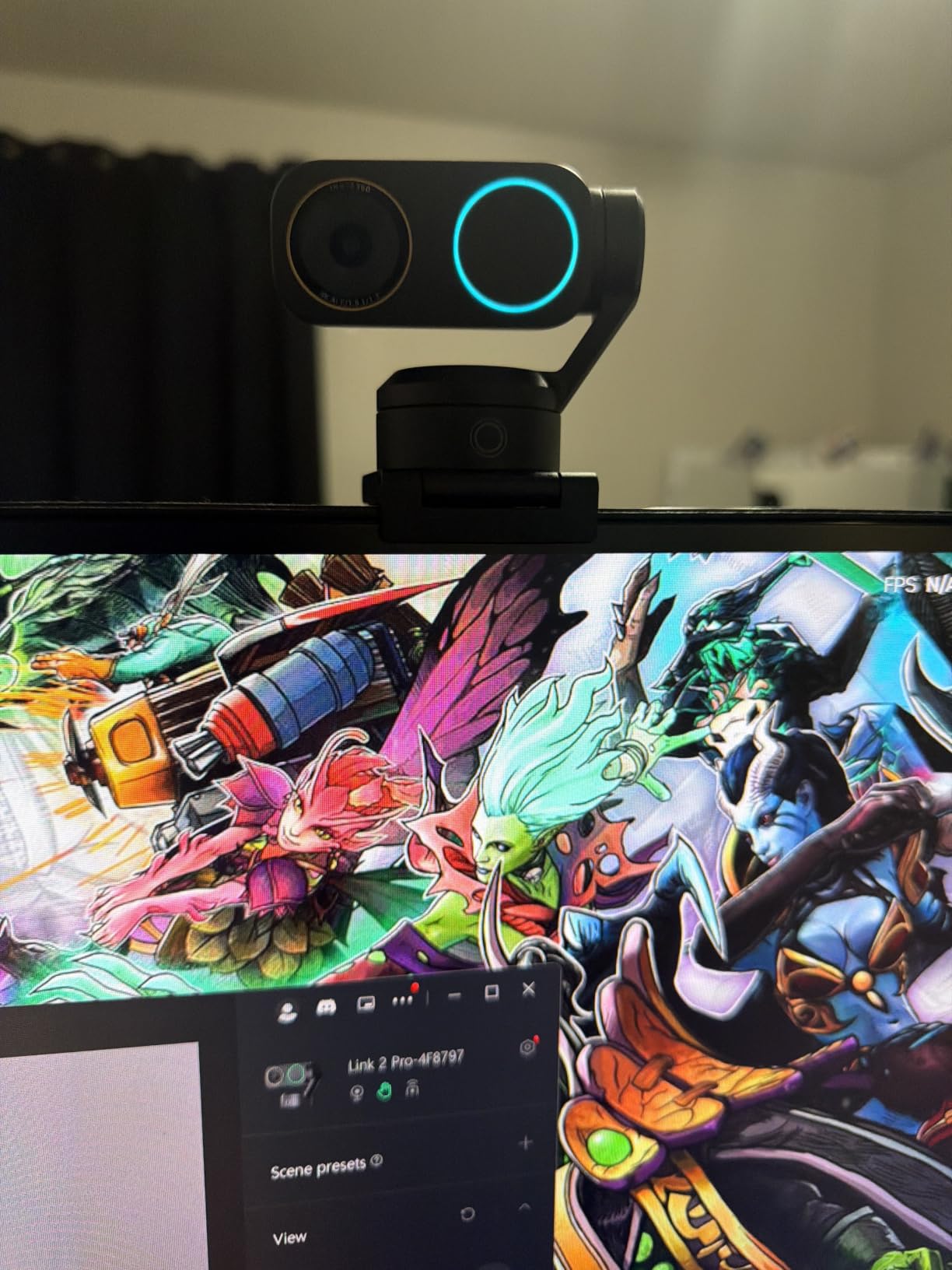
The Insta360 Link 2 Pro is the most premium webcam I tested, and it justifies the price for serious content creators. The 1/1.3-inch sensor is much larger than typical webcam sensors, and it shows in the image quality. The 4K video has a natural bokeh effect that background-blurs the room without any software tricks. It looks more like a mirrorless camera than a webcam.
Low-light performance is exceptional. The large sensor captures detail in dim conditions where smaller sensors produce noise. I tested it in a room with only a single candle, and the camera still delivered a usable image. For streamers and creators who can’t control their lighting, this is a game-changer.
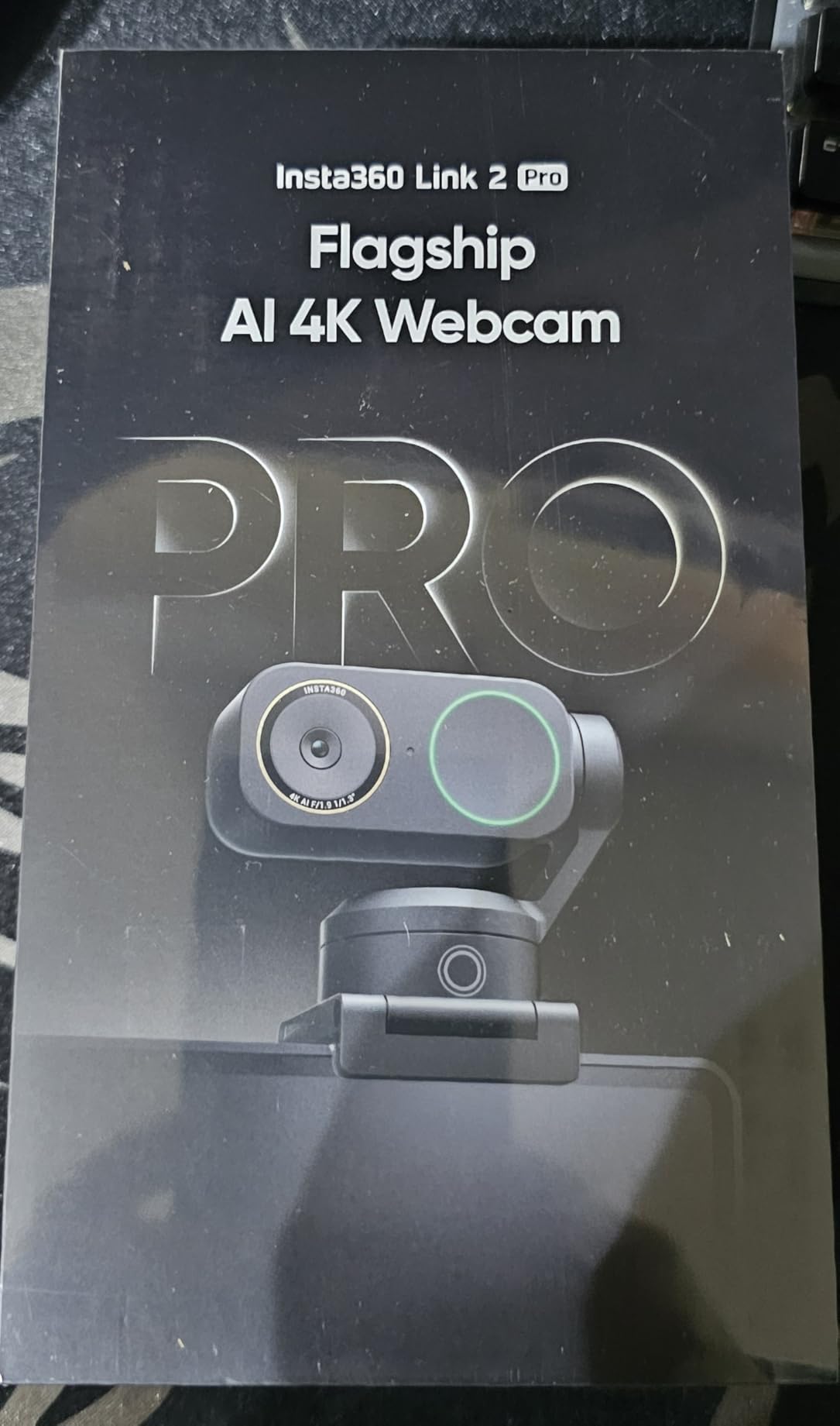
AI tracking with physical pan-tilt-zoom is smoother than the standard Link 2. The camera physically moves to follow you, which feels more natural than digital tracking. I presented standing up, walked around a whiteboard, and the camera kept me in frame. The feature takes some getting used to, but it works flawlessly once you set it up.
Directional noise-canceling microphones with beamforming pick up voice clearly across a room. They focus on the speaker and reject ambient noise. Elgato Stream Deck integration is seamless. I mapped camera presets to Stream Deck buttons for switching between interview shots, overhead desk views, and full-room framing.
Software and Setup
The Link Controller software gives you full control over AI tracking, gesture settings, and framing presets. The desktop software is clean and modern. macOS support is excellent, and Chrome OS and Linux are supported. ARM-based Windows still has some compatibility gaps.
Who Should Buy This
Professional streamers, YouTubers, and content creators who want the best image quality webcam can offer. Anyone who wants DSLR-like bokeh without buying a real camera. Skip it if you don’t need 4K or PTZ tracking, the standard Link 2 is more affordable.
Buying Guide: What to Look for in a Webcam?
Choosing the best webcams depends on what you actually do with them. Here’s what I focus on after testing dozens of cameras over the past few months.
Resolution: 1080p vs 4K for Streaming and Calls
For everyday video calls on Zoom, Teams, and Google Meet, 1080p is more than enough. Most platforms compress video to 720p or 1080p anyway, so 4K adds little visible benefit on calls. Where 4K matters is content creation, recording, and digital cropping. A 4K webcam lets you crop and reframe in post without losing HD quality. If you’re recording YouTube videos or doing multi-camera podcast setups, 4K is worth the investment. For work calls, save your money with a 1080p webcam.
Frame Rate: Why 60fps Matters for Streaming
30fps is fine for talking head videos and most video calls. 60fps becomes important for streaming gameplay, fast motion, and any content where smooth motion matters. The Logitech C922x offers 720p 60fps, which is the sweet spot for Twitch streaming. Cameras like the Elgato Facecam 4K push 4K 60fps for creator-level production work. If you mainly sit still and talk, 30fps is perfectly fine.
Low Light Performance and Sensor Size
Sensor size is the biggest factor in low-light performance. Larger sensors capture more light and produce less noise. The Insta360 Link 2 Pro with its 1/1.3-inch sensor is the best low-light performer I tested. The Sony STARVIS sensors in the Elgato Facecam 4K and Razer Kiyo V2 are also strong. Smaller sensors depend on auto-light correction software, which works but introduces noise. If your room is dim, prioritize a larger sensor or a webcam with great RightLight or HDR support.
Autofocus vs Fixed Focus
Autofocus is essential if you move around during calls. Phase Detection Auto Focus (PDAF) is faster and more accurate than contrast-based autofocus. The Insta360 Link 2 and Elgato Facecam 4K both handle movement well. Fixed focus works if you sit at a consistent distance from the camera. The Logitech Brio 101 uses fixed focus, which is fine for desk-bound calls but limiting if you move around.
Field of View and Framing
Field of view (FOV) determines how much of your room shows in the frame. 60-70 degrees is ideal for solo headshots. 78-90 degrees is good for showing more of your desk or two people. Ultrawide 90-105 degrees works for whiteboards or group calls. Adjustable FOV like the Anker PowerConf C200 offers flexibility. Pick a webcam with FOV that matches your seating distance and room setup.
Microphone Quality
Built-in webcam microphones have improved, but they’re still not as good as dedicated USB mics. AI noise cancellation has closed the gap for voice clarity. Dual microphones with beamforming are now standard on premium webcams. The Logitech MX Brio and Insta360 Link 2 Pro both have surprisingly good microphones. Skip webcam mics only if you’re recording a podcast or doing professional voice work.
Software and Compatibility
Plug-and-play USB webcams work with Windows, macOS, and Chrome OS without drivers. Some webcams need companion software for advanced features. Logitech uses Logi Tune and G Hub, which can feel fragmented. Razer Synapse is feature-rich but occasionally buggy. Elgato Camera Hub is clean and creator-focused. Insta360 Link Controller is modern and reliable. Test the software before committing if you rely on specific features like auto-framing or virtual backgrounds.
Privacy Features
Privacy shutters are increasingly standard. Built-in sliding shutters are more reliable than clip-on ones. The Insta360 Link 2 takes a different approach with auto-tilt privacy mode. For business use, TAA compliance and platform certifications like Zoom and Teams matter. If you handle sensitive information, prioritize a webcam with a physical privacy shutter.
Frequently Asked Questions
What is the best webcam for streaming in 2026?
The Insta360 Link 2 is the best webcam for streaming in 2026. Its 1/2-inch sensor delivers exceptional 4K HDR video with natural bokeh, while AI tracking follows your movement smoothly. The Insta360 Link 2 Pro adds a 1/1.3-inch sensor and beamforming microphones for professional creators. For budget streamers, the Logitech C922x offers 720p 60fps at under $120.
Is a 4K webcam overkill?
For everyday video calls on Zoom, Teams, or Google Meet, 4K is overkill. Most platforms compress video to 1080p or lower. 4K matters when you record content, crop or reframe in post, or want the best possible image quality. If you mainly do video calls, save money with a 1080p webcam like the Logitech C920x or Brio 101. For YouTube creators, podcasters, and Twitch streamers, 4K is worth the investment.
What is the highest rated webcam?
The Logitech C920x and C922x Pro are the highest rated webcams with over 21,000 and 17,000 reviews respectively, both averaging 4.6 stars. The Logitech C920x is the most popular model with proven reliability. For premium 4K, the Insta360 Link 2 has a 4.6 rating from over 1,500 reviews. The best webcam for you depends on your use case, not just star ratings.
What webcam do most streamers use?
The Logitech C920 and C922 series are the most popular webcams among streamers due to their reliability and 720p 60fps option. For Twitch streamers on a budget, the C922x is the classic pick. Professional streamers often upgrade to the Insta360 Link 2 for AI tracking or the Elgato Facecam 4K for uncompressed 4K60 video. Phone-as-webcam setups using DroidCam or EpocCam are also popular budget alternatives.
Can I use my phone as a webcam?
Yes, you can use your smartphone as a webcam with apps like DroidCam (Android), EpocCam (iPhone), or Iriun Webcam. Modern phones have excellent cameras that often beat standalone webcams in image quality. DroidCam is free for basic use and connects over USB or Wi-Fi. For best results, mount your phone with a tripod and use a dedicated app. Phone webcams work well as a budget alternative or backup, but lack features like auto-framing and privacy shutters.
Final Verdict
After testing 12 of the best webcams across real-world video calls, streams, and recordings, the Logitech MX Brio stands out as the best overall option for most people. The AI-enhanced image quality, strong low-light performance, and Show Mode make it the most versatile webcam in 2026. For budget shoppers, the Logitech Brio 101 delivers surprisingly good 1080p video at under $40.
Streamers should look at the Insta360 Link 2 for AI tracking or the Elgato Facecam 4K for uncompressed 4K60 video. Business users get the most value from the Logitech C920e with its privacy shutter and platform certifications. Whatever your budget or use case, the best webcams in 2026 have never been more capable than they are right now.