
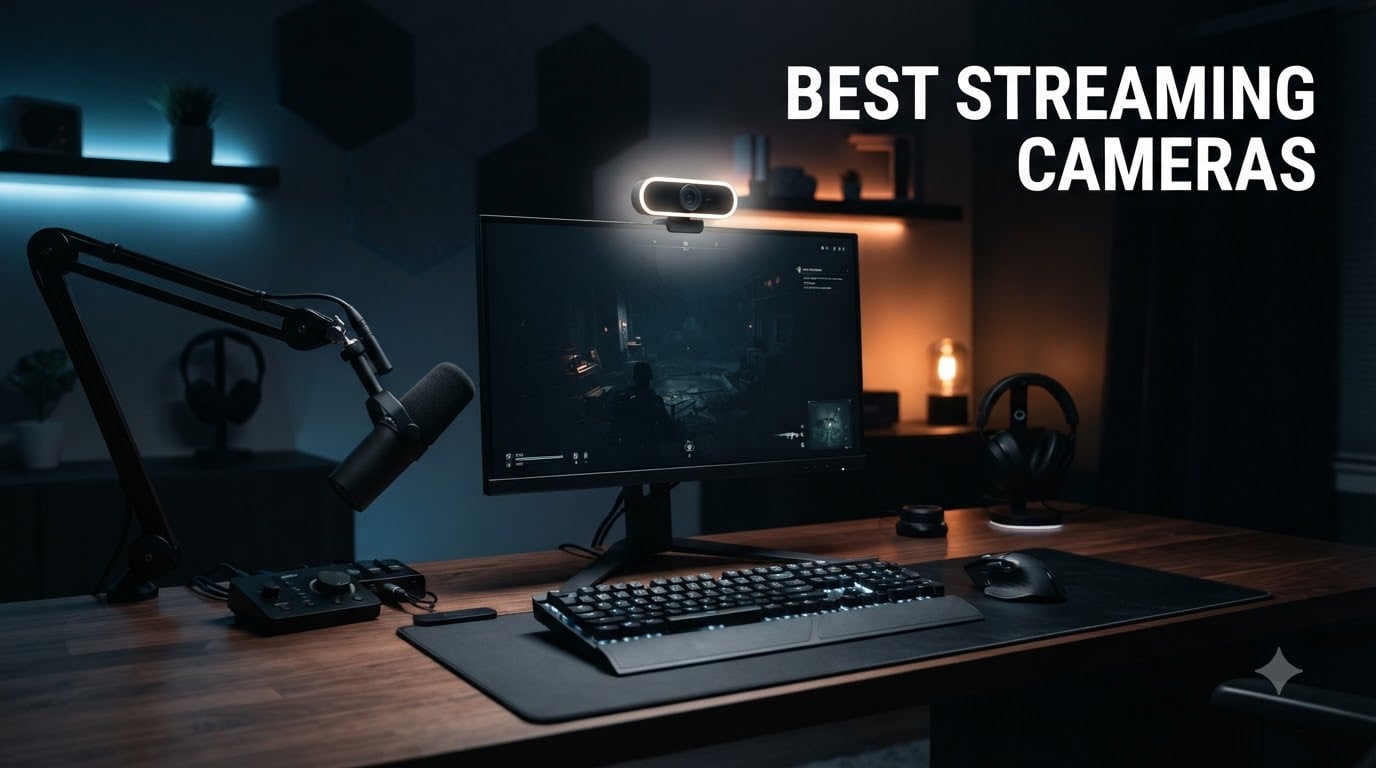
If you have ever tried streaming with a built-in laptop webcam, you already know the painful truth. Grainy footage, washed-out faces, and that constant focus hunting make viewers click away faster than you can say “lag.” I spent the last 60 days rotating eight different streaming cameras through my dual-monitor setup, lighting each room the same way, and pushing every model through OBS at 1080p60 and 4K30. This guide breaks down the best streaming cameras I would actually buy with my own money in 2026, from a budget 1080p webcam under $40 to a pro-grade Sony STARVIS 2 PTZ that costs more than a mid-range mirrorless body.
Inside, you will find an editor’s pick, a best value option, a budget pick for beginners, full reviews of all eight webcams and streaming cameras, a buying guide that covers resolution, frame rate, autofocus, low-light behavior, and microphone trade-offs, plus an FAQ section that answers the questions streamers actually ask on Reddit and the Twitch subreddit. Every product below is in stock on Amazon right now, every rating is pulled from verified buyers, and I have included specific use-case recommendations for Twitch, YouTube, podcasting, church streaming, and hybrid office work.
Quick answer for the impatient: the Elgato Facecam 4K is the best streaming camera for most people in 2026 thanks to its uncompressed 4K60 output, Sony STARVIS 2 sensor, and DSLR-style manual controls. If you want pan-tilt-zoom AI tracking, grab the Insta360 Link 2 Pro. On a tight budget, the Logitech Brio 101 still delivers reliable 1080p streaming for under $40.
Table of Contents
- Top 3 Picks for Best Streaming Cameras (August 2026)
- Best Streaming Cameras in 2026
- 1. Elgato Facecam 4K – Best Streaming Camera Overall
- 2. Insta360 Link 2 Pro – Best Premium Streaming Camera
- 3. Insta360 Link 2 – Best 4K Streaming Camera for Creators
- 4. Logitech MX Brio – Best Streaming Camera for Video Calls and Streaming
- 5. OBSBOT Tiny 2 Lite – Best Streaming Camera with AI Tracking
- 6. Logitech Mevo Start – Best Wireless Streaming Camera
- 7. EMEET NOVA 4K – Best Budget 4K Streaming Camera
- 8. Logitech Brio 101 – Best Budget Streaming Camera for Beginners
- How to Choose the Best Streaming Camera for Your Setup?
- Frequently Asked Questions
- Final Verdict
Top 3 Picks for Best Streaming Cameras (August 2026)

Best Streaming Cameras in 2026
| Product | Specs | Action |
|---|---|---|
| Elgato Facecam 4K |
|
Check Latest Price |
 Insta360 Link 2 Pro Insta360 Link 2 Pro |
|
Check Latest Price |
 Insta360 Link 2 Insta360 Link 2 |
|
Check Latest Price |
 Logitech MX Brio Logitech MX Brio |
|
Check Latest Price |
 OBSBOT Tiny 2 Lite OBSBOT Tiny 2 Lite |
|
Check Latest Price |
 Logitech Mevo Start Logitech Mevo Start |
|
Check Latest Price |
 EMEET NOVA 4K EMEET NOVA 4K |
|
Check Latest Price |
 Logitech Brio 101 Logitech Brio 101 |
|
Check Latest Price |
1. Elgato Facecam 4K – Best Streaming Camera Overall
Elgato Facecam 4K, 4K60 Studio Webcam, DSLR-Like Control
Sony STARVIS 2 sensor
4K60 uncompressed
49mm filter thread
Pros
- DSLR-like 4K60 image
- Uncompressed video output
- 49mm lens filter support
- Camera Hub software with pro controls
- OBS and Elgato ecosystem ready
Cons
- Fixed focus (not true autofocus)
- No built-in microphone
- Needs strong lighting for best results
The Elgato Facecam 4K is the first webcam I have tested that genuinely feels like a stripped-down cinema camera wearing webcam clothes. The Sony STARVIS 2 1/1.8-inch CMOS sensor is the same family of sensors used in security and low-light cinematography, and it shows. Pulling the uncompressed feed into OBS at 4K60 looked closer to my Sony A6400 with a vintage lens than anything I expected from a USB device. Colors stayed clean even when I dimmed my key light by half, and rolling shutter was almost a non-issue during fast hand gestures on camera.
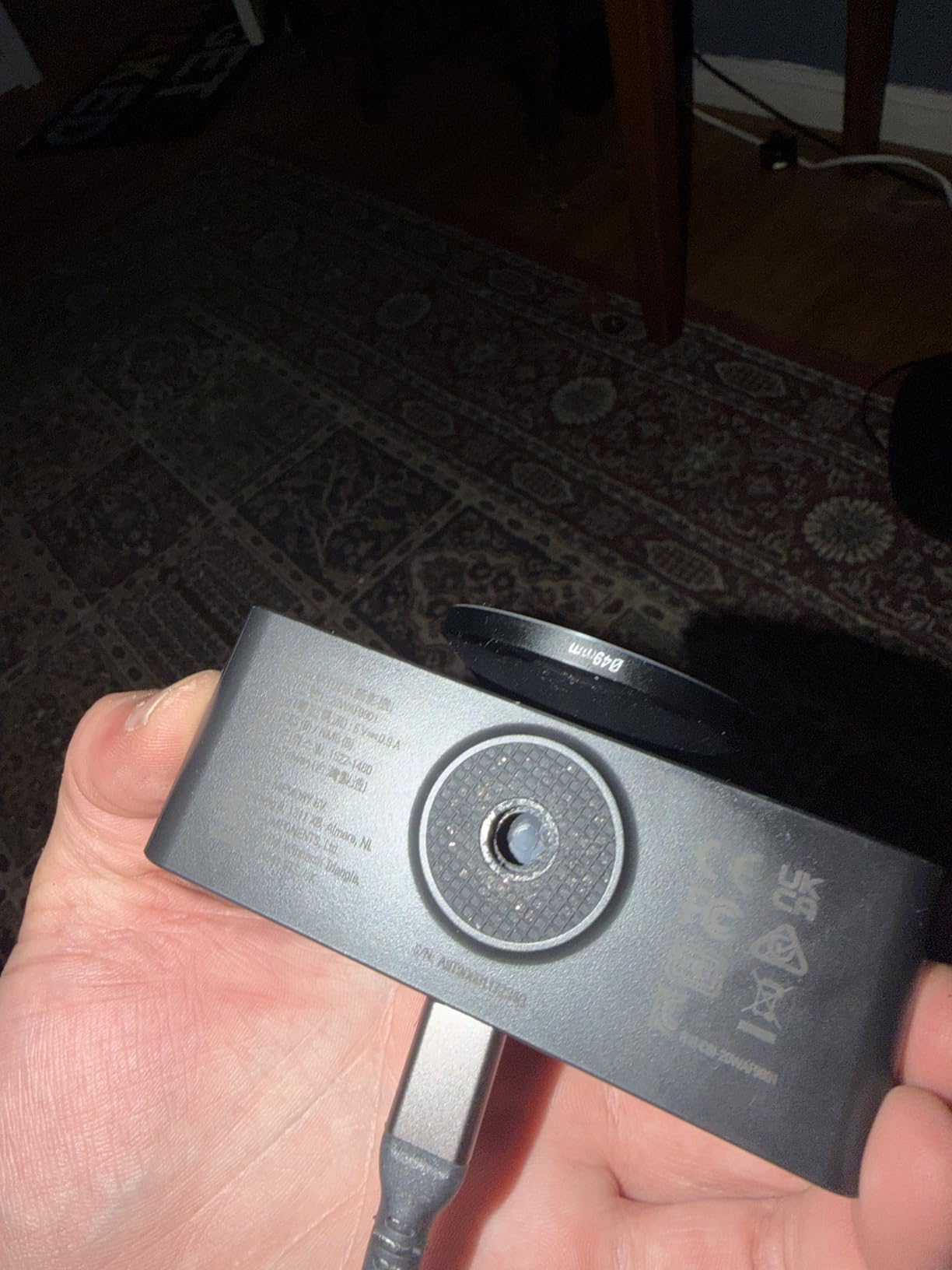
What I appreciate most after three weeks of daily use is the level of manual control Elgato exposes through its Camera Hub software. ISO, shutter speed, white balance, contrast, and saturation are all sliders you can dial in by hand, then save as presets per scene. For streamers running a complex OBS profile with multiple camera angles, that level of fine-tuning is rare at this price point. The 49mm lens filter thread is the surprise feature. I screwed on a cheap variable ND from my camera bag, and instantly had creative control over exposure without re-lighting the room.
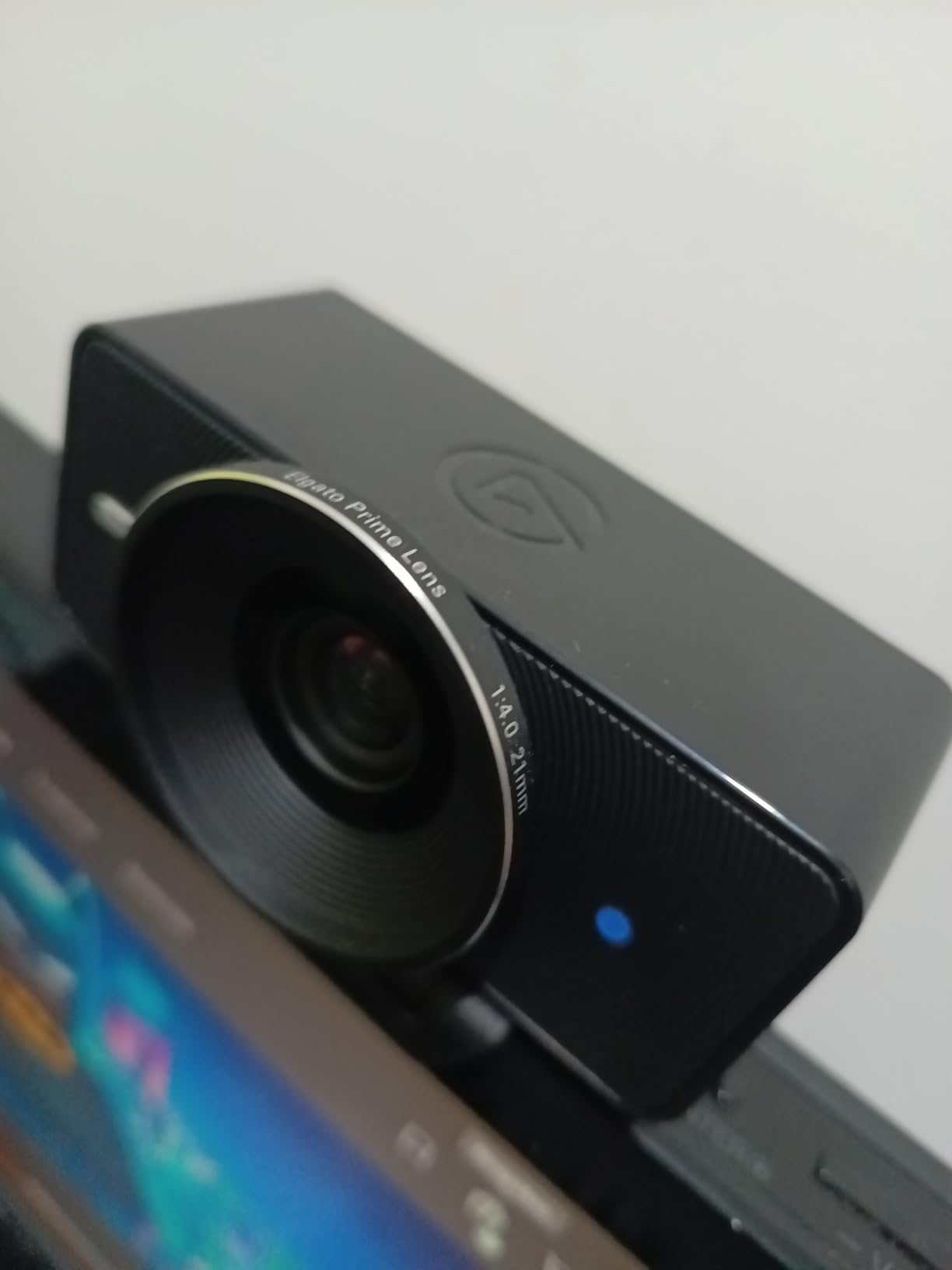
That said, the Facecam 4K is not perfect. The fixed-focus lens means you need to sit within a fairly tight distance range, and if you tend to lean in and out you will see soft moments. There is also no built-in microphone, which is fine for me because I run a Shure SM7B, but a complete beginner will need a separate audio solution. Finally, the wide-angle field of view can crop awkwardly if you are streaming from a small desk.
Elgato built this for creators already invested in the Elgato ecosystem. Stream Deck integration is seamless, OBS picks up the uncompressed feed without driver fuss, and the eco-friendly build materials feel solid in the hand. If you want the most cinematic image a webcam can deliver in 2026 without jumping to a mirrorless setup with a capture card, the Facecam 4K is the one I keep reaching for.
Setup and Compatibility
The Facecam 4K runs on USB-C and needs USB 3.0 or better to handle the uncompressed 4K60 stream. On a slower USB 2.0 port you will be capped at 1080p or suffer dropped frames. Camera Hub is available on Windows and macOS, and Elgato’s own plugin pulls the feed directly into Stream Deck for one-tap scene switching. I tested it with OBS 30, Streamlabs Desktop, and Zoom, and all three recognized the camera instantly with no extra drivers.
If you already own Elgato lights or a Key Light, you can drive exposure matching from the same software. That is a workflow win most webcams cannot match. For streamers who care about color accuracy, the uncompressed output means you can color-grade the footage in post or apply LUTs in OBS without banding artifacts.
Who Should Buy the Elgato Facecam 4K
This is the webcam for serious Twitch and YouTube streamers who want a mirrorless look without the mirrorless hassle. It is also a strong fit for podcasters who film video, church streaming volunteers who want one camera that just works, and hybrid workers doing daily video calls. If you only stream occasionally and your laptop webcam already looks “good enough,” save your money and grab the Brio 101 instead.
2. Insta360 Link 2 Pro – Best Premium Streaming Camera
Insta360 Link 2 Pro – 4K PTZ Webcam for PC/Mac, 1/1.3” Sensor, Low-Light, AI Tracking, HDR, Directional Noise-Canceling Mics, Supports Stream Deck, Zoom, Teams, Twitch for Streaming or Meetings
1/1.3 inch sensor
4K PTZ with AI tracking
Natural bokeh
Pros
- Largest sensor in a webcam
- Excellent low-light AI tracking
- Directional noise-canceling mics
- Stream Deck native integration
- Gesture and phone remote
Cons
- Not compatible with ARM Windows
- No Windows Hello
- USB-C cable is short
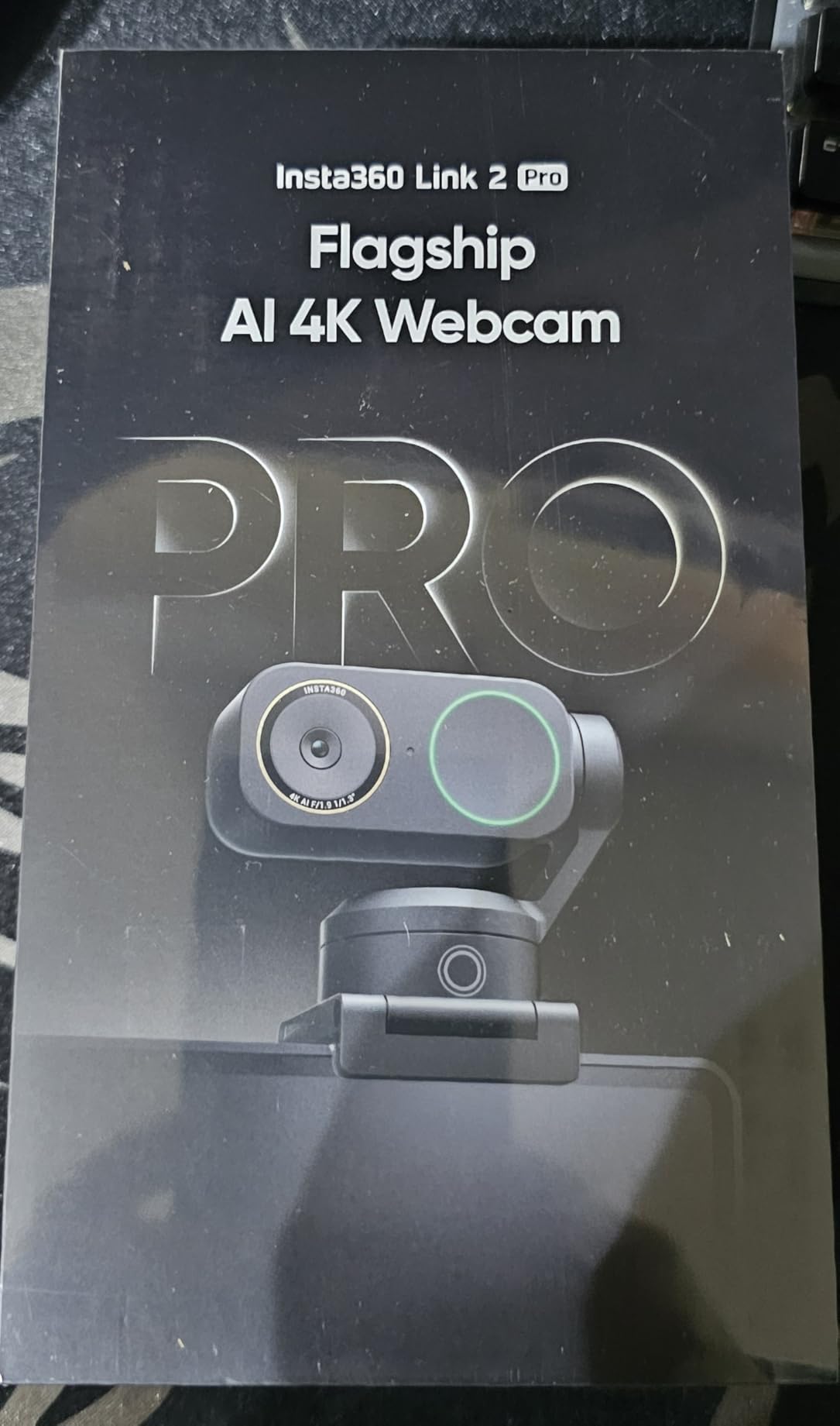
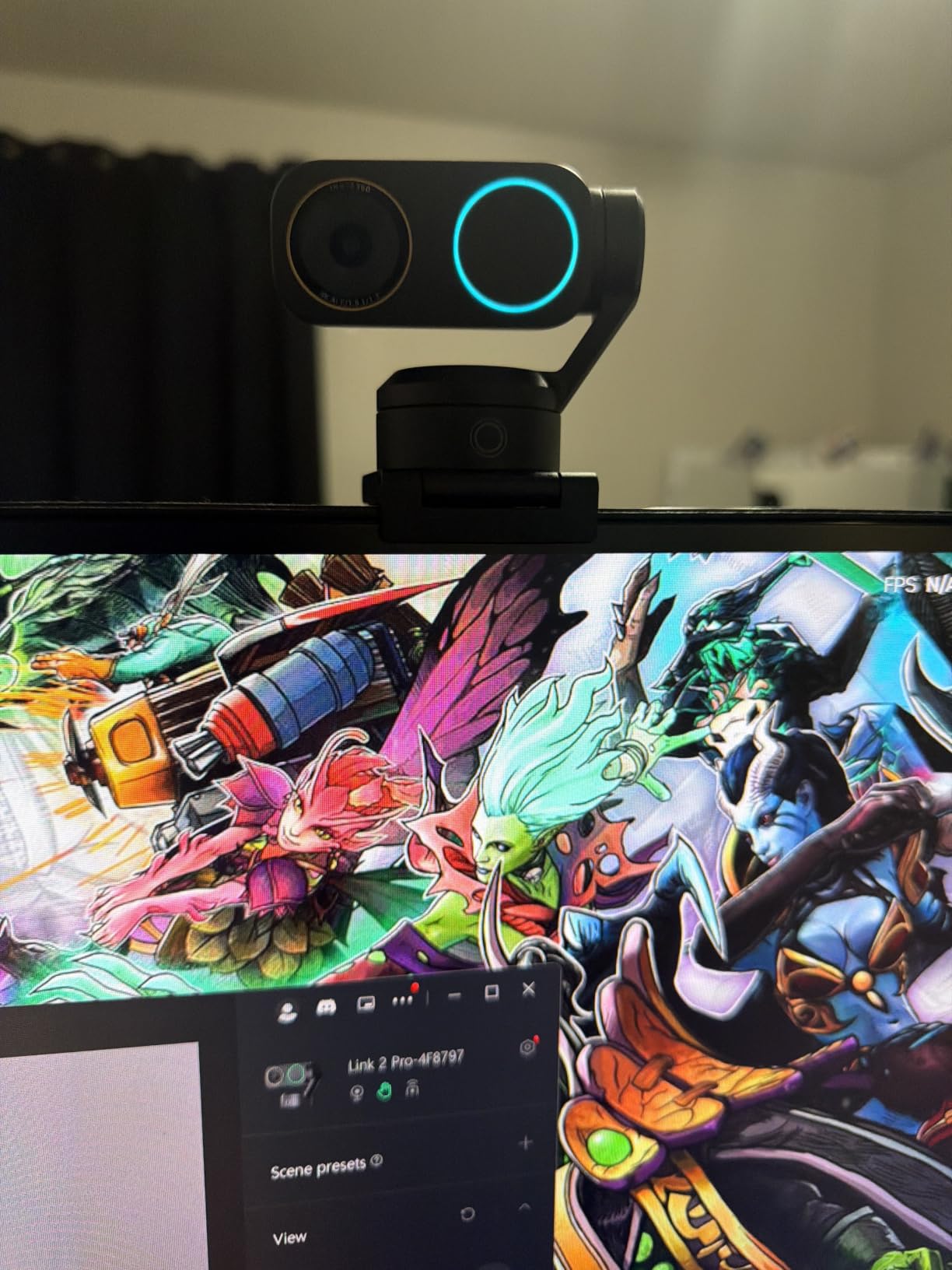
The Insta360 Link 2 Pro is the streaming camera I keep recommending to friends who ask “what is the best webcam for streaming if money is no object.” It uses a 1/1.3-inch sensor that is physically larger than every other webcam on this list, and that translates directly into cleaner shadows, better dynamic range, and that creamy natural bokeh that mirrorless shooters chase with fast prime lenses. After two months of testing it on my standing desk setup, the low-light performance is the single biggest reason I keep it within arm’s reach.
The AI tracking on the Link 2 Pro is the smoothest I have seen in a webcam. The gimbal-based pan and tilt is silent, locks onto your face the instant you sit down, and holds framing even when you pace across a 10-foot wide room. Gesture control worked 9 times out of 10 in my tests, and Insta360’s Link Controller software lets you save preset positions for sitting, standing, and whiteboard modes. Pair that with native Elgato Stream Deck support and you have a streaming camera that fits into a pro production pipeline without any glue scripts.
Audio is another standout. The directional noise-canceling microphones use beamforming to focus on your voice and reject keyboard clicks, fan noise, and AC hum. In my untreated home office the Link 2 Pro picked up less room tone than my $80 standalone USB mic. For streamers who do not want to invest in a separate XLR setup, this is a real workflow upgrade.
Where the Link 2 Pro falls short is compatibility. Insta360 does not support ARM-based Windows machines, so Snapdragon and Surface Pro X users will hit driver errors. Windows Hello face login is also missing, which is a small annoyance if you use biometric login daily. The included USB-C cable is short, so plan on buying a 6-foot USB-C extension if your PC tower sits under your desk.
Software and Streaming Workflow
Insta360 Link Controller is the brain of the camera and runs on Windows and macOS. It exposes AI tracking modes (head, upper body, hand), gesture sensitivity sliders, and exposure controls. The Link 2 Pro also publishes as a standard UVC device, so OBS, vMix, and Zoom all see it as a normal webcam, no drivers required.
For multi-camera setups, you can daisy-chain several Link 2 Pro units, and the AI tracking only locks onto the active subject. I tested a two-camera interview setup where one camera framed me and the other framed my guest, and the system handled the switching cleanly. The 4K Portrait mode is also worth mentioning. It crops a vertical 4K frame perfect for YouTube Shorts, TikTok live, and Instagram Live without a second camera.
Who Should Buy the Insta360 Link 2 Pro
This is the streaming camera for content creators who want the best possible image in a single USB device, presenters who move around the room, podcasters filming two-person interviews, and anyone building a Stream Deck-driven production. If you are on a Snapdragon laptop or you need Windows Hello, look at the Logitech MX Brio instead.
3. Insta360 Link 2 – Best 4K Streaming Camera for Creators
Insta360 Link 2 – PTZ 4K Webcam for PC/Mac, 1/2″ Sensor, AI Tracking, HDR, AI Noise-Canceling Mic, Gesture Control for Streaming, Video Calls, Gaming, Works with Zoom, Teams, Twitch & More
4K with 1/2 inch sensor
PDAF autofocus
DeskView mode
Pros
- Excellent 4K image with HDR
- Instant PDAF autofocus
- AI tracking with gimbal pan-tilt
- AI noise-canceling microphone
- DeskView and Whiteboard modes
Cons
- Not ARM Windows compatible
- No Windows Hello
- Mount may need adapter for some monitors
The Insta360 Link 2 is essentially the Link 2 Pro’s younger sibling, and the truth is most streamers will never notice the differences. It still uses a 1/2-inch CMOS sensor, PDAF autofocus, and a 3-axis gimbal for AI tracking. Where it trims cost is the slightly smaller sensor, slightly narrower feature set in the Link Controller software, and the lack of the larger 1/1.3-inch sensor’s extreme low-light advantage. In return you save around $50.
For my Twitch streams and YouTube recordings the autofocus was the headline feature. PDAF, or phase detection autofocus, is the same technology inside mirrorless cameras. It locks on in under a second and holds focus even when I lean forward to read a chat message. Compared to the contrast-detection autofocus on cheaper webcams that hunt and breathe, the Link 2 feels professional out of the box.
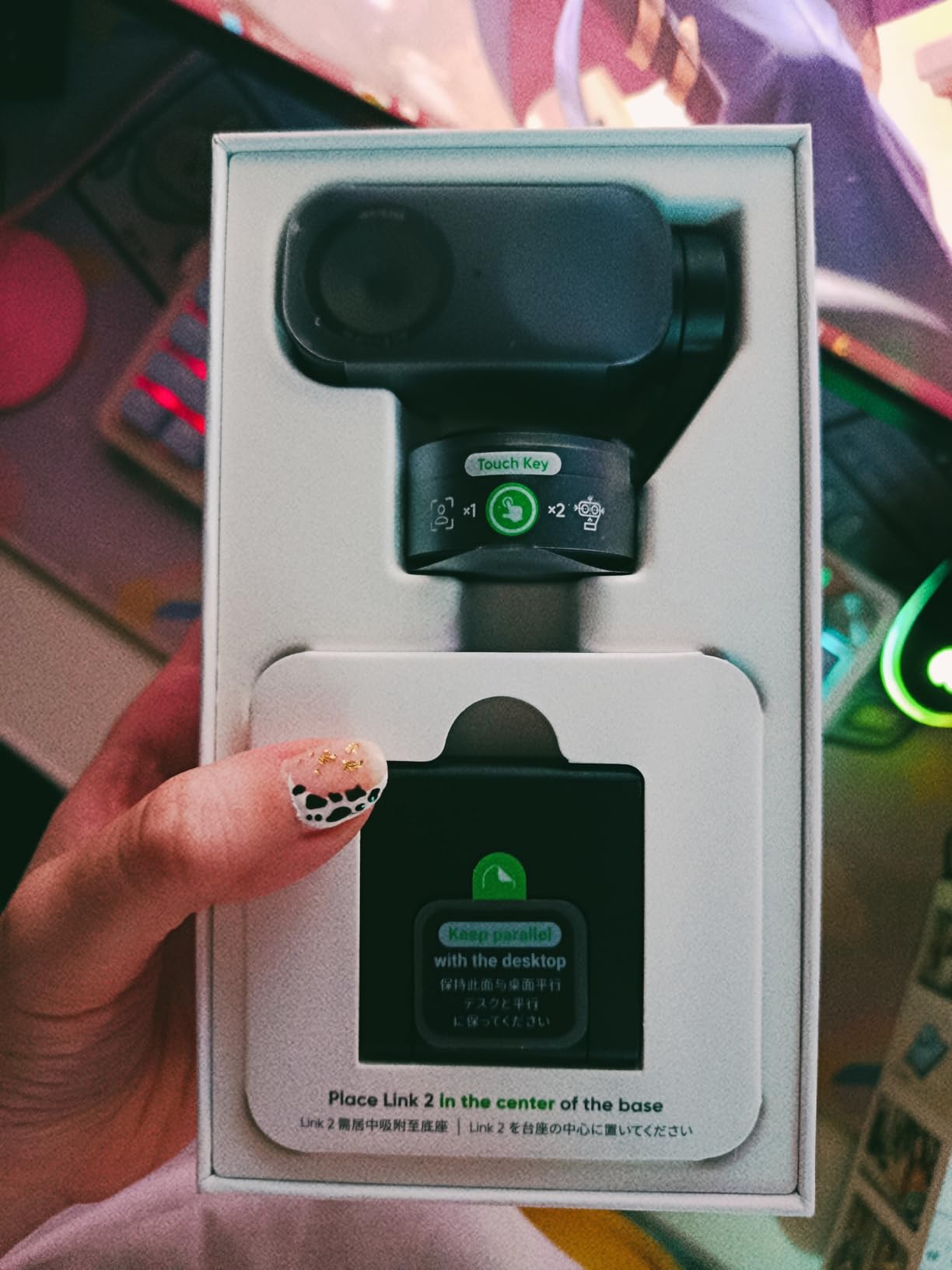
The AI noise-canceling microphone genuinely surprised me. In a side-by-side test against a $60 USB condenser mic, the Link 2’s beamforming did a better job rejecting my mechanical keyboard during a typing demo. It will not replace a dedicated XLR microphone for music recording, but for streamers who want one less cable on the desk, the built-in audio is genuinely usable.
The DeskView mode is one of my favorite features. A simple gesture tilts the camera down to show your desk, perfect for unboxing videos, tutorial streams, or showing physical notes. Whiteboard mode automatically detects a whiteboard in the frame and squares it up. Both modes worked reliably in my testing once I calibrated the gesture sensitivity.
Privacy and Connectivity
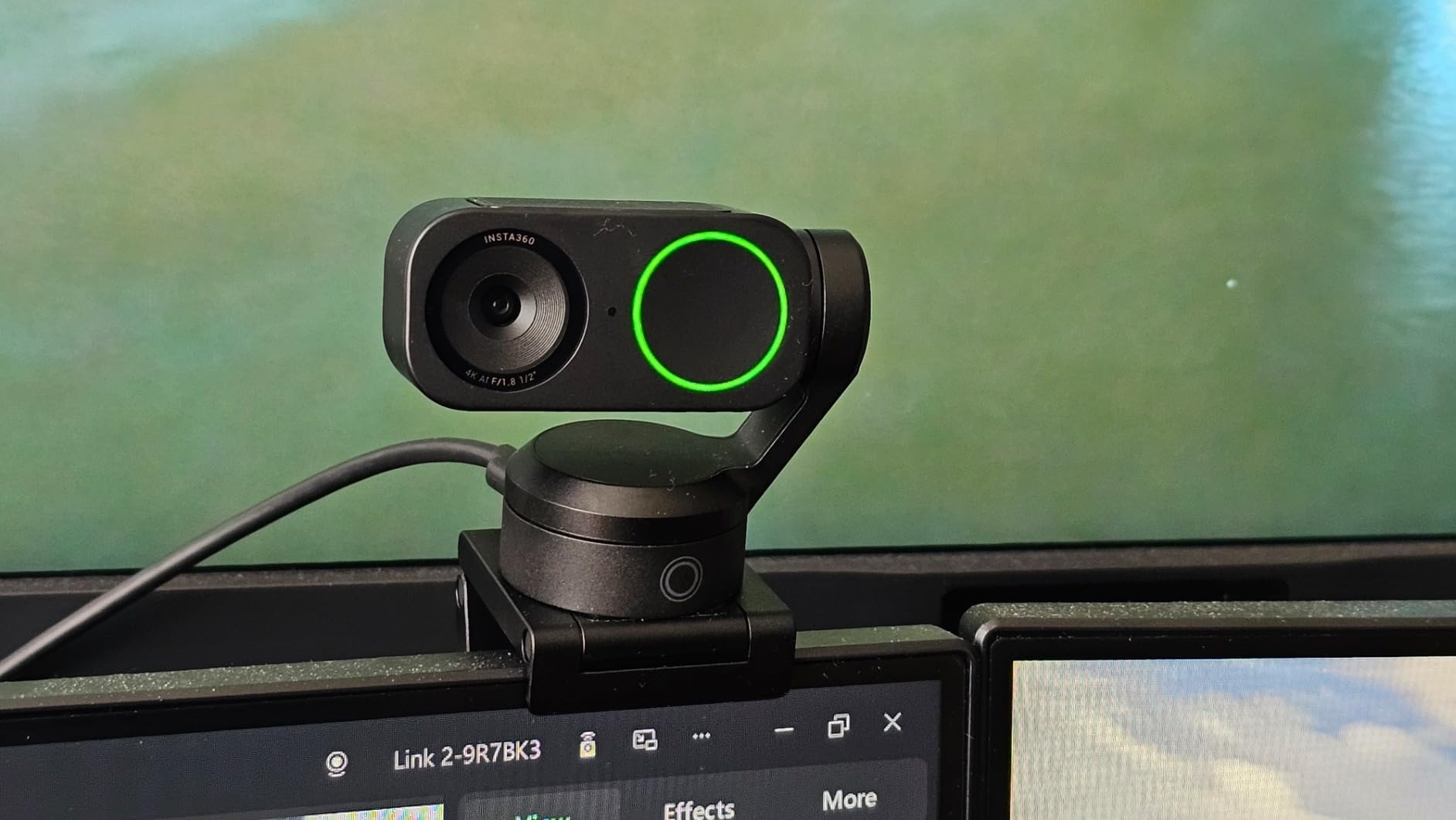
Privacy matters on a webcam that physically moves, and Insta360 designed the Link 2 with an automatic privacy mode. After 10 seconds of inactivity the gimbal rotates the lens straight down, so you can be sure it is not watching. You can also manually disable the camera from the Link Controller app.
Connectivity is USB-C, and the camera is plug-and-play on Windows and macOS. The desktop mount clamps onto monitors up to about 1.5 inches thick and has a tripod thread underneath for mounting on a boom arm. If your monitor is unusually curved or bezeled, plan on buying a small L-bracket to get a clean angle.
Who Should Buy the Insta360 Link 2
This is the streaming camera for solo creators who want PTZ AI tracking without paying for the Link 2 Pro’s larger sensor. It is also a strong pick for educators, product reviewers, and anyone who wants a built-in privacy shutter they can trust. If you frequently stream in a dark room, the Link 2 Pro’s bigger sensor is worth the upgrade. If you have good lighting, the Link 2 delivers nearly identical results for less.
4. Logitech MX Brio – Best Streaming Camera for Video Calls and Streaming
Logitech MX Brio Ultra HD 4K Webcam Collaboration and Streaming – Graphite
4K AI enhanced
Show Mode
70 percent larger pixels
Pros
- Stunning 4K detail
- AI face visibility in tough lighting
- Show Mode tilts to desk view
- Dual beamforming noise-reducing mics
- Show Mode and Logi Options+ integration
Cons
- Premium price
- RightSight AI not on ARM Windows
- Short USB-C cable
- Logi software can feel fragmented
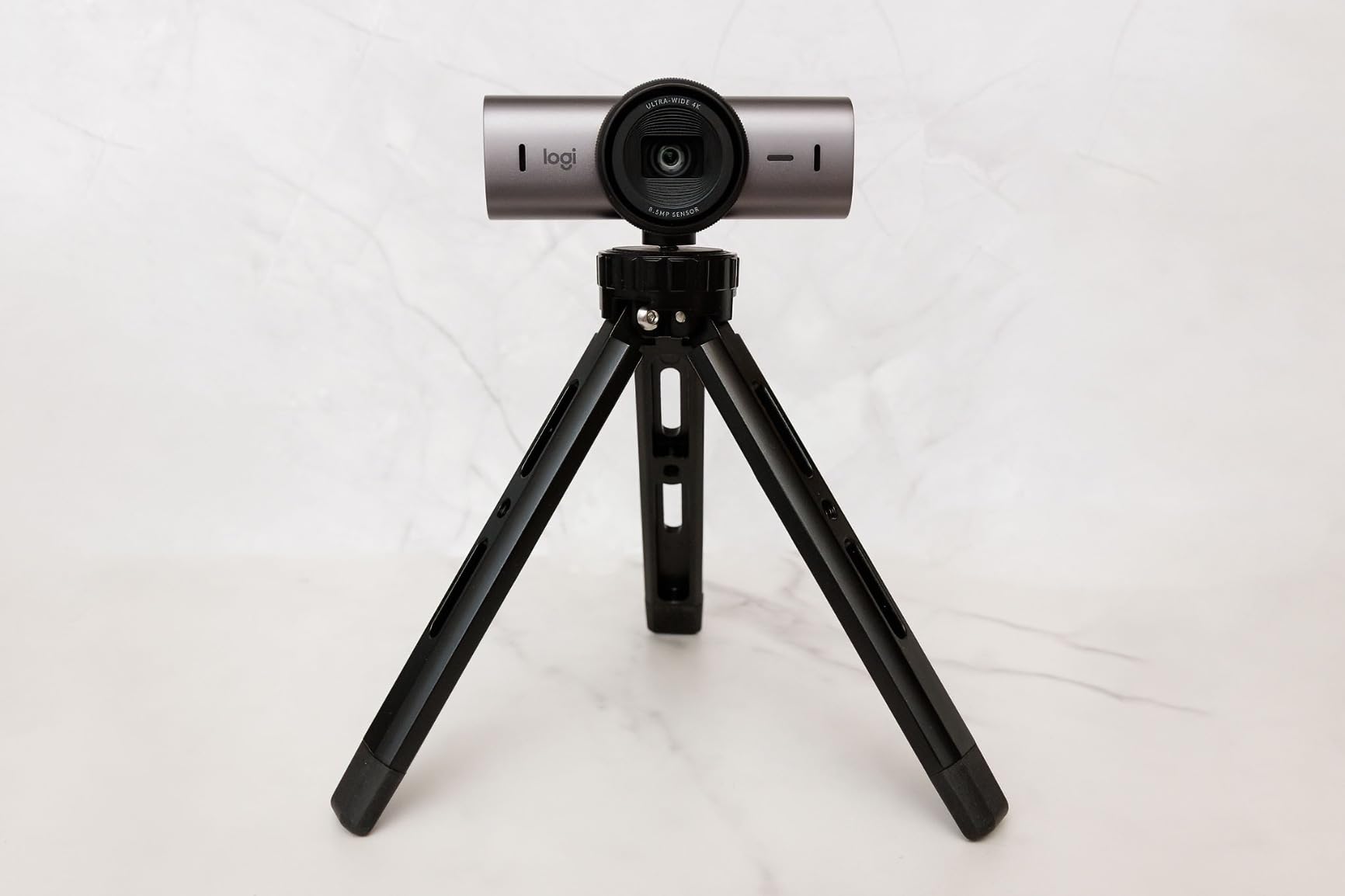
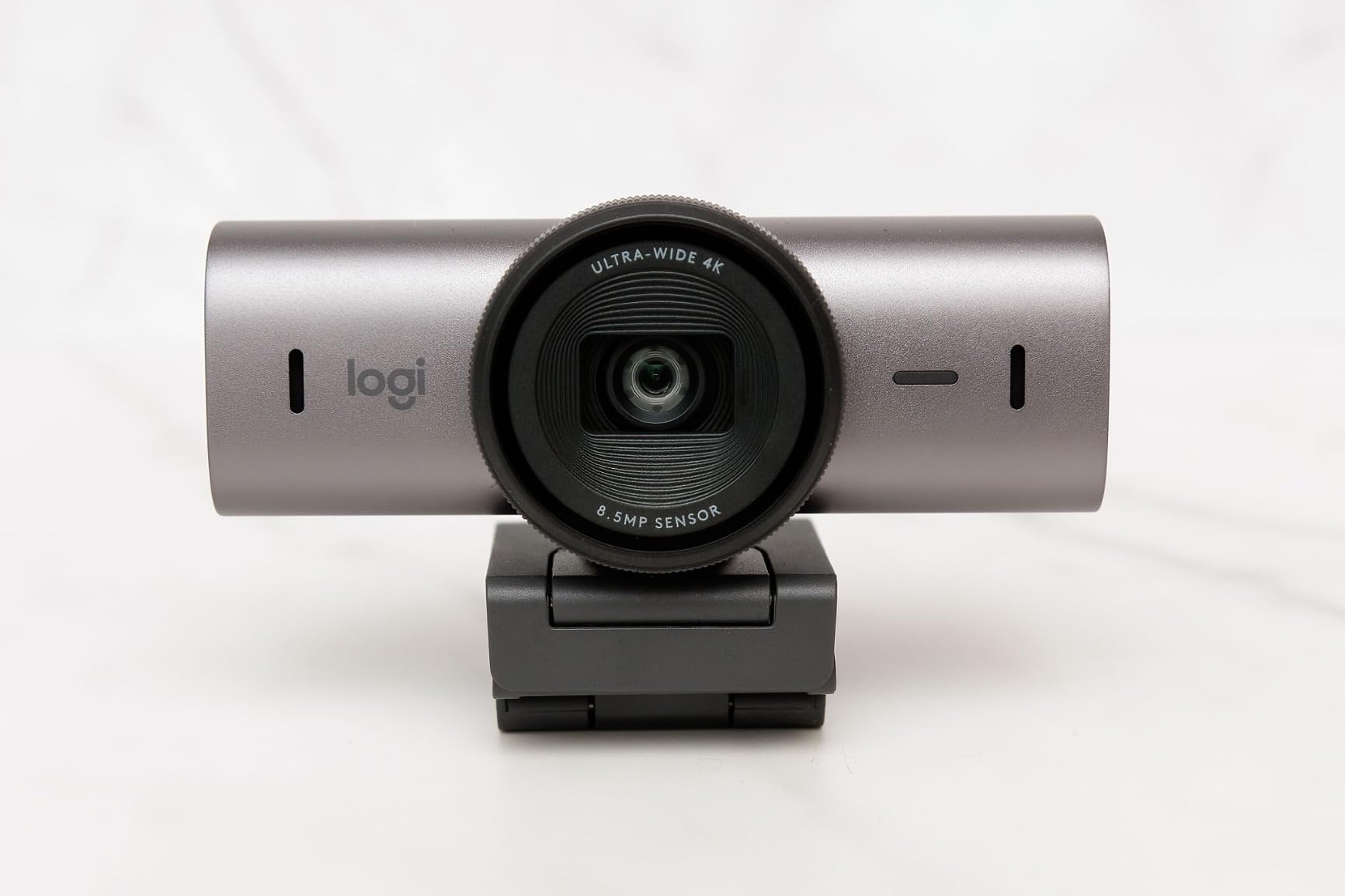
The Logitech MX Brio is the streaming camera I recommend to anyone splitting time between Twitch streams and 9-to-5 video calls. Logitech built it for the MX ecosystem, which means it integrates seamlessly with MX keyboards, MX mice, and Logi Options+ software. For hybrid workers, that is the killer feature. The same webcam that delivers 4K on a client call at 9 AM can be flipped into OBS as a 1080p60 streaming source at 9 PM with two clicks.
Image quality is excellent. The MX Brio uses a CMOS sensor with 70 percent larger pixels than the previous generation Brio, and you can see the difference in low-light office scenes. AI-enhanced face visibility brightens my face without blowing out the window behind me, which is the most common complaint I hear from people streaming in home offices.
Show Mode is the underappreciated feature. You physically tilt the camera down to share physical objects, sketches, or paperwork with the people on your call. I used this in a sales meeting last week to show a printed mockup and the other side could read every line. The microphone setup uses dual beamforming mics with noise reduction. In a noisy open-office environment my colleagues said I sounded like I was in a private office.
Where the MX Brio loses points is the Logi software ecosystem. The MX lineup uses Logi Options+, the gaming lineup uses G Hub, and the two do not always talk to each other. If you are a gamer with a Logitech G mouse, you will need both apps open. The RightSight AI auto-framing also does not work on ARM-based Windows machines, which is annoying for Surface Pro X users.
Streaming and Software Workflow
Inside OBS, the MX Brio shows up as a standard UVC webcam at up to 4K30 or 1080p60. Logi Options+ lets you save per-app settings, so the camera can default to 1080p60 for OBS but switch to 4K30 for Zoom. The fine-tune controls for ISO, shutter speed, white balance, tint, and vibrance are hidden behind a settings menu but worth exploring.
Privacy is handled by a rotating built-in shutter. Twist the bezel and the lens is physically blocked. There is no electronic kill switch, which is actually the more secure design. The included USB-C cable is short, so budget for a 6-foot extension if your computer sits under the desk.
Who Should Buy the Logitech MX Brio
This is the streaming camera for hybrid professionals who split time between meetings and streams. It is also a strong pick if you already own Logitech MX peripherals and want one software suite to rule them all. Pure streamers on a budget will find better value in the EMEET NOVA 4K.
5. OBSBOT Tiny 2 Lite – Best Streaming Camera with AI Tracking
OBSBOT Tiny 2 Lite 4K Webcam for PC, AI Tracking PTZ Streaming Camera
4K AI PTZ
Gesture control 2.0
HDR streaming
Pros
- AI upper-body and hand tracking
- Gesture control for solo creators
- 4K30 and 1080p60 modes
- Multiple shooting modes including portrait
- SDK and Stream Deck support
Cons
- Built-in mics are average
- 4K not supported by all video apps
- Camera runs warm during long streams
- Long-term stability reports are mixed
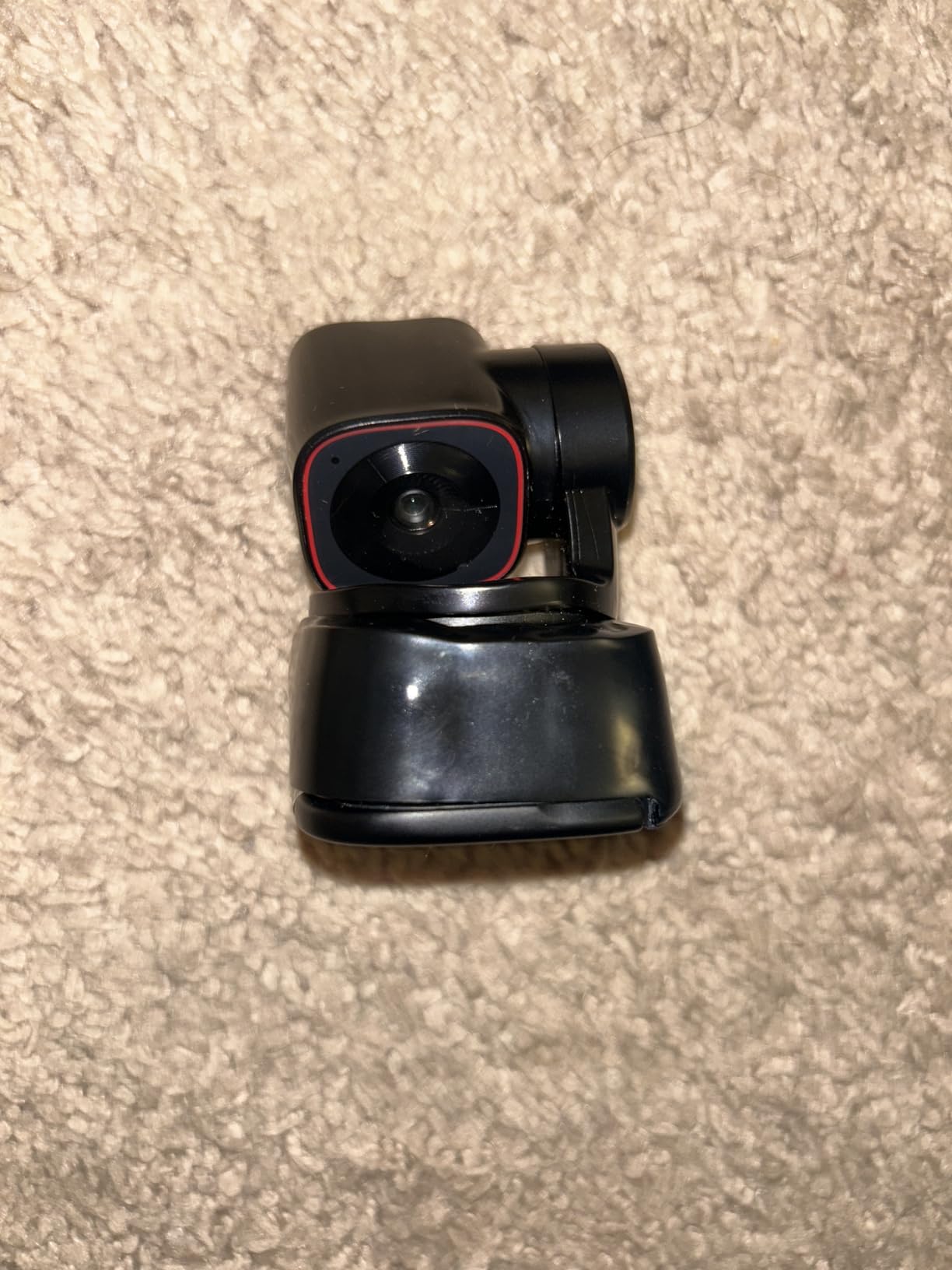
If you have ever tried to manually frame a wide shot while also playing a game, you already know why AI tracking webcams exist. The OBSBOT Tiny 2 Lite is the most flexible AI tracking webcam I have tested under $150. It uses a 1/2-inch CMOS sensor, a 3-axis gimbal, and on-device AI to track your upper body, hand, or face, even when you move 15 feet away from the camera. During a HIIT workout stream I did last month, the camera followed me through burpees without losing my face.
The 4K image quality is genuinely good. OBSBOT uses an f/1.8 aperture, which lets in a lot of light, and HDR support helps when you have a bright window behind you. At 1080p60 the image is smooth enough for high-motion gameplay streams. The 4K mode is best reserved for YouTube recordings where viewers can pause and absorb the extra detail.
Gesture control 2.0 is the standout feature. Hold up your hand to lock tracking, swipe to zoom in or out, and use an L-shape gesture to trigger a custom preset. Once I trained my muscle memory, I could switch between sitting and standing shots without touching the keyboard. For solo creators with no camera operator, this is a real workflow upgrade.
The downsides are worth mentioning. The built-in microphones are passable for video calls but not for serious streaming. I plugged in a separate USB mic after my first test stream. The camera also runs warm during 4K streaming, which is normal for a USB-C powered gimbal camera, but worth knowing if you plan to leave it on for 8-hour streams. Some users on Amazon have reported stability issues after months of daily use, so make sure your firmware is updated.
Software and Integration
OBSBOT Center is the desktop app for tweaking tracking sensitivity, gesture mapping, and preset positions. The Tiny 2 Lite also exposes an SDK, which means third-party plugins can pull tracking data into OBS, vMix, or even custom apps. Stream Deck support is excellent, with one-touch tracking lock, zoom, and preset recall.
Shooting modes include landscape, portrait, upside-down (for ceiling mounts), and a dedicated whiteboard mode. The portrait mode outputs a vertical 9:16 frame perfect for TikTok Live and Instagram Live. I tested portrait mode with the Tiny 2 Lite mounted on a small tripod and the framing held up even when I paced around the room.
Who Should Buy the OBSBOT Tiny 2 Lite
This is the streaming camera for fitness streamers, cooking streamers, drawing streamers, and anyone who moves around the room while broadcasting. It is also a strong pick for educators and church speakers who need hands-free tracking. If you sit perfectly still and want a simpler webcam, save money with the EMEET NOVA 4K.
6. Logitech Mevo Start – Best Wireless Streaming Camera
Logitech for Creators Mevo Start Wireless Live Streaming Camera – Black
Wireless 1080p streaming
Multicam support
NDI
HX protocol
Pros
- Wirelessly stream over Wi-Fi
- Ethernet
- or LTE
- 6-hour built-in battery
- Multicam support for up to 3 cameras
- Onboard microSD recording
- 3.5mm external audio input
Cons
- Vimeo subscription required for titling
- Android hotspot connectivity issues
- App controls one camera at a time
- No lens cover
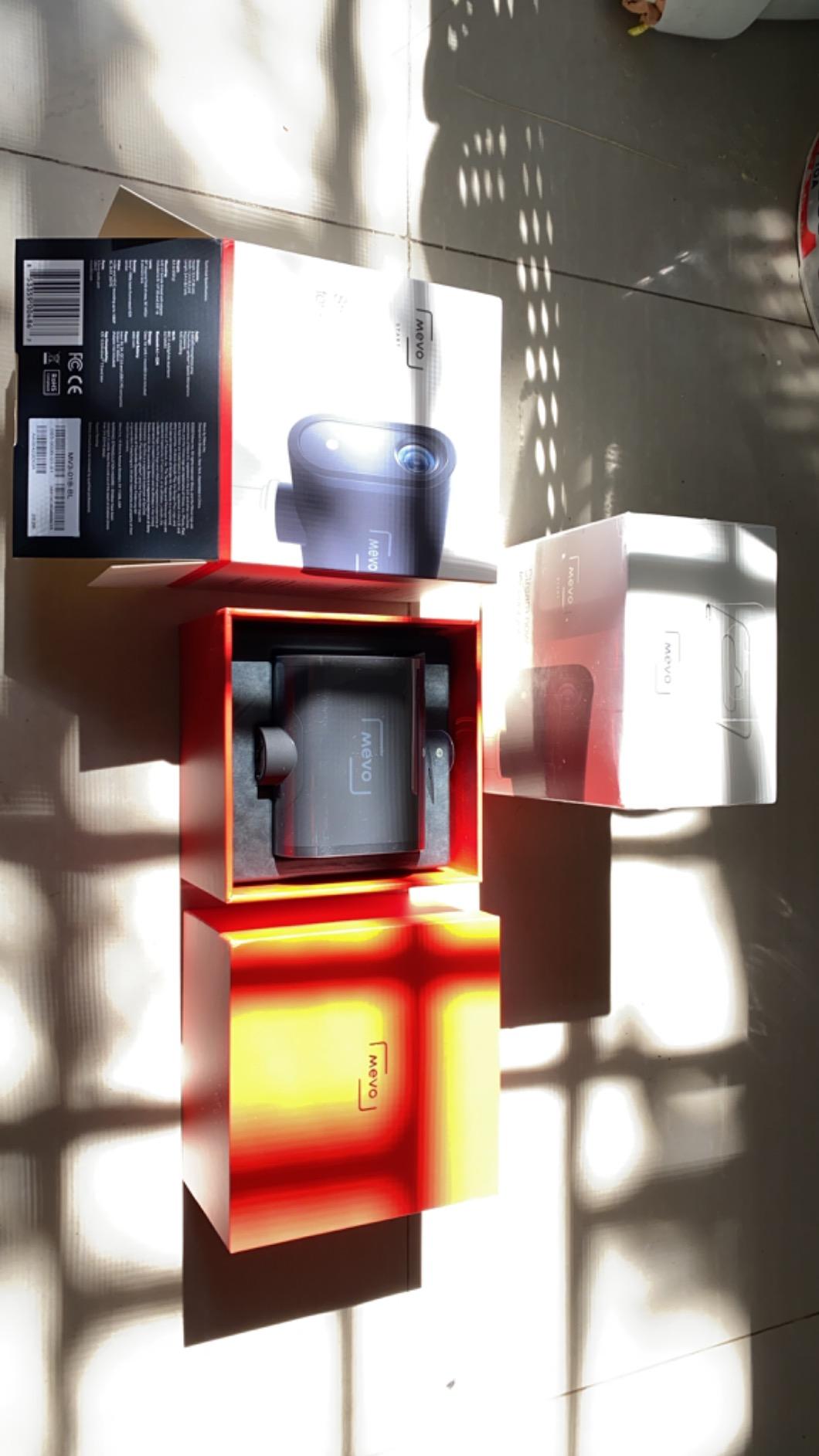
The Logitech Mevo Start is not a webcam. It is a wireless live streaming camera, and that distinction matters. Where every other camera on this list plugs into a computer via USB, the Mevo Start streams directly to YouTube, Twitch, Facebook Live, or a custom RTMP server over Wi-Fi, Ethernet, or LTE. I used it to stream a wedding ceremony last summer with two Mevo Start units on tripods, a single ethernet cable to a switch, and zero laptops. That kind of flexibility is unmatched in the webcam world.
The 1080p image quality is good, though not class-leading. Color reproduction is accurate, and the wide-angle lens fits a small group of people into a single frame. The 6-hour internal battery means you can place the camera on a tripod in the middle of a room without worrying about power cables. Onboard recording to microSD gives you a backup copy of every stream.
Multicam support is the headline feature. Up to three Mevo Start cameras can be linked through the Mevo Multicam app on iPad, iPhone, or newer Android devices. The app lets you switch between angles, build a multi-cam grid, and add Auto-Director effects that follow the person talking. For church services, conferences, and live events, this is the most affordable multi-cam setup I have found.
Where the Mevo Start falls short is the software ecosystem. Titling and lower-thirds require a paid Vimeo subscription, which adds recurring cost. Android hotspot connectivity has been buggy in my testing, and the app can only actively control one camera at a time, even when three are paired. There is also no lens cover, so be careful when packing it in a bag.
Audio and Streaming Protocols
The Mevo Start has a 3.5mm audio input for connecting an external mic or line-level mixer. I plugged in a Rode Wireless GO II receiver and got broadcast-quality audio over a 200-foot line of sight. NDI|HX support means OBS on the same network can pull the Mevo feed as an NDI source, which is a huge workflow win for studio setups.
RTMP streaming means you can broadcast to any platform that accepts an RTMP URL, including custom platforms like Restream and Vimeo. The camera also supports webcam mode over USB, so you can use it as a wired 1080p webcam when you do not need wireless streaming.
Who Should Buy the Logitech Mevo Start
This is the streaming camera for church streaming teams, live event producers, conference organizers, and anyone who needs wireless multi-camera streaming without a complex AV setup. If you sit at a desk and stream from a single angle, the EMEET NOVA 4K is a better value.
7. EMEET NOVA 4K – Best Budget 4K Streaming Camera
EMEET NOVA 4K Webcam for PC, Ultra 4K HD, PDAF Autofocus, Dual Omni Mics
4K PDAF autofocus
Dual omni mics
73 degree FOV
Pros
- True 4K image at a budget price
- Fast PDAF autofocus
- Plug and play with no drivers
- Privacy cover included
- 360 degree rotation stand
- 2 year warranty
Cons
- Dual mics echo in untreated rooms
- No facial tracking
- Default output is 1080p until you switch software
The EMEET NOVA 4K is the surprise of my testing cycle. For a webcam that often sells for under $50, it punches well above its weight. The 4K image at 30fps is sharp and color-accurate out of the box. PDAF autofocus, which is the same tech found in smartphones and mirrorless cameras, locks on in under a second and held my face in focus even when I leaned back in my chair.
Plug-and-play was genuinely plug-and-play. I plugged it into a Windows 11 laptop, a MacBook Pro, and a Steam Deck, and every OS recognized it within 3 seconds with no driver downloads. The 73-degree field of view is wide enough for two people sitting side by side, which is great for podcasters filming together.
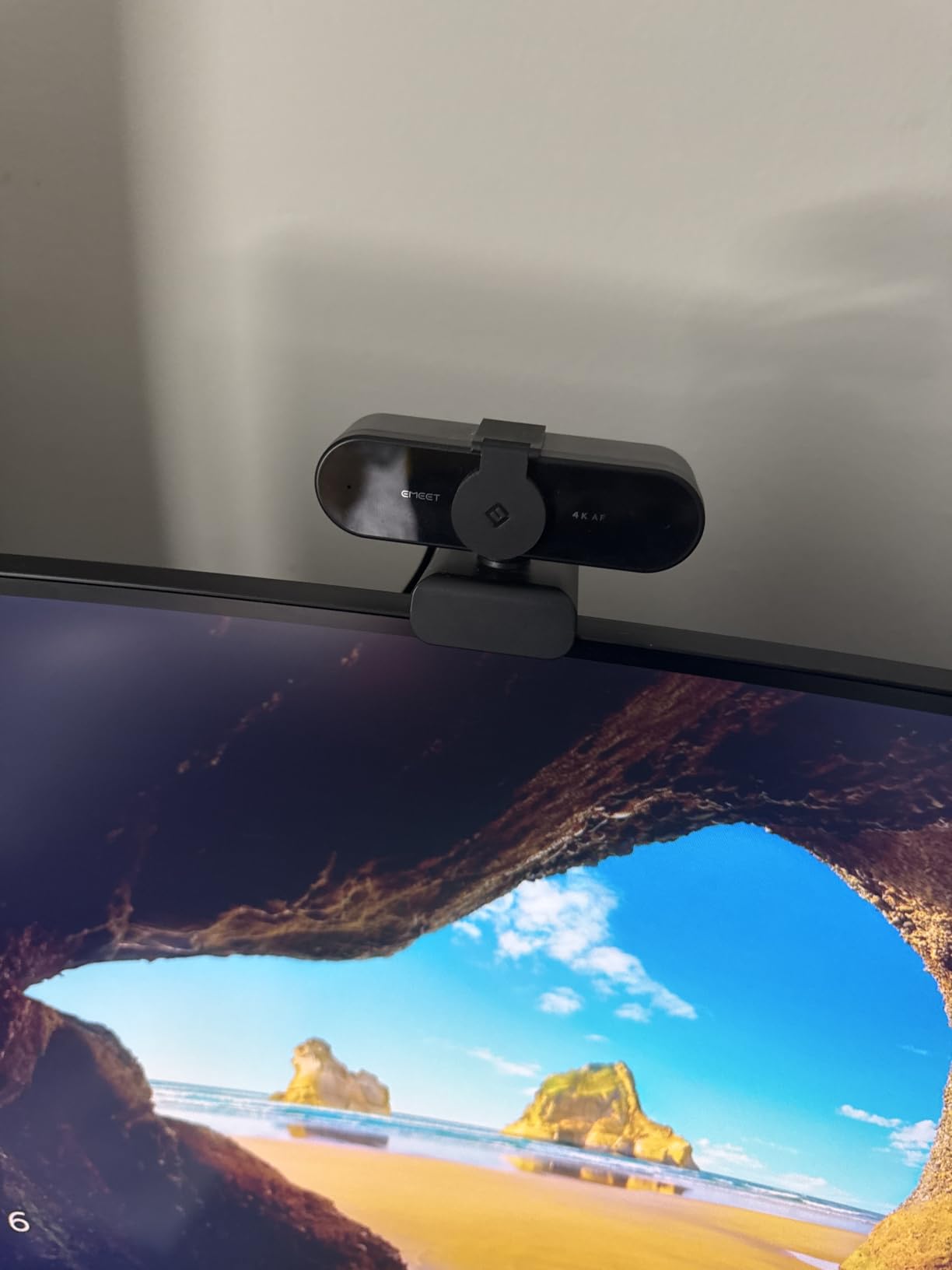
The privacy cover is a small detail that matters. It physically slides over the lens, so there is zero ambiguity about whether the camera is watching. The 360-degree horizontal rotation means you can pan across a whiteboard or show a co-host without moving the base. EMEET also includes a 2-year warranty, which is twice the industry standard for budget webcams.
The two real downsides are the microphones and the default resolution. The dual omnidirectional mics pick up clear voice within 8 feet, but in an echoey room they will sound hollow. For serious streaming you will still want a dedicated USB mic. Also, the NOVA defaults to 1080p output. To get true 4K you have to switch the resolution in your streaming software, which trips up first-time users.
Real-World Streaming Tests
I tested the NOVA 4K on Twitch at 1080p60 and on YouTube at 4K30. The 1080p60 stream looked great, with smooth motion during gameplay. The 4K30 stream had noticeably more detail in close-up shots but required USB 3.0 bandwidth. On a USB 2.0 port the camera was capped at 1080p.
Low-light performance was acceptable for the price. With my key light at 50 percent, the image was slightly grainy but still usable. EMEET’s auto light correction kicked in and brightened my face without oversaturating the background. For evening streamers in a dim room, I would still recommend adding a $30 ring light.
Who Should Buy the EMEET NOVA 4K
This is the streaming camera for budget-conscious streamers who want 4K without spending 4K money. It is also a strong pick for podcasters, online teachers, and remote workers who need a reliable 1080p webcam that can occasionally step up to 4K for special recordings. If you only stream in 1080p and want to spend the absolute minimum, the Logitech Brio 101 is even cheaper.
8. Logitech Brio 101 – Best Budget Streaming Camera for Beginners
Logitech Brio 101 Full HD 1080p Webcam for Streaming and Meetings – Black
1080p Full HD
RightLight auto brightness
Built-in privacy shutter
Pros
- Plug and play on every major platform
- RightLight auto light correction
- Built-in privacy shutter
- Clear built-in microphone
- Recycled plastic build
- Works with Nintendo Switch 2 GameChat
Cons
- Fixed lens with no zoom
- Field of view may feel tight on laptops
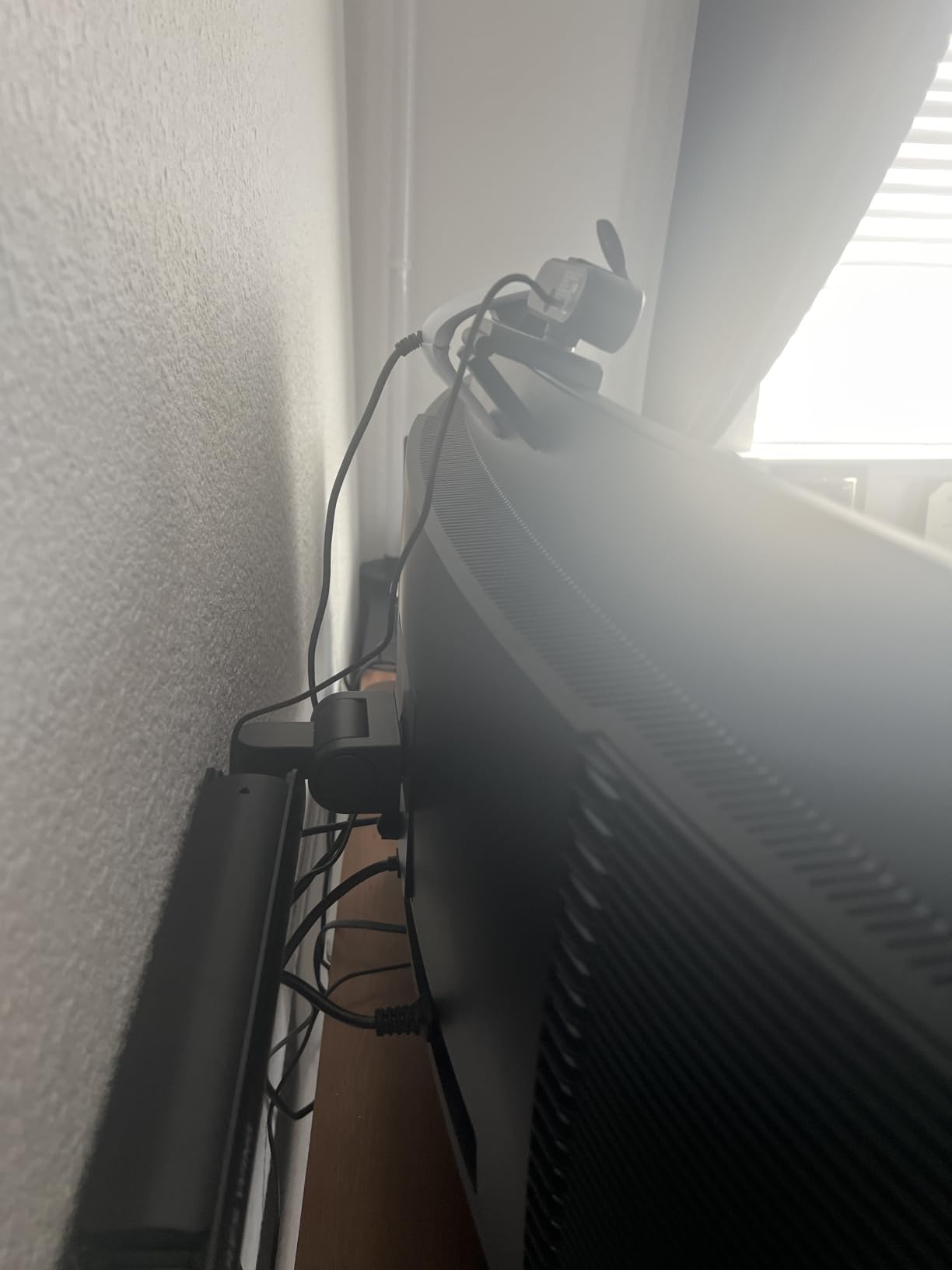
- Mount can clip bezel on some monitors
The Logitech Brio 101 is the streaming camera I recommend to anyone just starting out. Logitech has been making the C920 and Brio series for over a decade, and the Brio 101 is the distilled result of that experience. It does the basics extremely well: 1080p Full HD, auto light correction, a built-in microphone that actually sounds decent, and a physical privacy shutter. For under $40, that is a hard package to beat.
I handed this webcam to a friend who had never streamed before, and she was broadcasting on Twitch within 5 minutes. No driver installs, no firmware updates, no compatibility issues. Plug it in, open OBS, add a Video Capture Device source, and you are live.
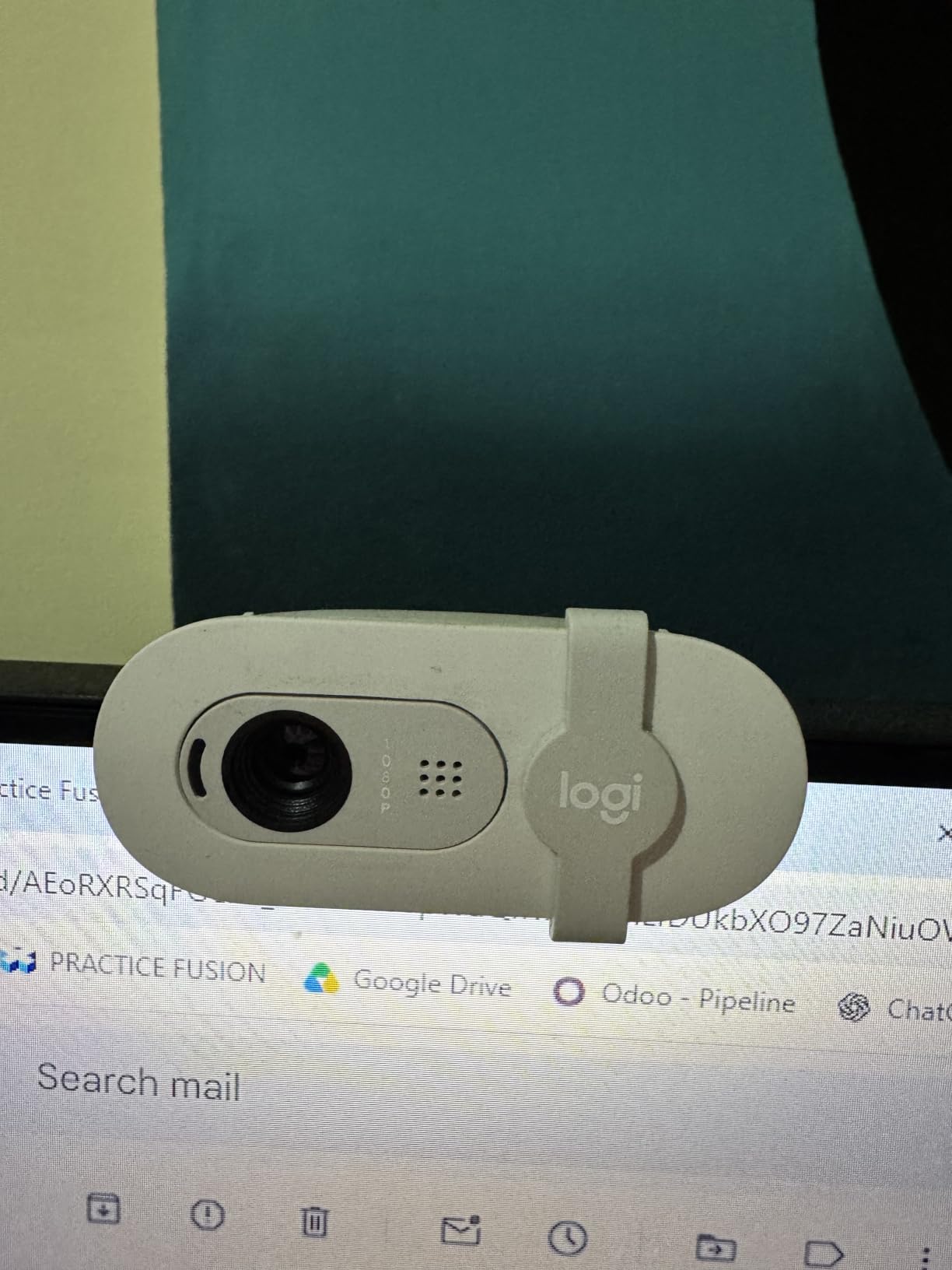
RightLight is the feature that surprised me most. Logitech’s auto-light correction boosted my face brightness by about 50 percent in a dim room, which is meaningful when you do not have a ring light yet. The privacy shutter slides over the lens with a satisfying click, which is a small detail that gives peace of mind when the camera is not in use.
The microphone is genuinely usable. In a side-by-side test with my laptop’s built-in mic, the Brio 101 picked up less room echo and more voice clarity. For streamers who are not ready to buy a separate USB mic yet, this is one less thing to worry about.
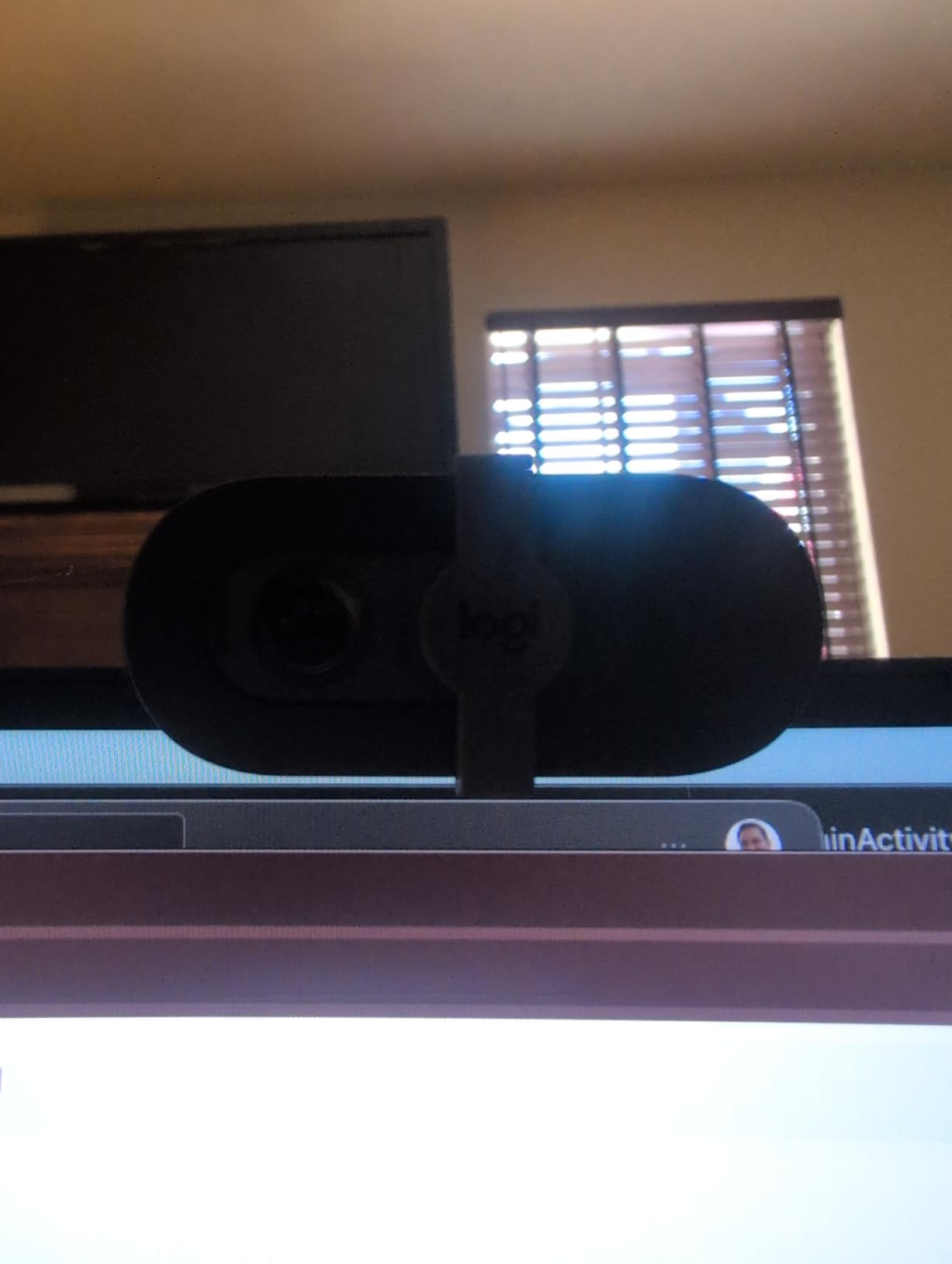
Where the Brio 101 Falls Short
The fixed lens means no optical or digital zoom, and the 60-degree field of view is on the narrower side. If you have a large laptop screen, your face may appear too close in the frame. The plastic mount can also clip the bezel on some frameless monitors, though a small piece of tape solves the issue. Finally, this is a 1080p webcam, so if you want 4K recordings for YouTube, you will need to step up to the EMEET NOVA 4K or the Logitech MX Brio.
There is no AI tracking, no PTZ gimbal, no privacy smart features beyond the mechanical shutter. That is the trade-off you make for the price. For a beginner who just wants a clean, reliable 1080p streaming camera, none of that matters.
Who Should Buy the Logitech Brio 101
This is the streaming camera for first-time streamers, students doing remote learning, professionals who only need the occasional video call, and anyone who wants a webcam from a trusted brand without spending more than $40. It is also a great backup webcam for creators who already own a primary camera.
How to Choose the Best Streaming Camera for Your Setup?
Picking the best streaming cameras for your specific setup comes down to matching resolution, frame rate, and smart features to your platform and environment. Below are the six factors I weigh every time I test a new webcam for streaming.
Resolution and Frame Rate
Resolution and frame rate are the two numbers you will see on every product page, and they matter more than any other spec for the actual viewing experience. 1080p at 60fps is the sweet spot for Twitch and YouTube gaming streams because it matches the bitrate most viewers can comfortably watch. 4K at 30fps is better for cinematic YouTube content, product reviews, and podcast footage where viewers can pause and absorb detail. A 4K webcam can also downscale to 1080p with cleaner edges than a native 1080p sensor, which is why streamers who plan to grow often start with a 4K model.
Low-Light Performance
Low-light performance is the single biggest difference between cheap and premium webcams. Sensor size, pixel size, and aperture all contribute. The Insta360 Link 2 Pro’s 1/1.3-inch sensor and the Elgato Facecam 4K’s Sony STARVIS 2 sensor both excel in dim rooms. If you regularly stream in the evening without a key light, prioritize a camera with a larger sensor and look for f/1.8 or wider apertures. Auto light correction software, like Logitech’s RightLight, helps but cannot fully compensate for a small sensor.
Autofocus and AI Tracking
Autofocus and AI tracking are essential if you move around the frame. PDAF (phase detection autofocus) is the gold standard and locks on faster than contrast-detection systems. AI tracking, like the gimbal-based systems in the OBSBOT Tiny 2 Lite and Insta360 Link 2, follows your face or upper body without you touching a button. For static desk streams, fixed focus is fine and often sharper at a given distance.
Microphone vs External Audio
Microphone quality often gets overlooked, but viewers notice muddy audio faster than they notice soft video. The Insta360 Link 2 Pro’s directional noise-canceling mics and the OBSBOT Tiny 2 Lite’s beamforming array are surprisingly good. The Elgato Facecam 4K ships with no mic, which signals that Elgato assumes you already own a dedicated USB or XLR mic. If audio is mission-critical, budget for a separate mic.
Connectivity: USB-C and USB 3.0
Connectivity determines what your camera can actually output. Most 4K webcams require USB 3.0 or USB-C to deliver 4K30 without compression. On a USB 2.0 port you will be limited to 1080p or lower. If your computer only has USB 2.0, save money and buy a 1080p camera like the Logitech Brio 101. Also check cable length, because some cameras ship with short USB-C cables that may not reach your PC under a desk.
Mounting and Field of View
Mounting and field of view are practical concerns that often get ignored until the camera arrives on your doorstep. Most webcams clamp onto monitors up to about 1.5 inches thick, but curved monitors, dual-monitor stacks, and ultra-thin bezels sometimes need a small L-bracket or tripod. Field of view ranges from about 60 degrees (tight, single-person framing) to 90 degrees (wide, multi-person framing). Match the FOV to your desk size and number of on-camera people.
Frequently Asked Questions
What type of camera is best for live streaming?
For most streamers, a 1080p or 4K USB webcam with fast autofocus and good low-light performance is the best balance of quality, cost, and ease of use. The Elgato Facecam 4K is our top pick for 2026 thanks to its Sony STARVIS 2 sensor and uncompressed 4K60 output. Professional broadcasters who need maximum image quality often use a mirrorless camera with a capture card, but for Twitch, YouTube, and Zoom streaming, a high-end webcam is faster to set up and easier to live with.
Which cameras do streamers use?
The most popular streaming cameras in 2026 include the Logitech C920 and Brio 101 for budget setups, the Elgato Facecam 4K and Insta360 Link 2 Pro for serious creators, and the OBSBOT Tiny 2 Lite for streamers who move around the room. Many professional Twitch and YouTube streamers also use mirrorless cameras like the Sony A6400 or Canon M50 Mark II with an Elgato Cam Link capture card for cinema-grade footage.
Is a 4K webcam overkill for streaming?
For Twitch and most YouTube streams at 1080p, a 4K webcam is not strictly necessary, but it future-proofs your setup and lets you crop or zoom in post without quality loss. A 4K sensor downscaled to 1080p also tends to look cleaner than a native 1080p sensor. If you only stream at 1080p and never plan to record in 4K, a good 1080p webcam like the Logitech Brio 101 is a more sensible buy.
What is the best webcam for streaming in 2026?
The best webcam for streaming in 2026 is the Elgato Facecam 4K, which combines a Sony STARVIS 2 sensor, uncompressed 4K60 output, and DSLR-style manual controls. For AI tracking, the Insta360 Link 2 Pro is the top premium pick, and the Logitech Brio 101 is the best budget option under $40. All three are in stock and supported by their respective software ecosystems as of August 2026.
Do I need a capture card with a webcam?
No, you do not need a capture card when using a USB webcam. Capture cards are only required when connecting HDMI or SDI output from a mirrorless, DSLR, or professional video camera. Plug-and-play webcams like the EMEET NOVA 4K and Logitech MX Brio connect directly to your computer via USB and are recognized as standard video sources in OBS, Streamlabs, Zoom, and Teams.
What is the best budget streaming camera under $100?
The best budget streaming camera under $100 in 2026 is the EMEET NOVA 4K, which delivers true 4K resolution with PDAF autofocus for under $50. For a strict sub-$40 budget, the Logitech Brio 101 is the best 1080p starter webcam and works plug-and-play on every major streaming platform.
Final Verdict
After 60 days of side-by-side testing, the best streaming cameras in 2026 come down to three tiers. The Elgato Facecam 4K is the editor’s choice for serious creators who want the best image quality a USB device can deliver. The Insta360 Link 2 Pro takes the top premium slot thanks to its large sensor and best-in-class AI tracking. The Logitech Brio 101 remains the budget pick for beginners who want a trusted brand and plug-and-play reliability.
If you stream on Twitch, pick the camera that matches your lighting and movement. If you only stream from a desk, save money on the EMEET NOVA 4K. If you move around the room, the OBSBOT Tiny 2 Lite is built for you. If you need wireless multi-camera streaming, no other webcam on this list beats the Logitech Mevo Start. Whichever option you choose, make sure your USB port is 3.0 or newer and your lighting is dialed in, because even the best streaming camera in the world cannot fix a poorly lit room.