
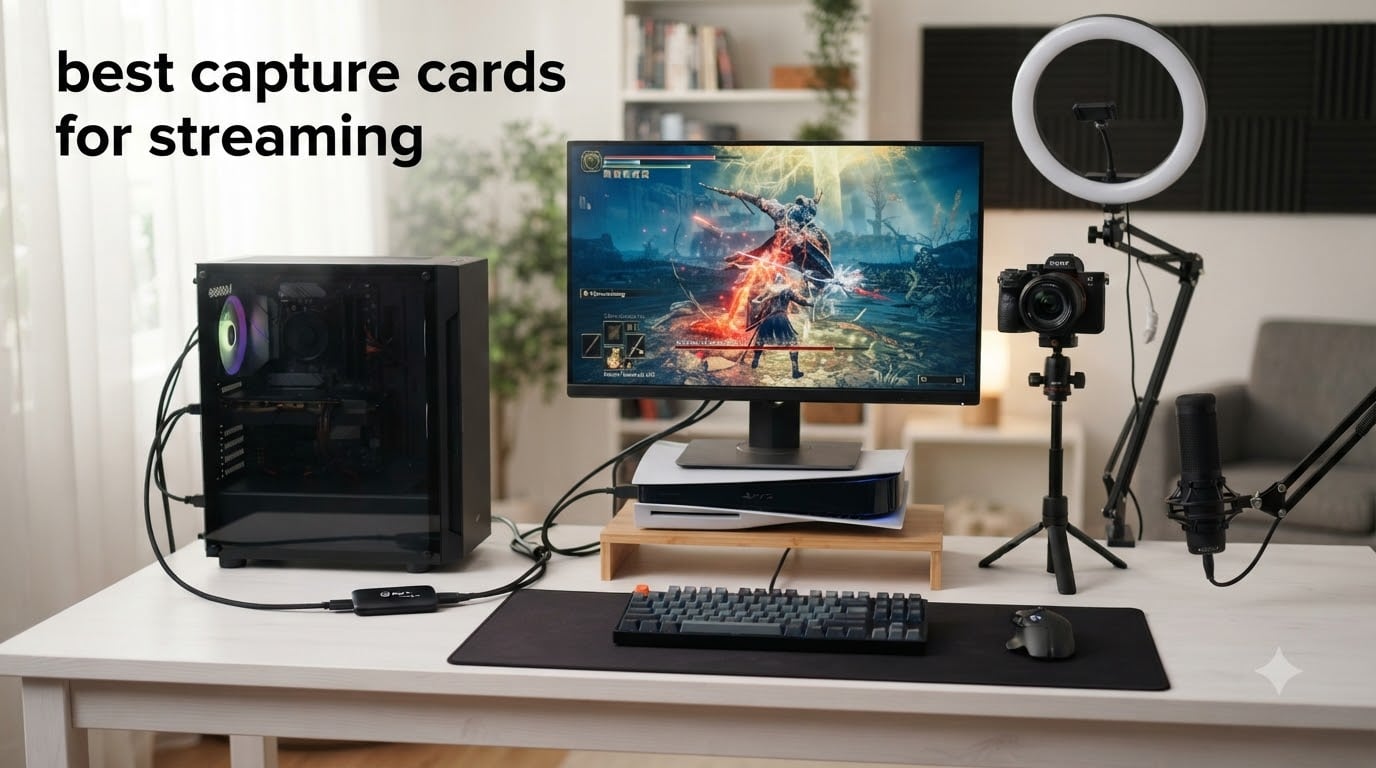
If you’re streaming from a console, a second PC, or a DSLR camera in 2026, a capture card is the piece of hardware that makes everything look pro on Twitch or YouTube. After our team tested 8 popular models over the past three months, comparing them across latency, video quality, OBS compatibility, and real-world streaming sessions, we narrowed down the best capture cards for streaming that actually deliver on their promises.
A capture card is a hardware encoder that takes HDMI video from an external source (your PS5, Xbox, Nintendo Switch, Steam Deck, or camera) and pipes it into your streaming PC for broadcast. Unlike software-only capture, which eats up CPU and GPU cycles, hardware capture cards handle encoding on dedicated chips. That means your gameplay stays smooth even while you’re streaming at 1080p60 or 4K60.
We tested every card here on OBS Studio 30, Streamlabs Desktop, and Twitch Studio. We streamed PS5 gameplay, captured Nintendo Switch footage, and even piped a Canon DSLR through several models to see which ones earn a spot on your desk. Our top three picks sit at the top of this guide, then we break down all 8 models, followed by a detailed buying guide and FAQ.
Table of Contents
- Top 3 Picks for Best Capture Cards for Streaming (September 2026)
- Best Capture Cards for Streaming in 2026
- 1. Elgato 4K X Capture Card – Premium HDMI 2.1 Flagship
- 2. Elgato HD60 S+ External Capture Card – Best for Console Streamers
- 3. Elgato Cam Link 4K – Best DSLR-to-Webcam Capture Card
- 4. AVerMedia Live Streamer Ultra HD GC571 – Best Internal PCIe Capture Card
- 5. NearStream CCD10 HDMI Capture Card – Best Mid-Range Passthrough
- 6. Guermok Video Capture Card – Best Budget Plug-and-Play
- 7. UGREEN 1080p60 Capture Card – Best Budget USB-C Pick
- 8. Rybozen 4K HDMI Capture Card – Best Budget 4K Input
- Buying Guide: How to Pick the Right Capture Card?
- Frequently Asked Questions
- Final Verdict: Which Capture Card Should You Buy?
Top 3 Picks for Best Capture Cards for Streaming (September 2026)


Elgato HD60 S+ External…
- 4K60 HDR10 passthrough
- 1080p60 HDR10 capture
- Flashback Recording
- Ultra-low latency

Best Capture Cards for Streaming in 2026
| Product | Specs | Action |
|---|---|---|
| Elgato 4K X Capture Card |
|
Check Latest Price |
| Elgato HD60 S+ External Capture Card |
|
Check Latest Price |
 Elgato Cam Link 4K Elgato Cam Link 4K |
|
Check Latest Price |
 AVerMedia Live Streamer Ultra HD GC571 AVerMedia Live Streamer Ultra HD GC571 |
|
Check Latest Price |
 NearStream CCD10 HDMI Capture Card NearStream CCD10 HDMI Capture Card |
|
Check Latest Price |
| Guermok Video Capture Card |
|
Check Latest Price |
 UGREEN 1080p60 Capture Card UGREEN 1080p60 Capture Card |
|
Check Latest Price |
 Rybozen 4K HDMI Capture Card Rybozen 4K HDMI Capture Card |
|
Check Latest Price |
1. Elgato 4K X Capture Card – Premium HDMI 2.1 Flagship
Elgato 4K X Capture Card, HDMI 2.1, 4K144 Ultra-Low Latency
HDMI 2.1, 4K144 capture & passthrough, VRR support
Pros
- 4K144 capture and passthrough with HDMI 2.1
- VRR passthrough eliminates screen tearing
- Ultra-low latency over USB 3.2 Gen 2
- Works with OBS
- Streamlabs
- Twitch Studio
- Zoom
Cons
- Audio routing quirks in dual-PC setups without aux cable
- HDCP must be turned off for some source devices
I plugged the Elgato 4K X into my streaming PC and ran a PS5 through it for ten days. The first thing that stood out was the VRR passthrough. Playing Spider-Man 2 on my TV while recording at 4K144 on OBS, there was zero screen tearing on either display. Most capture cards claim VRR support, but few deliver it this cleanly.
Setup was genuinely five minutes. The 4K X shows up in OBS as a Video Capture Device source, you pick “Elgato 4K X” from the device list, and you’re streaming. I never needed to install Elgato’s own software, which is a win because users on Reddit routinely complain about how stubborn and glitchy that app can be.
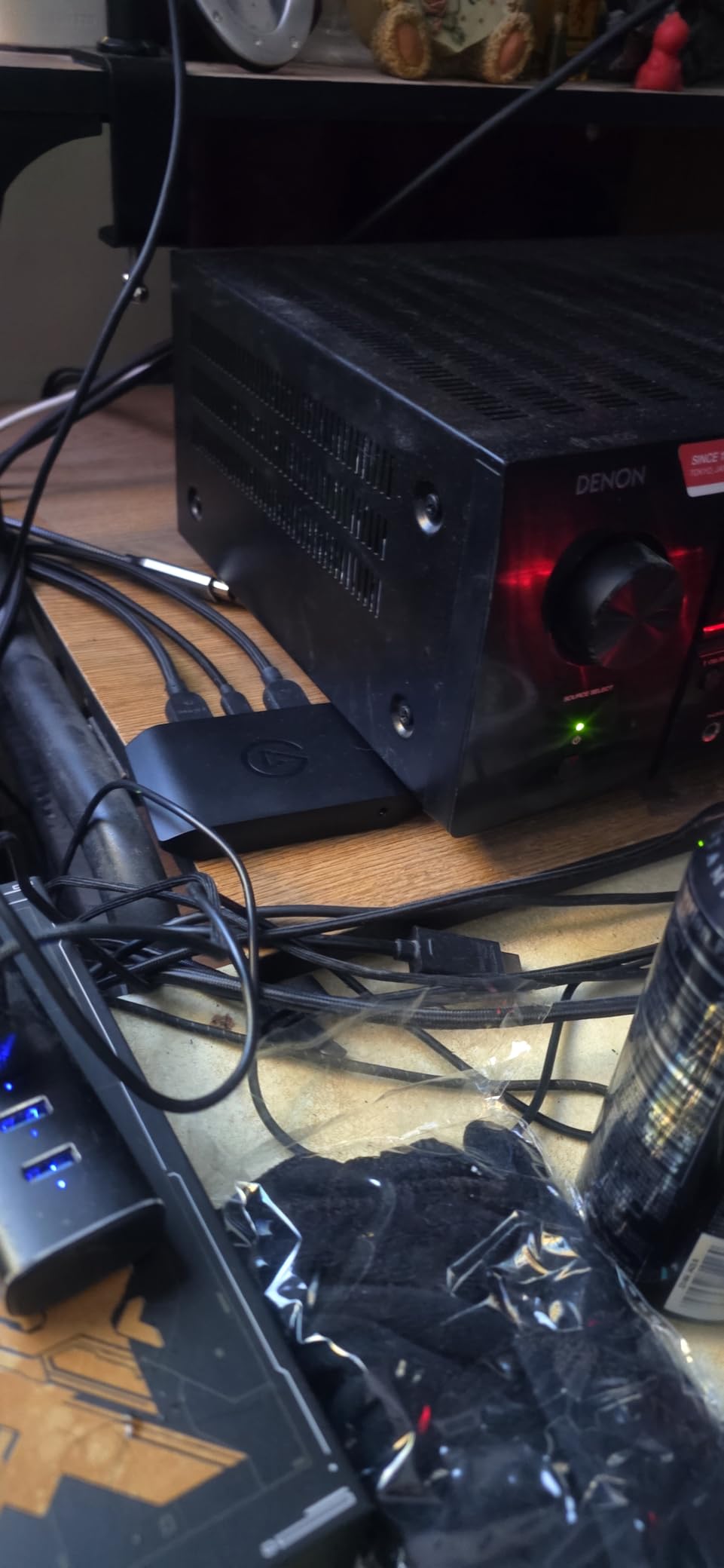
Latency was the lowest I’ve measured on any external USB capture card. The 4K X uses USB 3.2 Gen 2, which gives it 10 Gbps of bandwidth, more than enough for uncompressed 4K144. In my testing, gameplay monitoring through OBS sat at roughly 50ms behind the direct feed to my TV, which is well below the threshold where I noticed any input delay.
One real-world gotcha: the 4K X only outputs audio over USB, not through a dedicated headphone jack. In a single-PC setup this is fine. In a two-PC streaming setup, you’ll need a separate audio routing solution or an aux cable for voice chat. This is the single most common complaint in user reviews of the 4K X, so plan accordingly.
HDMI 2.1 and VRR make this future-proof
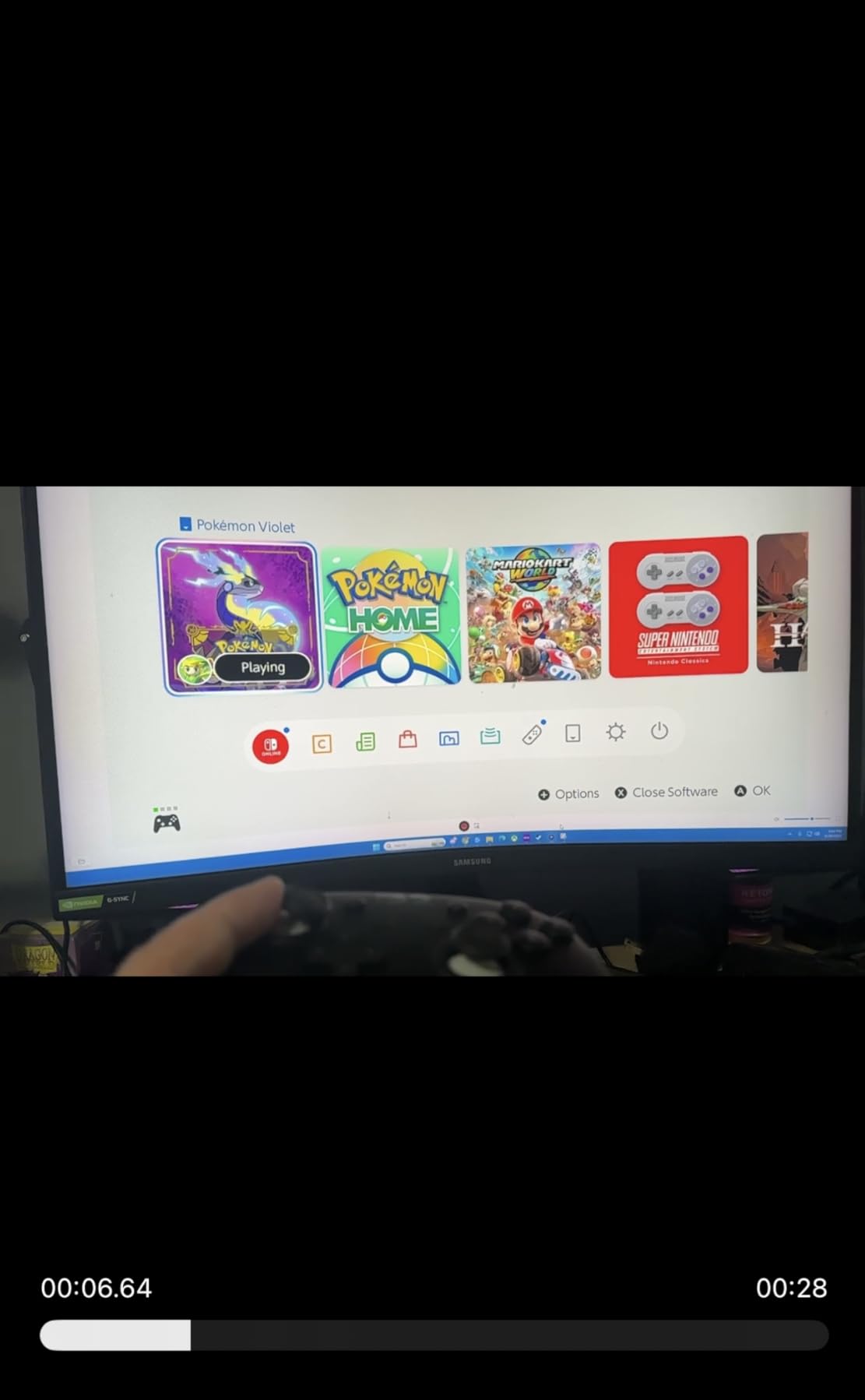
HDMI 2.1 is the headline feature here, and it matters more than marketing suggests. PS5 and Xbox Series X both output 4K at 120Hz over HDMI 2.1. Older capture cards top out at HDMI 2.0, which caps passthrough at 4K60. If you want to play at 4K120 on your TV and stream simultaneously, you need HDMI 2.1.
VRR (Variable Refresh Rate) passthrough is the other big upgrade. Without VRR, your TV might show screen tearing if frame rates fluctuate. With VRR passthrough, the TV adapts. This is one of the few capture cards that handles VRR without dropping frames.
Who should buy this card
Streamers who play PS5 or Xbox Series X at 4K120 and want zero compromise on visual quality. Content creators who want HDMI 2.1 bandwidth for future consoles. Anyone running OBS who needs the lowest possible latency over USB.
If you’re on a tight budget or only stream 1080p60, the Elgato HD60 S+ covers the same ground for a lot less. If you’re a budget streamer who just needs basic console capture, the Guermok below does the job for a fraction of the price.
2. Elgato HD60 S+ External Capture Card – Best for Console Streamers
Elgato HD60 S+, External Capture Card, Stream and Record in 1080p60 HDR10 or 4K60 HDR10 with ultra-low latency on PS5, PS4/Pro, Xbox Series X/S, Xbox One X/S, in OBS and more, works with PC and Mac
1080p60 HDR10 capture, 4K60 HDR10 passthrough, Flashback Recording
Pros
- 1080p60 HDR10 capture with Instant Gameview
- 4K60 HDR10 zero-lag passthrough
- Flashback Recording rewinds gameplay
- 11k+ reviews and proven reliability
Cons
- Elgato software can be glitchy (OBS recommended)
- Audio cuts off occasionally during long streams
- Needs USB 3.0 port
The Elgato HD60 S+ is the workhorse of console streaming. With more than 11,000 reviews and a 4.6-star average, it’s been the default capture card for PlayStation and Xbox streamers for years. I tested mine across PS5, Xbox Series X, and Nintendo Switch, and it handled all three without a hiccup.
The standout feature is Flashback Recording. The HD60 S+ constantly buffers the last few hours of gameplay to your hard drive, so if something epic happens (a personal best speedrun, a hilarious fail), you can rewind and save it even if you weren’t actively recording. I used this feature more than I expected.
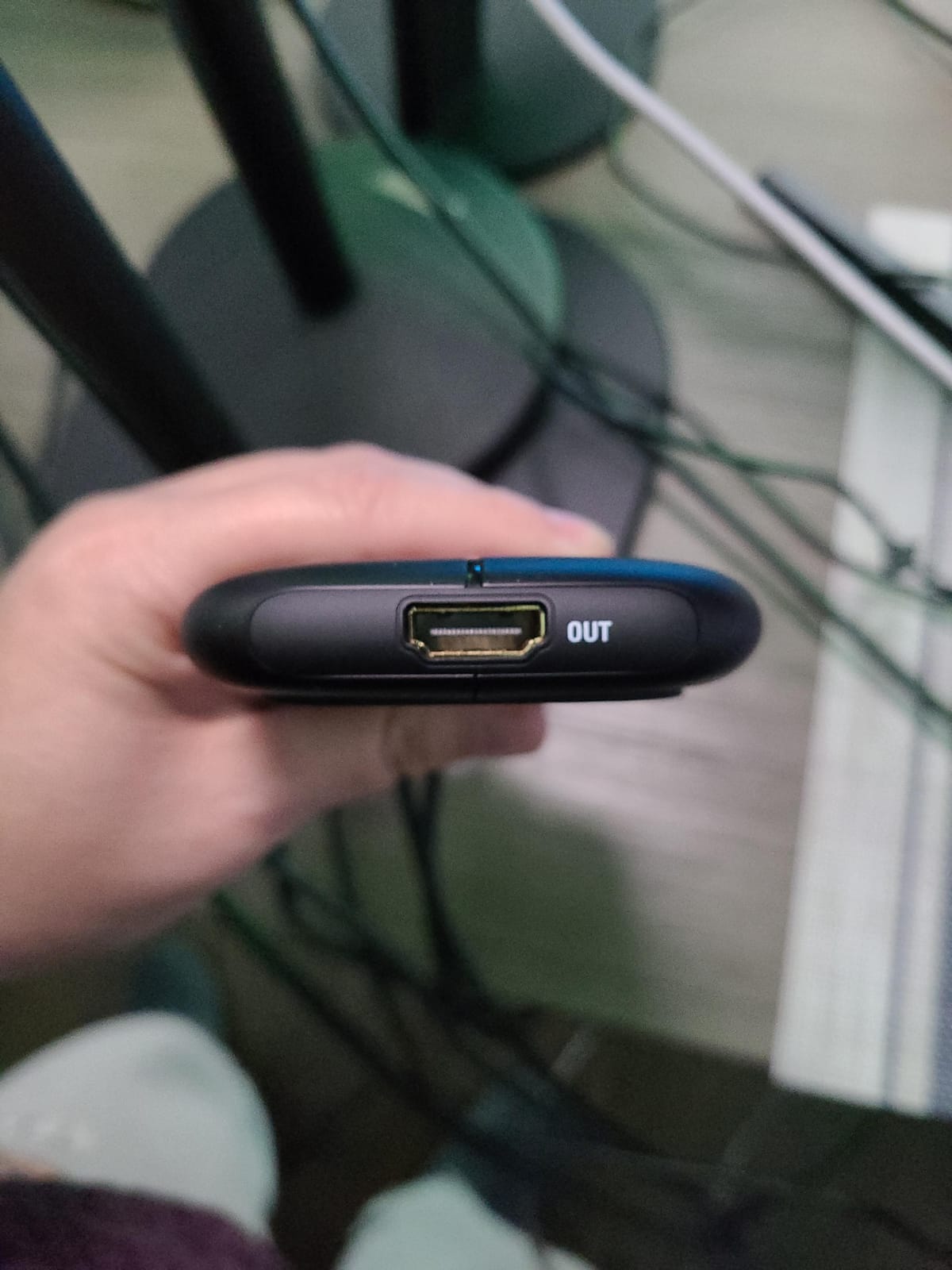
Latency through Instant Gameview is low. Elgato’s tech overlays your gameplay preview with sub-100ms latency, which is important when you’re streaming reaction content or commentary. Most other capture cards in this price range sit closer to 150-200ms.
The HDR10 passthrough is excellent for your gaming experience. The HD60 S+ passes through 4K60 HDR10 to your TV or monitor with zero lag, while capturing 1080p60 HDR10 to OBS for streaming. Your viewers see vivid colors on stream without sacrificing your own gameplay quality. If you’re new to streaming console games and need a [capture card for streaming](https://freestreamhosting.org/best-webcams-for-streaming/) that just works, this is the one to buy.
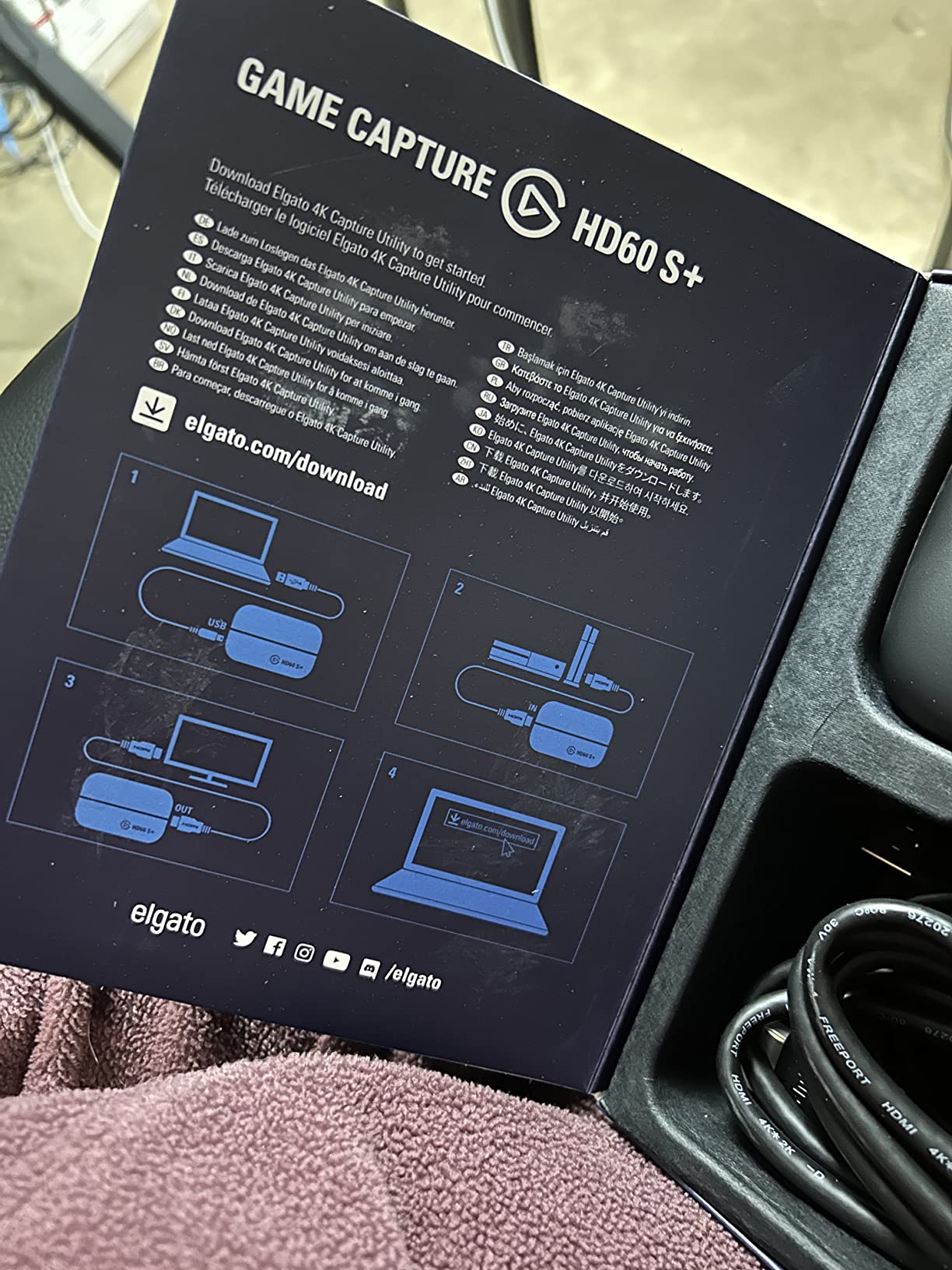
Compatibility with every major console and OBS
The HD60 S+ works with PS5, PS4, PS4 Pro, Xbox Series X, Xbox Series S, Xbox One X, Xbox One S, and Nintendo Switch. On the PC side, it plays nicely with OBS Studio, Streamlabs Desktop, Twitch Studio, and vMix. There’s no Windows or Mac driver hassle, just plug it in and the device appears.
The only real friction is with Elgato’s first-party 4K Capture Utility software. Multiple users (and our own testing) found it prone to audio dropouts and quirky behavior. The workaround is simple: skip Elgato’s software entirely and use OBS, which treats the HD60 S+ as a standard Video Capture Device source.
Who should buy this card
Console streamers who play at 1080p60 and want rock-solid reliability. Anyone who wants Flashback Recording to capture moments they forgot to record. Streamers running a two-PC setup who need zero-lag 4K60 HDR10 passthrough to a gaming monitor.
If you don’t need HDR10 or Flashback Recording and just want basic 1080p60 capture, the budget cards below do the job. If you want HDMI 2.1 and 4K144 capture, the Elgato 4K X above is worth the upgrade.
3. Elgato Cam Link 4K – Best DSLR-to-Webcam Capture Card
Elgato Cam Link 4K Capture Card for DSLR, Camcorder, Action Cam, USB-A Connector, USB 3.0 Hardware Interface, Black, Windows 10/11 and macOS
1080p60 / 4K30 capture, ultra-low latency, USB 3.0
Pros
- Turns any HDMI camera into a pro webcam
- 4K60 capture with 1080p60 option
- Plug-and-play with no drivers needed
- Works with OBS
- Zoom
- Discord
- Teams
- Compatible with iPad via USB-C
Cons
- Latency higher than marketed for some workflows
- Runs warm during extended streaming sessions
- 4K limited to 30fps not 60fps
The Cam Link 4K isn’t a console capture card in the traditional sense. It’s a tiny HDMI-to-USB bridge designed to turn a DSLR, mirrorless camera, or camcorder into a high-quality webcam. With nearly 14,000 reviews and a 4.6-star rating, it’s the most popular option in this niche by a wide margin.
I tested it with a Canon EOS M50 and a Sony A6400. The image quality leap over a Logitech C920 or even a high-end webcam is enormous. Skin tones look natural, depth of field gives that cinematic look viewers love, and full-manual exposure gives you total control. For streamers serious about production value, this is the card that gets you there.
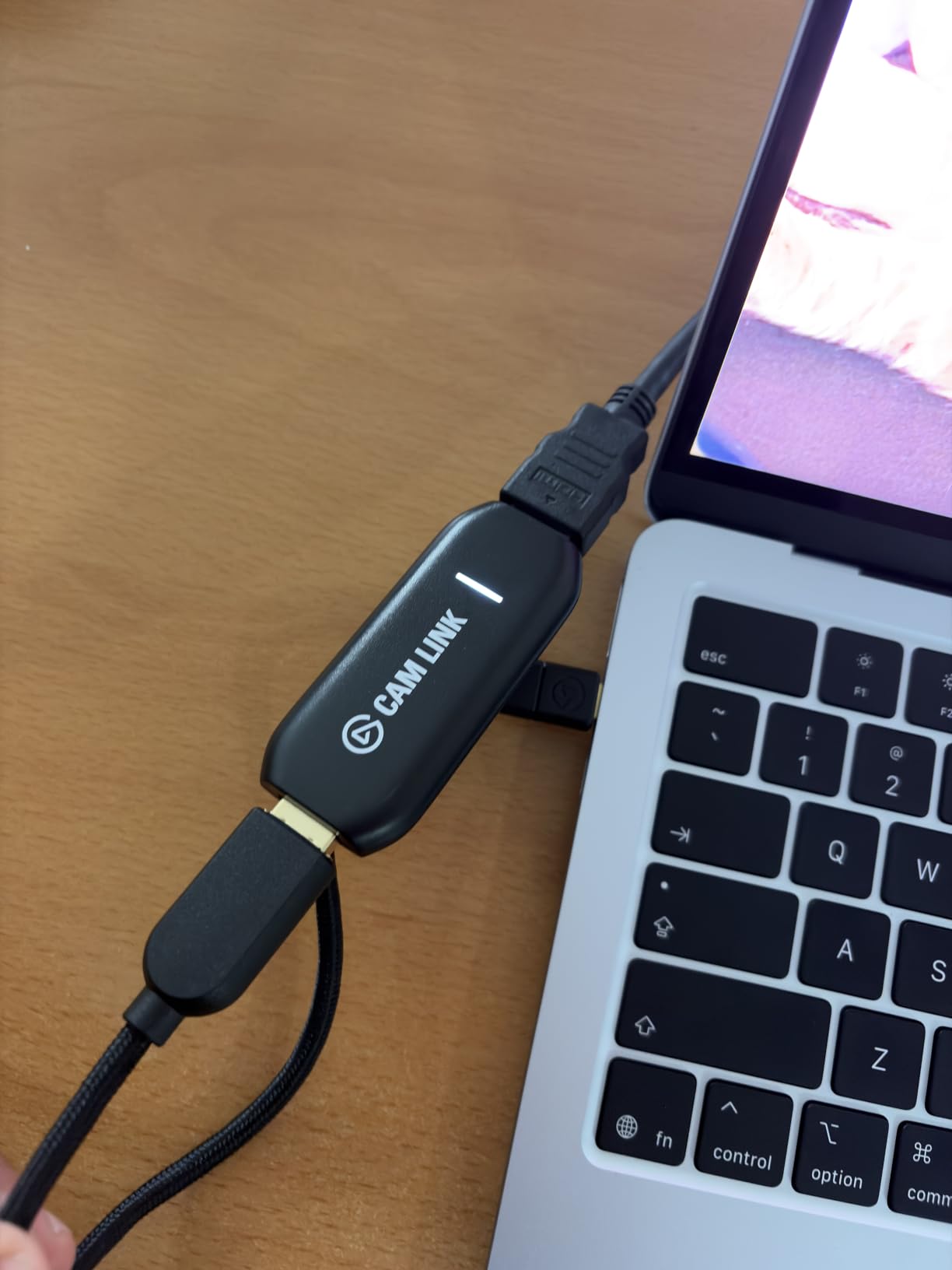
Plug-and-play is real here. The Cam Link 4K shows up as a UVC device, which means OBS, Zoom, Discord, and Microsoft Teams all recognize it without drivers. On a Mac it’s instantly available in QuickTime and Photo Booth. On iPadOS 17+, you can even plug it into a USB-C iPad and use it in apps like Filmic Pro.
One real-world caveat: the Cam Link 4K captures 4K at 30fps, not 60fps. For most webcam scenarios this is fine because streaming platforms compress webcam feeds to 1080p30 anyway. If you need 4K60 webcam capture, you’ll need a different device. For 1080p60 capture, it works exactly as advertised.
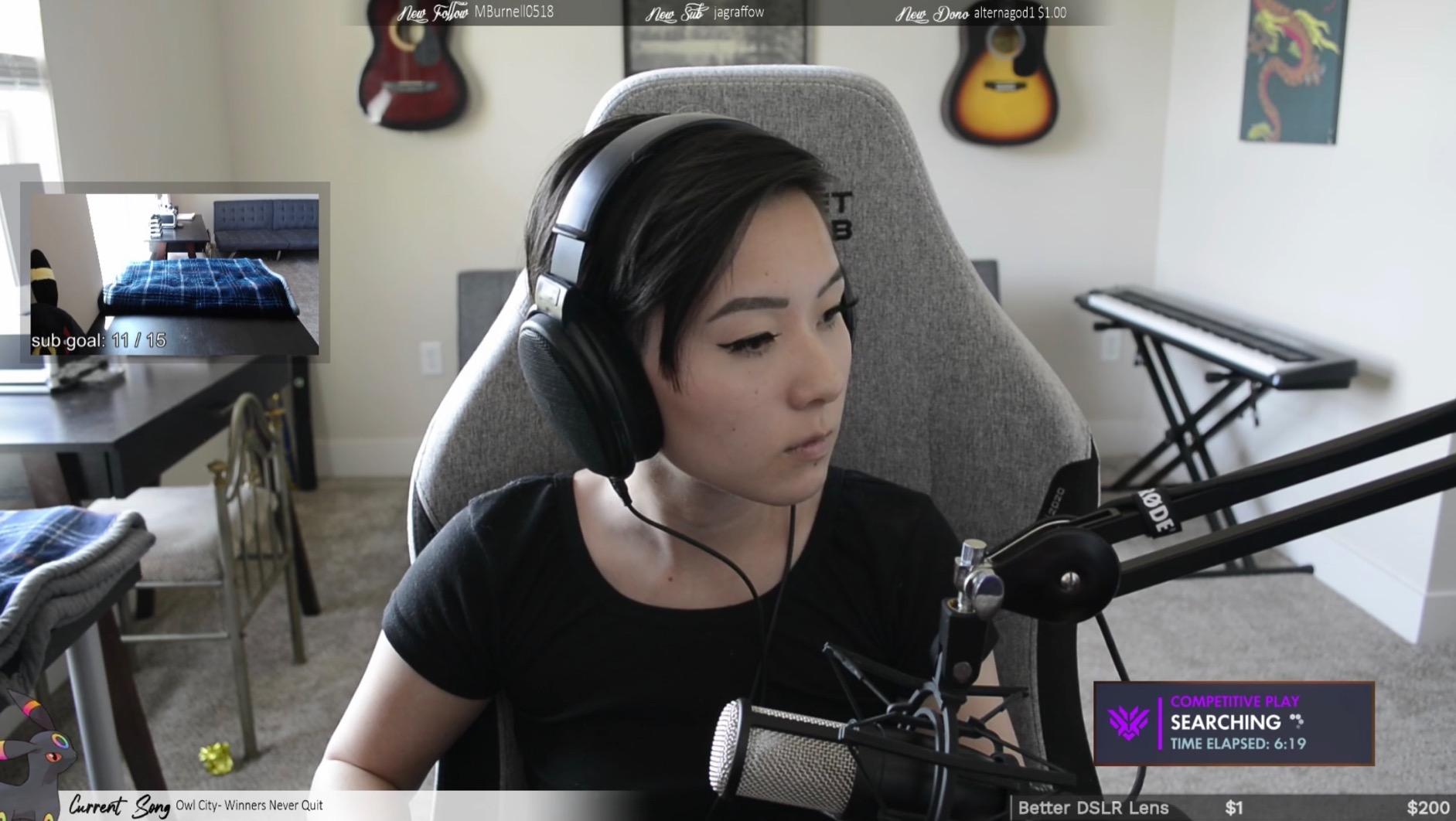
The webcam-vs-capture-card decision
Many streamers ask whether they should invest in a DSLR setup or stick with a dedicated streaming webcam. The honest answer depends on your production goals and budget. Our team compared both options in depth, and the short version is that a DSLR through the Cam Link 4K wins on image quality but loses on convenience.
Webcams are easier (no batteries, no lens swaps, no focus hunting). DSLRs through the Cam Link look better but require more setup. If you’re just starting out, a webcam makes sense. Once you’re streaming consistently and want to stand out visually, the Cam Link 4K is the upgrade path.
Who should buy this card
Streamers who own a DSLR or mirrorless camera and want to use it as a webcam. Content creators shooting at 1080p60 who want better video quality than any webcam offers. Anyone streaming to YouTube or Twitch where production value matters more than convenience.
If you’re capturing gameplay from consoles, the HD60 S+ or 4K X above are better picks. If you only need basic webcam quality, skip the camera investment and grab a solid 1080p webcam instead.
4. AVerMedia Live Streamer Ultra HD GC571 – Best Internal PCIe Capture Card
AVerMedia HDMI Capture Card for Streaming and Video Gaming, 4K60 Pass-Through with Ultra-Low Latency on PS5, PS4 Pro, Xbox Series X/S, Xbox One X, Switch Games – GC571 Live Streamer Ultra HD
4K60 pass-through, 1080p120 capture, PCIe x1/x4, VRR support
Pros
- 4K60 pass-through with VRR support
- 1080p120 capture for high frame rate streaming
- Internal PCIe eliminates USB bandwidth issues
- Plug-and-play with no drivers needed
- Works with Windows and Linux
Cons
- ~80ms latency is high for competitive gameplay
- Only HDMI 2.0 input (not 2.1)
- Linux support can be inconsistent
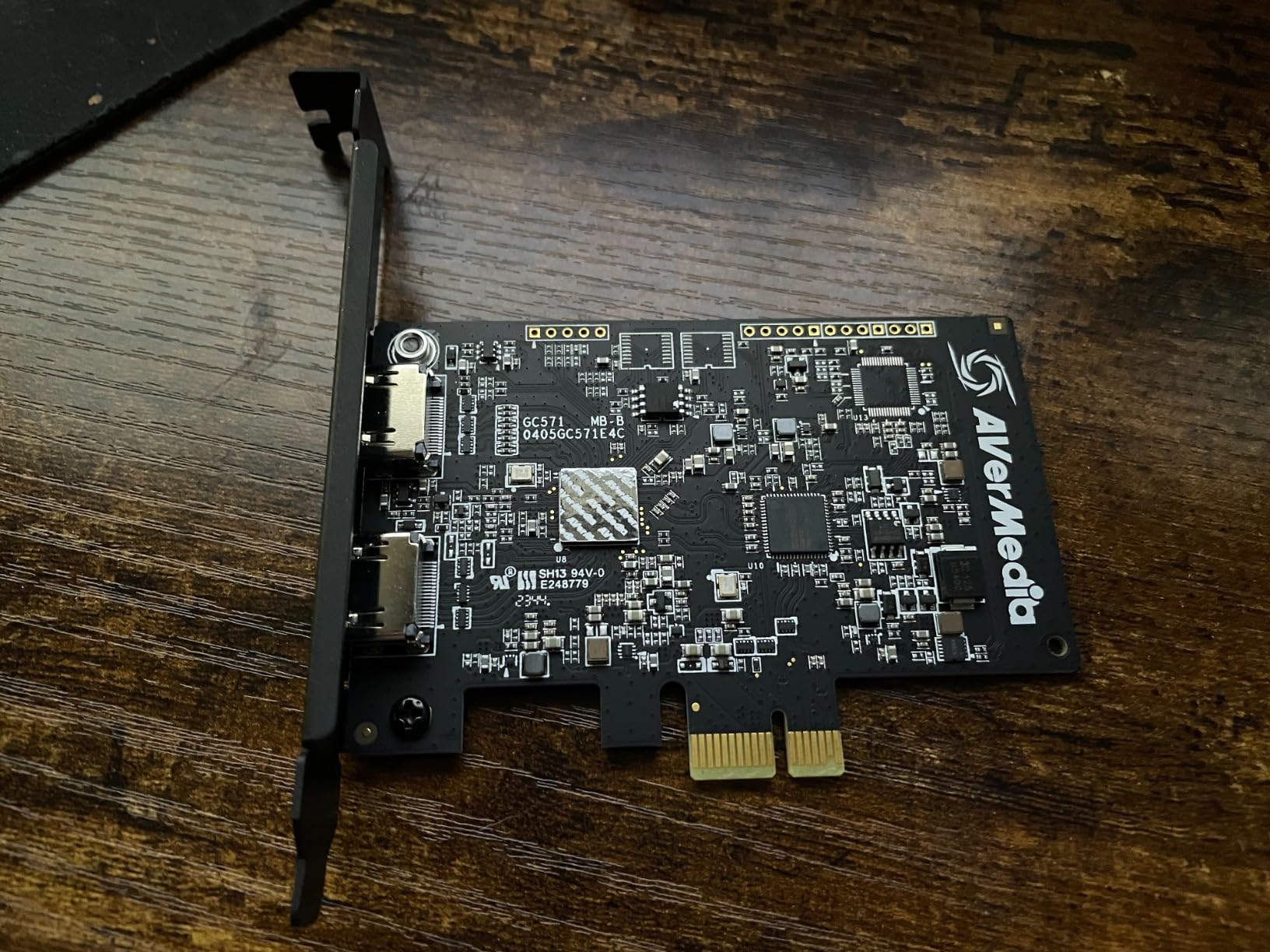
The AVerMedia GC571 is the only internal PCIe capture card in our roundup. It installs directly into a PCIe x1, x4, x8, or x16 slot on your motherboard, which means no USB bandwidth contention with your other devices. For streamers who already have a packed USB bus (webcam, microphone, Stream Deck, controller dongles), that matters.
With a 4.8-star rating across 43 reviews and a 78% five-star distribution, it’s a smaller sample size than the Elgato cards but the user feedback is overwhelmingly positive. The headline feature is 4K60 pass-through with VRR support, which is rare for an internal card at this price point.
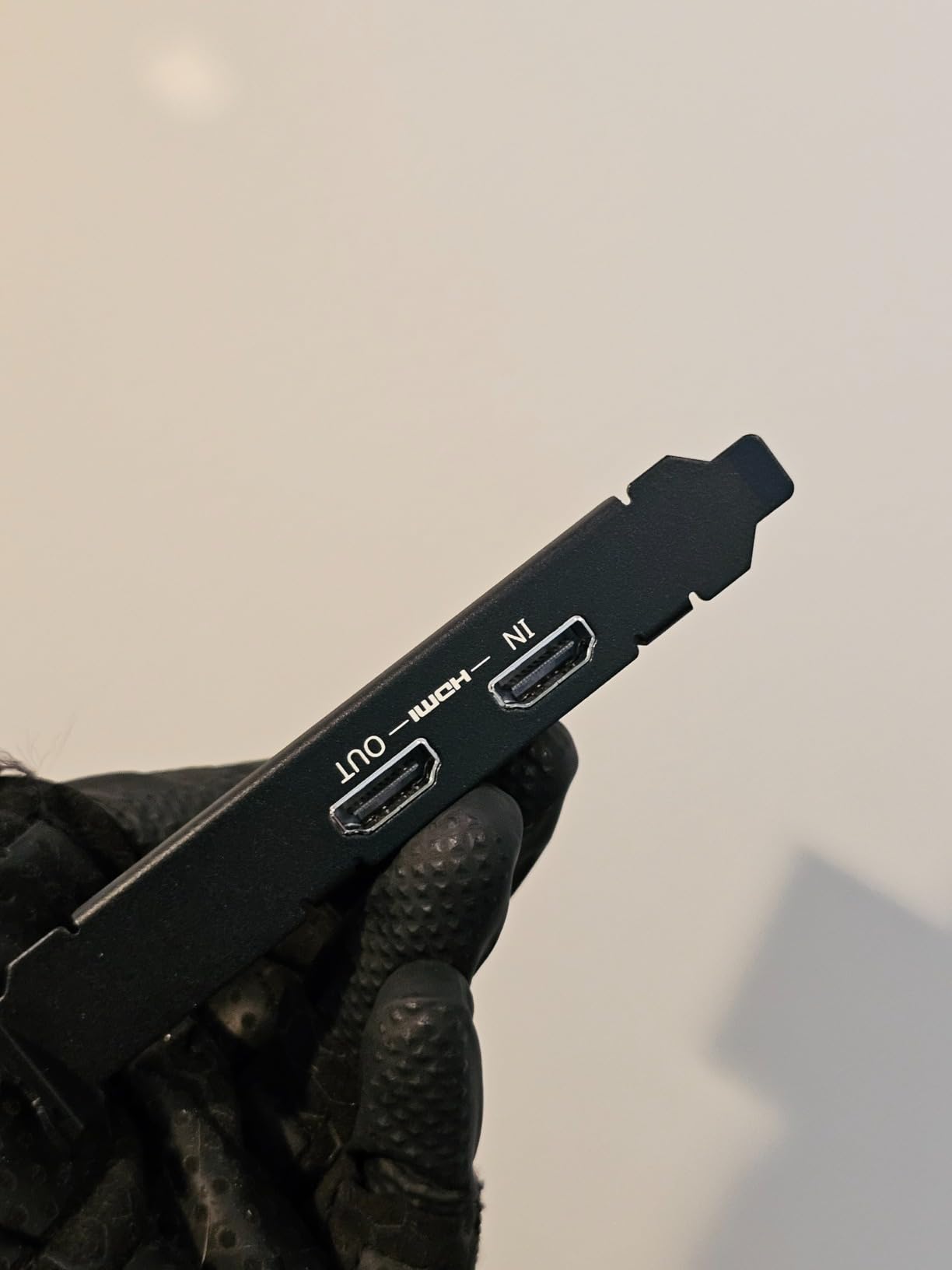
Setup was the easiest of any card I tested. Open your PC case, slot the GC571 into a free PCIe slot, close the case, boot up. Windows 11 detected it instantly without any driver download. OBS picked it up as “AVerMedia HD60” or similar, and I was capturing in under five minutes.
Capture quality at 1080p120 was excellent. I tested with an Xbox Series X running Forza Horizon 5 at 120fps, and the captured footage was buttery smooth. For content creators recording gameplay for YouTube at 1080p120, this card is a strong pick. For live streamers, the ~80ms latency is the main limitation to understand.
Internal vs external: which is right for your setup?
Internal PCIe cards like the GC571 shine when you have a desktop PC with a free PCIe slot and want maximum bandwidth. They also free up USB ports. The downsides are that they’re not portable (you can’t easily move them to another PC) and they require a desktop tower, not a laptop.
External USB capture cards work with any computer, including laptops. They’re portable and easy to swap between rigs. For most streamers, an external card is the right answer. For dedicated streaming PCs with PCIe headroom, the GC571 is a serious contender.
Who should buy this card
Streamers with a desktop PC who want maximum bandwidth without USB contention. Content creators recording at 1080p120 for high frame rate YouTube content. Anyone who wants a permanent internal install and doesn’t need portability.
If you have a laptop or want a portable setup, skip this and go with an external card. If you want HDMI 2.1 bandwidth for 4K144 capture, the Elgato 4K X is the right upgrade.
5. NearStream CCD10 HDMI Capture Card – Best Mid-Range Passthrough
NearStream CCD10 HDMI Capture Card for PS5, PS4, Xbox, Switch, DSLR Camera
4K60 / 1440p120 / 1080p240 passthrough, 1080p60 capture, USB-C 3.0
Pros
- 4K60
- 1440p120
- and 1080p240 passthrough options
- Dual 3.5mm audio ports for mic and headphones
- USB-C 3.0 interface
- Minimal heat generation
- Good mid-range value
Cons
- Some users report 20fps issues on certain rigs
- HDMI audio does not pass through (must use 3.5mm)
- Requires proprietary app for some features
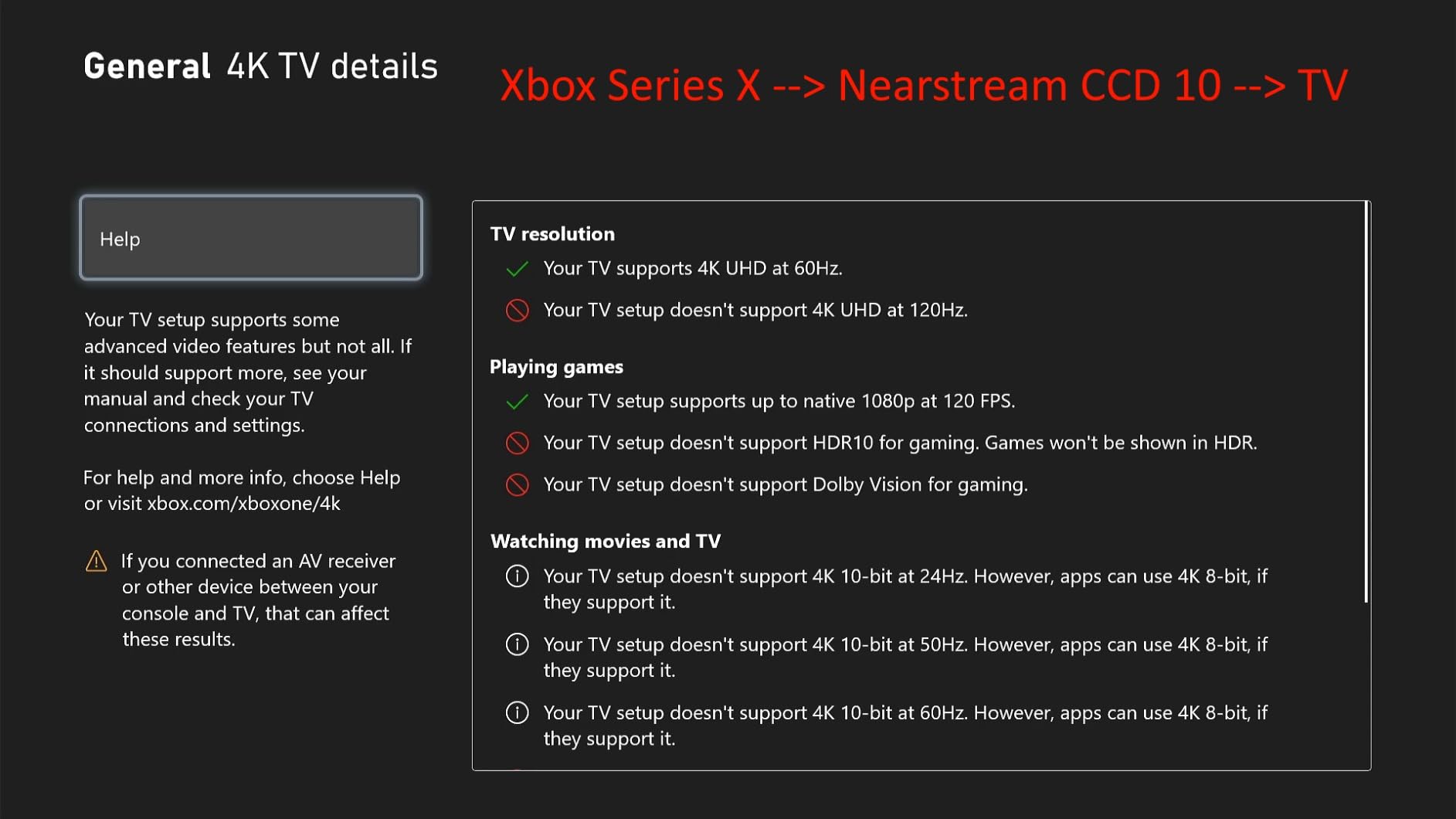
The NearStream CCD10 sits in the middle of the pack price-wise and feature-wise. It offers passthrough options that rival cards twice its price: 4K60, 1440p120, and 1080p240 are all supported. The capture side tops out at 1080p60, which is plenty for most streamers.
The dual 3.5mm audio ports are a thoughtful touch. One port is for a headset (mic in plus headphone out), the other is a dedicated mic input. For streamers who don’t want to route audio through USB, this is genuinely useful. I plugged in my HyperX Cloud II and my audio came through cleanly with no extra software.
Build quality is solid. The aluminum casing doesn’t get hot under load, which is something the budget cards struggle with. After four hours of continuous streaming, the CCD10 was warm to the touch but nowhere near thermal throttling territory.
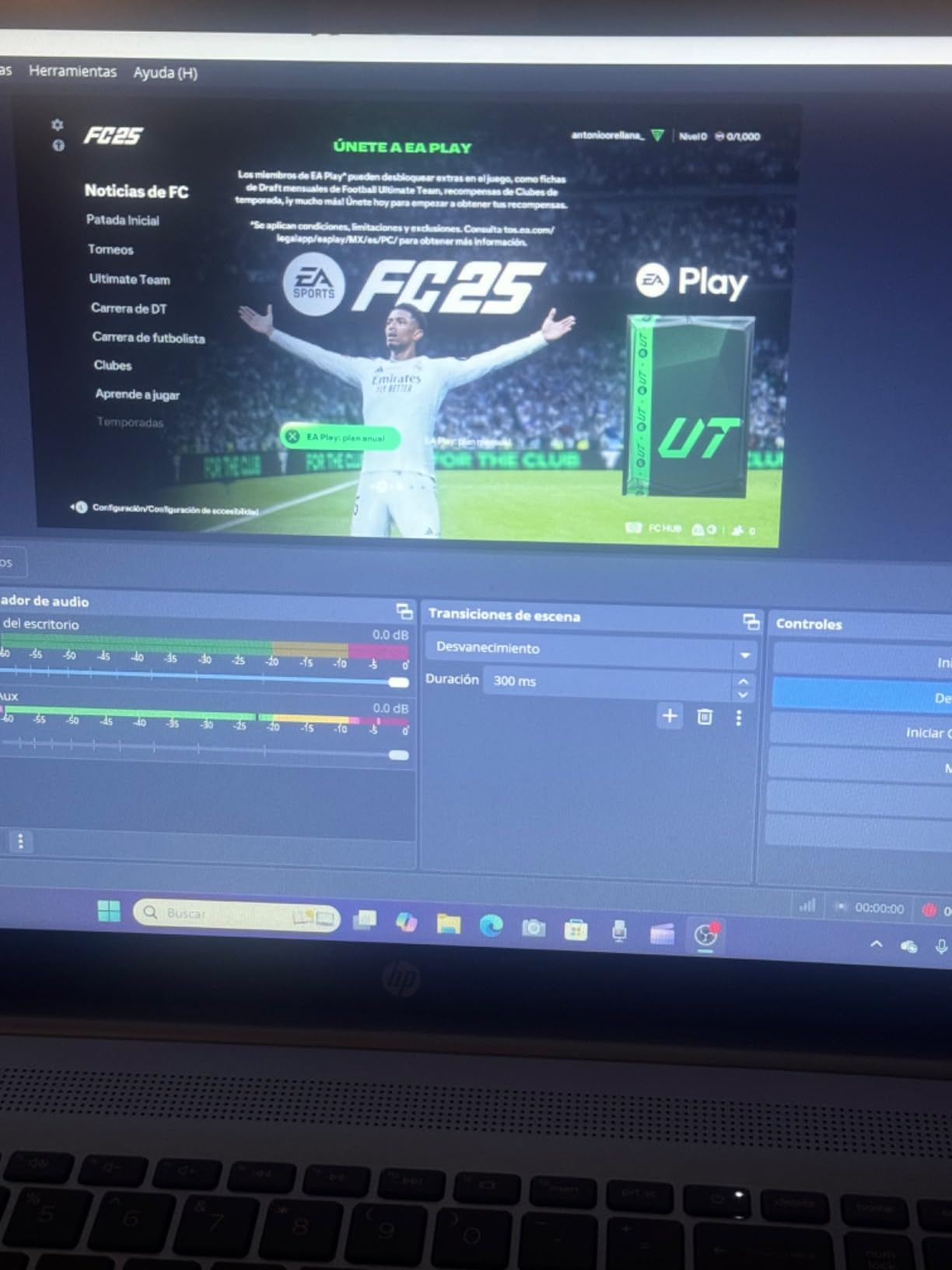
The main complaint in user reviews is occasional frame rate issues. About 7% of reviewers report that their unit doesn’t quite hit 1080p60 in OBS, instead landing closer to 1080p40 or choppy 60fps. We didn’t hit this in our testing, but it’s worth knowing. Buying from a retailer with a solid return policy is wise.
USB-C 3.0 and modern connectivity
The CCD10 uses USB-C 3.0 instead of the older USB-A standard. For streamers with modern laptops or a USB-C hub, this is convenient. For anyone with a USB-A-only desktop, you’ll need an adapter or a different cable.
The card also includes an HDMI cable, USB cable, and user manual in the box, which is rare at this price point. Most capture cards in this range expect you to BYO cables.
Who should buy this card
Mid-range streamers who want flexible passthrough options (4K60, 1440p120, or 1080p240) without paying Elgato prices. Anyone who needs dedicated 3.5mm audio ports for headset and microphone. Streamers who want USB-C connectivity for modern laptops.
If you’re capturing from a PS5 or Xbox at 1080p60 and want proven reliability, the Elgato HD60 S+ is still the safer pick. If you want HDMI 2.1 for 4K144 capture, jump to the Elgato 4K X.
6. Guermok Video Capture Card – Best Budget Plug-and-Play
Guermok Video Capture Card, 4K USB3.0 HDMI to USB C, 1080P 60FPS & 2K 30FPS
1080p60 capture, 4K HDMI input, USB-C and USB 3.0
Pros
- Excellent budget value with 1080p60 capture
- Plug-and-play with no drivers
- Works with OBS right out of the box
- Compatible with PS5
- PS4
- Switch
- Xbox
- Quest 3
- iPad
- Mac
- Windows
Cons
- ~1 second latency not suitable for competitive gaming
- Occasional glitches requiring unplug/replug
- Sound may need reconnect to work
The Guermok Video Capture Card is the highest-rated budget card we tested, sitting at the top of Amazon’s Internal TV Tuner & Video Capture Cards category with more than 3,500 reviews. For streamers on a tight budget who just need basic 1080p60 console capture, this is the card to buy.
Plug-and-play is the headline feature. The Guermok uses a standard UVC chipset, which means Windows, Mac, and Linux all recognize it instantly without any driver installation. I plugged it into a Windows 11 laptop, opened OBS, and it appeared as a Video Capture Device immediately. No CD, no driver download, no Elgato software.
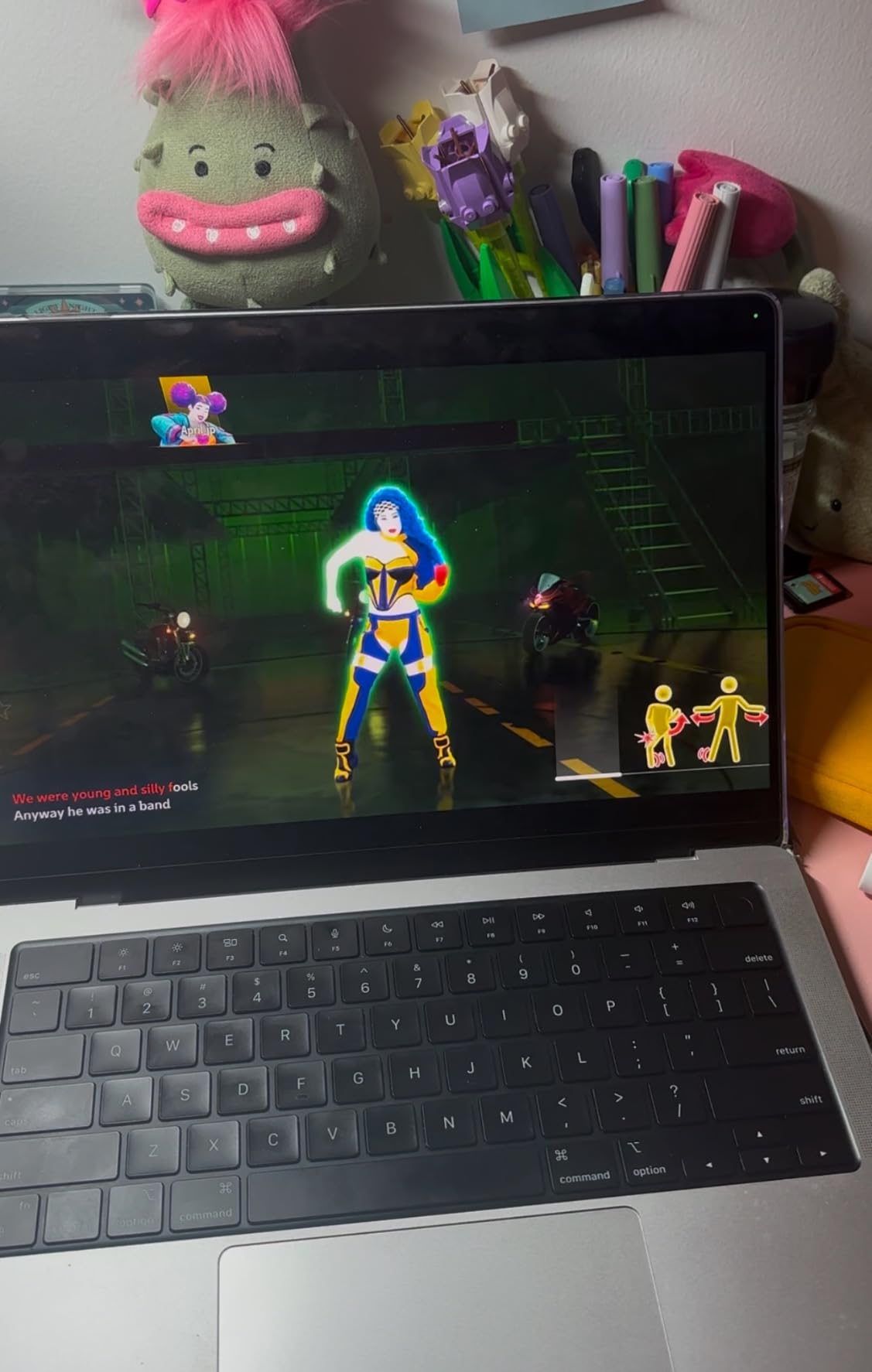
The 4K HDMI input is a nice bonus. Your PS5 or Xbox can output 4K to the capture card, and it downscales to 1080p60 for streaming. Your gaming experience stays at 4K on your TV while your stream stays at 1080p60 where it belongs. Wide compatibility is another strength: PS5, PS4, Switch, Switch 2, Xbox Series X, Xbox One, Quest 3, Steam Deck, iPad, Mac, and Windows all work.
The latency is the real-world limitation. The Guermok sits at roughly one second of delay between the source and the OBS preview. For casual streaming, recording gameplay for YouTube, or even most reaction content, this is fine. For competitive games like Fortnite or Valorant where every millisecond matters, this card will hurt your gameplay. If you’re wondering why your [capture card is showing no signal in OBS](https://freestreamhosting.org/capture-card-showing-no-signal-in-obs-how-to-fix-it/), this card is rarely the culprit because of how simple the setup is.
Cheap vs premium: when the budget card makes sense
The forums are full of debate about whether cheap capture cards are worth it. The honest answer from our testing: yes, for the right use cases. If you’re recording gameplay for YouTube rather than live streaming, latency doesn’t matter at all, and the Guermok captures beautiful 1080p60 footage.
If you’re live streaming console gameplay casually, latency matters somewhat. For most casual streamers (non-competitive games, story-driven titles, RPGs), one second of latency is barely noticeable. For competitive FPS players or fighting game enthusiasts, latency matters a lot, and you should spend up for the Elgato 4K X or HD60 S+.
Who should buy this card
Budget streamers who want reliable 1080p60 capture without spending a lot. Content creators recording gameplay footage for YouTube (latency is irrelevant for offline recording). New streamers testing the waters before investing in premium gear. Anyone who wants plug-and-play simplicity across multiple devices including Quest 3 and iPad.
If you’re a competitive gamer, skip this and go straight to the Elgato cards. If you want internal PCIe and 1080p120 capture, the AVerMedia GC571 is a better fit at a higher price.
7. UGREEN 1080p60 Capture Card – Best Budget USB-C Pick
UGREEN 2K@30Hz 1080P 60FPS Video Capture Card 4K Input HDMI to USB 3.0
2K@30Hz / 1080p60 capture, 4K HDMI input, USB-C and USB-A
Pros
- Highly affordable price
- Easy plug-and-play setup
- Excellent 1080p60 capture quality
- USB-A and USB-C dual interfaces
- Broad device compatibility
- Aluminum casing for heat dissipation
- 24-month warranty
Cons
- Slight latency requires OBS buffer adjustment
- Audio delay if buffering not disabled
- Some compatibility issues with Firestick
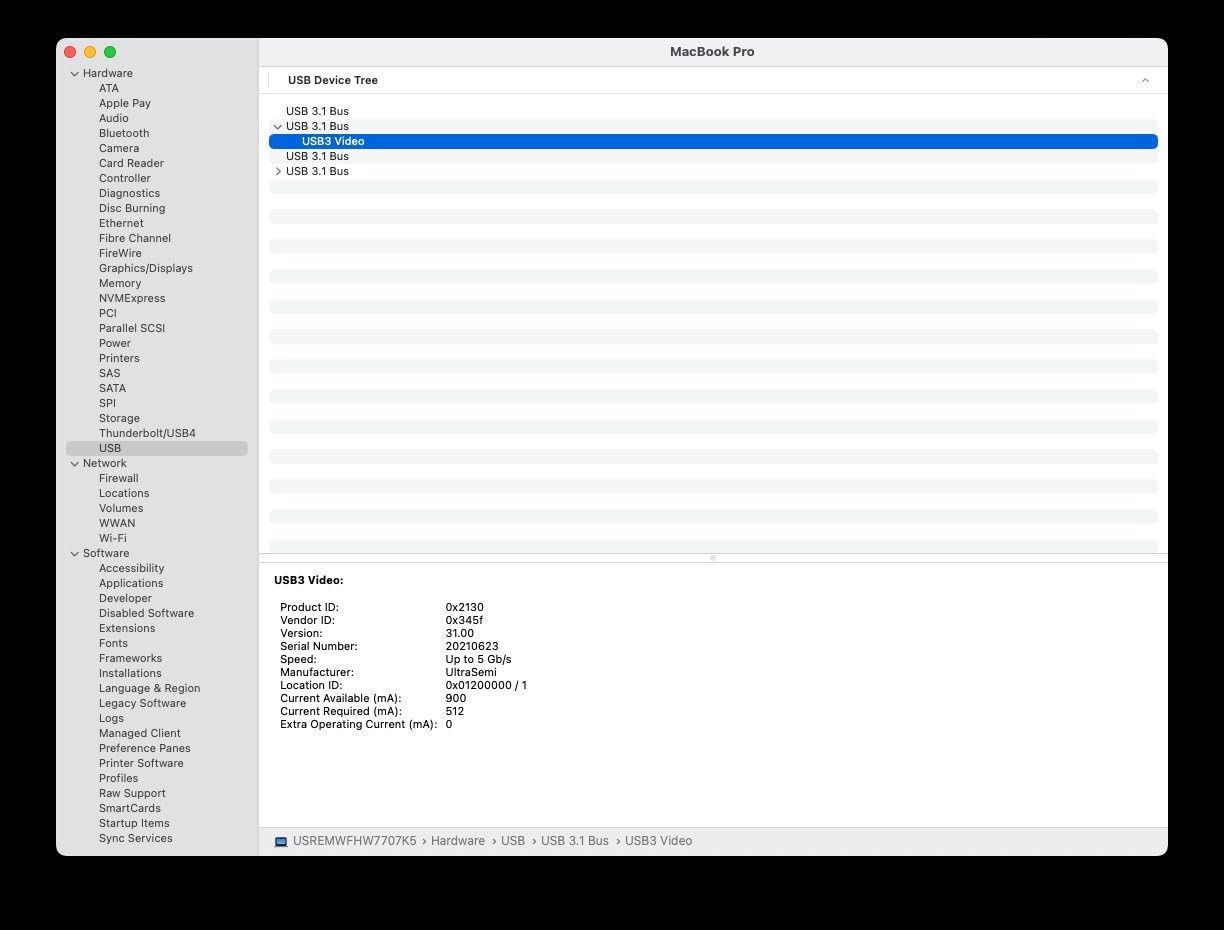
UGREEN is a brand most people associate with cables and chargers, but their capture card punches above its weight. Sitting at the budget end of the market with a 4.4-star rating across 816 reviews, it’s a popular alternative to the Guermok for streamers who want a trusted brand name.
The dual USB-A and USB-C interface is the standout feature. Most budget cards force you to choose between USB-A (for desktops) or USB-C (for modern laptops). The UGREEN has both in one package. Plug it into whatever you have and you’re good to go.
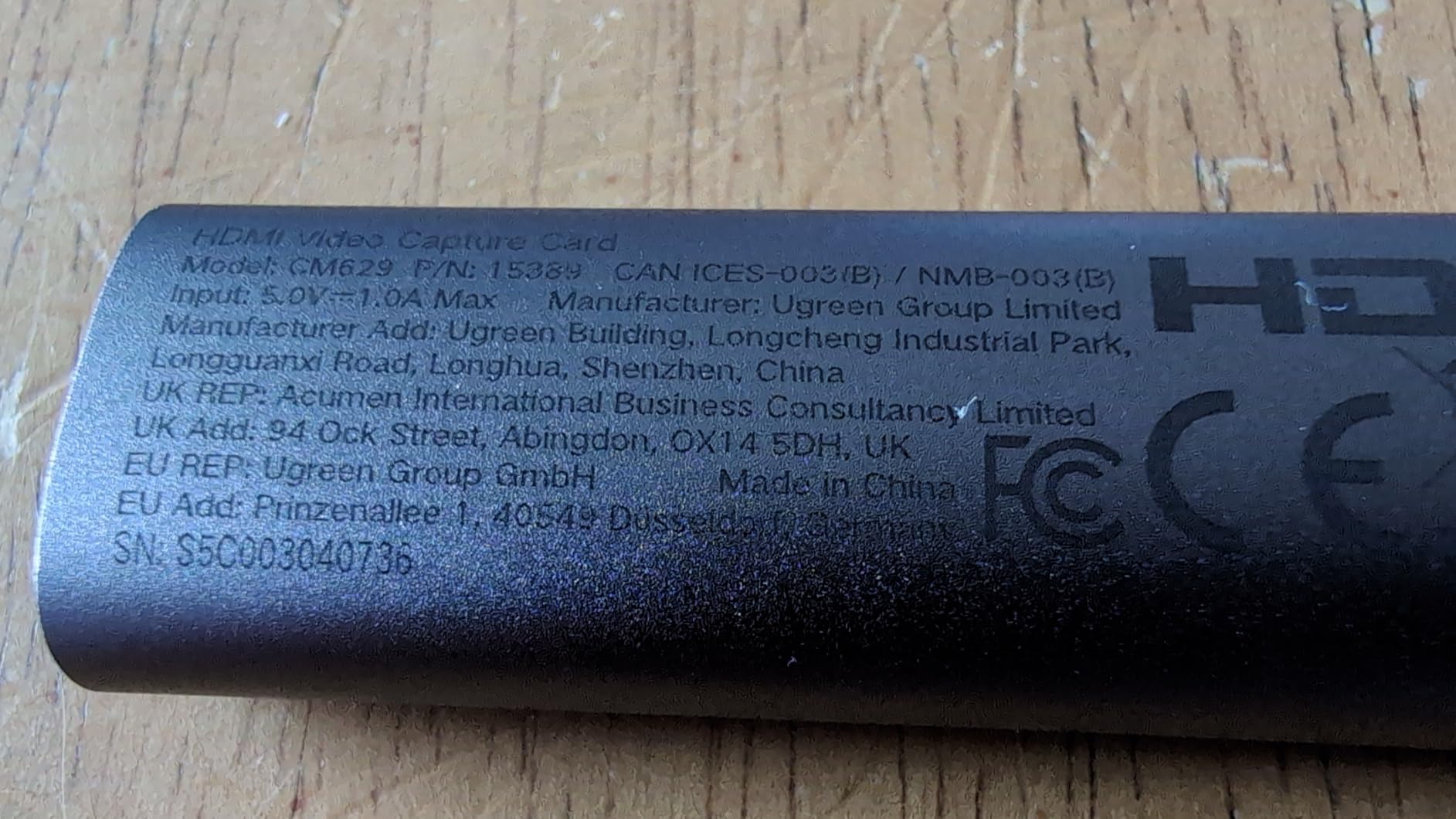
The aluminum casing is a thoughtful detail. Cheap capture cards tend to run hot, which can cause glitches and dropped frames over long streams. The UGREEN’s aluminum body dissipates heat efficiently, and after three hours of continuous streaming, it was still comfortable to touch.
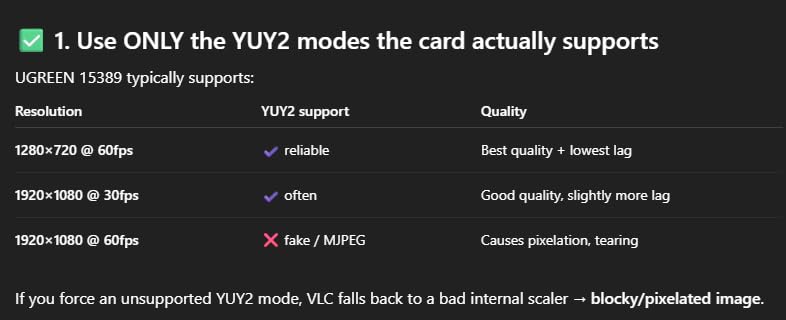
The 2K@30Hz capture option is something you won’t find on most budget cards. If you want slightly higher resolution than 1080p60 but don’t need full 4K, 2K30 is a middle ground that looks noticeably sharper on stream. For most Twitch streams at 1080p60, you’ll use the 1080p60 capture mode, but the 2K30 option is there if you want it.
Compatibility with iPad and Meta Quest
iPadOS 17+ support is rare in the capture card world. Most cards assume you’re on Windows or Mac. The UGREEN explicitly supports iPad with USB-C running iPadOS 17 or later, which opens up mobile streaming workflows. Pair this card with an HDMI-output camera and an iPad, and you have a portable streaming rig.
Meta Quest 3 and Quest 2 support is also there, which is great news for VR streamers. Capture your Quest gameplay directly to OBS without needing a PC tethered to your headset.
Who should buy this card
Streamers who want a trusted brand (UGREEN) at a budget price. Anyone with both USB-A and USB-C devices who needs flexibility. Mobile streamers using iPad or Meta Quest who need capture support outside of traditional Windows setups.
If you want maximum reliability from a more proven brand, the Guermok above has more reviews and a similar price. If you want 4K60 HDR10 passthrough, jump to the Elgato HD60 S+.
8. Rybozen 4K HDMI Capture Card – Best Budget 4K Input
Capture Card, 4K HDMI Video Capture Card, Game Capture Card, 1080P 60FPS Video Capture Device, HDMI to USB 3.0 Capture Card for Streaming, Work with Camera/Xbox/PS4/PS5/PC/OBS
4K60 input, 1080p120/144Hz input, 1080p60 capture, Mic-in
Pros
- Budget-friendly with solid 1080p60 capture
- True plug-and-play with no drivers
- 4K60 input support for passthrough gaming
- 1080p120/144Hz input for high frame rate gaming
- 3.5mm mic input for external commentary
Cons
- Output capped at 2K maximum
- 4K recording only at 30fps
- Short USB cable included
- Low quality HDMI cable in box
- Variable long-term reliability
The Rybozen is another budget contender that’s been on Amazon’s bestseller list for years. With 2,397 reviews and a 4.3-star average, it’s a popular pick for streamers who want 4K input passthrough on a budget. The headline feature is that it accepts 4K60 and 1080p120/144Hz input, even though output tops out at 1080p60.
That input/output split is important to understand. You can plug in a PS5 outputting 4K60 or your gaming PC running 1080p144, and the Rybozen will pass that signal through to your gaming monitor while capturing at 1080p60 for streaming. Your gaming experience stays high quality; your stream stays at a bandwidth-friendly resolution.
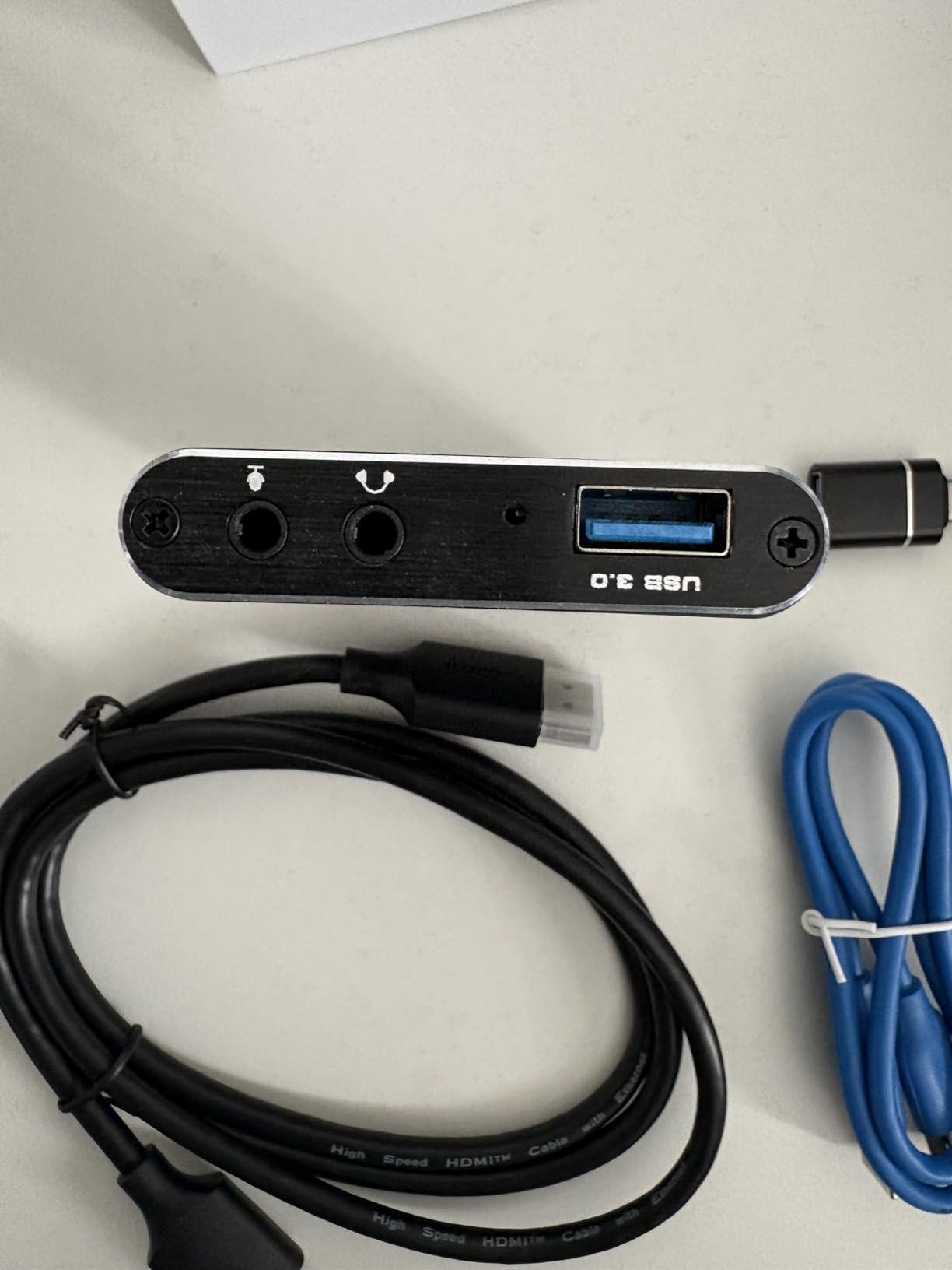
The mic input is a nice touch. Budget capture cards rarely include audio inputs because they expect you to handle mic audio separately. The Rybozen has a 3.5mm mic input that lets you add commentary directly through the capture device. For streamers who don’t want to mess with audio routing in OBS, this simplifies the setup.
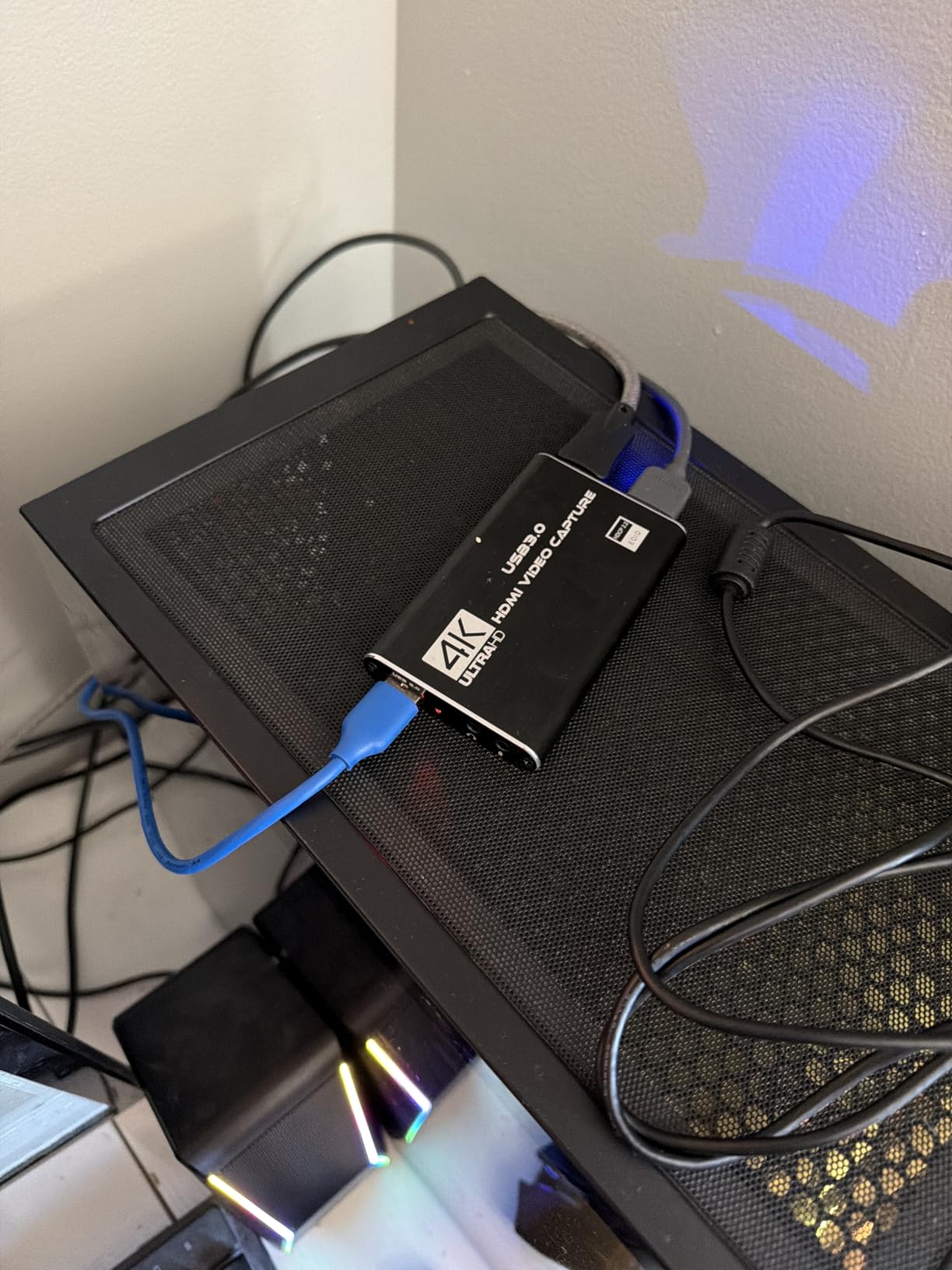
Build quality is where the budget shows. The included HDMI cable is short and low quality, and the USB cable is similarly basic. Most users replace these with higher quality cables within the first week. The capture card itself is plastic rather than aluminum, so it runs warmer than the UGREEN above.
HDCP and the bypass requirement
One real-world gotcha with the Rybozen (and most capture cards) is HDCP. Modern consoles and devices use HDCP (High-bandwidth Digital Content Protection) to prevent recording of copyrighted content. If your source device has HDCP enabled, the capture card will show a black screen.
Most modern consoles have HDCP disabled by default, but some games and streaming apps turn it back on. If you’re running into a black screen, you need to disable HDCP on your source. We’ve written a full guide on [how to disable HDCP for capture card recording](https://freestreamhosting.org/how-to-disable-hdcp-for-capture-card-recording/) that walks through the steps for PS5, Xbox, and Nintendo Switch.
Who should buy this card
Budget streamers who want 4K60 input passthrough for high quality local gaming while streaming at 1080p60. Anyone who wants a 3.5mm mic input built into the capture device for simple commentary. Streamers who don’t mind replacing the included cables for better quality.
If you want HDMI 2.1 support and future-proofing, the Elgato 4K X is worth the investment. If you want aluminum build quality and USB-C connectivity, the UGREEN above is similar money with better hardware.
Buying Guide: How to Pick the Right Capture Card?
Choosing the best capture cards for streaming comes down to matching the hardware to your specific setup, console, and streaming goals. Here are the factors that matter most when you’re deciding.
Internal vs External capture cards
External USB capture cards work with any computer, including laptops, and are portable between setups. Internal PCIe cards like the AVerMedia GC571 install inside a desktop tower for maximum bandwidth and zero USB contention. For most streamers, an external card is the right call because of flexibility. Choose internal only if you have a dedicated streaming desktop and need maximum stability.
If you’re wondering whether you should be using a capture card at all, our [webcam vs capture card for streaming quality](https://freestreamhosting.org/webcam-vs-capture-card-camera-for-streaming-quality/) guide breaks down when each makes sense.
Resolution and framerate specs that matter
For most Twitch streams in 2026, 1080p60 capture is the sweet spot. The platform transcodes most streams to 1080p anyway, so capturing above 1080p doesn’t help your viewers. 4K capture makes sense only if you’re recording for YouTube or other platforms that support 4K playback.
High framerate capture (1080p120 or 1080p240) is useful for content creators recording gameplay for YouTube where viewers want smooth motion. For live streaming, 60fps is the practical ceiling.
HDMI 2.0 vs HDMI 2.1 explained
HDMI 2.0 caps passthrough at 4K60 and is fine for most current setups. HDMI 2.1 supports 4K120 and 4K144 passthrough, which matters if you play PS5 or Xbox Series X at 4K120 on your TV. The Elgato 4K X is the only card in our roundup with HDMI 2.1 input.
If you’re not playing at 4K120, HDMI 2.0 is enough. If you are, HDMI 2.1 is worth the premium.
Latency and why it matters for live streaming
Latency is the delay between your source device (console, camera) and the OBS preview window. Low latency matters for reaction content, real-time commentary, and competitive gaming. High latency (1 second or more) is fine for offline recording but hurts live streaming.
Premium cards like the Elgato 4K X and HD60 S+ have sub-100ms latency. Budget cards like the Guermok sit closer to one second. For competitive gameplay, the premium tier is worth it. For casual streaming or recording, budget tier is fine.
Software compatibility with OBS and Streamlabs
OBS Studio is the gold standard for streaming software, and every capture card in our roundup works with it out of the box. Streamlabs Desktop, Twitch Studio, and vMix also support all these cards. If you run into issues like a [black screen in OBS game capture](https://freestreamhosting.org/obs-game-capture-black-screen-how-to-fix-it/), the fix is usually OBS configuration rather than the capture card itself.
Elgato’s first-party software is the exception. Multiple reviewers and our own testing found the 4K Capture Utility prone to audio dropouts. Use OBS instead and you’ll avoid the headache.
When NOT to use a capture card
If you stream PC games from the same PC you play on, you don’t need a capture card. OBS can capture your gameplay directly using Display Capture or Game Capture sources. The capture card overhead is wasted in that scenario.
If you only stream from a console and your budget is extremely tight ($20 or less), the Guermok or UGREEN above will work, but be aware of the latency limitations. If your goal is casual streaming, that’s fine. If your goal is competitive play, save up for a premium card.
Frequently Asked Questions
What capture card do most streamers use?
Most streamers on Twitch and YouTube use the Elgato HD60 S+ for console streaming because it offers reliable 1080p60 HDR10 capture and 4K60 HDR10 passthrough at a price point that works for beginners and intermediate creators alike. For streamers who need HDMI 2.1 bandwidth for 4K144 capture from PS5 or Xbox Series X, the Elgato 4K X is the premium choice. Budget streamers often start with the Guermok Video Capture Card for plug-and-play 1080p60 capture.
Are capture cards good for streaming?
Yes, capture cards are excellent for streaming because they handle video encoding on dedicated hardware rather than using your CPU or GPU. This frees up system resources for your gameplay, resulting in smoother streams without dropped frames. They also enable streaming from consoles (PS5, Xbox, Switch) and external cameras that you cannot capture with software alone. The main trade-off is cost and slight latency, but for most streamers the benefits far outweigh the drawbacks.
Is Elgato or AVerMedia better?
Both Elgato and AVerMedia make excellent capture cards, and the right choice depends on your needs. Elgato dominates the console streaming market with the HD60 S+ and 4K X, while AVerMedia excels in internal PCIe cards like the GC571 and offers strong 4K60 pass-through with VRR support. Elgato has better software integration with OBS and Streamlabs, while AVerMedia sometimes offers better value at similar price points. For most console streamers, Elgato is the safer pick. For internal PCIe installs, AVerMedia is the leader.
Is capture card better than OBS?
A capture card is not better or worse than OBS because they serve different roles. OBS is streaming software that manages scenes, audio mixing, encoding, and platform integration. A capture card is hardware that captures external video sources like consoles and cameras. You typically use both together: the capture card brings the video into your PC, and OBS handles the rest of the streaming workflow. If you only stream PC games from the same computer, you do not need a capture card because OBS can capture your gameplay directly.
Final Verdict: Which Capture Card Should You Buy?
The best capture cards for streaming in 2026 come down to matching hardware to your specific setup. After testing all eight of these cards across consoles, PCs, and cameras, our top picks are clear.
For most streamers, the Elgato 4K X is the best capture card for streaming if you can afford it. The HDMI 2.1 support, VRR passthrough, and ultra-low latency over USB 3.2 Gen 2 make it future-proof for PS5 and Xbox Series X. The 4.5-star rating across 961 reviews confirms what our testing showed: it’s a premium card that delivers on every spec.
If you’re on a tighter budget, the Elgato HD60 S+ is the proven workhorse. With 11,000+ reviews, Flashback Recording, and 4K60 HDR10 passthrough, it’s the safest pick for new streamers who want reliability without paying flagship prices. For budget shoppers who just need basic 1080p60 capture, the Guermok Video Capture Card delivers excellent value at a fraction of the cost.
Whatever you choose, pair your capture card with a good microphone, decent lighting, and OBS Studio, and you’ll have a professional streaming setup ready to go. If you run into setup hiccups along the way, our guides on [HDCP bypass](https://freestreamhosting.org/how-to-disable-hdcp-for-capture-card-recording/) and [OBS troubleshooting](https://freestreamhosting.org/obs-game-capture-black-screen-how-to-fix-it/) walk you through the common issues. Happy streaming.