
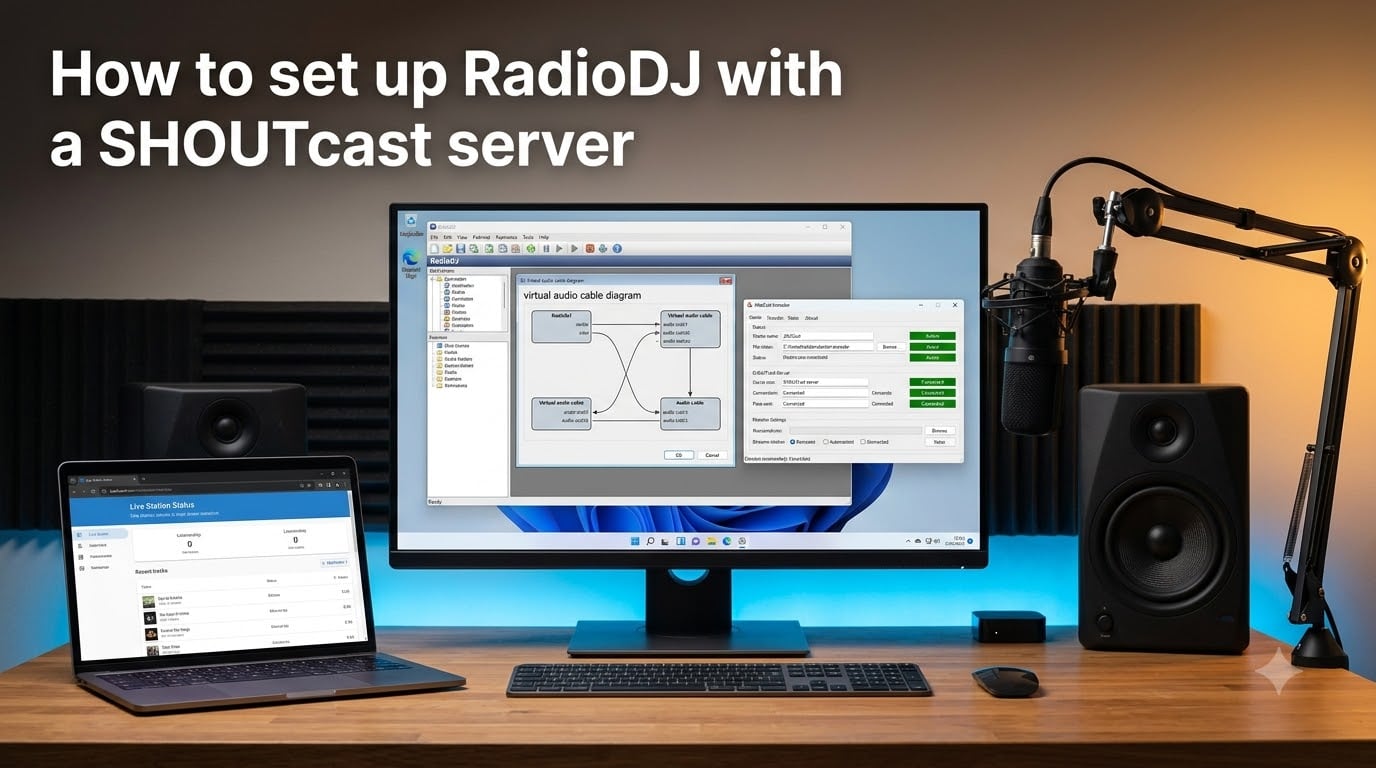
If you want to run your own 24/7 online radio station without paying a monthly fee to expensive automation suites, the RadioDJ SHOUTcast server setup is the most popular free path to get on the air. I have helped community broadcasters, hobby DJs, and small stations get their first stream live, and the process is straightforward once you understand how the three pieces fit together.
This guide walks you through everything from installing RadioDJ and MariaDB, to configuring a standalone encoder like AltaCast, to pushing your first track out to a SHOUTcast server. By the end, you will have a working internet radio station that broadcasts automatically, plays scheduled playlists, and updates its metadata for listeners.
We will also cover a SHOUTcast vs Icecast comparison, recommended bitrate settings, and a troubleshooting section for the most common connection errors I see in the RadioDJ community forums.
Table of Contents
- What Is RadioDJ and What Does It Do?
- What Is SHOUTcast and How Does It Work?
- SHOUTcast vs Icecast Comparison
- Prerequisites and Software Downloads
- Step 1: Install and Configure MariaDB
- Step 2: Install RadioDJ and Connect the Database
- Step 3: Configure the Standalone Encoder (AltaCast)
- Step 4: Connect RadioDJ to Your SHOUTcast Server
- Step 5: Test Your Stream
- Best Practices for Radio Automation
- Troubleshooting Common Issues
- Frequently Asked Questions
- Conclusion
What Is RadioDJ and What Does It Do?
RadioDJ is a free Windows radio automation software used by thousands of community and hobby broadcasters around the world. It manages your music library, creates automated playlists, supports live DJ transitions, and outputs audio that can be streamed to an online radio server.
Unlike paid suites such as SAM Broadcaster or RadioBOSS, RadioDJ is completely free for both personal and commercial use. There is no limit on the number of machines you install it on, no watermarked features, and no monthly subscription. The active community at radiodj.ro answers questions, releases plugins, and keeps the software alive.
Here is what you can do with RadioDJ:
- Import an MP3 library of any size and let RadioDJ index it in a MariaDB database.
- Build rotation rules based on artist, category, or rotation category to avoid repeating tracks too often.
- Schedule playlists by hour or day so your station sounds different at breakfast, drive time, and overnight.
- Set cue points, intro/outro markers, and ID3 tag editing for clean track transitions.
- Add jingles, sweepers, and voice tracks at scheduled intervals.
- Stream to your SHOUTcast or Icecast server using a standalone encoder like AltaCast or Edcast.
In short, RadioDJ is the playlist engine. It does not stream audio on its own. To get on the air, you pair it with an encoder and a streaming server, which is exactly what this guide covers.
What Is SHOUTcast and How Does It Work?
SHOUTcast is one of the oldest and most widely deployed internet radio streaming servers, originally developed by Nullsoft (the makers of Winamp) and now maintained by AOL. A SHOUTcast server receives an audio stream from an encoder and rebroadcasts it to listeners around the world through a public IP or a stream hosting provider.
Think of SHOUTcast as the middle layer of your broadcast chain:
- RadioDJ plays the audio on your studio PC.
- A standalone encoder (like AltaCast) captures that audio and encodes it to MP3 or AAC.
- The encoder pushes the encoded stream to your SHOUTcast server over the internet.
- The SHOUTcast server distributes that stream to listeners via a listen URL or embedded player.
You can run your own SHOUTcast server on a VPS, but most hobbyists use a SHOUTcast hosting provider that gives you a server, port, password, and listen URL in exchange for a small monthly fee. Free plans exist with lower bitrate caps, and paid plans typically start around 5 dollars per month for 128 kbps streams.
SHOUTcast also handles metadata. Whatever track title and artist RadioDJ is currently playing is sent to SHOUTcast, then displayed in players like Winamp, VLC, TuneIn, and embedded web players. That is what lets your listeners see “Now Playing: Artist – Track” while they tune in.
SHOUTcast vs Icecast Comparison
This is the most common question I get from new broadcasters: SHOUTcast or Icecast? Both are mature streaming servers that do essentially the same job, but they have a few important differences worth understanding before you commit.
SHOUTcast was designed with simplicity and broad player compatibility in mind. Icecast was designed with more open protocols, multi-format support, and flexibility for advanced features like multiple mount points per server.
| Feature | SHOUTcast | Icecast |
|---|---|---|
| Owner / maintainer | AOL / Streamcast group | Open source community (Xiph.org) |
| Streaming formats | MP3, AAC (v2) | MP3, Ogg Vorbis, Opus, AAC, WebM |
| License cost | Free, but DNAS binary requires registration for v2 | 100 percent free and open source |
| Player compatibility | Excellent across Winamp, VLC, TuneIn, mobile apps | Good, but a few legacy clients prefer SHOUTcast |
| Metadata support | Standard stream title format | Standard stream title, plus per-mount metadata |
| Multiple streams per server | Limited (typically one per port) | Yes, multiple mount points on one port |
| Directory listing | SHOUTcast.com directory | Icecast directory, plus third-party indexes |
| Best for | Hobbyists wanting maximum compatibility | Advanced users wanting format flexibility |
If you want the broadest player support and a simple setup that just works, SHOUTcast is the safer choice. If you want to broadcast in Ogg Vorbis or Opus, run multiple stations on one server, or use only open-source software, Icecast makes more sense. Either one will work with RadioDJ through AltaCast or Edcast, so the choice is really about your hosting environment and long-term plans.
Prerequisites and Software Downloads
Before you start the RadioDJ SHOUTcast server setup, gather these downloads on your Windows broadcast PC. All four are free.
- RadioDJ – the latest stable build from radiodj.ro. The installer is around 30 MB.
- MariaDB – the community fork of MySQL, available from mariadb.org. Recommended over MySQL because it is simpler to install on Windows.
- AltaCast – the most popular standalone encoder for RadioDJ, available from dj-soft.de. Alternatively, Edcast Standalone for older setups.
- LAME MP3 encoder – required by AltaCast to encode audio to MP3. LAME is also free and ships as a small DLL.
- SHOUTcast server credentials – either a self-hosted install or a hosting account that gives you server IP, port, password, and stream URL.
You should also have admin rights on the broadcast PC and a stable broadband connection. Upload speed matters more than download for streaming, so make sure your upload bandwidth supports your chosen bitrate with headroom to spare.
Step 1: Install and Configure MariaDB
RadioDJ stores your music library and playlist rules in a MySQL-compatible database. MariaDB is the easiest option on Windows and what the RadioDJ community recommends. Install it before you open RadioDJ for the first time.
Walk through these numbered steps to get your database running.
- Run the MariaDB installer and choose the default components, including the MySQL Client and HeidiSQL (a graphical database manager).
- During setup, set a strong root password and write it down. You will need it in step 4.
- Leave the port at the default 3306 unless you have a conflict.
- After installation, open HeidiSQL, click New, and create a connection using root and the password you just set.
- In HeidiSQL, right-click in the left panel and create a new database called
radiodj. Use utf8mb4 as the character set for proper ID3 tag support. - Test the connection by expanding the database node. If you see the empty radiodj database, your database server is live.
If you prefer MySQL Community Server, the steps are nearly identical. The community has shifted toward MariaDB because the installer is friendlier on Windows and the configuration tools are bundled.
One quick check before moving on: open a command prompt and run sc query mariadb (or sc query mysql for MySQL). The service should show STATE: RUNNING. If it is stopped, start it with net start mariadb. The error “RadioDJ MySQL Server is offline” almost always traces back to this service not running.
Step 2: Install RadioDJ and Connect the Database
With MariaDB running, install RadioDJ. The installer is straightforward and does not need admin credentials beyond the database connection.
- Run the RadioDJ installer and accept the default install path, typically
C:RadioDJ. - After install, browse to the
Setupfolder inside the RadioDJ directory and runDatabase Setup.exe. - Enter the following database connection values:
- Server:
127.0.0.1(use that IP if your database is on another machine). - Port:
3306. - User:
root. - Password: the MariaDB root password you created earlier.
- Database name:
radiodj. - Click Test Connection. A green confirmation means RadioDJ can talk to MariaDB.
- Click Initialize Database to create the tables RadioDJ uses for tracks, playlists, and rotation rules.
- Launch RadioDJ. The main interface should load without a “Database offline” error.
If you see “MySQL Server is offline,” double-check that the MariaDB service is running, your firewall is not blocking port 3306 locally, and the password is correct. A mismatched password is the most common reason for this error on a fresh install.
Step 3: Configure the Standalone Encoder (AltaCast)
Here is something that catches almost every new RadioDJ user: RadioDJ version 2 and later does not include a built-in streaming encoder. You need a standalone encoder that listens to your soundcard output and sends the audio to SHOUTcast. The most common choice is AltaCast, with Edcast Standalone as a backup option.
This is the most important step in the entire RadioDJ SHOUTcast server setup, so take your time.
- Install AltaCast and LAME into the same folder, typically
C:RadioDJor a dedicated encoders folder. - Launch AltaCast. On first run, click the plus icon to add a new encoder instance.
- Configure the encoder settings.
- Set Server type to
SHOUTcast v1 or v2(choose whichever your hosting provider uses). - Enter the Server IP from your SHOUTcast hosting control panel.
- Enter the Port your provider assigned, commonly 8000.
- Enter the Password from your provider as the stream password.
- Set Encoder type to
MP3 LAME. - Set Bitrate to
128 kbpsfor music quality or 96 kbps for talk-heavy stations. - Set Samplerate to
44100 Hzand Channels toStereo. - Point AltaCast at the correct soundcard input. If your PC has a real soundcard, choose it. If you run headless with no speakers, use a virtual audio cable like VB-Audio VoiceMeeter or VAC so AltaCast can capture RadioDJ’s audio output.
- Click Connect. AltaCast will report status and start streaming the moment RadioDJ plays audio through the chosen soundcard.
If you would rather use Edcast, the setup is nearly identical: choose LAME as the encoder, fill in server IP, port, and password, and connect. Edcast is older and less actively updated, but it still works for legacy setups.
Two important notes from my own testing: keep AltaCast and RadioDJ running on the same machine, and never use a sample rate of 22050 Hz with MP3 at 128 kbps. The bitrate-to-sample-rate combination sounds muddy and is rejected by some directory listings.
Step 4: Connect RadioDJ to Your SHOUTcast Server
Now wire RadioDJ into the same audio chain so the encoder hears it. This step configures RadioDJ’s soundcard output, not a network setting, because the encoder is doing the actual streaming.
- In RadioDJ, click Options in the top menu and open the Soundcard settings.
- Choose your primary soundcard output as the main output, and set the second output (Aux 1 or Soundcard 2) to your virtual audio cable or encoder input if you have one.
- Set the volume to about 80 percent to avoid clipping when the encoder encodes it.
- Open the Playlist menu and build your first rotation. Start small: load 50 tracks, set a basic rotation rule, and save the playlist.
- Press the Play button in RadioDJ. You should see audio meters move and hear sound from your speakers (or in the virtual cable).
- Switch back to AltaCast. You should see the bytes-sent counter climbing and a green “Streaming” indicator.
If your PC has no soundcard at all, install VB-Audio Virtual Cable first. Set RadioDJ’s output to the cable input, then set AltaCast’s input to the cable output. This is the standard headless broadcast setup used by most 24/7 automated stations.
Once both are running, open your SHOUTcast listen URL in a browser or VLC. You should hear your first track within a few seconds, and the metadata displayed should match what RadioDJ is playing. That is your green light that the full RadioDJ SHOUTcast server setup is working end to end.
Step 5: Test Your Stream
Do not skip this step. I have seen broadcasters go live for days before realizing their stream was actually down because no one ever tested it.
- Open your listen URL in a browser, VLC, or Winamp. Confirm audio plays.
- Open your SHOUTcast server status page (usually
http://yourserver:port) and verify listener count increases to 1. - Open RadioDJ and confirm the current track title matches what your test player shows.
- Test from a phone on cellular data, not just your local network, to confirm the stream is reachable from the public internet.
- Run a 24-hour soak test before announcing your station. Let it play unattended and check the next day that the stream is still up.
If listener count stays at zero after a few minutes, the most common cause is a firewall on your PC or hosting server blocking the encoder port. See the troubleshooting section below for fixes.
Best Practices for Radio Automation
Now that you have the basic RadioDJ SHOUTcast server setup working, here are a few best practices I have learned from running and helping run community stations. These turn a working stream into a station people actually want to listen to.
Rotate intelligently. Use RadioDJ’s rotation categories to separate music into power, medium, and light rotation. Listeners notice when they hear the same five tracks every hour, and rotation rules fix that automatically.
Keep your database backed up. The RadioDJ database contains your entire music library index. Back it up weekly using HeidiSQL’s export feature, or set up a simple scheduled mysqldump. A corrupted database is much harder to rebuild from scratch than to restore from backup.
Schedule by daypart. A different mood at 7 AM, midday, and late night makes your station feel human. Build separate playlists for breakfast, midday, drive, and overnight rotations.
Send metadata properly. Make sure your MP3 files have clean ID3 tags before importing. RadioDJ uses the tags to populate “now playing” information, and dirty tags are the most common reason for garbled metadata on the stream.
Monitor your upstream. Even a great setup fails if your internet goes down. Use a service like UptimeRobot to ping your stream URL and alert you when it drops.
Troubleshooting Common Issues
Even with a clean install, things occasionally go wrong. Here are the issues I see most often in the RadioDJ community forums and how to fix them.
“RadioDJ MySQL Server is offline” – The MariaDB or MySQL service has stopped. Open services.msc, find the MariaDB service, and start it. If it stops again immediately, check the Windows Event Viewer for errors. A common cause is a corrupted InnoDB log file after an unclean shutdown.
AltaCast will not connect to SHOUTcast – This is almost always one of three things: a wrong password, the wrong server IP, or a firewall blocking the port. Verify your hosting credentials first, then temporarily disable Windows Firewall on the broadcast PC to rule out a local block.
No audio in the stream, but AltaCast shows connected – Your soundcard selection is wrong. In AltaCast, click the input dropdown and try each available device. If you use a virtual cable, confirm RadioDJ is outputting to that cable and AltaCast is listening to it.
Listeners can connect but hear silence – The encoder is reaching the server but capturing no audio. Restart RadioDJ, confirm audio is actually playing on the PC, and check that no other application has grabbed exclusive control of the soundcard.
Metadata is stuck or wrong – Either the ID3 tags on the source MP3 are missing, or AltaCast is not configured to forward stream title updates. Enable “Public Server” and “Send Stream Title” in AltaCast’s settings, and re-import tracks with cleaned tags.
Stream drops every few hours – Usually an internet issue. Check your router logs for upstream drops, swap to a wired Ethernet connection if you are on Wi-Fi, and consider a dedicated line for the broadcast PC.
RadioDJ version 2 will not stream without AltaCast – This is by design. Newer RadioDJ builds removed the built-in streaming engine. Stay on RadioDJ version 1.8.2 if you need a built-in encoder, or use AltaCast as described in this guide.
If none of these resolves your issue, the RadioDJ community forum at radiodj.ro is the most helpful place to ask. Search before posting, and include your RadioDJ version, encoder version, and exact error text.
Frequently Asked Questions
How do I setup a SHOUTcast server?
Pick a SHOUTcast hosting plan or install SHOUTcast DNAS on a VPS, then note the server IP, port, and stream password. Configure your standalone encoder (AltaCast) with those values, choose MP3 LAME at 128 kbps and 44100 Hz stereo, and click Connect. Once AltaCast shows streaming, your SHOUTcast server is live and reachable via the listen URL provided by your host.
Which is better, Icecast or SHOUTcast?
Both are mature streaming servers. SHOUTcast has wider player compatibility and a simpler setup, which makes it ideal for hobbyists. Icecast is fully open source, supports more audio formats like Ogg Vorbis and Opus, and lets you run multiple streams on a single port. Pick SHOUTcast for plug-and-play reliability and pick Icecast for format flexibility and multi-station setups.
Can I monetize my SHOUTcast station?
Yes. Once you have a steady listener base you can monetize through audio ads served by networks like AdsWizz, AdTonos, or TargetSpot, run sponsorship reads produced in RadioDJ, accept listener donations via PayPal or Buy Me a Coffee, or use a stream hosting plan that pays you a share of ad revenue. Most hosts require a minimum of 50 to 100 concurrent listeners before approving ads.
What software do radio DJs use?
Professional and community radio DJs use a mix of free and paid automation software. RadioDJ is the most popular free option for Windows, with built-in playlist automation and database management. Paid alternatives include SAM Broadcaster, RadioBOSS, and RCS Zetta, which add features like voice tracking and integrated ad scheduling.
Why is RadioDJ not connecting to SHOUTcast?
RadioDJ itself does not connect directly to SHOUTcast in version 2 and newer. You need a standalone encoder like AltaCast or Edcast to bridge them. If your encoder shows disconnected, check that the SHOUTcast server IP, port, and password are correct, confirm the MariaDB service is running so RadioDJ can load tracks, and verify no firewall is blocking outbound traffic on the encoder port.
Do I need a standalone encoder for RadioDJ?
Yes, on RadioDJ version 2 and newer you need a standalone encoder like AltaCast, Edcast, or Butt to capture your audio output and send it to your SHOUTcast or Icecast server. Older RadioDJ 1.8.x builds included a built-in encoder, but that version is no longer recommended for new installations. AltaCast is free, actively supported, and the most common choice in 2026.
Conclusion
A complete RadioDJ SHOUTcast server setup is one weekend of work, not a month. Once MariaDB is running, RadioDJ is installed, and AltaCast is wired up to your streaming server, you have a professional internet radio station capable of broadcasting 24/7 for free.
From here, focus on the listening experience. Build thoughtful rotations, schedule dayparts, clean up your ID3 tags, and monitor your stream. The technical setup is the easiest part. Building an audience that tunes in by choice is the long game.
If you get stuck on any step, drop a comment below with your RadioDJ version, encoder, and exact error. I personally answer setup questions, and the RadioDJ community forum is also extremely active. Your first broadcast is closer than you think.