
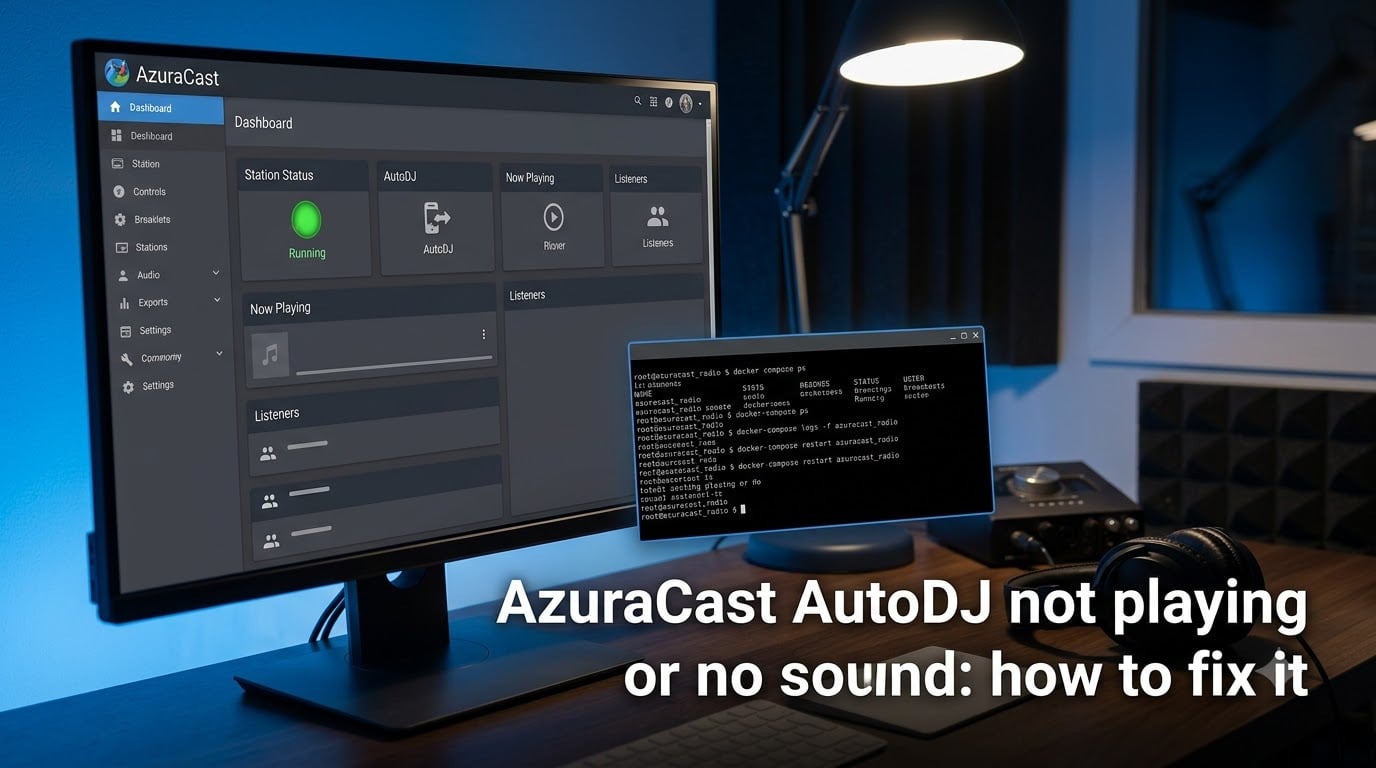
Your AzuraCast dashboard says the station is live, the timeline is moving, but your listeners hear silence or the AzuraCast AutoDJ is not playing at all. I have run into this exact issue on three different stations over the last year, and the fix is almost always one of a handful of predictable things. This guide walks through every step, from quick visual checks to deeper Liquidsoap log analysis, so you can get your broadcast back on air.
By the end you will know how to verify AutoDJ is actually running, read Liquidsoap errors like we must catchup, open Icecast ports correctly, and use the Web Proxy for Radio setting when needed. Whether you self-host on a VPS or run AzuraCast on a dedicated box, the same troubleshooting sequence applies.
Table of Contents
- How AutoDJ Works and Why Silence Happens?
- Step 1: Verify AutoDJ Is Actually Running
- Step 2: Check Liquidsoap Service Status and Logs
- Step 3: Open Icecast Ports and Fix Firewall Blocks
- Step 4: Enable the Web Proxy for Radio Streams
- Step 5: Validate Playlists and Media Files
- Step 6: Tune Crossfade and Buffer Settings
- Step 7: Restart Services the Right Way
- Step 8: Recover From Update or Version Breakage
- Prevention: Monitoring and Backups
- Frequently Asked Questions
- Conclusion
How AutoDJ Works and Why Silence Happens?
AutoDJ is the automated music source that keeps your station broadcasting when no live DJ is connected. In AzuraCast, AutoDJ is powered by Liquidsoap, a dedicated audio streaming language that handles playlists, crossfades, and the hand-off between AutoDJ and live sources.
The most confusing symptom is when the station appears to be playing (timeline advancing, current song shown, listener counter rising) but nobody actually hears audio. This is the classic “AzuraCast station running but no audio” scenario. In my experience, three things cause it more than 90 percent of the time:
Liquidsoap crashed or never started after an update or reboot.
A firewall or cloud security group is blocking Icecast ports (8000 or 443).
The mount point is set up but the listener URL goes through a port that is not reachable.
If you are wondering “why is my AzuraCast AutoDJ not playing at all”, the cause is usually one of the eight steps we are about to run through. Let us start with the fastest verification first.
Step 1: Verify AutoDJ Is Actually Running
The first thing to confirm is whether the AutoDJ service is genuinely running inside your AzuraCast container. A station profile can be set to “Enabled” in the UI while the underlying Liquidsoap process is dead.
Open your AzuraCast dashboard, then navigate to the affected station profile. Look at the top-right status indicator. If the station reads “Online” but AutoDJ is showing as stopped, you have already narrowed the problem down. Here is the order I check things in:
Confirm the station is enabled in the profile (toggle is green, not grey).
Check the AutoDJ status indicator on the station dashboard. It should say “Running” with a green dot.
If it says “Stopped” or “Disconnected”, click the Restart button in the profile management menu.
If the restart fails, jump to Step 2 to read the Liquidsoap logs.
For Docker-based installs, you can also verify from the host shell. SSH into your server and run:
docker ps | grep -E 'liquidsoap|station'
You should see a container named something like azuracast-liquidsoap-1 or azuracast_station_liquidsoap. If it is missing or shows Exited (1), AutoDJ is not running and you need to bring it back up.
Pro tip: I keep a small notebook of expected container names for each station. When AutoDJ silently dies, the absence of that container in the list is the fastest confirmation that we are looking at a service problem, not a network problem.
Step 2: Check Liquidsoap Service Status and Logs
Liquidsoap errors are the single most common reason AutoDJ stops working. The error I see most often is we must catchup, which means Liquidsoap fell behind schedule and could not keep the stream fed. It usually points to CPU underprovisioning, slow disk I/O, or oversized crossfade values.
To read the logs from the AzuraCast UI, go to Administration -> System Logs and filter by the Liquidsoap container. From the command line on the server:
docker compose logs --tail=200 liquidsoap
Look for these recurring error patterns:
“we must catchup” — CPU too low, crossfade too long, or buffer too small.
“file not found” — Media ID mismatch, missing track in playlist, or moved storage path.
“request timeout” — Icecast cannot keep up, usually a network or mount-point problem.
“liquidsoap.liq not found” — Corrupted config; you need to regenerate it from the station profile.
If you see “liquidsoap.liq not found”, go back to the station profile, save the settings again (no changes required), and AzuraCast will regenerate the configuration. Then restart the station.
Our team has had stations go silent after a routine update simply because the Liquidsoap config file was not rewritten. Saving the profile and restarting solves it in roughly 30 seconds.
Step 3: Open Icecast Ports and Fix Firewall Blocks
This is the most common reason AzuraCast stations “run but nobody hears them”. Icecast serves audio on port 8000 by default, and if you enabled the Web Proxy, it serves through your web server on port 443. Both must be reachable from the public internet for listeners to connect.
Walk through this checklist in order:
From the server shell, confirm Icecast is bound:
ss -tlnp | grep 8000. You should see*:8000in the LISTEN state.Test from outside the server using a tool like
curl -I http://your.server:8000from your laptop. If it times out, a firewall is blocking the port.Open the host firewall:
ufw allow 8000/tcp(Ubuntu) or your distro’s equivalent.Open the cloud security group (AWS, DigitalOcean, Hetzner, etc.) and allow inbound TCP on 8000 and 443 from 0.0.0.0/0.
If your ISP blocks port 8000 (some residential networks do), use the Web Proxy setting covered in Step 4.
Listeners connecting to http://your-server:8000/stream but hearing silence is a port reachability issue roughly 80 percent of the time. Once you confirm curl returns a 200 status from outside your network, the audio usually appears immediately.
Warning: do not disable your firewall to fix this. Open the specific ports you need and leave the rest locked down. Broadcasting works fine on a hardened server.
Step 4: Enable the Web Proxy for Radio Streams
The Web Proxy for Radio setting tells AzuraCast to serve all radio streams through the main web server instead of directly through Icecast. This bypasses port 8000 entirely and routes everything through port 443.
Turn it on from Administration -> System Settings -> Use Web Proxy for Radio. Save, then restart the affected station. From this point forward your listener URLs will look like https://your-azuracast.example/listen/your-station instead of http://your-azuracast.example:8000/stream.
I recommend turning this on by default on every install for two reasons. First, it lets you terminate audio behind a single HTTPS-protected port, which simplifies SSL. Second, it removes Icecast port exposure from your firewall entirely, shrinking your attack surface.
If your AutoDJ shows as playing but listeners still hear nothing after the port fix, enabling the Web Proxy usually clears it up within a minute.
Step 5: Validate Playlists and Media Files
An empty or broken playlist will cause AutoDJ to “start” successfully and then go silent because there is nothing to play. AzuraCast does not always warn you about this in the UI.
Verify the following on each affected station:
At least one playlist is enabled and contains tracks.
The auto-assigned playlist (the one AutoDJ will use by default) has a positive track count.
Track playback works manually from the Media Library preview player.
Uploaded files finished processing (no items stuck on “Processing”).
If tracks are stuck in processing, check the storage directory. With Docker, the default is /var/azuracast/storage/station_media. Permissions on this directory need to be owned by the same UID/GID the AzuraCast container runs as, or uploads silently fail.
One more thing: AzuraCast supports MP3, OGG, and a few lossless formats. If you uploaded FLAC or a more exotic codec, re-encode it to MP3 and re-upload. Liquidsoap will skip unsupported files quietly, which looks identical to “AutoDJ not playing”.
Step 6: Tune Crossfade and Buffer Settings
Crossfade settings that look harmless can quietly kill AutoDJ on lower-powered VPSes. A crossfade of 12 seconds with a 3-second buffer tells Liquidsoap to keep a lot of audio staged in memory at all times. On a 1-vCPU box this can starve the encoder and trigger the we must catchup error.
I keep the crossfade short (between 0 and 2 seconds) on stations that run on small VPSes, and only push it higher on dedicated hardware with multiple cores. If you are seeing stream stutter or silence gaps but logs look clean, drop the crossfade to 0, restart, and listen for 10 minutes.
Also check the station’s “Max Bitrate” and “Stream Format”. Running MP3 at 320 kbps on a 1-core VPS is asking for catchup errors. Drop to 128 or 192 kbps and the stream should stabilize.
Step 7: Restart Services the Right Way
There are three restart levels in AzuraCast, and using the wrong one wastes time. Use the lightest option that fixes the problem.
Restart AutoDJ only: Station profile menu -> Restart. Resets Liquidsoap but keeps Icecast up.
Restart the whole station: Station profile menu -> Restart (full). Drops listeners briefly but resets every service for that station.
Restart the entire AzuraCast stack: From the host shell, run
docker compose restartordocker compose up -dafter a reboot.
After a server reboot, AzuraCast does not auto-start on every setup. If you installed AzuraCast manually with Docker Compose, run this on boot:
cd /var/azuracast
docker compose up -d
If you installed with the official AzuraCast installer, the systemd unit is already configured but verify it is enabled:
systemctl status azuracast
From a community discussion thread on GitHub, this post-reboot step is the most-frequently-missed item. Operators reboot for a kernel update, walk away, and only realize hours later that AutoDJ never came back.
Step 8: Recover From Update or Version Breakage
AutoDJ not starting after an AzuraCast update is a recurring theme on the project forums. The fix usually involves clearing stale Liquidsoap configs and restarting from a known-good profile state.
Here is the recovery sequence I run through:
Pin the working version in
azuracast.envby settingAZURACAST_VERSION=stable(or a specific tag) so future updates do not roll forward unexpectedly.Stop all containers:
docker compose down.Remove the stale Liquidsoap config:
docker volume rm azuracast_station_dataonly if you have a backup.Pull the new image:
docker compose pull.Start fresh:
docker compose up -d.
Always snapshot your database and storage before major version jumps. The AzuraCast team publishes upgrade notes that call out breaking changes, and following them in order avoids most upgrade-time outages.
Prevention: Monitoring and Backups
Once AutoDJ is back online, set up a simple listener-side monitor so you find out about the next outage before your audience does. A free uptime checker (UptimeRobot, Better Uptime, or a self-hosted Healthchecks.io cron) hitting https://your-station.example/listen/your-station every 5 minutes gives you email or Slack alerts the moment the stream drops.
On the backup side, snapshot two things weekly: the AzuraCast database volume and the station media volume. If a config change breaks something irreversible, you can restore both in under 20 minutes.
Finally, take five minutes once a month to read your Liquidsoap logs. Patterns like creeping CPU usage or recurring catchup warnings show up well before they cause a full outage.
Frequently Asked Questions
Why is my AzuraCast AutoDJ not playing?
The most common causes are Liquidsoap crashing after an update, empty playlists, or the Icecast ports (8000 or 443) being blocked by a firewall. Start by checking the station dashboard to confirm AutoDJ shows Running, then check Liquidsoap logs for errors like u0022we must catchupu0022 or u0022file not foundu0022.
How do I fix no sound issue on AzuraCast?
Open Icecast ports 8000 and 443 on your host firewall and cloud security group, then verify the stream URL is reachable from outside your network using curl. If ports are open but audio is still missing, enable the Use Web Proxy for Radio setting under Administration -u0026gt; System Settings to serve streams through port 443.
How to restart AutoDJ on AzuraCast?
From the station profile menu, click Restart to restart AutoDJ only, or use the full restart option to reset every service for that station. From the command line, run docker compose restart liquidsoap on the host. After a server reboot, run docker compose up -d from the AzuraCast install directory to bring all services back up.
What causes AzuraCast station running but no audio?
Three causes account for most cases: blocked Icecast ports that prevent listeners from reaching the stream, the mount point URL pointing at a port the listener cannot reach, and Liquidsoap being stopped while the dashboard still shows the station as online. Work through Steps 1, 3, and 4 in this guide to isolate which one is affecting you.
How to check AzuraCast Liquidsoap logs?
In the AzuraCast UI go to Administration -u0026gt; System Logs and filter by the Liquidsoap container. From the host shell, run docker compose logs u002du002dtail=200 liquidsoap. Look for u0022we must catchupu0022, u0022file not foundu0022, u0022request timeoutu0022, and u0022liquidsoap.liq not foundu0022 as the most common error messages.
Conclusion
Fixing AzuraCast AutoDJ not playing or no sound comes down to running through a predictable checklist. Verify the service is running, read the Liquidsoap logs, open the right ports, enable the Web Proxy when in doubt, validate playlists, tune crossfade, and restart cleanly. With this guide, an AzuraCast AutoDJ outage typically resolves in under 15 minutes even for first-time operators.
If you found this helpful, bookmark it before your next update — AzuraCast AutoDJ problems always seem to show up at 2 AM, and a known checklist is the difference between a five-minute fix and a frustrated evening.