
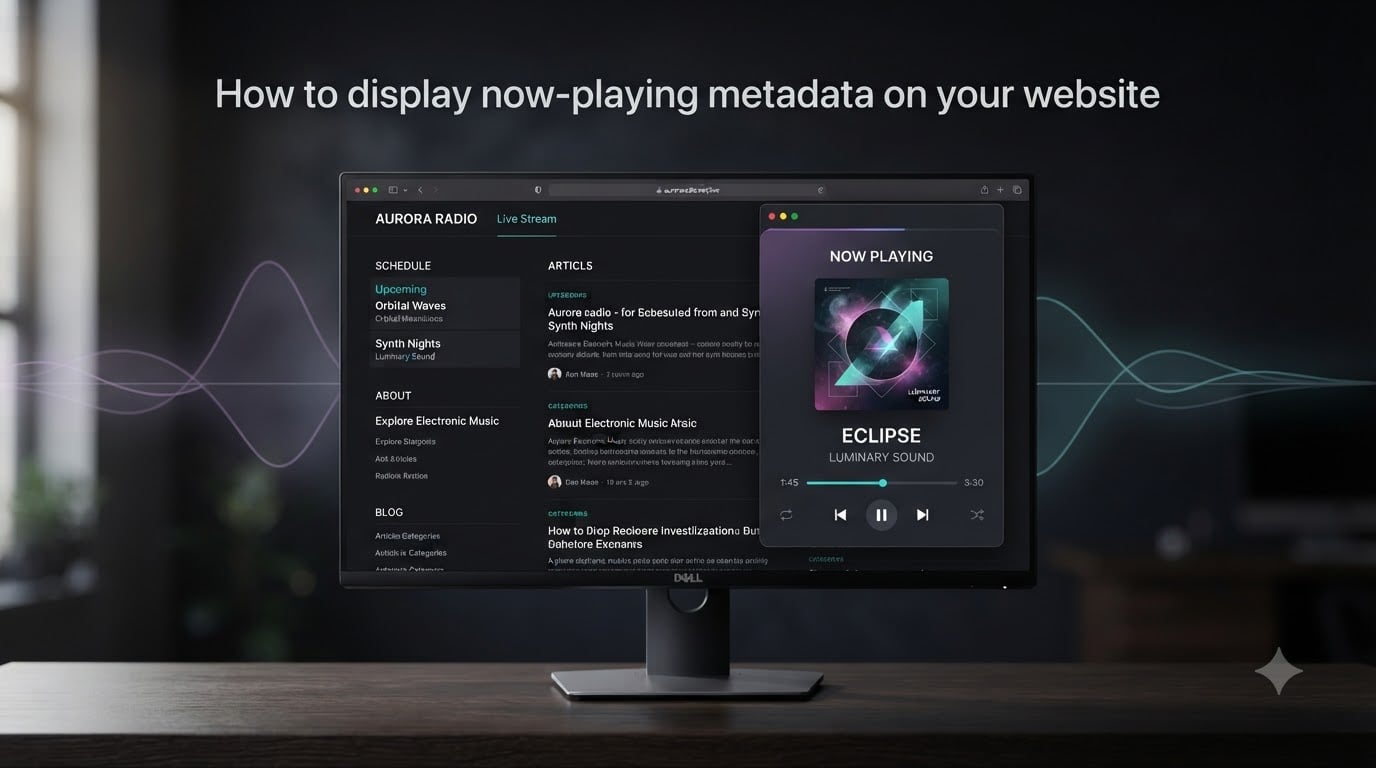
If you run a radio station, an online DJ set, or any audio stream with a live audience, you have probably wanted to show your listeners what track is on the air right now. I have helped small broadcasters set this up on their sites, and the good news is that displaying now playing metadata on your website is simpler than most people think once you understand the pieces involved.
This guide walks you through what now playing metadata actually is, where it comes from, and how to wire it into a web page with copy-pasteable JavaScript. By the end, you will have a working widget that updates on its own.
Table of Contents
- What Is Now Playing Metadata and How It Works
- The JSON Metadata API Endpoint Explained
- Step-by-Step Guide to Display Now Playing Metadata on Your Website
- Choosing the Right Polling Interval
- Handling CORS, Errors, and Empty Metadata States
- Serverless and Edge Function Approaches
- Album Artwork, WordPress, and Other Integrations
- FAQs
- Conclusion
What Is Now Playing Metadata and How It Works
Now playing metadata is the real-time information attached to a live audio stream that describes the current track, typically including the artist, song title, and sometimes album artwork. It is the same data your car radio briefly flashes on the dashboard when a new song starts.
The flow has three parts. First, your broadcasting software or automation system tags the audio stream with track information as it plays. Second, your hosting platform exposes that data through an HTTPS endpoint that returns JSON. Third, your website polls that endpoint at regular intervals and renders the result in the browser.
Most stream hosts turn this on by default. The endpoint usually looks something like https://edge.example.com/xmetadata/yourstreamid and responds with a JSON object describing the current track. You do not need to parse the audio yourself; the platform does the heavy lifting.
The JSON Metadata API Endpoint Explained
The metadata API endpoint is a simple HTTPS URL that returns the current track as a JSON object when you GET it. You can paste it into a browser tab to see exactly what your website will receive, which is the fastest way to debug any issues.
A typical response looks like this:
{
  "title": "Midnight City",
  "artist": "M83",
  "album": "Hurry Up, We're Dreaming",
  "artwork": "https://cdn.example.com/covers/m83-midnight-city.jpg",
  "isrc": "GBUM71112345",
  "timestamp": 1716123456
}
Field names vary by provider, but title and artist are nearly universal. Some platforms also expose listeners, bitrate, and stream_id alongside the track info. Check your provider’s documentation for the exact schema.
One detail worth knowing: many endpoints support conditional GETs through the ETag and Last-Modified headers. Your script can send these back with If-None-Match and If-Modified-Since to receive a 304 Not Modified response when nothing has changed, which saves bandwidth and avoids burning through rate limits.
Step-by-Step Guide to Display Now Playing Metadata on Your Website
Adding a live now playing widget to a page takes four steps. I will use a plain HTML file plus vanilla JavaScript so you can drop it into any site, from a WordPress theme to a static landing page.
Step 1: Get your metadata endpoint URL. Log in to your stream host, copy the now playing or metadata endpoint for your stream, and paste it into a browser tab to confirm you get JSON back. If you see an error, double-check the stream ID and that metadata is enabled for your account.
Step 2: Add the HTML container. Drop a single element somewhere on the page where you want the widget to appear. A simple <div> with an ID is enough.
<div id="now-playing">
  <p class="np-label">Now Playing</p>
  <p class="np-track">Loading…</p>
</div>
Step 3: Write the fetch and render code. The script below polls the endpoint every 15 seconds, updates the DOM with the current track, and handles the common error cases. It is plain JavaScript so it works without any build tools.
const ENDPOINT = 'https://edge.example.com/xmetadata/yourstreamid';
const POLL_MS = 15000;
const target = document.querySelector('#now-playing .np-track');

async function fetchNowPlaying() {
  try {
    const res = await fetch(ENDPOINT, { cache: 'no-store' });
    if (!res.ok) throw new Error('HTTP ' + res.status);
    const data = await res.json();
    target.textContent = `${data.artist} - ${data.title}`;
  } catch (err) {
    target.textContent = 'Track info unavailable';
    console.warn('Now playing fetch failed:', err);
  }
}

fetchNowPlaying();
setInterval(fetchNowPlaying, POLL_MS);
Step 4: Style it to match your site. A few lines of CSS turn the bare div into a polished widget. Add artwork with an <img> tag whose src is bound to data.artwork.
Choosing the Right Polling Interval
The polling interval is how often your website asks the metadata endpoint for fresh data, and it directly affects how snappy the widget feels and how much load you put on your provider. Most platforms recommend a minimum of 15 seconds; faster polling risks a 429 Too Many Requests response and short-term blocks.
15 seconds: Best balance for most radio stations. Track changes appear quickly without triggering rate limits.
30 seconds: Safer for shared hosting or when you have many widgets on one page.
60 seconds: Use only when API limits are strict or for low-priority displays.
If you need faster updates, send the If-None-Match header and rely on 304 responses so the server can answer without sending the full payload every time.
Handling CORS, Errors, and Empty Metadata States
CORS, or Cross-Origin Resource Sharing, is the browser security rule that blocks your JavaScript from reading responses from a different domain unless the server explicitly allows it. This is the single most common reason a now playing widget silently shows “Loading…” forever.
If you are calling the endpoint directly from a page on your own domain and the API is on another domain, you have two options. The cleanest is to make sure your stream host sends the right Access-Control-Allow-Origin header, which most modern providers do by default. If yours does not, you can proxy the request through your own backend.
Always handle three failure states in your code:
Network error: The fetch threw before reaching the server. Show a generic fallback message.
Empty metadata: The server returned 200 OK but the track fields are blank, which happens during automated sweepers or station IDs. Keep the previous track visible or display “Station ID”.
Rate limit: HTTP 429 means slow down. Back off the polling interval temporarily and retry.
Here is the more robust version that covers all three:
let consecutiveErrors = 0;

async function fetchNowPlaying() {
  try {
    const res = await fetch(ENDPOINT, { cache: 'no-store' });
    if (res.status === 429) {
      target.textContent = 'Polling paused';
      return;
    }
    if (!res.ok) throw new Error('HTTP ' + res.status);
    const data = await res.json();
    if (!data.artist && !data.title) {
      target.textContent = 'Station ID';
      return;
    }
    target.textContent = `${data.artist} - ${data.title}`;
    consecutiveErrors = 0;
  } catch (err) {
    consecutiveErrors += 1;
    if (consecutiveErrors < 3) target.textContent = 'Track info unavailable';
    console.warn('Now playing fetch failed:', err);
  }
}
Serverless and Edge Function Approaches
Serverless functions are small backend scripts that run on demand in the cloud, perfect for proxying metadata and adding caching. If your stream host does not send CORS headers, a one-line serverless proxy solves the problem without managing a full server.
A typical edge function accepts a request from your page, fetches the upstream metadata, caches the response for 10-15 seconds using a CDN or KV store, and returns it with the right CORS header. This reduces load on the upstream API and makes the widget resilient to brief outages.
The serverless approach also makes it easy to combine multiple streams into one normalized JSON shape, which is handy if your site displays several stations. Platforms like Cloudflare Workers, Vercel Edge Functions, and Netlify Functions all work well for this pattern.
Album Artwork, WordPress, and Other Integrations
Most basic metadata endpoints do not return album artwork, which trips up a lot of new implementations. If yours does not, you can usually enable artwork delivery in your provider’s dashboard, or look up the cover from a third-party service using the ISRC code or artist and title.
For WordPress sites, a shortcode plugin that wraps the JavaScript approach above is the simplest path. Paste the script into a custom HTML block or your theme’s footer, and use a shortcode like [now_playing] anywhere you want the widget to appear.
Finally, if you run multiple streams, give each widget a different endpoint and a different DOM target ID, and reuse the same fetch function. That way you only write the polling logic once and you stay well within any rate limits.
FAQs
How can I identify a song that is playing in my browser?
Open your stream host’s metadata endpoint URL in a new browser tab. It returns JSON with the current artist, title, and sometimes artwork, which tells you exactly what is playing at that moment.
Is there an API for music now playing data?
Yes. Most stream hosting platforms expose a JSON metadata API endpoint that you can fetch over HTTPS to retrieve the current track. Radio hosts, automation software, and some streaming services all offer this.
How often should I poll a metadata endpoint?
Poll every 15 to 30 seconds. Faster polling risks hitting rate limits and getting 429 errors, while slower polling makes track changes feel laggy to your listeners.
Why does my now playing widget show Loading forever?
Almost always a CORS issue. The browser is blocking the JavaScript fetch because the metadata server is on a different domain and did not send Access-Control-Allow-Origin. Either enable CORS on the host or proxy the request through your own backend.
How do I add album artwork to the now playing display?
If your endpoint returns an artwork field, bind it to an img src in your HTML. If not, enable artwork in your provider’s dashboard or fetch covers from a third-party service using the artist and title.
Conclusion
You now have everything you need to display now playing metadata on your website: a clear understanding of the JSON endpoint, a working copy-paste widget, sensible polling intervals, and a plan for the CORS and error cases that usually trip people up. Drop the code into your page, swap in your endpoint URL, and your listeners will see the current track update on its own.