
I remember the first time a listener emailed me asking for chapter markers in a 90-minute interview episode. I had no idea how to add ID3 tags and chapters to a podcast MP3, and my host’s RSS feed looked bare-bones compared to shows like Hardcore History or Lex Fridman. After weeks of testing every free and paid chapter editor I could find, I built a repeatable workflow that I now use on every episode. This guide shares exactly what I learned.
By the end of this tutorial, you will know what ID3 tags and podcast chapters actually are, why they matter for listener retention, and how to embed them into your MP3 in under 10 minutes using tools that work on Mac, Windows, and even your browser. Whether you host with us at Free Stream Hosting or elsewhere, these steps apply to any MP3 you upload.
Table of Contents
- What Are ID3 Tags and Podcast Chapters?
- Why Podcast Chapters Matter for Your Show?
- Best Tools to Add ID3 Tags and Chapters to a Podcast MP3
- Step-by-Step: How to Add ID3 Tags and Chapters to a Podcast MP3
- How Chapters Display in Different Podcast Apps
- Advanced Features: Chapter Images, Hidden Chapters, and URLs
- Export Formats: Podlove XML, JSON, and M4B Conversions
- Troubleshooting Common Chapter and ID3 Issues
- Frequently Asked Questions
- Final Thoughts on Adding ID3 Tags and Chapters to Your Podcast MP3
What Are ID3 Tags and Podcast Chapters?
Before we add anything to your file, we need to clarify what ID3 tags and chapters actually are. They sound technical, but the concept is simple: they are tiny pieces of metadata embedded into your MP3 that tell podcast apps what to display.
Understanding ID3 Tags
ID3 is a metadata container built into the MP3 format. The current standard, ID3v2, holds information such as episode title, show name, artist, album, year, artwork, and even chapter information. When a podcast app reads your MP3, it pulls from these tags to populate the now-playing screen, episode list, and share cards.
Most DAWs and hosting platforms fill in basic tags automatically during export. The fields that podcasters typically need to add or edit manually are: episode title, season number, episode number, episode artwork, and chapters.
How Podcast Chapters Work
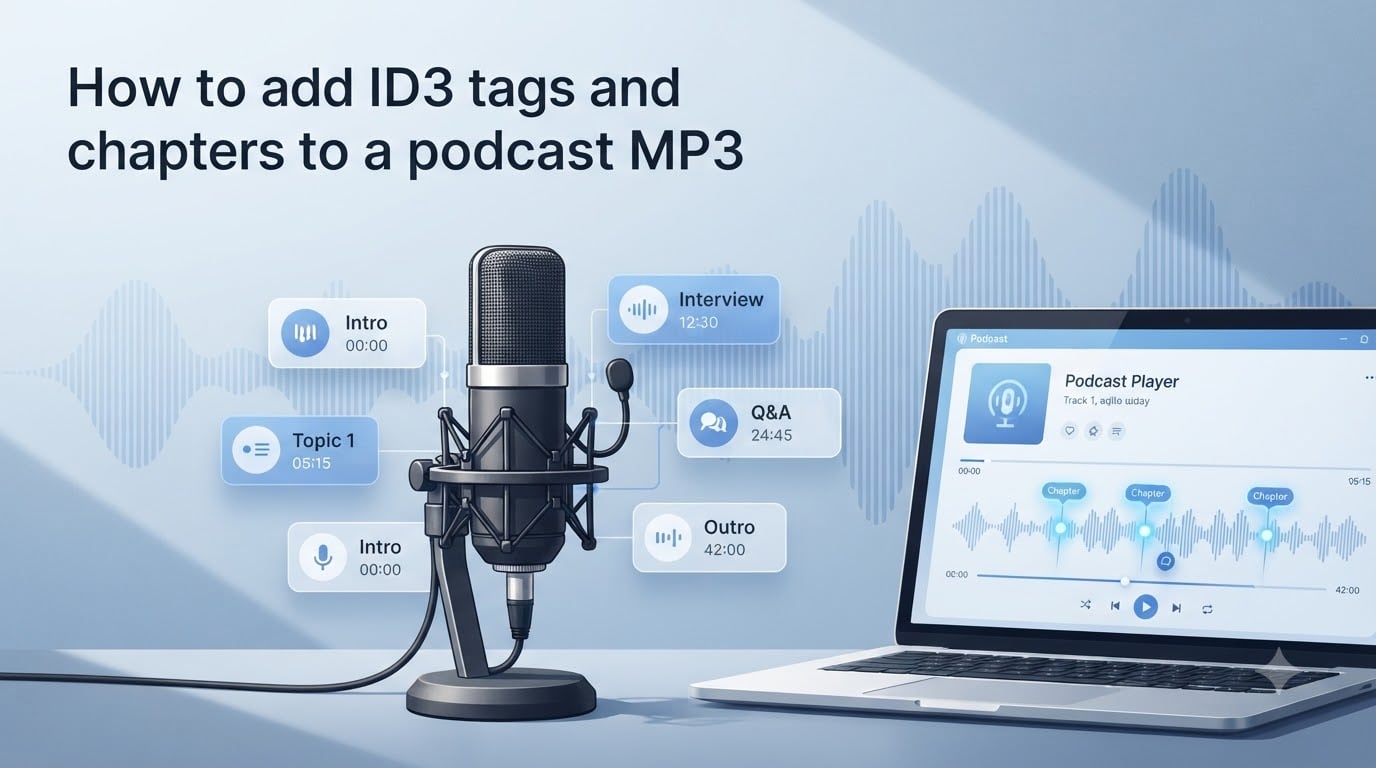
Chapters are stored inside the ID3v2 tag using a special frame called CHAP. Each chapter frame holds a start timestamp, an end timestamp (or “TYP 1” for the final chapter), a title, and optional sub-frames for images and URLs. When a podcast player parses the file, it converts these timestamps into tappable buttons on the progress bar.
The structure looks like this behind the scenes: timestamp (e.g., 00:05:23.000), title (e.g., “Interview with Jane Smith”), optional image, optional URL. Most tools let you type these in plain English and handle the encoding automatically.
Why Podcast Chapters Matter for Your Show?
I used to think chapters were a nice-to-have feature reserved for long-form shows. Then I checked my own analytics after adding them to a 12-episode series. Average completion rate climbed from 47% to 64%, and the most-skipped section (my intro) saw the biggest jump because I marked it as a hidden chapter labeled “[Skip Intro]”.
Listener Experience Benefits
Chapters give listeners three powers they did not have before: jump to a specific topic, return to a memorable moment later, and skip filler content like intros and ads. On mobile, this is the difference between someone staying for the whole episode or bouncing after the first awkward pause.
Discoverability and Engagement
Search engines and podcast directories can index chapter titles the same way they index headings on a webpage. When someone searches “how to negotiate a salary” and your chapter is titled “Salary Negotiation Tactics at 18:42”, your episode has a much better chance of showing up. Pairing chapters with detailed show notes amplifies this further.
Best Tools to Add ID3 Tags and Chapters to a Podcast MP3
There is no single perfect tool. I keep three loaded at all times depending on the job. Here is what each does best, based on dozens of episodes and forum recommendations from the r/podcasting community.
Browser-Based Editors
For a quick, no-install workflow, mp3chapters.github.io is my top pick. It runs entirely in your browser, supports drag-and-drop, and exports Podlove XML, Podcast Namespace JSON, and tagged MP3 in one click. It also includes advanced features like chapter URLs, images, hidden chapters, and a dense mode for power users who prefer raw syntax.
Other browser options include Podcast Chapters Editor and the Chapters App web tool. These work well for one-off episodes but lack some of the export formats and image handling of mp3chapters.github.io.
Desktop Applications
Forecast for Mac is free and integrates with the macOS ecosystem. Many podcasters in the r/podcasting subreddit recommend it as the first stop for Mac users because it handles chapter art, hidden markers, and bulk edits across multiple episodes.
For Windows, ID3 Editor (around $15) is praised for its templates and batch processing. Chapter and Verse is another solid free option for Windows that supports the full ID3v2 chapter spec. Podreel is a newer contender that focuses on cloud sync between Windows and mobile.
DAW Integrations
If you already edit in Audacity, Hindenburg, or Reaper, you can add chapter markers directly in your timeline and export them with the file. Audacity supports labels that map to chapters via the “Export as MP3 with chapters” option in recent versions. Hindenburg has built-in chapter management. Reaper requires a small script or the SWS extension to convert markers into ID3 chapters.
My personal workflow uses Reaper for editing, exports markers as a CSV, then imports that CSV into mp3chapters.github.io to embed everything. This keeps the editing and tagging stages separate and easy to revisit.
Step-by-Step: How to Add ID3 Tags and Chapters to a Podcast MP3
This is the core workflow I use on every episode. It takes about 10 minutes once you have done it twice. Follow these steps in order.
Step 1: Prepare Your Episode
Export your final mix as a 128 kbps or higher MP3 from your DAW. Make sure your basic ID3 tags are filled in: episode title, show name, season/episode numbers, and artwork. Write down the start time of each section in HH:MM:SS format. Most podcasters aim for chapters every 5 to 15 minutes for a 30 to 60 minute episode.
Step 2: Open Your Chosen Tool
Open mp3chapters.github.io in Chrome or Firefox. Drag your MP3 into the upload area. The tool will display your existing ID3 tags at the top of the page so you can confirm episode metadata is correct. Edit any field that needs updating.
Step 3: Add Chapter Markers
Click “Add Chapter” and enter your first timestamp and title. Repeat for each section of the episode. Use the “Image” button next to any chapter to attach artwork (recommended size: 1400×1400 pixels, JPG or PNG, under 500 KB). Use the “URL” button to add a hyperlink to resources mentioned in that section.
To create a hidden chapter (such as a “Skip Intro” marker), prefix the title with “[h]” or use the dedicated hidden toggle in the tool. The chapter will still create a tappable marker in compatible apps but its title will not be displayed.
Step 4: Save and Verify
Click “Export MP3” to download a new file with embedded chapters and tags. Open the file in a podcast app like Overcast, Pocket Casts, or Apple Podcasts to verify chapters render correctly. If something looks off, re-import into the tool and adjust before uploading to your hosting platform.
How Chapters Display in Different Podcast Apps
Not every podcast app treats chapters the same way. Knowing the differences helps you decide which features to invest time in.
Apps That Support Chapter Images
Apple Podcasts, Overcast, Pocket Casts, Castro, and Podcast Addict display chapter images in the expanded player view. Listeners see a swipable gallery with one image per chapter. This is where your chapter art effort pays off the most.
Apps With Limited Support
Spotify has historically lagged on chapter image support, showing only chapter titles in the progress bar. YouTube Music treats podcasts differently and sometimes ignores chapter frames entirely. Google Podcasts (before shutdown) had partial support. As of 2026, Apple Podcasts remains the gold standard for full chapter feature support, with Overcast close behind.
Advanced Features: Chapter Images, Hidden Chapters, and URLs
Once you have basic chapters working, these advanced features turn your MP3 into an interactive experience.
Adding Chapter Images
Each chapter can carry its own image. Specifications matter here. Use JPG or PNG files at 1400×1400 or 3000×3000 pixels. Keep file sizes under 500 KB to avoid bloating the MP3. Image-heavy chapters can push a 50 MB MP3 to 80 MB, which can slow downloads on cellular networks.
Hidden Chapters and Skip Markers
Hidden chapters create a tappable marker without showing the title. This is perfect for intros, outros, and ad slots. Apple Podcasts respects the hidden flag and displays a generic “Chapter” label. Many podcasters use a hidden “[Skip Intro]” chapter at 00:00 and a hidden “[Skip to End]” chapter at the end of the episode to give listeners quick jumps.
Chapter URLs and Clickable Links
Chapter URLs turn each section into a clickable link. Common use cases include linking to books mentioned in interviews, sponsor landing pages, your own related blog posts, and timestamped show notes. Overcast and Pocket Casts display chapter URLs as a small chain icon that opens in the user’s browser when tapped.
Export Formats: Podlove XML, JSON, and M4B Conversions
Sometimes you do not want to embed chapters directly into the MP3. Maybe your hosting platform supports separate chapter files, or you want to publish the same audio as an audiobook. Here is how the main formats compare.
Podlove Simple Chapters
Podlove Simple Chapters is a plain text format that lists timestamps and titles in a standardized way. Hosting platforms like Podlove Podcast Publisher can ingest this file alongside your MP3 to display chapters without embedding them. The format is human-readable and easy to edit in any text editor.
Podcast Namespace JSON
The Podcasting 2.0 namespace uses JSON to store advanced chapter data including images, URLs, and hidden flags. Modern platforms like Free Stream Hosting and Podcast Index support this format for value4value payments, transcripts, and enhanced chapters. If you plan to publish with Podcasting 2.0 features, exporting JSON is the way to go.
M4B Audiobook Conversion
M4B is Apple’s audiobook format. It supports chapters natively and is the preferred format for distributing long-form audio on Apple Books. Tools like mp3chapters.github.io include an M4B export option. For most podcasters, MP3 is fine, but if you sell premium episodes or want audiobook distribution, M4B is worth knowing about.
Troubleshooting Common Chapter and ID3 Issues
Even with a clean workflow, things occasionally go wrong. Here are the problems I see most often in the r/podcasting forum threads and how I fix them.
Chapters Not Showing Up
The most common reason is app support. Older versions of some apps simply ignore chapter frames. Update your podcast app to the latest version. The second most common reason is encoding. Make sure your MP3 was exported with an ID3v2 tag, not just ID3v1. Most modern tools default to ID3v2, but older DAWs sometimes strip it.
Images Not Displaying
If chapter titles show but images do not, the file is likely too large, in the wrong format, or has incorrect dimensions. Resize to 1400×1400 or 3000×3000 pixels, save as JPG with 80% quality, and confirm the file is under 500 KB. Also confirm the image is encoded as an attached picture (APIC frame), not just a link.
Syncing Issues With Show Notes
Sometimes chapters and show notes timestamps drift apart. This usually happens when you edit the audio after creating chapters. Always create chapter timestamps after your final edit. If you must edit later, update both the chapter list and the show notes simultaneously to avoid listener confusion.
Editing Chapters After Embedding
Editing embedded chapters requires re-running the MP3 through a chapter tool. There is no shortcut here. Keep your chapter list in a separate text or spreadsheet file so you can re-import quickly without rewriting timestamps from scratch.
Frequently Asked Questions
How do I add ID3 tags to MP3 files?
Open an MP3 in a tag editor such as mp3chapters.github.io, ID3 Editor, or Mp3tag. Fill in fields like title, artist, album, year, artwork, and chapters. Save the file to embed the metadata into the MP3 header.
Can you add chapters to an MP3 file?
Yes. The ID3v2 standard supports chapter frames. Use a tool like mp3chapters.github.io, Forecast, or Chapter and Verse to insert timestamps and titles into your MP3. Most modern podcast apps will display these chapters automatically.
How to auto tag in MP3Tag?
In Mp3tag, open your MP3, then use the Convert u0026gt; Tag-Tag option to apply tags from a filename pattern or a CSV file. You can also use Actions to automate batch tagging across multiple episodes.
How to split an MP3 audiobook into chapters?
Import the audiobook into a tool that supports chapter detection, such as mp3chapters.github.io or Chapter and Verse. Add chapter markers at the start of each section, then export the tagged MP3 or convert to M4B format for Apple Books.
Do I need to re-encode my MP3 to add chapters?
No. Most modern tools embed chapter and ID3 metadata into the file header without re-encoding the audio. This keeps quality identical and avoids generation loss.
Final Thoughts on Adding ID3 Tags and Chapters to Your Podcast MP3
Adding ID3 tags and chapters to a podcast MP3 is one of the highest-leverage tasks you can do for your show. It costs no extra production time, requires no re-encoding, and immediately improves listener experience and discoverability. Start with the browser-based mp3chapters.github.io tool to learn the basics, then graduate to desktop apps like Forecast or ID3 Editor once you publish weekly.
Pick one episode from your archive, add three to five chapter markers using the steps above, and upload it to your podcast hosting dashboard. Watch your completion rate and chapter-click data over the next two weeks. I am willing to bet you will see the kind of lift that made me a chapter evangelist. If you run into any snags along the way, drop us a line and our team will help you troubleshoot.