
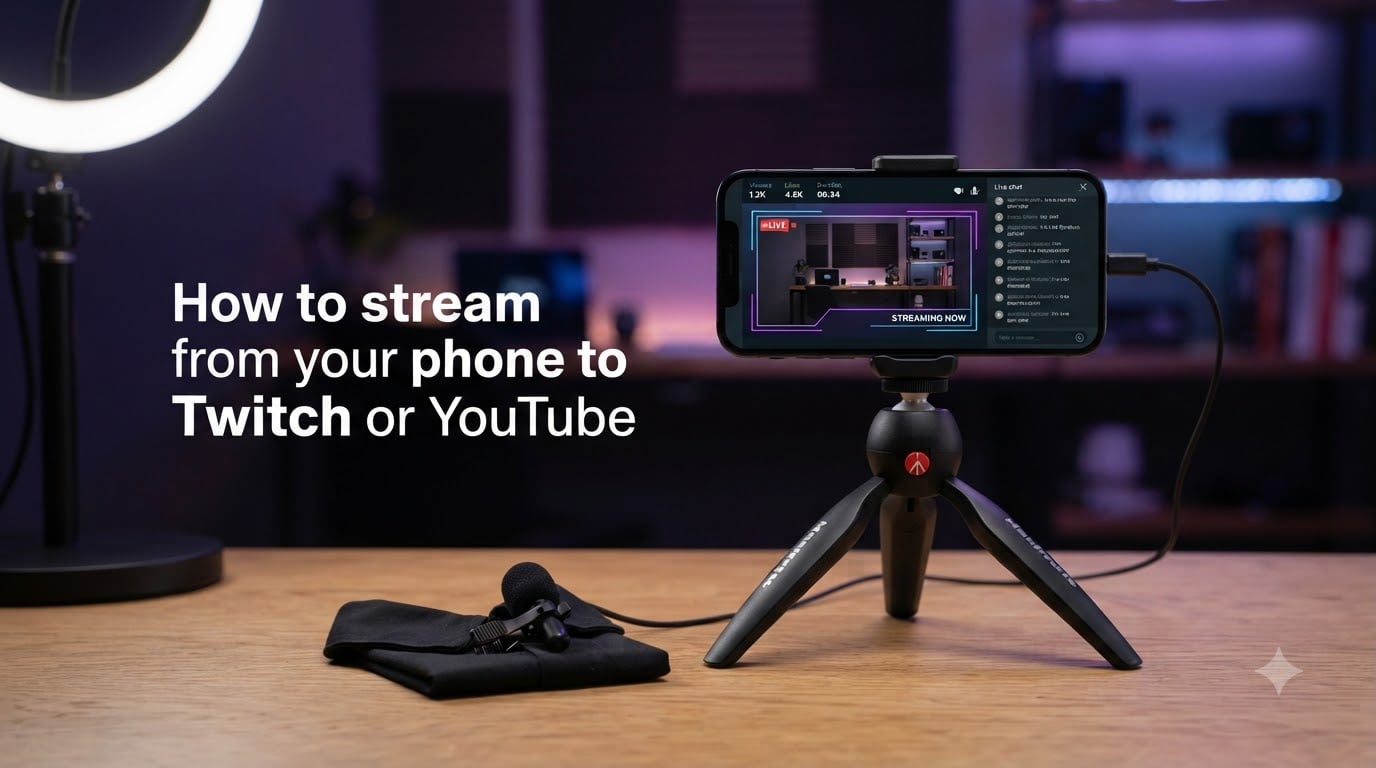
Yes, you can absolutely stream from your phone to Twitch or YouTube. All you need is a free streaming app like Streamlabs Mobile or PRISM Live Studio, your platform login, and a stable internet connection.
Mobile streaming has exploded in popularity because it removes the barrier of expensive desktop setups. Whether you want to broadcast mobile gameplay, host an IRL stream from a concert, or just go live from your bedroom, your smartphone already has the camera and processing power to make it happen.
In this guide, I will walk you through every step to stream from your phone to Twitch or YouTube. I have spent months testing the major mobile streaming apps, and I will share the exact settings, stream key walkthroughs, and troubleshooting tips that actually work in 2026.
You do not need prior streaming experience. By the end of this article, you will know how to configure your app, connect your platform, optimize your quality, and go live with confidence.
Table of Contents
- How to Stream from Your Phone to Twitch or YouTube: The Basics
- Best Apps to Stream from Your Phone
- How to Stream from Your Phone to Twitch: Step by Step
- How to Stream from Your Phone to YouTube: Step by Step
- How to Multistream to Twitch and YouTube from Your Phone
- Mobile Streaming Equipment That Makes a Difference
- How to Optimize Audio and Video Quality on Mobile
- Common Mobile Streaming Problems and How to Fix Them
- Frequently Asked Questions
- Conclusion
How to Stream from Your Phone to Twitch or YouTube: The Basics
Mobile streaming works by sending your phone’s camera feed to a streaming platform’s servers using a technology called RTMP (Real-Time Messaging Protocol). The platform then distributes that feed to your viewers in real time.
Here is the basic flow for every mobile stream: install a streaming app, log into your Twitch or YouTube account, enter a stream key if required, configure your audio and video settings, then press the Go Live button.
A stream key is a unique code that tells the platform exactly where to send your video. Think of it as a password that connects your app to your channel. You will need one for Twitch, and YouTube uses a similar mechanism for its live encoder setup.
Most beginners can get set up in under 15 minutes. The process is nearly identical on iPhone and Android, though the specific app menus differ slightly between platforms.
Best Apps to Stream from Your Phone
Choosing the right app is the single most important decision you will make for mobile streaming. The app controls your video quality, audio processing, overlays, alerts, and platform connections.
After testing the top options, three apps consistently rise above the rest. Here is how they compare for anyone learning how to stream from your phone to Twitch or YouTube.
Streamlabs Mobile
Streamlabs Mobile is the most popular third-party streaming app for both iOS and Android. It supports Twitch, YouTube, Kick, Facebook, and TikTok all from one interface.
The app includes customizable overlays, alert boxes for followers and donations, a built-in chat viewer, and screen capture for mobile gameplay. The free version covers everything a beginner needs to start streaming right away.
Streamlabs also offers an Ultra subscription that unlocks multistreaming, Disconnect Protection, and Network Boost. In my testing, the free tier handled single-platform streams flawlessly, making it the best starting point for new streamers.
PRISM Live Studio
PRISM Live Studio shines when it comes to visual polish. It offers professional-grade beauty filters, AR effects, and chroma key support for green screen backgrounds.
Reddit communities consistently praise PRISM for having better filters than Streamlabs, while Streamlabs wins on reliability. If your content leans toward vlogging or creative streams where appearance matters, PRISM is worth a serious look.
PRISM supports multistreaming to multiple platforms at once, even on its free tier. That alone makes it a strong contender if you want to reach audiences on Twitch and YouTube simultaneously without paying for a premium plan.
Native Twitch App
The official Twitch app has a built-in streaming feature that lets you go live with two taps. Open the app, tap the plus button at the bottom, and select Stream Games or IRL Stream.
This is the fastest path to going live, but it comes with trade-offs. You get minimal customization, no overlays, and limited control over your audio settings. It is perfect for quick, casual streams but falls short for anyone who wants a professional look.
Native YouTube App
The YouTube app allows direct live streaming for channels with at least 50 subscribers. You open the create icon, select Go Live, set your stream details, and start broadcasting.
Like the native Twitch option, this is fast and simple but limited. There are no overlays, no multistreaming, and fewer encoding controls. For anything beyond a basic just-chatting stream, a dedicated app like Streamlabs or PRISM will serve you better.
How to Stream from Your Phone to Twitch: Step by Step
Streaming to Twitch from your phone requires three things: the Twitch app (or a third-party app like Streamlabs), your Twitch stream key, and a stable connection. Let me walk you through the exact process.
Step 1: Getting Your Twitch Stream Key
Your stream key links your streaming app to your Twitch channel. Without it, your app has nowhere to send the video.
Open a browser on your phone or computer and go to the Twitch Dashboard. Navigate to Settings, then click on the Stream tab. You will see a field labeled Primary Stream Key. Click Copy to copy it to your clipboard.
Keep this key private. Anyone who has it can stream to your channel. If you ever suspect a leak, you can reset the key with a single click in the same dashboard.
Step 2: Setting Up Streamlabs Mobile for Twitch
Download Streamlabs Mobile from the App Store (iPhone) or Google Play Store (Android). Open the app and tap Continue with Twitch. Log in with your Twitch credentials and authorize the connection.
Streamlabs will automatically detect your Twitch account and pull in your stream key. You typically do not need to paste it manually, which saves time and reduces errors.
Next, configure your stream settings. Tap the gear icon to access your broadcast settings. Set your video bitrate between 2500 and 4000 kbps for standard quality. Choose a resolution of 720p at 30 frames per second for the best balance of quality and stability on mobile networks.
Enable your microphone and set the input level to around 70 percent. Too low and your viewers will strain to hear you. Too high and you will clip and distort.
Step 3: Going Live on Twitch from Your Phone
Before going live, add your stream title and select a category. If you are streaming a mobile game, choose the game from the category list so viewers can find you in the right browse section.
If you want to capture your screen for gameplay, enable the Screen Capture or Broadcast Extension option in Streamlabs. On iOS, you will need to add Screen Broadcast to your Control Center through your phone’s settings.
Tap the Go Live button at the bottom of the screen. Streamlabs will start a countdown, then connect to Twitch’s servers. You should see a preview of your camera or screen along with your viewer count and chat.
To end your stream, tap the Stop button and confirm. Always wait for the app to fully disconnect before closing it to ensure your stream saves properly.
How to Stream from Your Phone to YouTube: Step by Step
YouTube live streaming from your phone follows a similar process to Twitch, but the platform requirements differ. Here is exactly how to set it up.
Step 1: Getting Your YouTube Stream Key
For the native YouTube app, you need at least 50 subscribers to unlock the Go Live feature directly from your phone. If you meet that threshold, the key setup is handled automatically when you start your stream.
If you want to use Streamlabs or PRISM to stream to YouTube, open YouTube Studio in your browser. Go to the Create tab, select Go Live, and choose Stream instead of Manage. You will find your stream key and server URL on this page.
Copy the stream key and paste it into your streaming app under the YouTube platform settings. The default server URL is usually rtmps://a.rtmps.youtube.com/live2, and most apps pre-fill this for you.
Step 2: Setting Up Your App for YouTube
Open Streamlabs Mobile or PRISM Live Studio and select YouTube as your destination platform. Log in with your Google account and authorize the connection.
Set your bitrate between 3000 and 6000 kbps for YouTube, since YouTube supports higher quality than Twitch. Choose 1080p at 30 or 60 fps if your phone and network can handle it. YouTube’s servers are generally more forgiving with higher bitrates than Twitch.
Configure your stream metadata within the app or directly on YouTube Studio. Add a compelling title, a category, and a description. YouTube indexes these for search, so include relevant keywords about what you are streaming.
Step 3: Going Live on YouTube from Your Phone
Tap the Go Live button in your streaming app. You will get a short delay before the broadcast actually begins, usually 10 to 20 seconds. This gives YouTube time to process your stream and display it on your channel.
Once live, you will see your viewer count and chat within the app. YouTube chat tends to move faster than Twitch chat at similar viewer counts, so keep an eye on it or use a second device to monitor conversations.
When you are done, stop the stream from your app, then check YouTube Studio to confirm the archive saved correctly. YouTube automatically creates a VOD of every live stream, unlike Twitch which deletes them after a set period depending on your account type.
How to Multistream to Twitch and YouTube from Your Phone
Yes, you can stream to YouTube and Twitch at the same time directly from your phone. This is called multistreaming, and it lets you reach audiences on multiple platforms without doing separate broadcasts.
PRISM Live Studio offers multistreaming on its free tier, which makes it the easiest no-cost option. Open the app, connect both your Twitch and YouTube accounts, and select both destinations before going live. The app handles the dual encoding and sends your feed to both servers simultaneously.
Streamlabs Mobile requires the Ultra subscription to unlock multistreaming. If you are already paying for Ultra, the setup is identical: connect both platforms and toggle them on before pressing Go Live.
Keep in mind that multistreaming splits your bandwidth. If your phone connection handles 4000 kbps for one platform, sending two streams at full quality may cause dropped frames. Lower your bitrate to around 2000 kbps per platform when multistreaming on mobile data.
Chat management is another consideration. When you multistream, you are managing two separate chat rooms. Many streamers use a second phone or tablet to monitor one chat while their primary device handles the stream. This is a tip I have seen recommended repeatedly in streaming communities.
Mobile Streaming Equipment That Makes a Difference
You can start streaming from your phone with zero additional gear. But a few affordable accessories will dramatically improve your stream quality and solve the most common complaints viewers have about mobile broadcasts.
External Microphone
Poor audio quality is the number one complaint about mobile streams, according to forum discussions across Reddit’s streaming communities. Your phone’s built-in mic picks up room echo, handling noise, and wind during outdoor streams.
A lavalier microphone that plugs into your phone’s charging port or headphone jack eliminates these issues. Clip-on lavalier mics are inexpensive and deliver clear, consistent voice capture that sounds far more professional than the phone mic.
Tripod or Phone Mount
A shaky camera is distracting. A small tabletop tripod stabilizes your shot and frees your hands for gameplay or demonstrations. Look for one with an adjustable ball head so you can frame your shot precisely.
For IRL streaming, consider a gimbal stabilizer. It actively counters hand movement and produces smooth walking footage that looks dramatically better than handheld video.
Power Bank
Streaming is incredibly power-hungry. A one-hour stream can drain 40 percent or more of your battery depending on your phone and settings. Extended streamers on Reddit universally recommend carrying a high-capacity power bank.
Look for a power bank with at least 10,000 mAh and Power Delivery support. This lets you charge while streaming without interruption, which is essential for IRL streams or any broadcast longer than 45 minutes.
Ring Light
If you stream indoors, a ring light instantly improves your video quality. It provides even, flattering light that eliminates harsh shadows from overhead fixtures. Even a small clip-on ring light makes a noticeable difference compared to relying on room lighting alone.
How to Optimize Audio and Video Quality on Mobile
Getting professional-looking results from a phone stream comes down to a few key settings. Here is what I have found works best across months of testing.
For video, set your resolution to 720p at 30 fps for mobile data connections and 1080p at 30 fps for WiFi. Going above 1080p on mobile rarely improves perceived quality and dramatically increases the chance of dropped frames and overheating.
Your bitrate should match your upload speed. Run a speed test before every stream. If your upload speed is 5 Mbps, set your bitrate to 3000 kbps to leave headroom for game updates, chat, and other background data.
For audio, use an external mic whenever possible. Set your sample rate to 44.1 kHz and keep your bitrate at 128 kbps or higher. Enable noise suppression if your app offers it, especially for outdoor or IRL streams where wind and traffic noise can ruin a broadcast.
Stream in landscape orientation for gaming and most content types. Portrait streaming works for platforms like TikTok, but Twitch and YouTube are designed for landscape video. Portrait streams on these platforms show with black bars on the sides, which looks unprofessional.
Common Mobile Streaming Problems and How to Fix Them
Even with a solid setup, mobile streaming has unique challenges. Here are the most common problems and proven fixes from my testing and the streaming community.
Dropped Frames and Laggy Streams
Dropped frames happen when your phone cannot send data fast enough to the streaming server. The fix is almost always bandwidth-related. Lower your bitrate by 500 kbps increments until the drops stop. Switch from mobile data to WiFi when possible, or move closer to your router.
Streamlabs offers a Network Boost feature on its Ultra plan that can help stabilize connections on flaky mobile networks. If you stream outdoors frequently, this feature is worth the subscription cost.
Phone Overheating
Phone overheating is one of the most common complaints for mobile gaming streams. Encoding video is processor-intensive, and running a game at the same time pushes your phone to its thermal limits.
Remove your phone case before streaming to improve heat dissipation. Avoid streaming in direct sunlight. Take breaks every 30 to 45 minutes to let the device cool down. If overheating persists, lower your resolution and bitrate to reduce the processing load.
Battery Drain During Long Streams
Battery drain is closely tied to overheating. The same steps that reduce heat also extend battery life. Additionally, close all background apps before going live, lower your screen brightness to the minimum readable level, and keep a power bank connected from the start of your stream.
Enable low power mode on iOS or battery saver on Android if your streaming app still functions properly with it on. Test this before a real stream, since some power-saving features can interfere with screen capture or background encoding.
Chat Not Working or Notifications Missing
If your in-app chat is not loading, check your app permissions. Both Streamlabs and PRISM need notification access to display chat messages and alerts. Go to your phone settings, find the streaming app, and make sure all permissions are granted.
If alerts for followers or donations are not triggering, verify that your alert box is enabled in the app’s overlay settings. Sometimes an app update resets these toggles, so it is worth checking before every stream.
Frequently Asked Questions
Can I stream from my phone to Twitch?
Yes, you can stream from your phone to Twitch using a free app like Streamlabs Mobile, PRISM Live Studio, or the native Twitch app. Download the app, log into your Twitch account, configure your settings, and press Go Live.
Can I stream directly from my phone?
Yes, you can stream directly from your phone without any additional hardware. Both the Twitch and YouTube apps have built-in streaming features, and third-party apps like Streamlabs Mobile offer more control over quality and overlays.
Is there a way to stream to YouTube and Twitch at the same time?
Yes, you can multistream to both platforms simultaneously using PRISM Live Studio (free) or Streamlabs Mobile (requires Ultra subscription). Connect both accounts in the app and select both as destinations before going live.
Is Streamlabs Mobile free?
Yes, Streamlabs Mobile is free to download and use for single-platform streaming. The app offers an Ultra subscription that unlocks multistreaming, Disconnect Protection, Network Boost, and premium overlays, but the free version covers everything a beginner needs.
Can I use my phone as a camera for OBS?
Yes, you can use your phone as a webcam for OBS on your computer. Apps like EpocCam, Camo, and iVCam connect your phone camera to OBS over WiFi or USB, giving you a high-quality camera input without buying a dedicated webcam.
How many viewers on Twitch to make $1000 a month?
Earning $1000 a month on Twitch typically requires an average of 50 to 100 concurrent viewers, combined with subscriptions, bits, and donations. Exact earnings vary based on your audience engagement, subscription tier mix, and how much of your income comes from direct community support.
Conclusion
Learning how to stream from your phone to Twitch or YouTube opens up live broadcasting to anyone with a smartphone. Download Streamlabs Mobile or PRISM Live Studio, grab your stream key, configure your settings, and you are ready to go live in minutes.
Start with the basics and upgrade your equipment as you grow. A good microphone and a power bank will do more for your stream quality than any premium app subscription. The most important step is simply pressing that Go Live button and starting your journey.