
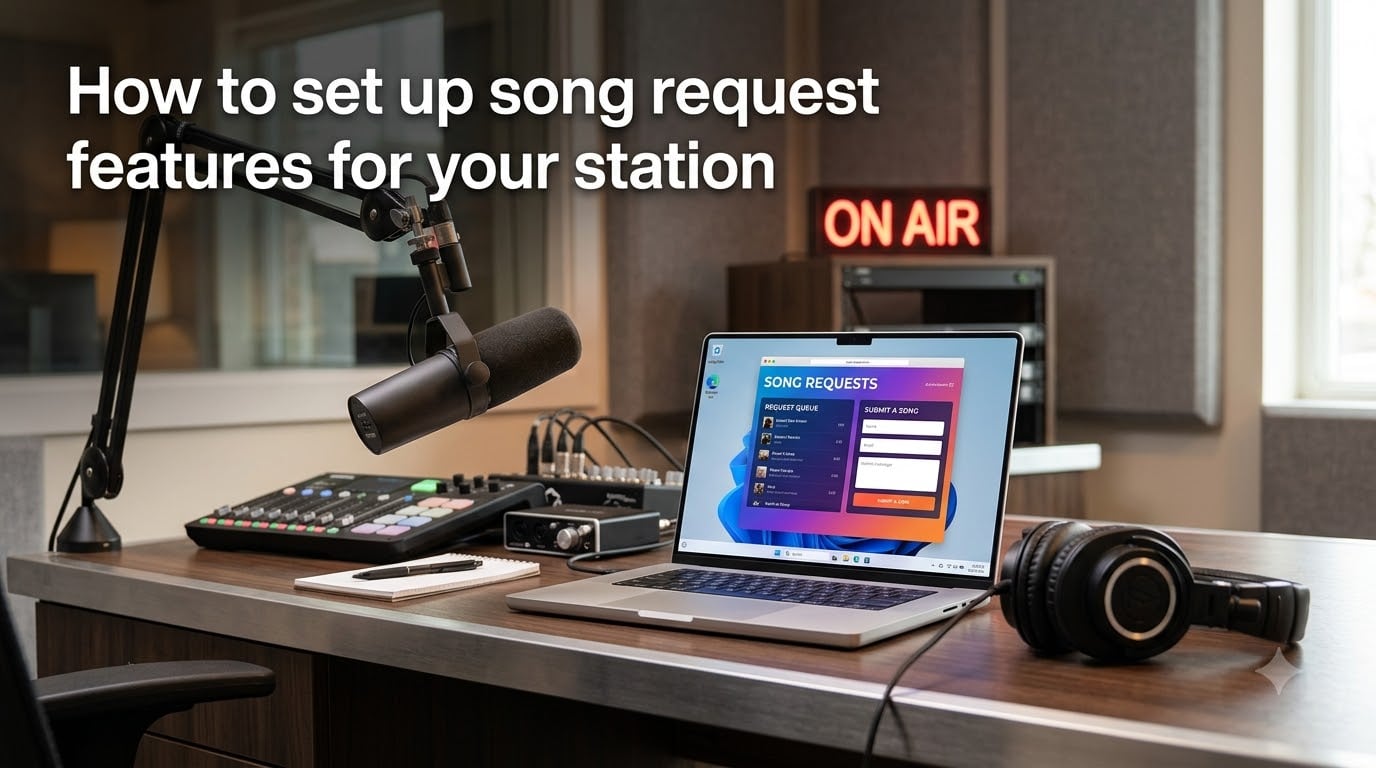
Song request features are interactive tools that let your listeners submit and dedicate tracks for your station to play. If you have ever wondered how to set up song request features for your station, this guide walks you through every step, from choosing a request method to embedding a widget and moderating submissions.
I have spent years running both community radio streams and Twitch broadcasts, and I have tested nearly every major request system out there. The setup process is easier than most station operators think, and the engagement payoff is real: stations with active song requests report longer listen times and stronger community bonds. In this article, I will share what I have learned so you can launch your own request system without the trial-and-error headaches.
Table of Contents
- How to Set Up Song Request Features for Your Station
- Choosing Your Request Method
- Setting Up Requests on a Radio Station Platform
- Setting Up Song Requests on Twitch
- Configuring Request Settings and Moderation
- Embedding the Request Widget on Your Website
- Best Practices for Listener Engagement
- Troubleshooting Common Issues
- FAQs
- Conclusion
How to Set Up Song Request Features for Your Station
Setting up song request features for your station requires four core steps: pick a platform or bot, enable the request policy, build or embed a widget, and configure moderation rules. Most radio dashboards and Twitch bots support all of this through a simple settings menu, and the entire process takes under an hour.
Here is the quick path most operators follow:
Choose your request method (widget, chat command, or hosted page).
Enable requests in your broadcast software or bot dashboard.
Build or paste your widget embed code into your station website.
Set moderation rules, daily limits, and tag-based filters.
Test a request end to end before going live.
The rest of this article expands each of these steps in detail so you can match the setup to your platform, whether you run an internet radio station, a Twitch channel, or both.
Choosing Your Request Method
You have three main ways to accept song requests from your audience. Each has different strengths, so the best pick depends on where your listeners already spend their time.
Widget-Based Requests
A request widget is a small web form you embed on your station site. Listeners browse your media library, search for a song, and submit it directly. Widgets work well for radio station websites where listeners arrive from a browser and want a visual browsing experience.
Chat Command Requests
Chat commands are short triggers, like !sr or !SongRequest, that viewers type in a chat window. The bot then queues the song through Spotify, YouTube, or another source. Commands fit Twitch and Discord streamers because viewers are already in the chat.
Manual or Hosted Page Requests
Some stations use a dedicated hosted request page that opens in a new tab. This works for mobile DJs or community stations that prefer a clean separation between the broadcast and the request interface. It also reduces clutter on your main station page.
Setting Up Requests on a Radio Station Platform
Most modern radio automation platforms, including Radio.co, Spacial, and SAM Broadcaster Cloud, ship with song requests built in. The setup flow is similar across providers.
Step 1: Enable the Request Policy
Open your station dashboard and navigate to Settings, then Request Policy. Check the box labeled “Enable requests from widgets” or equivalent. This single toggle activates the entire request system on your station.
Step 2: Configure Tag-Based Filtering
Tag filtering lets you approve or block songs by genre, mood, or custom tags. I recommend blocking any tag that is off-brand for your station early. It is much easier to expand the whitelist later than to clean up an open library.
Step 3: Set Daily Limits and Expiry
Most platforms let you cap how many requests one listener can submit per day and how long a request stays in the queue before expiring. A common starter setting is 3 requests per listener per day and a 60-minute expiry. These numbers stop a single over-enthusiastic fan from dominating your queue.
Step 4: Build the Request Widget
From the Widgets menu, create a new request widget. You will usually get a short embed code or iframe snippet. Customize the colors, search behavior, and dedication field to match your station branding.
Setting Up Song Requests on Twitch
Twitch setup looks different because requests come through chat instead of a web widget. The good news is that bots handle most of the heavy lifting.
Pick a Song Request Bot
Three bots cover most Twitch streamers: Moobot, StreamElements, and Lumia Stream. Moobot is the simplest to start with and works out of the box for YouTube-based requests. StreamElements adds native Spotify integration if your stream runs on a royalty-cleared Spotify plan. Lumia Stream is the most flexible if you want fine control over point costs and triggers.
Connect Your Music Source
Link your Spotify, YouTube, or SoundCloud account through the bot dashboard. Each bot uses a slightly different auth flow, but in every case you grant read access to your playlists so the bot can pull tracks when requested.
Add the Request Command
Inside the bot’s command menu, create a new command (commonly !sr or !SongRequest). Bind it to the song request feature, and decide whether viewers need to include a search term or can browse a curated list. For a clean chat experience, I default to a simple “type !sr song name artist” pattern.
Set Loyalty Point Costs (Optional)
If you run Twitch channel points, you can set a point cost for each request. A cost of 100 to 1,000 points is typical. Costs cut down on spam and reward your most loyal viewers without making requests feel paywalled.
Configuring Request Settings and Moderation
Once requests start flowing, you need guardrails so the queue does not turn into chaos. These four settings cover the majority of moderation needs.
Listener Restrictions
Decide who can submit requests: anyone, followers only, subscribers only, or a custom role. Restricting to followers is a good middle ground that filters casual drive-by requests without blocking new fans.
Queue Priority and Voting
Some platforms allow viewers to upvote requests so the most popular tracks rise to the top. Voting is great for high-energy stations but can be noisy if you prefer a curated feel. Turn it off if you want full DJ control over what plays next.
Profanity and Dedication Filters
The dedication field is the most common source of moderation headaches. Enable a profanity filter for the message text and set a max character length of around 100 characters. Review flagged dedications daily during your first month.
Auto-Skip Rules
Decide what happens when a request cannot be played (missing licensing, blocked tag, etc.). The cleanest setup automatically skips and notifies the requester with a short reason. Silent skips confuse listeners and lead to support messages.
Embedding the Request Widget on Your Website
Once your widget is built, embedding it is a copy-and-paste job. Most station CMSs accept either an iframe snippet or a script tag.
Place the Widget Where Listeners Look First
I have tested sidebar placement, footer placement, and dedicated pages. A sticky sidebar request button works best for most stations because it stays visible while the listener scrolls. A dedicated request page converts better on mobile because there is less screen clutter.
Optimize for Mobile
More than half of your listeners will visit from a phone. Make sure the widget is responsive, the search field is large enough to tap, and the dedication box does not cover the submit button. If your widget platform does not handle mobile well, link to a hosted request page instead.
Match the Look to Your Brand
Most widget builders let you change colors, fonts, and button text. Spend ten minutes matching the widget to your site palette. A mismatched widget looks like an unfinished product and lowers submission rates.
Best Practices for Listener Engagement
A working request system is just the start. The stations that get the most engagement treat requests as a conversation, not a queue.
Use Dedications to Build Community
Dedications turn a one-way request into a social moment. Read a few dedications on air each hour and your queue fills up on its own. Listeners love hearing their name on the stream, and other viewers start submitting just to participate.
Rotate Featured Genres
Run theme hours where you only accept requests from a specific genre. A “Throwback Thursday” or “Indie Hour” gives casual listeners a reason to show up and request. It also keeps your library fresh without forcing you to manually curate.
Reward Your Top Requesters
Track who submits the most approved requests each month and shout them out. Small rewards, like a station sticker or a featured dedication, build a small group of super-fans who keep your queue healthy even during off-peak hours.
Balance Automation With a Live DJ
Fully automated queues feel sterile. Keep a live DJ in the loop so they can read dedications, comment on requests, and skip anything off-brand. The combination of automation plus a human voice is what separates a hobbyist stream from a real station.
Troubleshooting Common Issues
These are the issues I see most often in radio and Twitch communities. Most have quick fixes once you know where to look.
Requests Are Delayed by Several Minutes
A short delay is normal and protects you from playing copyrighted content too early. If the delay is longer than expected, check your queue expiry setting and your stream buffer. A 2 to 5 second buffer is typical for radio; anything over 15 seconds usually points to a network issue.
The Bot Will Not Play Songs Automatically
On Twitch, the most common cause is an unlinked music source. Re-authorize Spotify or YouTube inside the bot dashboard. If you use YouTube, make sure the bot has permission to add items to your queue, not just read it.
Spotify Connection Keeps Dropping
Spotify tokens expire every 60 minutes for security. Bots handle re-auth automatically, but if you run multiple tools that all hit Spotify at once, one of them will fail. Connect only one bot to your Spotify account to avoid token clashes.
FAQs
How do I request a song on a radio station?
Most modern radio stations accept requests through an online widget embedded on their website. Find the request button, search for your track, optionally add a dedication, and submit. The song is added to the station queue and plays based on the DJ’s moderation rules.
How do I make a song request command?
Inside your bot dashboard, create a new custom command such as !sr or !SongRequest. Bind it to the song request feature, set whether viewers need to include a search term, and choose a point cost if you use Twitch channel points. Save and the command works in chat immediately.
Do radio stations take requests anymore?
Yes. The majority of internet radio stations and many Twitch broadcasters now accept song requests through widgets or chat commands. Traditional FM stations take fewer requests by phone, but online stations treat requests as a core engagement feature.
How do I ask for song requests?
Type the station’s request command in chat, or click the request widget on their website, then submit your song and optional dedication. Make sure your submission meets any tag rules or daily limits the station has set.
Can you request a radio station to play a song?
You can request any song that is in the station’s approved media library. If the track is missing or blocked by tag rules, the request will be skipped automatically and you will usually receive a short notice explaining why.
Do radio stations take song requests?
Internet radio stations almost always take requests. FM stations vary by market and format, with some taking phone requests during specific hours and others focusing on programmed playlists.
Can you call a radio station to request a song?
You can call traditional FM stations during their request line hours, usually listed on the station website. For internet and Twitch stations, requests go through the online widget or chat command rather than a phone call.
Conclusion
Setting up song request features for your station comes down to four steps: pick your method, enable the policy, build or embed a widget, and configure moderation. Once those are in place, song requests become one of the highest-impact engagement tools your station has. Start with conservative moderation settings, watch how your listeners use the system during the first week, and loosen the rules as you learn what works.
For more broadcast guides and streaming tutorials, browse the rest of our 2026 resources on Free Stream Hosting.