
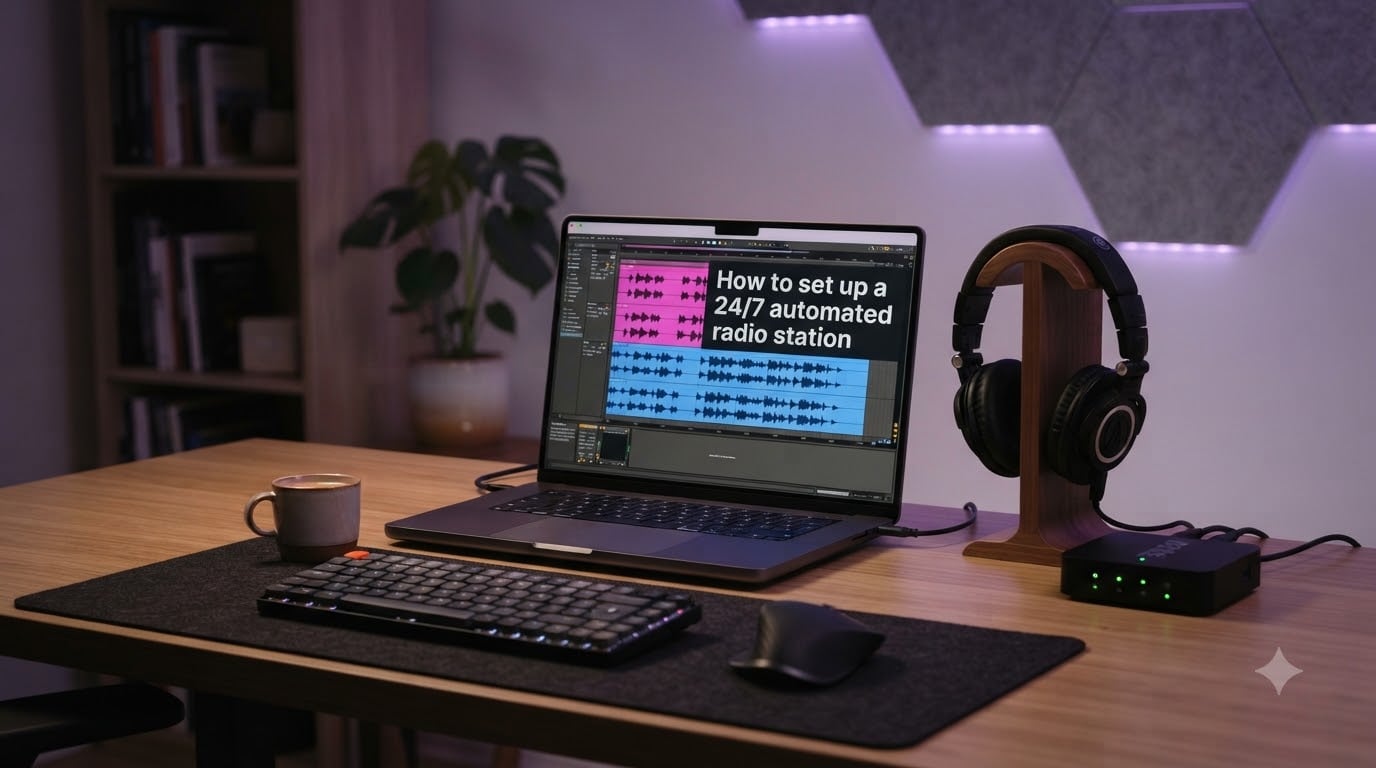
I built my first internet radio station from a laptop in my bedroom. No broadcasting license, no expensive transmitter, no radio tower. Just software, a music library, and a streaming server that keeps running even when I sleep. That station has now been broadcasting music continuously for over three years.
This guide shows you exactly how to set up a 24/7 automated radio station the same way. I will walk you through every step, from choosing your platform to going live with your first stream. Whether you want a community station, a niche music channel, or background audio for a business, the process is more accessible than most people think.
You will learn about Auto DJ software, the difference between SHOUTcast and Icecast servers, how to build playlists that never repeat awkwardly, and how to keep your stream running around the clock without babysitting it. By the end, you will have a station you can be proud of.
Table of Contents
- How to Set Up a 24/7 Automated Radio Station: What You’ll Learn
- What You Need to Get Started
- Step-by-Step Auto DJ Setup Process
- Best Automation Software Options Compared
- Music Library and Playlist Creation Tips
- Server Connection and Streaming Setup
- Testing and Going Live
- Advanced Automation and AI Features
- Keeping Your Station Running 24/7
- Legal and Licensing Considerations
- Common Troubleshooting Guide
- Frequently Asked Questions
- Start Your 24/7 Automated Radio Station Today
How to Set Up a 24/7 Automated Radio Station: What You’ll Learn
This is a complete walkthrough. I will cover the hardware you need (spoiler: very little), the software stack, the configuration steps, and the legal stuff nobody likes to talk about. I will also share the most common mistakes beginners make so you can avoid them.
The whole process takes most people a weekend. If you pick a cloud-based platform, you can be live in under an hour.
What You Need to Get Started
The good news is that starting an internet radio station in 2026 requires almost no physical equipment. Cloud-based platforms have removed nearly every hardware barrier. Here is what you actually need.
For a cloud-based station:
- A computer or phone with a web browser
- An internet connection (5 Mbps upload is plenty for a 128 kbps stream)
- A music library of at least 200 tracks for decent rotation
- A subscription to a hosting platform (free tiers exist)
For a self-hosted station:
- A computer that can stay on 24/7 (a Raspberry Pi 4 works)
- Reliable internet with a static IP or dynamic DNS
- At least 20 GB of storage for your music library
- Linux familiarity (Ubuntu or Debian recommended)
Honestly, the cloud route is what I recommend for 95% of beginners. You skip all the server maintenance headaches. But self-hosting gives you full control and zero monthly fees if you already own the hardware.
Step-by-Step Auto DJ Setup Process
Auto DJ is the brain of your automated radio station. It picks songs from your library, follows your rotation rules, and streams them out continuously. Think of it as a virtual DJ that never takes a break.
Step 1: Choose Your Streaming Platform
Your platform choice determines everything else. Cloud platforms like Myriad Cloud, Radio.co, and Live365 handle servers, software, and bandwidth in one package. Self-hosted options like AzuraCast, LibreTime, and RadioTool give you complete control but require more setup.
For beginners, I recommend starting with a cloud platform. You can always migrate to self-hosting later if you outgrow it.
Step 2: Create Your Account and Configure Server
Sign up and pick your server location. Pick a region close to most of your expected listeners. Lower latency makes for happier streams.
Most platforms walk you through a setup wizard. You will set your station name, genre, and basic stream settings. The default bitrate of 128 kbps MP3 works for music. Bump it to 192 or 256 kbps if you want better audio quality.
Step 3: Upload Your Music Library
MP3 files at 192-320 kbps are the safest format. Most platforms accept AAC, OGG, and FLAC too, but MP3 has the broadest compatibility with listener apps.
Upload in batches through your browser. Some platforms support FTP or direct folder sync for larger libraries. I usually organize my files by genre, then by mood, before uploading.
Step 4: Create Playlists with Rotation Rules
Smart rotation is what separates amateur stations from professional ones. A naive playlist just plays songs in order until it loops. A smart rotation prevents the same artist from playing twice within an hour and balances energy levels throughout the day.
Most Auto DJ platforms offer rotation rules like “no repeat artist within X minutes”, “genre weighting”, and “shuffle within category”. Spend time here. A good rotation keeps listeners engaged for hours.
Step 5: Connect Your Streaming Server (SHOUTcast or Icecast)
SHOUTcast and Icecast are the two main streaming protocols. Both work. Icecast is open-source and slightly more flexible. SHOUTcast is older but has wider support among listener apps.
Cloud platforms configure this automatically. Self-hosters will need to install the server software, configure a mountpoint (usually /stream), and set up the password authentication for your Auto DJ.
Step 6: Enable Auto DJ Mode
Flip the switch. The Auto DJ takes over, pulls tracks from your library, and starts streaming. You should hear (or see in your dashboard) the first song within seconds.
Your stream URL will look something like http://yourstation.com:8000/stream or a clean HTTPS URL if you use a CDN-backed platform.
Step 7: Test and Go Live
Open your stream URL in a media player like VLC, Winamp, or a browser-based player. Listen for at least 15 minutes. Check that track transitions sound smooth and that audio levels stay consistent.
Test on your phone too. Mobile listeners are a huge chunk of radio audiences now. If it works there, you are ready to promote your station.
Best Automation Software Options Compared
Choosing the right automation software shapes your whole experience. I have tested most of the major options. Here is how they stack up.
AzuraCast: The gold standard for self-hosted stations. Free, open-source, and packed with features including multiple stations, podcasting, and detailed analytics. Requires a VPS or dedicated machine but pays off if you want control.
Myriad Cloud: Built specifically for 24/7 automated broadcasting. Cloud-native means no server management. Includes AI voice link features that let you sound live without being live. Best for serious broadcasters who do not want DevOps work.
Radio.co: Polished UI and great support. Mid-range pricing. Good for businesses and community stations that want a turnkey solution.
Live365: One of the oldest internet radio platforms. Strong monetization options if you meet their listener thresholds. More rules to follow than the others.
LibreTime: Open-source and free, but the UI feels dated. Best for hobbyists who enjoy tinkering.
For most people reading this guide, I would start with either a cloud platform (if budget allows) or AzuraCast (if you want free and self-hosted).
Music Library and Playlist Creation Tips
A great station sounds effortless. That effortlessness comes from a well-organized library and smart playlists. Here is what I have learned from running mine.
Stick to MP3 files at 192 kbps minimum. Anything lower sounds compressed on good headphones. Anything higher wastes bandwidth without much audible gain for most music genres.
Tag your files properly. Consistent ID3 tags (artist, title, album, genre) let your Auto DJ filter and rotate intelligently. A file tagged “Unknown Artist” will break rotation rules.
Build playlists by mood, not just genre. “Morning Coffee” and “Late Night Drive” are different vibes even within the same genre. Mood-based playlists keep your station interesting through the day.
Add station IDs and jingles. A short voice ID every 15-20 minutes helps listeners remember your station. Most platforms let you schedule these at specific intervals.
Server Connection and Streaming Setup
Your streaming server is what actually delivers audio to listeners. The setup is straightforward once you understand the moving parts.
The bitrate you choose sets the trade-off between audio quality and listener compatibility. 128 kbps MP3 streams work on almost any internet connection. 320 kbps gives near-CD quality but needs 1 Mbps+ from each listener.
For music stations, 192 kbps is the sweet spot in 2026. Audio sounds great and most listeners can connect easily.
If you are self-hosting, configure your mountpoint carefully. The mountpoint is the path listeners use to tune in. /stream is the default but I prefer descriptive names like /main or /live if you plan multiple streams.
Use HTTPS where possible. Some networks block plain HTTP streams, and modern browsers require secure connections for audio playback.
Testing and Going Live
Before you announce your station, run through this checklist. It has saved me from embarrassing launches more than once.
Test your stream on at least three different apps: a desktop player, a mobile app, and a browser-based player. Each handles connections slightly differently.
Listen for an hour without touching anything. Auto DJ has subtle bugs that only show up over longer listening sessions. Tracks that play fine once might loop awkwardly the third time around.
Check your server logs for connection errors. Most platforms show listener counts and any dropped connections. A healthy station has a steady listener graph, not a spiky one.
Set up a simple status page. Free services like UptimeRobot can ping your stream every 5 minutes and alert you if it goes down.
Advanced Automation and AI Features
Modern radio automation goes way beyond shuffling MP3 files. The platforms available in 2026 include features that would have required a team of engineers five years ago.
AI voice link integration is the biggest leap forward. Services like Myriad Cloud offer AI-generated voices that can deliver station IDs, time announcements, and weather updates. You sound live without being live.
Live assist mode lets you mix in real-time content. If you want to do a show on Friday night, you can take over from Auto DJ, mix in microphones, and hand control back when you are done.
Scheduling rules let you build a full day of programming. Morning shows at 7 AM, news bulletins at noon, evening chill music from 8 PM. Your station sounds intentional.
Analytics matter more than beginners expect. Knowing when listeners tune in, how long they stay, and what devices they use helps you shape your programming over time.
Keeping Your Station Running 24/7
Uptime separates hobby stations from real radio stations. Here is how I keep mine broadcasting for months without intervention.
Cloud hosting is the easiest path. The provider handles power redundancy, network failover, and hardware replacement. If your budget allows, this is the most reliable option.
For self-hosters, auto-restart is essential. A cron job that restarts your Auto DJ and streaming server every night catches memory leaks before they cause outages. I learned this the hard way after a station went down at 3 AM on a Sunday.
Use a UPS if you host at home. Power blips will take down your station. A small uninterruptible power supply keeps you broadcasting through brownouts.
Monitor with alerts. Pick a service that emails or texts you when your stream drops. The faster you know about an outage, the faster you fix it.
Legal and Licensing Considerations
This is the part most guides skip. I almost skipped it too, but it matters. Playing copyrighted music over the internet without the right licenses can get you sued or shut down.
In the United States, you need three things for a legal radio station:
- A PRO license (ASCAP, BMI, or SESAC) for the songwriters
- A SoundExchange license for the recording artists and labels
- DMCA-safe music if you use any pre-cleared libraries
Most cloud platforms handle this for you. Live365, for example, includes licensing in their paid tiers. AzuraCast users need to arrange their own licenses through services like StreamLicensing or LoudCity.
Outside the US, rules vary. PRS in the UK, GEMA in Germany, APRA in Australia. Check your local laws before going public.
Royalty-free music is an option for hobby stations. Many artists release tracks under Creative Commons licenses. Just verify the specific terms before broadcasting.
Common Troubleshooting Guide
Every radio operator hits these problems. Here is how I solve them quickly.
Buffering and dropouts: Usually a bandwidth issue. Check your upload speed. Try lowering the bitrate from 192 to 128 kbps. Compress your MP3s to a smaller file size.
Audio format not playing: Most Auto DJ platforms prefer MP3. Convert WAV, FLAC, or M4A files to MP3 using a free tool like FFmpeg or Audacity.
Server connection refused: The streaming server is not running or the password is wrong. Check that the server service is active and that your encoder credentials match.
Playlist loops awkwardly: Your library is too small or your rotation rules are too strict. Add more tracks, or relax the “no repeat artist” rule from 60 to 30 minutes.
High CPU on self-hosted server: Reduce the encoder quality or move to a dedicated VPS. Home internet connections often throttle during peak hours.
Frequently Asked Questions
Is it legal to make your own radio station?
Yes, you can legally start your own internet radio station as long as you secure the proper licenses. In the US you need PRO licenses (ASCAP, BMI, or SESAC) for songwriters and a SoundExchange license for performers and labels. Most cloud platforms like Live365 and Radio.co include licensing in their subscription fees. Self-hosted stations require you to arrange licenses through services like StreamLicensing or LoudCity. Royalty-free and Creative Commons music is another legal option for smaller stations.
How to create an AI radio station?
To create an AI radio station, sign up for a platform that supports AI automation like Myriad Cloud, configure your music library, then enable AI voice link features for station IDs and announcements. The AI generates natural-sounding voice tracks for time, weather, and station IDs, making your automated radio station sound live without a human host. Most modern platforms include these features built in for 2026 broadcasters.
Can you make money with an automated radio station?
You can make money with an automated radio station through several channels: programmatic audio ads (Live365 and Radio.co offer this), listener donations, premium subscriptions for ad-free listening, and sponsorship deals. Most successful monetized stations need at least 500-1000 concurrent listeners to attract meaningful ad revenue. Building a niche audience around specific genres or communities tends to monetize better than general music stations.
Can I run a 24/7 radio station from my phone?
Yes, you can run a 24/7 radio station from your phone using cloud-based platforms with mobile apps. Apps from Radio.co, Live365, and Myriad Cloud let you upload music, manage playlists, and monitor your stream from anywhere. The actual streaming runs on the cloud servers, so your phone only needs to manage the configuration. Battery and bandwidth limits make phones unsuitable for self-hosting, but they work perfectly for cloud-based station management.
Start Your 24/7 Automated Radio Station Today
You now have everything you need to set up a 24/7 automated radio station. Pick a platform, upload your music, build your playlists, and go live. The hardest part is deciding on a name.
If this guide helped you learn how to set up a 24/7 automated radio station, share it with someone else who would love to start one. The internet radio world in 2026 is more welcoming than ever, and there is room for every voice and every taste.