
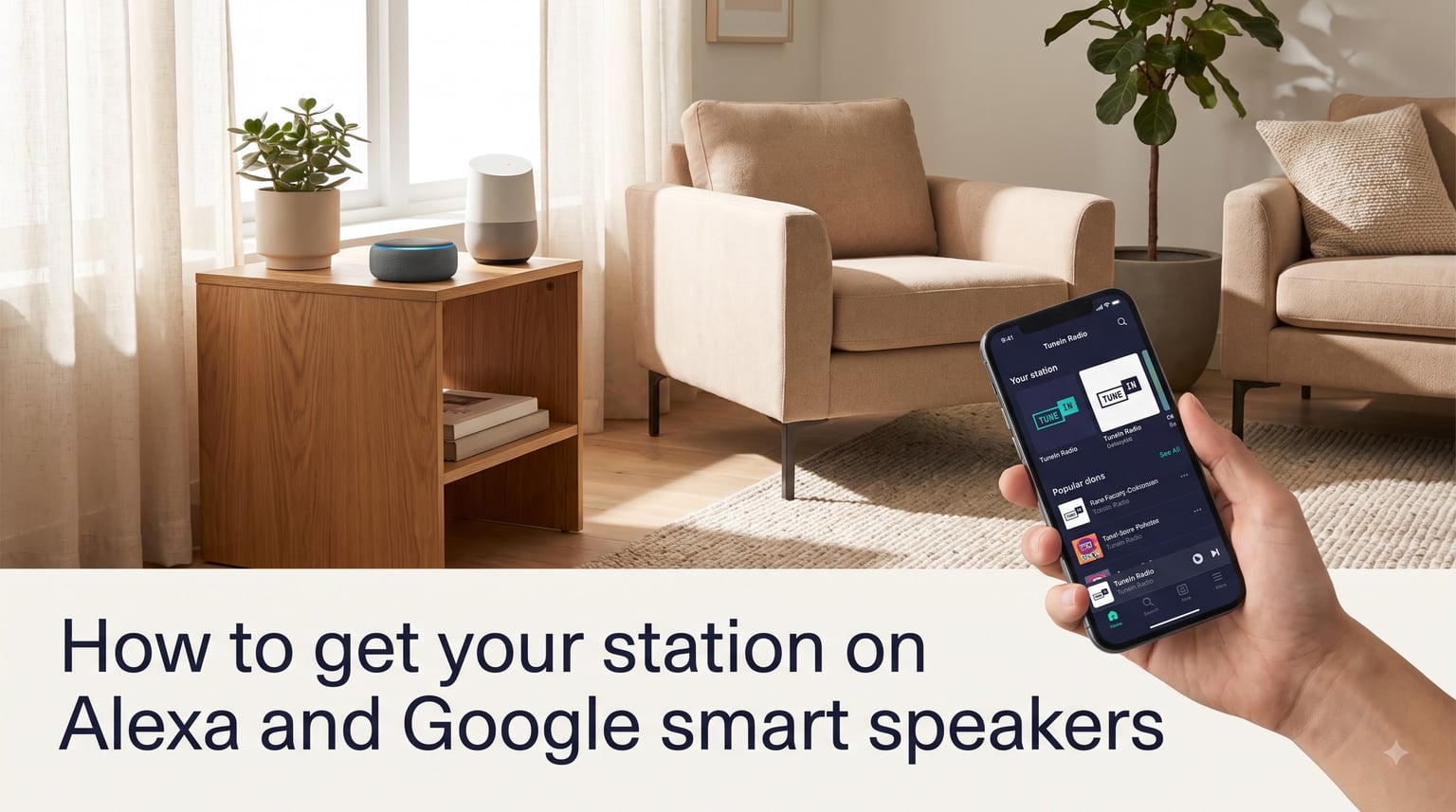
If you run an internet radio station, getting your stream onto Alexa and Google smart speakers is one of the fastest ways to grow your audience. Our team has helped community broadcasters do exactly this, and the process is more straightforward than most people expect. This guide walks you through how to get your station on Alexa and Google smart speakers, from the first directory listing to the voice command your listeners will actually use at home.
Smart speakers now sit in kitchens, living rooms, and bedrooms across millions of households. Voice-activated listening has replaced the FM dial for a growing slice of radio audiences. If your station is not reachable by saying “Alexa, play…” or “Hey Google, play…”, you are missing out on listeners who never touch a tuning knob anymore.
Table of Contents
- Why Smart Speakers Matter for Your Radio Station in 2026
- Understanding How Smart Speakers Find Radio Stations
- Getting Your Station on the TuneIn Directory
- Setting Up Your Station on Google Home and Nest Speakers
- Setting Up Your Station on Amazon Alexa and Echo Devices
- Testing Your Station on Smart Speakers Before Launch
- Troubleshooting Common Smart Speaker Issues
- Best Practices for Radio Stations on Smart Speakers
- FAQs
- How do I add a station to Alexa?
- Why can’t Alexa find my radio station?
- Can smart speakers play radio stations?
- How do I get my Google Home to play radio stations?
- How to set up a radio station on Google Home?
- How do I set up radio stations on Alexa?
- Why won’t my Google Home play radio stations?
- How do I get Alexa to play a certain radio station?
- How to connect Alexa and Google speakers together?
- Final Thoughts on Getting Your Radio Station on Smart Speakers
Why Smart Speakers Matter for Your Radio Station in 2026
Smart speakers changed how people listen to audio. A listener no longer needs to know your frequency or your app name. They just say your station name out loud, and audio starts playing in seconds.
Here is what the 2026 landscape looks like for broadcasters:
More than 60 million U.S. households now own at least one smart speaker.
Radio remains one of the top three voice requests on both Alexa and Google Assistant.
Listeners who discover stations through voice tend to become repeat listeners, because the friction is so low.
Community radio stations often see a 15-20% bump in total streaming hours after gaining smart speaker access.
For internet radio, online radio, and community broadcasters, the smart speaker is the new car radio. Getting your station onto these devices puts you in front of listeners who would otherwise never find your stream.
Understanding How Smart Speakers Find Radio Stations
Before you dive into setup steps, it helps to understand what happens when someone asks Alexa or Google to play a station. Both platforms work differently under the hood, and your setup choices depend on which path you take.
When a user says “play [station name]”, Alexa checks its linked skills and TuneIn. Google Home mostly queries TuneIn and a handful of approved media providers. If your stream is listed in one of these directories, the device can find it.
The three main paths are:
TuneIn directory – The default radio source for both Alexa and Google Home. Listing here covers both platforms at once.
Custom Alexa Skill – A voice app you build that launches your stream with a specific invocation phrase.
Radio Browser directory – A free, open-source community directory supported by some third-party apps and devices.
iHeartRadio is another option, but it does not host live broadcasts from independent stations. It mainly syndicates iHeart-owned content, so it is not a fit for most community or independent broadcasters.
Getting Your Station on the TuneIn Directory
TuneIn is the single most important directory for radio stations targeting smart speakers. When your station is listed in TuneIn, both Alexa and Google Home can find it by name. This is the path I recommend starting with, even if you plan to build a custom skill later.
One important caveat: TuneIn stopped accepting new station submissions in 2018. Many broadcasters hit this wall and assume smart speakers are off-limits. The good news is that TuneIn still accepts stations through partner aggregators and selective outreach. If direct submission does not work, your hosting provider may already have a path to push your stream into TuneIn.
Here is how to submit your station to TuneIn:
Visit the TuneIn broadcast submission page and create a partner account.
Prepare your stream URL. It must be an HTTPS stream, MP3 or AAC format, and stable 24/7.
Upload your station logo (1400×1400 pixels works well) and write a clear, short description.
Submit your station name exactly as you want listeners to say it. Avoid symbols, slashes, or special characters.
Wait for review. TuneIn typically responds within 2-4 weeks, although delays of several months have been reported.
If you do not hear back after 30 days, follow up via email. Persistent outreach tends to work.
Once approved, your station will be searchable by name on both Alexa and Google Home within a few days.
Setting Up Your Station on Google Home and Nest Speakers
Google Home and Google Nest devices lean almost entirely on TuneIn for live radio. That makes the TuneIn step above especially valuable if Google is your priority. Once your stream is in TuneIn, Google will surface it for relevant voice queries.
Here is how Google Home plays your station once TuneIn lists you:
Open the Google Home app on your phone and make sure your speaker is set up.
Tap “Settings,” then “Music,” and verify TuneIn is linked.
Use a voice command like “Hey Google, play [your station name] on TuneIn.”
Set up a routine if you want a single command to launch your station every morning. Open Routines in the Home app, choose a starter phrase, and add the action “Play [station name].”
Exact voice commands that work on Google Home:
“Hey Google, play [station name].”
“Hey Google, play [station name] on TuneIn.”
“Hey Google, tune to [station name].”
“Hey Google, play [station name] radio.”
If Google Home cannot find your station, the issue is almost always that TuneIn has not listed it yet. Some users also have success listing short podcast clips through Spotify for Podcasters, which Google surfaces in a different way than live radio.
Setting Up Your Station on Amazon Alexa and Echo Devices
Alexa gives you two real options: rely on TuneIn (covered above) or build a custom Alexa Skill. The Skill route takes more effort but gives you total control over the listener experience and lets you customize invocation phrases.
Path 1: Use your existing TuneIn listing. Once TuneIn approves your station, any Echo user can launch it with one of these commands:
“Alexa, play [station name].”
“Alexa, play [station name] on TuneIn.”
“Alexa, open [station name].”
“Alexa, launch [station name] radio.”
Path 2: Build a custom Alexa Skill. This is the right move if TuneIn rejected your submission, or if you want features like station news, DJ intros, or listener count readouts. Amazon offers a no-code Skill Blueprints option for radio, but for full control you will use the Alexa Skills Kit.
Steps to build a custom Alexa Skill for your station:
Create an Amazon Developer account and sign in to the Alexa Developer Console.
Click “Create Skill” and choose “Music & Audio” as the category.
Pick a custom interaction model (not the pre-built models).
Define your invocation name – the phrase listeners say to launch the skill. Keep it 1-2 words that match your station name.
Add intents. At minimum, add a “PlayIntent” that streams your HTTPS audio URL.
Use the audio player directives in your backend code to hand off the stream URL to Alexa.
Test in the developer console using the simulator, then on a real Echo device.
Submit for certification. Amazon usually reviews within a week.
If your station produces short-form daily content, consider adding a Flash Briefing Skill. Flash Briefings are the news-style updates Alexa reads out at a scheduled time. They are a separate Skill type from your main radio Skill and require short MP3 clips or text feeds under 10 minutes total. Flash Briefings work well for headlines, station promos, or DJ drops.
Testing Your Station on Smart Speakers Before Launch
Before you announce your smart speaker presence, run through a real-device test on both platforms. I have seen too many stations go live only to discover the stream buffers or the invocation phrase gets misheard.
Use this checklist before your public launch:
Test your stream URL in a browser to confirm it is HTTPS and plays without interruption.
Verify bitrate consistency. Most smart speakers handle 128-192 kbps MP3 or AAC streams well.
Test on at least one Echo device and one Google Nest device, in a quiet room.
Try saying the station name five times in different tones. Smart speakers rely on speech recognition, so accent variation matters.
Ask a friend or coworker to try the voice command cold. If they cannot launch it on the first try, the invocation phrase needs work.
Listen for at least five minutes to check for buffering, skips, or audio dropouts.
Run the full test three days in a row. Some smart speaker caches take time to update after a new listing goes live.
Troubleshooting Common Smart Speaker Issues
Even with everything set up correctly, smart speakers can be temperamental. Here are the issues our readers hit most often, and exactly how to fix them.
Alexa cannot find my radio station. This is the most common complaint. In almost every case, the cause is one of three things: your station is not in TuneIn yet, your stream URL is HTTP instead of HTTPS, or your station name in TuneIn does not match the name listeners are saying. Switch to HTTPS, double-check the spelling, and ask listeners to add “on TuneIn” at the end of their request.
Google Home says “sorry, I can’t find that” for a station that works on Alexa. Google Home depends on TuneIn more heavily than Alexa does. If your station is not in TuneIn, Google will not find it. Submit to TuneIn first, then test again.
My station disappeared from Google Home. Google periodically re-indexes and sometimes drops stations that have low traffic or unstable streams. Keep your stream running 24/7 and encourage listeners to use the voice command often. Higher usage keeps your station visible.
I have to say “on TuneIn” every time. Yes, this is normal. Both Alexa and Google use TuneIn as a directory. Saying “on TuneIn” tells the device where to look. Some listeners find this annoying, so train them on the exact phrase. Once they use it a few times, it becomes muscle memory.
Stream buffers or skips on the smart speaker. Buffering usually points to your stream host, not the speaker itself. If you are using shared hosting with limited bandwidth, consider a streaming-specific host with HTTP/HTTPS delivery and CDN distribution. Stable bitrate is the single biggest factor in smooth smart speaker playback.
Radio Browser as a free alternative. If TuneIn is not an option for you, Radio Browser is a free, open-source directory of radio stations. Some third-party apps and devices pull from Radio Browser. While Alexa and Google Home do not query Radio Browser directly, listing there ensures your station shows up in those apps, which feed back into the broader smart speaker ecosystem.
Best Practices for Radio Stations on Smart Speakers
Once your station is live on Alexa and Google, a few habits keep it healthy and growing.
Use a stable HTTPS stream URL. Do not rotate the URL once published. Smart speakers cache stream references, and a URL change can break playback for every listener until they clear cache or relaunch the skill.
Keep your station name simple and easy to say. Numbers, hyphens, and unusual spellings confuse speech recognition. If your brand is “Radio-X 105.7”, consider a public invocation name like “Radio X” so listeners say something natural.
Promote your smart speaker presence. Add “Say ‘Alexa, play [station name]’ to listen” to your website, social bios, and email signatures. Most listeners will not try voice commands unless you tell them it works.
Track your listener data. Use a streaming host that provides HTTPS delivery plus analytics. Watch for spikes after smart speaker listeners discover you, and monitor connection counts to spot any caching or routing issues early.
Update your Flash Briefing if you use one. Stale Flash Briefings cause listeners to disable the skill. A weekly or daily refresh keeps engagement high.
FAQs
How do I add a station to Alexa?
There are two main paths. The easiest is to get listed in the TuneIn directory, which lets any Echo user launch your stream by saying Alexa, play [station name]. The other path is to build a custom Alexa Skill using the Alexa Developer Console and the Alexa Skills Kit, which gives you full control over the voice experience.
Why can’t Alexa find my radio station?
In most cases Alexa cannot find a station because it is not yet listed in TuneIn, the stream URL is HTTP instead of HTTPS, or the station name does not match the phrase the listener is saying. Submit to TuneIn first, switch your stream to HTTPS, and try saying the station name plus on TuneIn at the end.
Can smart speakers play radio stations?
Yes. Both Amazon Echo and Google Home and Nest devices can play live radio streams. They do this by querying directories like TuneIn for your station name, then routing your stream URL through their audio playback system. A custom Alexa Skill works the same way but uses your own invocation phrase.
How do I get my Google Home to play radio stations?
Get your station listed in TuneIn. Once approved, open the Google Home app, link TuneIn under Music settings, and say Hey Google, play [station name] on TuneIn. You can also build a Routine so a single phrase launches your station every morning.
How to set up a radio station on Google Home?
The setup is mostly about getting into TuneIn, since Google Home relies on TuneIn for live radio. After TuneIn approves your stream, link TuneIn in the Google Home app, test with a voice command, and add a Routine for one-tap playback. There is no Google-specific directory submission beyond TuneIn for most broadcasters.
How do I set up radio stations on Alexa?
Start by submitting to TuneIn. If you want more control, create an Amazon Developer account, open the Alexa Developer Console, and build a custom Skill using the Music and Audio category with a PlayIntent tied to your HTTPS stream URL. Submit for certification and test on a real Echo device before announcing.
Why won’t my Google Home play radio stations?
Usually because the station is not in TuneIn, the stream URL is unstable, or Google has not re-indexed since the listing went live. Make sure your stream is HTTPS and 24/7 stable, confirm TuneIn has you listed, and wait a few days for Google to refresh its index.
How do I get Alexa to play a certain radio station?
Say Alexa, play [station name] or Alexa, play [station name] on TuneIn. If the station has a custom Alexa Skill, you can also say Alexa, open [invocation name]. Make sure your listeners know the exact phrase that triggers playback.
How to connect Alexa and Google speakers together?
You cannot run Alexa and Google Assistant on the same speaker at once, but you can group speakers of the same brand for multi-room playback. On Echo, create a speaker group in the Alexa app and say Alexa, play [station name] everywhere. On Google Home, create a speaker group and say Hey Google, play [station name] on [group name].
Final Thoughts on Getting Your Radio Station on Smart Speakers
Learning how to get your station on Alexa and Google smart speakers in 2026 comes down to three paths: get listed in TuneIn, build a custom Alexa Skill, or list in free directories like Radio Browser. Most broadcasters start with TuneIn, because it covers both Alexa and Google Home at once, and add a custom Skill later for branding and extra features.
Pick the path that matches your time, budget, and technical comfort. Run the testing checklist, promote your voice command to listeners, and keep your stream stable. Voice-activated listening is not a passing trend; it is the new default for in-home audio. The stations that show up on smart speakers today will own the listening habits of tomorrow.